1. Introduction
This manual provides essential information for setting up, operating, maintaining, and troubleshooting your Lenovo Y50 laptop (Model 59425943). The Lenovo Y50 is a high-performance notebook designed for both productivity and entertainment, featuring a UHD display, powerful processor, and dedicated graphics.

Figure 1: Lenovo Y50 Laptop with Windows 8 Start Screen.
Key Features:
- Intel Core i7-4700HQ 2.4 GHz Processor
- 16 GB DDR3 RAM; 256 GB Solid-State Drive
- NVIDIA GTX-860M 2GB Graphics
- 15.6-Inch UHD (3840 x 2160) IPS Display
- Windows 8.1 Operating System
- 4-hour average battery life
2. Setup
2.1 Unpacking and Initial Inspection
Carefully remove your Lenovo Y50 laptop and all accessories from the packaging. Inspect the laptop for any signs of damage during transit. Ensure all components listed in the packing slip are present.
2.2 Connecting to Power
- Connect the AC adapter to the power port on your laptop.
- Plug the power cord into a wall outlet.
- Allow the battery to charge for at least 30 minutes before initial use, or until the battery indicator shows a sufficient charge.
2.3 Initial Boot and Windows Setup
- Press the power button to turn on the laptop.
- Follow the on-screen instructions to complete the Windows 8.1 setup process. This includes selecting your language, region, accepting terms, and creating a user account.
- Connect to a Wi-Fi network when prompted to ensure your system can download necessary updates.
3. Operating Your Lenovo Y50
3.1 Display and Graphics
Your Lenovo Y50 features a 15.6-inch UHD (3840 x 2160) IPS display, powered by an NVIDIA GeForce GTX 860M 2GB Graphics card. This combination provides crisp visuals for both work and gaming.
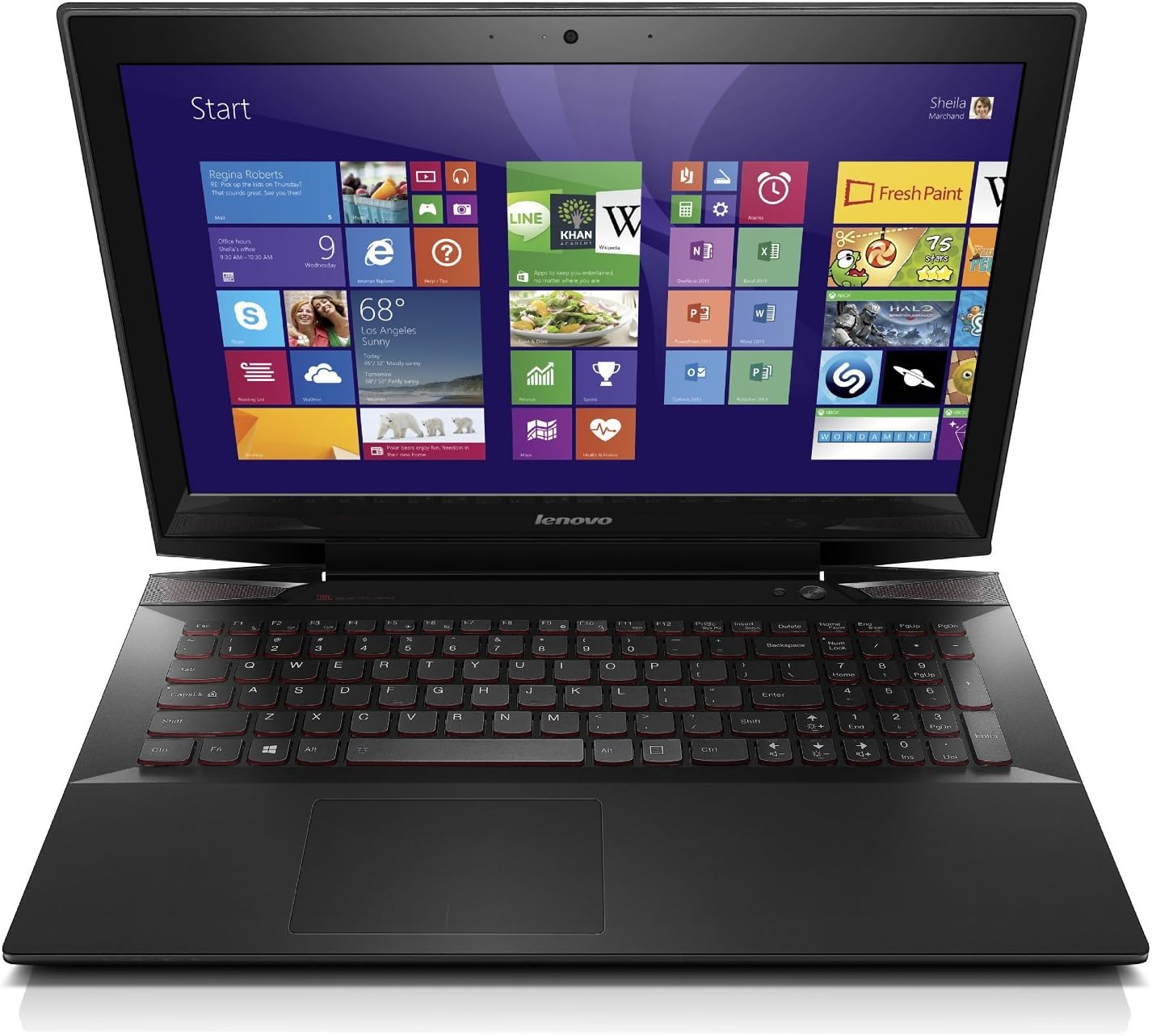
Figure 2: Side view of the Lenovo Y50 Laptop, showcasing its slim profile.
3.2 Keyboard and Touchpad
The laptop is equipped with a backlit AccuType keyboard, designed for comfortable and accurate typing. The touchpad supports multi-gesture controls.
3.3 Audio System
Experience enhanced audio with Dolby Advanced Audio and a built-in JBL subwoofer, providing clear and immersive sound for media consumption and gaming.
3.4 Ports and Connectivity
The Lenovo Y50 offers various ports for connectivity:
- 2 x USB 3.0 ports
- 1 x USB 2.0 port
- HDMI-out port
- SD Card Reader
- Combination Headphone/Microphone Jack
- Ethernet (LAN) port

Figure 3: Left side view of the Lenovo Y50, showing USB 3.0, HDMI, and Ethernet ports.

Figure 4: Right side view of the Lenovo Y50, showing USB 2.0, SD card reader, and audio jack.
3.5 Integrated Webcam and VeriFace
The integrated 720p HD webcam supports video conferencing and features VeriFace technology for facial recognition login, enhancing security and convenience.
3.6 Optical Drive
This model includes an external DVDRW optical drive for reading and writing CDs/DVDs. Connect it via a USB port when needed.
4. Maintenance
4.1 General Care
- Keep the laptop clean by wiping surfaces with a soft, dry cloth. Avoid harsh chemicals.
- Ensure ventilation openings are clear to prevent overheating.
- Avoid exposing the laptop to extreme temperatures, direct sunlight, or moisture.
4.2 Battery Management
The Lenovo Y50 has an average battery life of 4 hours. To maximize battery lifespan:
- Calibrate the battery periodically (fully discharge and recharge).
- Avoid leaving the laptop plugged in constantly once fully charged for extended periods.
- Store the laptop in a cool, dry place if not used for a long time, with the battery charged to about 50%.
4.3 Software Updates
Regularly check for and install Windows updates and Lenovo driver updates to ensure optimal performance and security.
5. Troubleshooting
5.1 Display Issues
If the screen does not display correctly or shows artifacts:
- Ensure the laptop is powered on and not in sleep mode.
- Connect an external monitor via the HDMI port to check if the issue persists on the external display. This can help determine if the problem is with the laptop's internal screen or the graphics card.
- Update your graphics drivers.
- Adjust display scaling settings in Windows, especially with the UHD resolution, as some applications may not scale correctly.
5.2 Wi-Fi Connectivity Problems
If you experience frequent Wi-Fi disconnections or inability to connect:
- Restart your laptop and your Wi-Fi router.
- Ensure your Wi-Fi drivers are up to date.
- Check for interference from other devices.
- If the issue persists, consider resetting network settings in Windows.
5.3 Touchpad Inaccuracy
If the touchpad is jumpy or imprecise:
- Ensure your hands are clean and dry when using the touchpad.
- Update the touchpad drivers from the Lenovo support website.
- Adjust touchpad sensitivity settings in Windows.
6. Specifications
| Feature | Detail |
|---|---|
| Processor | Intel Core i7-4700HQ 2.4 GHz |
| RAM | 16 GB DDR3 (1600 MHz) |
| Storage | 256 GB SSD (Serial ATA-600) |
| Display Size | 15.6 Inches |
| Screen Resolution | 3840 x 2160 pixels (UHD IPS) |
| Graphics Coprocessor | NVIDIA GeForce GTX 860M (2048 MB Dedicated) |
| Operating System | Windows 8.1 |
| Wireless Type | 802.11bgn |
| USB 3.0 Ports | 2 |
| USB 2.0 Ports | 1 |
| Optical Drive Type | External DVDRW |
| Average Battery Life | 4 Hours |
| Item Weight | 5.29 pounds |
| Product Dimensions | 10.37 x 0.94 x 15.24 inches |
| Color | Black |
| Special Feature | Backlit Keyboard |
7. Product Videos
Lenovo Y50 4K Overview
This video provides a brief overview of the Lenovo Y50 4K laptop, highlighting its key features and design.
8. Warranty and Support
For detailed warranty information, please refer to the warranty card included with your product or visit the official Lenovo support website.
For technical assistance, driver downloads, or service requests, please visit the Lenovo support portal or contact their customer service.
Lenovo Support Website: www.lenovo.com/support


