
1. Introduction
The Cooler Master CM Storm QuickFire Rapid-i is a mechanical gaming keyboard designed for performance and durability. It features full LED backlighting with ActivLite Technology, allowing for dynamic lighting effects and per-key customization. This keyboard is equipped with a 32-bit ARM processor for advanced lighting control without the need for software. Its tenkeyless form factor provides a compact design, ideal for gaming setups and travel.
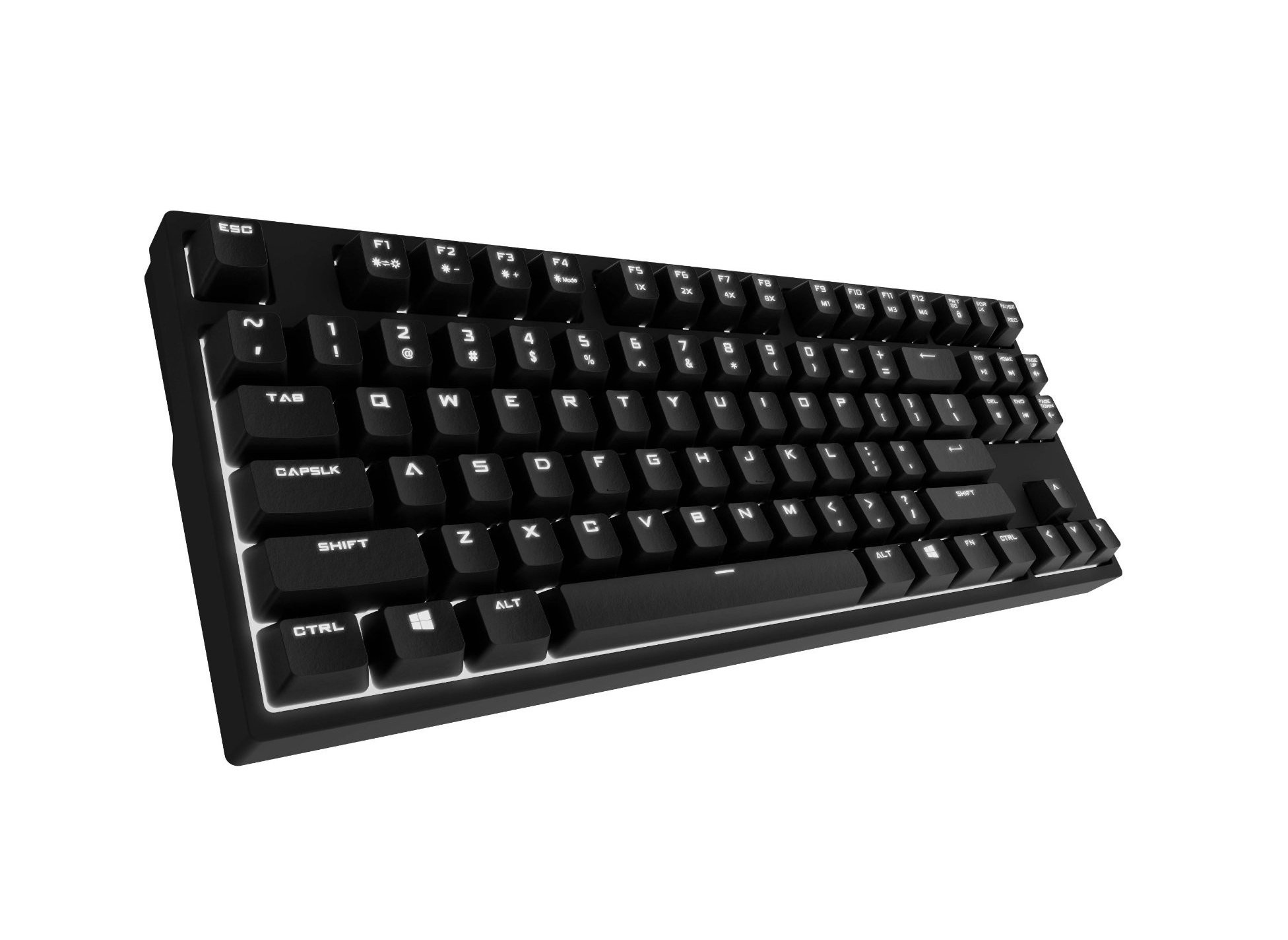
Image 1.1: Cooler Master CM Storm QuickFire Rapid-i Mechanical Gaming Keyboard.
2. Package Contents
Verify that all items are present in your package:
- Cooler Master CM Storm QuickFire Rapid-i Keyboard
- 1.8m Detachable Braided USB Cable
- User Manual (this document)
3. Product Features
- Fully Mechanical CHERRY MX Brown Keyswitches: Provides tactile feedback with low noise, optimized for gaming.
- Tenkeyless Form Factor: Compact and ergonomic design for portability and improved mouse positioning.
- Fully White LED Backlit: Ensures visibility in low-light environments.
- ActivLite Technology: Features instant response and trailing light effects, powered by a 32-bit ARM processor.
- Individual Key Lighting: Allows saving up to 4 different lighting profiles for various applications or games.
- 1.8m Detachable Braided Cable: Durable and convenient for transport.
- N-Key Rollover: Registers an unlimited number of simultaneous keypresses, preventing ghosting.
4. Setup
4.1 Connecting the Keyboard
- Locate the detachable 1.8m braided USB cable.
- Connect the micro-USB end of the cable to the port on the back of the QuickFire Rapid-i keyboard.
- Connect the standard USB-A end of the cable to an available USB port on your computer.
- The keyboard is plug-and-play compatible with Windows operating systems and should be recognized automatically.

Image 4.1: Connecting the detachable USB cable to the keyboard.
5. Operating Instructions
5.1 Basic Keyboard Functions
The QuickFire Rapid-i functions as a standard QWERTY keyboard. All keys perform their labeled actions. Special functions are typically accessed via the Function (Fn) key combined with other keys.
5.2 ActivLite Technology and LED Backlighting
The keyboard features fully white LED backlighting with ActivLite Technology, offering various lighting modes and effects. These effects are controlled directly from the keyboard using key combinations, without requiring software.
- Instant Response: Keys light up immediately upon press.
- Trailing Effect: Keys remain lit for a short duration after being pressed, creating a trailing light effect.
- Brightness Adjustment: Use Fn + F1 (decrease brightness) and Fn + F2 (increase brightness) to adjust the LED intensity.
- Lighting Modes: Cycle through various pre-programmed lighting modes using Fn + F3 to Fn + F8. Refer to the keyboard's keycap legends for specific mode indicators.

Image 5.1: Example of LED backlighting on the QuickFire Rapid-i.
5.3 Per-Key Lighting and Profiles
The QuickFire Rapid-i allows users to customize individual key lighting and save up to 4 different profiles directly on the keyboard's onboard memory.
- Entering Customization Mode: Press Fn + F9 to enter the per-key lighting customization mode. The keyboard LEDs may flash to indicate this mode.
- Selecting Keys: Press any key you wish to toggle its LED on or off.
- Saving a Profile: Once your desired lighting pattern is set, press Fn + F10, Fn + F11, Fn + F12, or Fn + Print Screen to save the current lighting pattern to one of the four available profiles. The keyboard will confirm the save.
- Loading a Profile: To load a saved profile, simply press Fn + F10, Fn + F11, Fn + F12, or Fn + Print Screen corresponding to the desired profile.
- Exiting Customization Mode: Press Fn + F9 again to exit customization mode.

Image 5.2: Customizing individual key lighting for a personalized profile.
5.4 N-Key Rollover (NKRO)
The QuickFire Rapid-i supports N-Key Rollover, meaning every single keypress is registered accurately, regardless of how many keys are pressed simultaneously. This feature is crucial for fast-paced gaming where multiple commands might be executed at once.
6. Maintenance
6.1 Cleaning the Keyboard
- Disconnect the keyboard from your computer before cleaning.
- Use a soft, lint-free cloth slightly dampened with water or a mild cleaning solution to wipe the keycaps and chassis.
- Avoid spraying liquids directly onto the keyboard.
- For dust and debris between keys, use compressed air.
- Do not use harsh chemicals, abrasives, or solvents as they may damage the keyboard's finish or keycap legends.
6.2 Cable Care
- Avoid sharp bends or kinks in the detachable braided cable.
- When disconnecting, pull from the connector head, not the cable itself.
7. Troubleshooting
7.1 Keyboard Not Responding
- Ensure the USB cable is securely connected to both the keyboard and the computer.
- Try connecting the keyboard to a different USB port on your computer.
- Test the keyboard on another computer to rule out a system-specific issue.
- Restart your computer.
7.2 LED Backlighting Not Working or Flickering
- Check if the brightness is set to minimum using Fn + F1. Increase brightness with Fn + F2.
- Cycle through lighting modes using Fn + F3 to Fn + F8 to see if other modes function.
- Ensure you are not in a custom profile with all LEDs turned off. Try loading a different profile or resetting the lighting.
- Disconnect and reconnect the keyboard.
7.3 Keys Not Registering Correctly (Ghosting)
- The QuickFire Rapid-i features N-Key Rollover, which should prevent ghosting. If you experience this, ensure the keyboard is connected directly to a USB port on your computer, not through a hub.
- Clean the affected keys as described in the Maintenance section.
- If the issue persists, contact Cooler Master support.
8. Specifications
| Brand | Cooler Master |
| Model Name | SGK-4040-GKCB1 (CHERRY MX Brown switch) |
| Model Number | SGK-4040-GKCM1-US |
| Switch Type | CHERRY MX Brown (Tactile) |
| Connectivity Technology | Wired (Detachable USB Cable) |
| Keyboard Layout | QWERTY, Tenkeyless Form Factor |
| Backlighting | Fully White LED, ActivLite Technology, Per-Key Lighting |
| Processor | 32-bit ARM Processor |
| N-Key Rollover | Supported |
| Cable Length | 1.8 meters (Braided, Detachable) |
| Compatible Operating System | Windows |
| Product Dimensions (L x W x H) | 14.13" x 5.43" x 1.54" (35.89cm x 13.79cm x 3.91cm) |
| Item Weight | 2.05 Pounds (0.93 kg) |
| Enclosure Material | Plastic |
9. Warranty and Support
9.1 Warranty Information
The Cooler Master CM Storm QuickFire Rapid-i Mechanical Gaming Keyboard comes with a 12-month warranty from the date of purchase. This warranty covers manufacturing defects and issues arising from normal use. It does not cover damage caused by misuse, accidents, unauthorized modifications, or improper maintenance.
Please retain your proof of purchase for warranty claims.
9.2 Technical Support
For technical assistance, troubleshooting beyond this manual, or warranty inquiries, please visit the official Cooler Master support website or contact their customer service department. Contact information can typically be found on the Cooler Master official website.
Note: Product specifications and warranty terms are subject to change without prior notice.


