
Nixplay W18A
Nixplay Original 18 Inch Digital WiFi Photo Frame W18A User Manual
Model: W18A
Introduction
This manual provides comprehensive instructions for the setup, operation, maintenance, and troubleshooting of your Nixplay Original 18 Inch Digital WiFi Photo Frame, Model W18A. Please read this manual thoroughly before using your device to ensure optimal performance and longevity.

Image: Front view of the Nixplay Original 18 Inch Digital WiFi Photo Frame, showcasing a vibrant image of a family.
What's in the Box
Upon unboxing your Nixplay Digital Photo Frame, verify that all components are present:
- Digital Photo Frame (Nixplay Original 18 Inch)
- Power Adapter
- Remote Control
- Stand

Image: Angled view of the Nixplay Original 18 Inch Digital WiFi Photo Frame, highlighting its slim profile and display.
Setup
1. Attaching the Stand
Locate the circular stand. Align the stand with the mounting point on the back of the frame. Insert and rotate the stand until it securely locks into place. This stand allows for both landscape and portrait orientation.
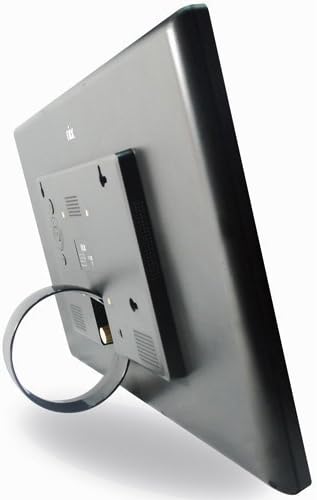
Image: Rear view of the Nixplay Digital Photo Frame, illustrating the attachment point for the circular stand.
2. Powering On the Frame
- Connect the power adapter to the DC IN port on the back of the frame.
- Plug the power adapter into a wall outlet.
- The frame will automatically power on and display the Nixplay logo.
3. Initial Wi-Fi Connection
Follow the on-screen prompts to connect your frame to a Wi-Fi network. You will need your Wi-Fi network name (SSID) and password. Use the remote control to navigate the on-screen keyboard.
4. Creating a Nixplay Account
To manage your frame and upload photos, you will need to create a Nixplay account. This can be done via the Nixplay mobile app (available for iOS and Android) or through the Nixplay website. Follow the instructions provided by the app or website to link your frame to your account.
Operating the Frame
Uploading Photos and Videos
Photos and videos can be uploaded to your Nixplay frame through several methods:
- Nixplay Mobile App: Easily upload photos and short videos directly from your smartphone.
- Email: Each Nixplay frame has a unique email address. Send photos directly to your frame via email.
- Nixplay Website: Access your account online to upload, organize, and manage playlists. Integration with Google Photos, Dropbox, Facebook, and Instagram is supported.
- USB Drive / SD Card: The frame supports local playback from USB drives and SD cards. Insert the storage device into the corresponding port on the frame.
Managing Playlists
Organize your content into playlists using the Nixplay app or website. You can assign specific playlists to display on your frame. Multiple playlists can be active simultaneously, and you can switch between them using the remote control.
Motion Sensor Functionality
The Nixplay W18A features a motion sensor that automatically turns the frame on when motion is detected and off when no motion is detected for a set period. This feature helps conserve energy. You can enable or disable this function and adjust its sensitivity through the frame's settings menu or the Nixplay app.

Image: The Nixplay Digital Photo Frame seamlessly integrated into a home environment, placed on a shelf.
Using the Remote Control
The included remote control allows you to navigate menus, adjust settings, switch playlists, and control playback. Ensure the remote is pointed towards the sensor on the frame for proper operation.
Maintenance
Cleaning the Frame
To clean the screen, gently wipe it with a soft, lint-free cloth. For stubborn smudges, slightly dampen the cloth with water or a screen-safe cleaning solution. Avoid using harsh chemicals or abrasive materials. Clean the frame's body with a dry, soft cloth.
Software Updates
Nixplay regularly releases software updates to improve performance and add new features. Ensure your frame is connected to Wi-Fi to receive these updates automatically. You can check for updates manually through the frame's settings menu.
Troubleshooting
| Problem | Possible Cause | Solution |
|---|---|---|
| Frame does not power on. | Power adapter not connected or faulty outlet. | Ensure the power adapter is securely connected to the frame and a working power outlet. Try a different outlet. |
| Cannot connect to Wi-Fi. | Incorrect password, weak signal, or network issue. | Double-check the Wi-Fi password. Move the frame closer to the router. Restart your router. |
| Photos are not displaying. | No photos uploaded, incorrect playlist selected, or network issue. | Verify photos are uploaded to your Nixplay account and assigned to an active playlist. Ensure the frame is connected to Wi-Fi. |
| Remote control not working. | Low battery or obstructed sensor. | Replace the remote control battery (1 Lithium Metal battery required). Ensure no obstructions between the remote and the frame's sensor. |
Specifications
- Model: W18A
- Screen Size: 18.5 Inches
- Resolution: 720p
- Product Dimensions: 18.39 x 1.3 x 11.42 inches
- Item Weight: 6.17 pounds
- Compatible Devices: Smartphone (via Nixplay App)
- Connectivity: Wi-Fi
- Storage: 10GB Online Storage (with Nixplay account), supports USB Drive and SD Card
- Features: Motion Sensor
- Power: AC Power Adapter
- Remote Battery: 1 Lithium Metal battery (required for remote)

Image: Technical diagram illustrating the precise dimensions of the Nixplay Digital Photo Frame.
Warranty and Support
Warranty Information
For detailed warranty information regarding your Nixplay Original 18 Inch Digital WiFi Photo Frame, please refer to the warranty card included with your product or visit the official Nixplay website. Warranty terms and conditions may vary by region.
Customer Support
Should you encounter any issues not covered in this manual or require further assistance, please contact Nixplay Customer Service. Support resources, including FAQs and contact information, are available on the official Nixplay website:
Related documentsW18A


Ask a question about this manual
Ask about setup, troubleshooting, compatibility, parts, safety, or missing instructions. Manuals+ will review the question and use this page’s manual context to help answer it.