
1. Introduction
1.1 Product Overview
The CELLULARLINE Interphone F5MC is a advanced Bluetooth communication system designed for motorcycle helmets. It provides hands-free communication, music streaming, and GPS navigation audio, compatible with both open and closed helmets. This device features a new microchip for enhanced performance and offers robust functionality for riders.
1.2 Key Features
- Bluetooth Connectivity for wireless communication.
- Integrated Microphone for clear audio transmission.
- Waterproof design for use in various weather conditions.
- Touch control method for intuitive operation.
- Compatible with smartphones, tablets, and car audio systems.
- Designed for motorcycle riding applications.
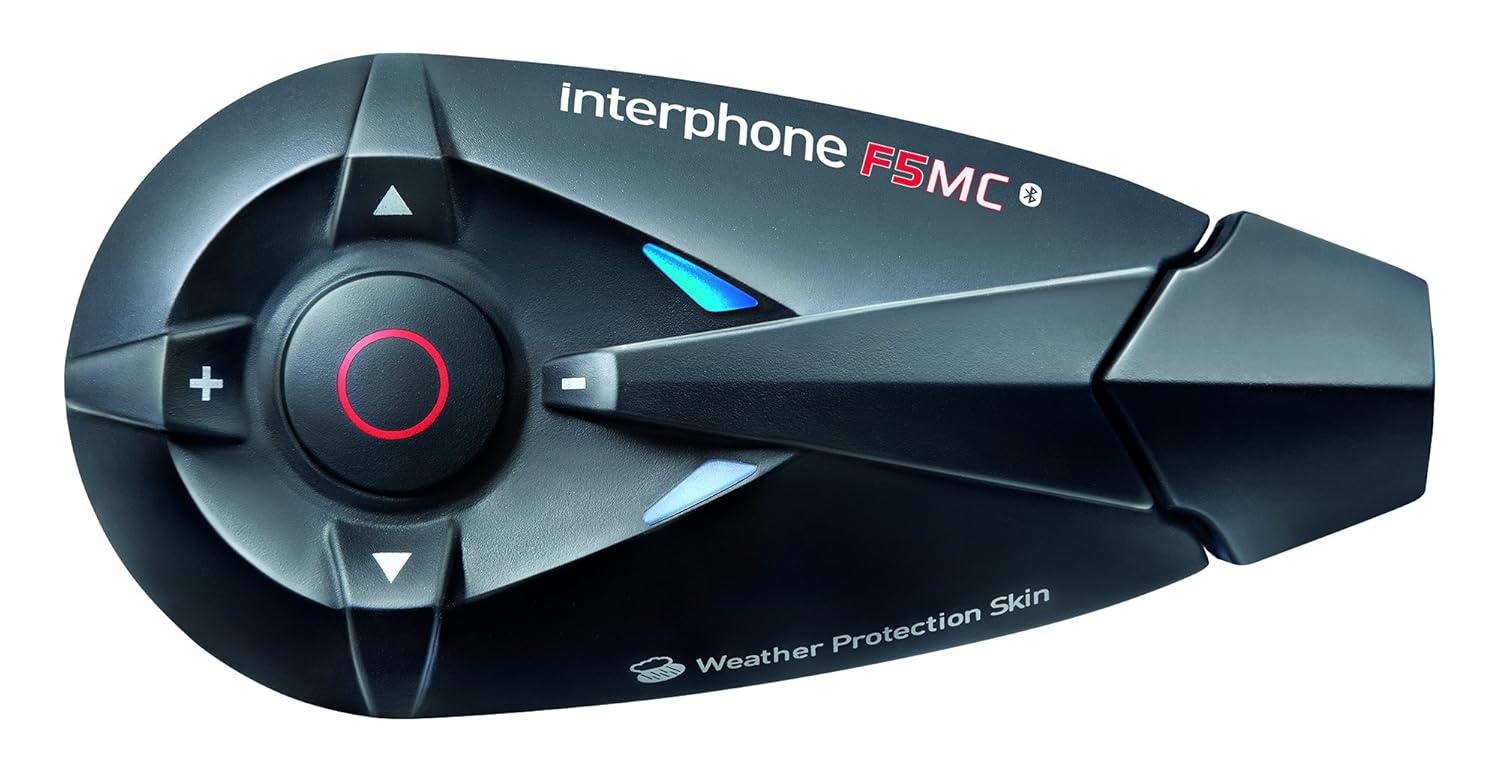
Figure 1.1: The Interphone F5MC Bluetooth Headset. This image displays the main unit of the Interphone F5MC, highlighting its ergonomic design and control buttons, including the central multifunction button and volume controls.
2. Package Contents
The Interphone F5MC package typically includes the following components:
- Interphone F5MC Main Unit(s)
- Ear Cushions / Speakers
- Microphone for full-face helmet
- Microphone for jet helmet
- DC Power Charging & Music Line In Cable
- Mounting Brackets (clip and adhesive options)
- USB Charging Cable

Figure 2.1: Interphone F5MC Product Packaging. This image shows the retail box for the Interphone F5MC, indicating it is a dual unit package suitable for two helmets, highlighting features like multi-user conference and long distance communication.

Figure 2.2: Interphone F5MC Component Diagram. This diagram illustrates the various components included with the Interphone F5MC system, such as the main unit, different microphone types (for full-face and jet helmets), speakers, and charging/audio cables, along with their connections.
3. Setup
3.1 Charging the Unit
- Connect the DC power charging cable to the charging port on the Interphone F5MC unit.
- Plug the other end of the cable into a suitable USB power source (e.g., computer USB port, USB wall adapter).
- The status LED will indicate charging status. A full charge is recommended before first use.
3.2 Mounting the Unit to a Helmet
- Choose between the clip mount or adhesive mount option based on your helmet type and preference.
- Securely attach the chosen mounting bracket to the side of your helmet. Ensure it is positioned where the unit will not obstruct vision or movement.
- Slide the Interphone F5MC main unit onto the mounted bracket until it clicks into place.
3.3 Microphone and Speaker Installation
- Select the appropriate microphone for your helmet type (full-face or jet).
- Attach the speakers inside the helmet, aligning them with your ears for optimal audio. Use the provided adhesive pads if necessary.
- Position the microphone close to your mouth, ensuring it is not directly in the path of wind noise.
- Connect the speaker and microphone cables to the corresponding ports on the Interphone F5MC main unit. Refer to Figure 2.2 for connection details.
3.4 Initial Bluetooth Pairing
- Ensure the Interphone F5MC unit is powered off.
- Press and hold the Multi-Function Button (MFB) until the status LED flashes rapidly, indicating pairing mode.
- On your smartphone or other Bluetooth device, enable Bluetooth and search for available devices.
- Select "Interphone F5MC" from the list of found devices.
- If prompted, enter the PIN code (usually "0000").
- Once paired, the status LED will change to a slow flash or solid blue, depending on the unit's status.
4. Operating Instructions
4.1 Power On/Off
- To Power On: Press and hold the MFB for approximately 3 seconds until you hear an audible tone and the LED illuminates.
- To Power Off: Press and hold the MFB for approximately 5 seconds until you hear a descending tone and the LED turns off.
4.2 Intercom Communication
The F5MC supports multi-user intercom communication. Refer to the full manual for detailed pairing instructions for multiple units.
- Initiate Intercom: Briefly press the Intercom button (specific button may vary, refer to unit's markings).
- End Intercom: Briefly press the Intercom button again.
4.3 Phone Calls
- Answer Call: Briefly press the MFB.
- End Call: Briefly press the MFB.
- Reject Call: Press and hold the MFB for 2 seconds.
- Voice Dial: With the unit in standby, briefly press the MFB twice to activate your phone's voice assistant (if supported).
4.4 Music Playback
Ensure your Interphone F5MC is paired with a music source (e.g., smartphone).
- Play/Pause: Briefly press the MFB.
- Next Track: Press the 'Volume Up' button for 2 seconds.
- Previous Track: Press the 'Volume Down' button for 2 seconds.
- Volume Adjustment: Briefly press the 'Volume Up' or 'Volume Down' buttons.
4.5 FM Radio
- Turn On/Off Radio: Press a dedicated FM button or a combination of buttons (refer to specific unit markings).
- Scan Stations: Press and hold the 'Volume Up' or 'Volume Down' buttons to scan for the next/previous station.
5. Maintenance
5.1 Cleaning
- Wipe the unit with a soft, damp cloth. Do not use harsh chemicals or abrasive cleaners.
- Ensure all ports are dry before charging or connecting accessories.
5.2 Storage
- Store the unit in a cool, dry place away from direct sunlight and extreme temperatures.
- If storing for an extended period, charge the battery to approximately 50% every few months to preserve battery life.
5.3 Battery Care
- Avoid fully discharging the battery frequently.
- Use only the provided charging cable and compatible power sources.
6. Troubleshooting
6.1 No Power
- Ensure the unit is fully charged. Connect it to a power source and check the charging indicator.
- Verify that the power button is being pressed and held for the correct duration (approximately 3 seconds).
6.2 No Audio
- Check that the speakers are correctly connected to the main unit and properly positioned inside the helmet.
- Ensure the volume is not set to minimum. Adjust using the volume buttons.
- Verify that the unit is successfully paired with your audio source (e.g., smartphone).
6.3 Pairing Issues
- Ensure both devices are in pairing mode and within close proximity.
- Turn off and restart both the Interphone F5MC and the device you are trying to pair.
- Clear previous Bluetooth pairings from both devices and attempt to pair again.
6.4 Intercom Disconnection
- Ensure units are within the specified intercom range and have a clear line of sight.
- Check for potential interference from other electronic devices.
- Attempt to re-establish the intercom connection by briefly pressing the intercom button.
7. Specifications
| Feature | Detail |
|---|---|
| Model Name | INTERPHONEF5MCTP |
| Connectivity Technology | Bluetooth |
| Wireless Communication Technology | Bluetooth |
| Included Components | Ear Cushions, Microphones |
| Material | Plastic |
| Specific Uses For Product | Motorcycle Riding |
| Compatible Devices | Smartphones, Tablets, Car Audio Systems |
| Water Resistance Level | Waterproof |
| Control Method | Touch |
| Manufacturer | CELLULARLINE |
| Product Dimensions | 8.99 x 4.5 x 2.01 cm |
| Item Weight | 54.4 g (0.12 Pounds) |
| Batteries | 1 Lithium Polymer battery (included) |
| Special Features | Microphone Included |
| Colour | Black |
| Ear Placement | Open Ear |
| Form Factor | Over Ear |
8. Warranty and Support
For warranty information, technical support, or service inquiries, please refer to the documentation provided with your purchase or contact CELLULARLINE customer service directly. Details regarding warranty periods and support procedures are typically available on the manufacturer's official website or through your retailer.
