
Vivitar Micro SD Card Reader / Writer
Vivitar Micro SD Card Reader/Writer
User Manual
1. Product Overview
The Vivitar Micro SD Card Reader/Writer is a compact device designed for convenient data transfer between Micro SD cards and computers or other compatible devices. It allows users to read data from and write data to Micro SD cards, facilitating easy management of photos, videos, documents, and other files.
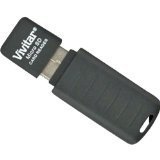
Figure 1: Vivitar Micro SD Card Reader/Writer. This image displays the compact black device, highlighting its USB connector on one end and the slot for inserting a Micro SD card on the side.
2. Setup
- Insert Micro SD Card: Gently insert your Micro SD card into the designated slot on the Vivitar card reader. Ensure the card is inserted with the gold contacts facing down (or as indicated by a small icon on the reader) until it clicks into place. Do not force the card.
- Connect to Device: Plug the USB connector of the card reader into an available USB port on your computer, laptop, or other compatible device.
- Driver Installation (if necessary): Most modern operating systems (Windows, macOS, Linux) will automatically detect and install the necessary drivers for the card reader. If prompted, follow the on-screen instructions. No additional software is typically required.
3. Operating Instructions
3.1 Accessing Data
- Once connected, your computer should recognize the Micro SD card as a removable storage device (e.g., "Removable Disk" or a drive letter like E: or F:).
- Open "This PC" (Windows) or "Finder" (macOS) and locate the newly appeared drive.
- Double-click the drive icon to access the files stored on your Micro SD card.
3.2 Transferring Files
- To copy files from the card to your computer: Drag and drop the desired files from the card's drive to a folder on your computer. Alternatively, right-click the files, select "Copy," navigate to your desired destination, right-click, and select "Paste."
- To copy files from your computer to the card: Drag and drop the desired files from your computer's folder to the card's drive. Alternatively, right-click the files, select "Copy," navigate to the card's drive, right-click, and select "Paste."
3.3 Safely Removing the Device
Before physically disconnecting the card reader from your computer, always safely eject it to prevent data corruption.
- Windows: Click the "Safely Remove Hardware and Eject Media" icon in the system tray (bottom-right corner), then select the Vivitar card reader. Wait for the "Safe to Remove Hardware" message.
- macOS: Drag the drive icon of the Micro SD card to the Trash, or right-click the drive icon and select "Eject."
4. Maintenance
- Cleaning: Use a soft, dry, lint-free cloth to clean the exterior of the card reader. Do not use liquid cleaners or solvents. Ensure no dust or debris enters the card slot or USB connector.
- Storage: Store the card reader in a cool, dry place away from direct sunlight, extreme temperatures, and high humidity. Keep it protected from physical impact.
- Handling: Avoid bending or applying excessive force to the USB connector or the card slot.
5. Troubleshooting
- Card Reader Not Detected:
- Try plugging the card reader into a different USB port on your computer.
- Ensure the Micro SD card is fully and correctly inserted into the reader.
- Restart your computer.
- Check if the USB port is functional by connecting another USB device.
- Micro SD Card Not Recognized:
- Ensure the card is not damaged or corrupted. Try the card in another device if possible.
- Verify the card is inserted correctly.
- Check if the card reader itself is detected by the computer.
- Slow Data Transfer:
- Ensure you are using a USB 2.0 or higher port for optimal speed (the device supports up to 480 Mbps).
- The speed of the Micro SD card itself can affect transfer rates.
- Avoid running multiple demanding applications during large file transfers.
- "Write Protected" Error:
- Some Micro SD cards or adapters have a physical write-protect switch. Ensure it is in the "unlocked" position.
6. Specifications
| Brand | Vivitar |
| Model | Micro SD Card Reader/Writer |
| Media Type | MicroSD |
| Hardware Interface | MicroSD (USB 2.0 compatible) |
| Data Transfer Rate | Up to 480 megabits per second (Mbps) |
| Compatible Devices | Computers, Laptops, and other devices with a USB port. |
| UPC | 681066875421 |
| ASIN | B00IO2NZ9O |
7. Warranty and Support
For information regarding warranty coverage, technical support, or service inquiries for your Vivitar Micro SD Card Reader/Writer, please refer to the warranty card included with your purchase or visit the official Vivitar website. Contact details for customer support are typically available on the product packaging or the manufacturer's website.
Related documentsMicro SD Card Reader / Writer


Ask a question about this manual
Ask about setup, troubleshooting, compatibility, parts, safety, or missing instructions. Manuals+ will review the question and use this page’s manual context to help answer it.