
Introduction
Welcome to the user manual for your Kurzweil CUP2 Digital Piano. This instrument combines advanced sound technology with a classic furniture design, offering a rich musical experience. The CUP2 features 88 sounds derived from the acclaimed PC3 series, including the renowned Triple Strike Grand Piano, a variety of orchestral sounds, electric pianos, drums, bass, guitars, and synthesizers. This manual will guide you through the setup, operation, and maintenance of your digital piano to ensure optimal performance and longevity.

Figure 1: Front view of the Kurzweil CUP2 Digital Piano, showcasing its elegant pearl white finish and 88-key keyboard.
Setup
1. Unpacking and Placement
Carefully unpack all components from the packaging. Due to the instrument's weight and size (approximately 97.07 kg / 214 lbs and 142.24 x 41.91 x 106.68 cm), it is recommended to have at least two people for unpacking and assembly. Place the piano on a stable, level surface, ensuring adequate space around it for comfortable playing and access to connections.
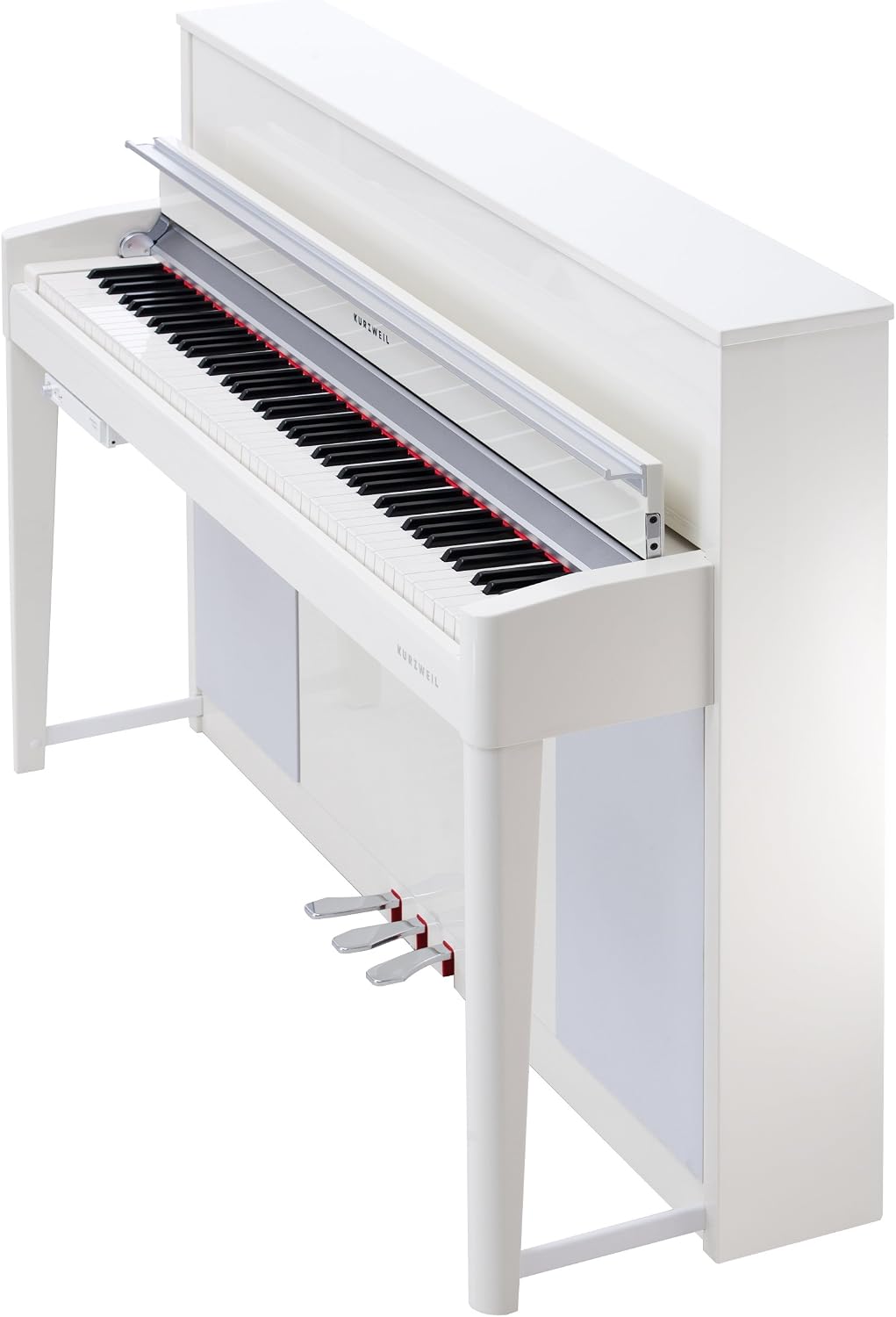
Figure 2: Side view of the Kurzweil CUP2, illustrating its robust construction and integrated pedal system.
2. Assembly (if required)
If your CUP2 arrived in disassembled form, follow these general steps. Specific instructions for assembly are typically provided in a separate quick-start guide or diagram included with the product. Ensure all screws and fasteners are securely tightened before use.
- Attach the side panels to the main keyboard unit.
- Secure the pedal unit to the base structure.
- Install the back panel and any other structural supports.
- Carefully place the keyboard lid.
3. Connections
Before connecting to power, ensure all audio and data cables are properly attached.
- Power: Connect the power adapter to the DC IN jack on the rear panel and then to a suitable power outlet. The product specifications indicate "Battery powered," which may refer to internal memory or specific low-power functions. For primary operation, an AC adapter is typically used.
- Pedals: The integrated pedal unit is pre-connected or connects via a dedicated cable to the rear panel.
- Headphones: For private practice, connect standard stereo headphones to the headphone jacks located on the front control panel.
- Audio Output: Use the L/MONO and R audio output jacks on the rear panel to connect to external amplifiers, mixers, or recording equipment.
- USB: Connect the USB-B port on the rear panel to a computer for MIDI data transfer or audio interface functionality.

Figure 3: Detailed view of the rear panel connections, including USB, audio outputs, and pedal input.
Operating Instructions
1. Power On/Off and Volume
Locate the power button, typically near the control panel. Press it to turn the instrument on. Adjust the master volume using the dedicated volume knob on the control panel to a comfortable listening level.

Figure 4: The control panel of the CUP2, featuring the volume knob, headphone jacks, and various function buttons.
2. Sound Selection
The CUP2 offers a wide array of sounds. Use the dedicated buttons on the control panel to navigate through different instrument categories and select your desired voice. A dedicated "Grand Piano" button provides immediate access to the primary acoustic piano sound.
- Grand Piano: Press the "Piano" button for the flagship Triple Strike Grand Piano sound.
- Other Voices: Use the "Voice" buttons or navigation controls to browse through orchestral, electric piano, string, and synthesizer sounds.

Figure 5: The 88-key keyboard, designed for an authentic playing experience.
3. Rhythm Box
The CUP2 includes a rhythm box feature. Refer to the control panel for "Rhythm" or "Beat" buttons. These allow you to select various rhythmic patterns to accompany your playing, aiding in practice and performance.
4. Connectivity Features
- USB MIDI/Audio: Connect the CUP2 to a computer via the USB port to use it as a MIDI controller for software instruments or to send/receive audio data.
- Pedals: The three pedals (Sustain, Sostenuto, Soft) function as on an acoustic piano, providing expressive control over your sound.
Maintenance
Proper maintenance ensures the longevity and optimal performance of your Kurzweil CUP2 Digital Piano.
- Cleaning: Use a soft, dry cloth to wipe down the piano's surface. For stubborn marks, a slightly damp cloth with mild soap can be used, followed by a dry cloth. Avoid abrasive cleaners or solvents.
- Dust Protection: When not in use, cover the keyboard with a dust cover to prevent dust accumulation, which can affect key action and internal components.
- Environment: Keep the piano away from direct sunlight, extreme temperatures, and high humidity. These conditions can damage the finish and internal electronics.
- Moving: If moving the piano, ensure it is properly disassembled or handled by professionals to prevent damage due to its weight and delicate components.
Troubleshooting
If you encounter issues with your CUP2, consult the following common troubleshooting steps:
- No Sound:
- Check if the power is on and the volume knob is turned up.
- Ensure headphones are not plugged in if you expect sound from the internal speakers.
- Verify external audio connections if using an amplifier or mixer.
- Keys Not Responding:
- Restart the piano.
- Ensure no foreign objects are lodged between the keys.
- Pedals Not Working:
- Check the pedal unit connection to the main unit.
- Ensure the piano is powered on.
- USB Connectivity Issues:
- Ensure the USB cable is securely connected to both the piano and the computer.
- Install any necessary drivers for your operating system (check Kurzweil's support website).
- Try a different USB port or cable.
If problems persist, contact Kurzweil customer support for further assistance.
Specifications
| Feature | Detail |
|---|---|
| Brand | Kurzweil |
| Model Number | AMS-CUP2-PW |
| Number of Keys | 88 |
| Dimensions (L x W x H) | 142.24 x 41.91 x 106.68 cm (56 x 16.5 x 42 inches) |
| Weight | 97.07 kg (214 lbs) |
| Color | Pearl White |
| Connectivity | USB |
| Power Source | Battery powered (Note: Typically uses AC adapter for primary operation) |
| UPC | 883793806376 |
Warranty and Support
For detailed warranty information, please refer to the warranty card included with your product or visit the official Kurzweil website. For technical support, product registration, or to download the latest drivers and software, please visit the Kurzweil support portal or contact their customer service department.
Manufacturer: Kurzweil


