
Introduction
This manual provides detailed instructions for the safe and efficient operation of your Ozeri 360 Oscillation Micro-Blade Noise Reduction Technology Tower Fan, Model OZF5. Please read all instructions carefully before use and retain this manual for future reference.
Safety Information
To reduce the risk of fire, electric shock, or injury, always follow these basic safety precautions:
- Ensure the fan is placed on a stable, level surface to prevent tipping.
- Do not insert fingers or foreign objects into any openings of the fan.
- Keep the fan away from water or moist areas.
- Unplug the fan from the power outlet before cleaning or performing any maintenance.
- Do not operate the fan with a damaged cord or plug.
- This appliance is for indoor use only.
Package Contents
Verify that all components are present:
- Ozeri 360 Oscillation Tower Fan Unit
- Fan Base (2 halves)
- Remote Control
- Screws for Base Assembly (3 pieces)
- User Manual
Setup
Follow these steps to assemble your Ozeri Tower Fan:
- Carefully remove all packaging materials from the fan unit and its components.
- Connect the two halves of the fan base. Ensure they fit together securely.
- Align the assembled base with the bottom of the fan unit.
- Secure the base to the fan unit using the 3 provided screws. Hand assembly is sufficient; no special tools are required.
- Place the fan on a firm, level surface.
- Plug the power cord into a standard electrical outlet.
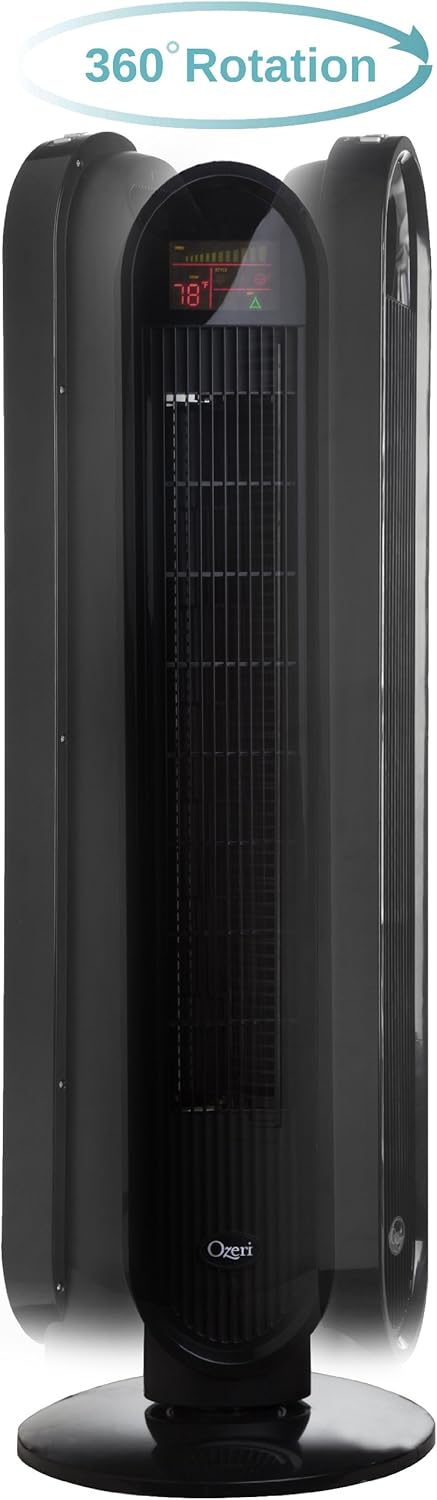
Operating Instructions
Your Ozeri Tower Fan can be operated using the control panel on top of the unit or the included remote control.
Control Panel Functions:

- Power Button: Turns the fan On or Off.
- Speed Button: Cycles through 3 whisper-quiet speed settings. The LCD display will show the current speed level.
- Mode Button: Selects between 3 preprogrammed airflow patterns (e.g., normal, natural, sleep).
- Oscillation (OSC) Button: Activates or deactivates the oscillation feature. You can select oscillation angles of 60, 90, 120, or 360 degrees for partial to complete air circulation.
- Timer Button: Sets the 8-hour programmable timer in 30-minute increments.
- Auto Button: Engages the auto mode, which adjusts fan speed based on room temperature.
LCD Display:

The multi-colored LCD displays all active fan functions and the current room temperature, allowing for easy monitoring and control.
Remote Control:
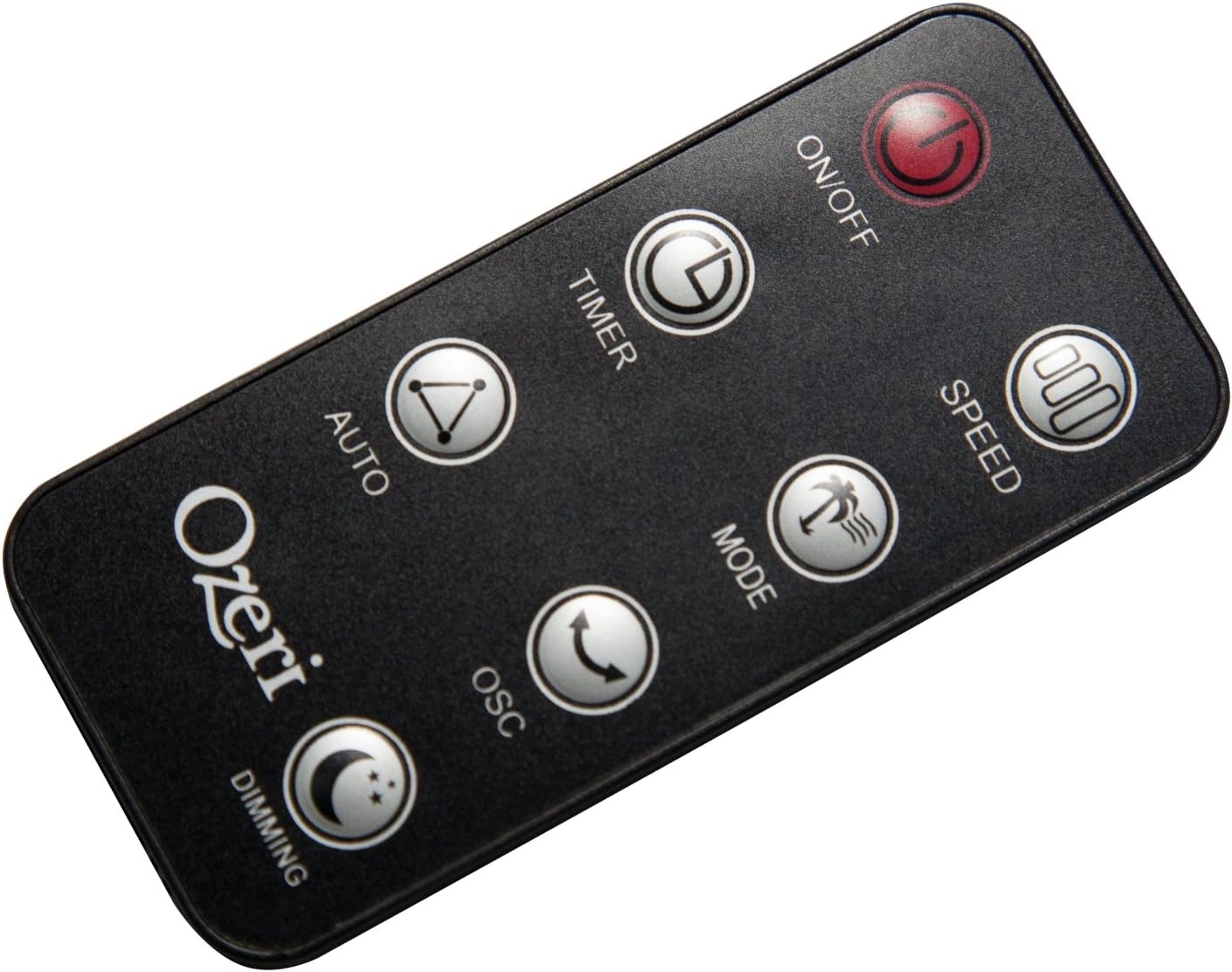
The extended-range remote control provides convenient access to all fan features from a distance. It includes buttons for On/Off, Speed, Timer, Mode, Auto, Oscillation, and Dimming (for the LCD display). The remote can be stored in a dedicated slot on the fan unit.

Official Product Video:
Video: This official product video demonstrates the Ozeri 360 Oscillation Tower Fan, highlighting its micro-blade noise reduction technology and various features.
Maintenance
Regular cleaning ensures optimal performance and longevity of your fan:
- Always unplug the fan before cleaning.
- Use a soft, damp cloth to wipe the exterior surfaces. Do not use abrasive cleaners or solvents.
- Use a vacuum cleaner with a brush attachment to gently remove dust from the air intake and exhaust grilles.
- Do not immerse the fan in water or allow water to drip into the motor housing.
- Store the fan in a cool, dry place when not in use.
Troubleshooting
If you encounter issues with your fan, refer to the following common problems and solutions:
- Fan does not turn on: Ensure the power cord is securely plugged into a working outlet. Check if the power button on the fan or remote has been pressed.
- Weak airflow: Check the fan speed setting and increase it if necessary. Ensure the air intake and exhaust grilles are not obstructed by dust or other objects.
- Fan makes unusual noise: Turn off and unplug the fan. Inspect for any foreign objects caught in the grilles or internal components. If the noise persists after clearing any obstructions, contact customer support.
- Remote control not working: Ensure the remote control batteries are correctly installed and not depleted. Point the remote directly at the fan's receiver.
Specifications
| Feature | Detail |
|---|---|
| Brand | Ozeri |
| Model Number | OZF5 |
| Color | Black |
| Electric Fan Design | Floor Fan |
| Power Source | Corded Electric |
| Special Feature | Oscillating (60, 90, 120, 360 degrees) |
| Number of Speeds | 3 |
| Wattage | 60 watts |
| Air Flow Capacity | 5000 Cubic Feet Per Minute |
| Voltage | 127 Volts |
| Control Method | Remote Control, Electronic Touch Controls |
| Material | Plastic |
| Item Weight | 9 Pounds |
Warranty and Support
This Ozeri Tower Fan comes with a 1-year no questions asked warranty. For warranty claims, technical support, or any inquiries, please refer to the contact information provided on the Ozeri official website or your purchase documentation.


