
1. Introduction
Thank you for purchasing the Gembird MHS-001-GW Stereo Headset. This manual provides essential information for the proper setup, operation, and maintenance of your headset. Please read these instructions carefully before use to ensure optimal performance and longevity of your product.
2. Product Overview
The Gembird MHS-001-GW is a stereo headset designed for clear audio and communication, suitable for music and VoIP applications. It features comfortable ear cups and an adjustable microphone.
Key Features:
- Stereo headset with adjustable microphone boom
- Convenient in-line control unit for microphone, volume, and mute functions
- Large, comfortable ear cups and an adjustable headband
- Clear and powerful sound reproduction
Components:
- Adjustable Headband
- Padded Ear Cups
- Adjustable Microphone Boom
- In-line Control Unit (Volume, Mute)
- 3.5mm Audio Connector
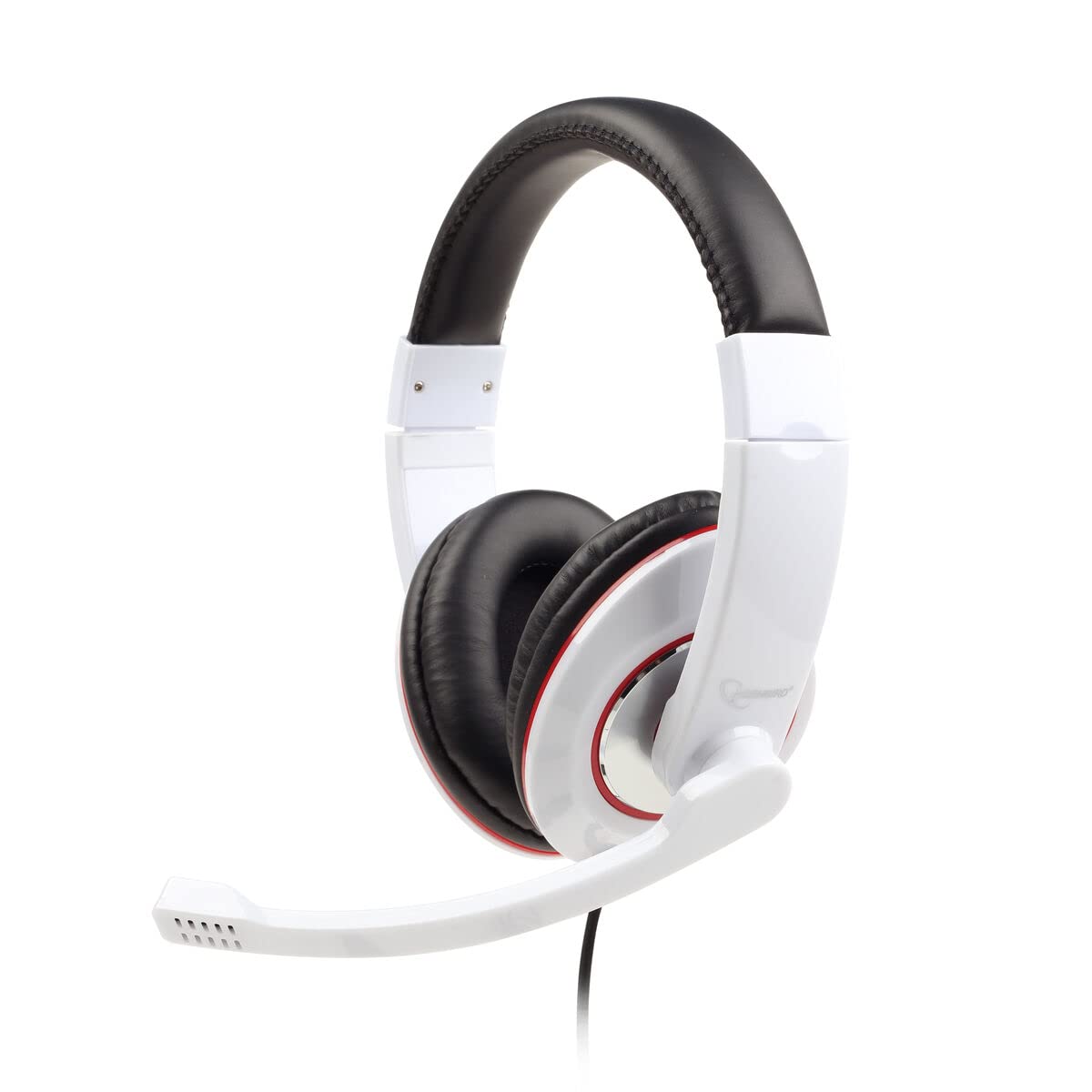
Image: Front view of the Gembird MHS-001-GW Stereo Headset, showing the padded headband, ear cups, and the attached microphone boom.
3. Setup Instructions
Follow these steps to set up your Gembird MHS-001-GW Stereo Headset:
- Connect the Headset: Locate the 3.5mm audio jack on your computer, laptop, or compatible device. Insert the headset's 3.5mm connector firmly into the audio output/headphone jack. If your device has separate jacks for microphone and headphones, you may need a Y-splitter (not included) or ensure you are connecting to a combined audio jack.
- Adjust the Headband: Gently extend or retract the headband until the ear cups sit comfortably over your ears. The padded ear cups should fully cover your ears for optimal sound and comfort.
- Position the Microphone: Adjust the flexible microphone boom so that the microphone is positioned near your mouth, typically 2-5 cm away, for clear voice pickup. Ensure it is not directly in front of your mouth to avoid breath noises.
- Initial Volume Check: Before playing audio or making calls, set the volume on the in-line control unit to a low level to prevent sudden loud sounds.
4. Operating Instructions
Operating your Gembird MHS-001-GW Stereo Headset is straightforward:
- Volume Control: Use the rotary dial on the in-line control unit to increase or decrease the audio volume. Turn the dial clockwise to increase volume and counter-clockwise to decrease it.
- Microphone Mute: The in-line control unit includes a switch to mute or unmute the microphone. Slide the switch to the 'Mute' position to temporarily disable the microphone, and slide it back to the 'Unmute' position to enable it.
- Audio Playback: Once connected, your headset will function as the primary audio output device. Play music, videos, or any other audio content from your device.
- Voice Communication (VoIP): For applications like video conferencing or online gaming, ensure the headset is selected as both the input (microphone) and output (speakers) device in your software's audio settings.
5. Maintenance
Proper care will extend the life of your headset:
- Cleaning: Use a soft, dry cloth to wipe the exterior of the ear cups and headband. For stubborn dirt, a slightly damp cloth can be used, but ensure no moisture enters the speaker grilles or microphone. Do not use harsh chemicals or abrasive cleaners.
- Storage: When not in use, store the headset in a clean, dry place away from direct sunlight and extreme temperatures. Avoid tangling the cable.
- Cable Care: Do not pull the cable forcefully or wrap it too tightly around the headset. This can damage the internal wiring.
- Avoid Drops: Protect the headset from drops and impacts, which can damage internal components.
6. Troubleshooting
If you encounter issues with your headset, refer to the following common problems and solutions:
- No Sound:
- Ensure the 3.5mm connector is fully inserted into the audio jack.
- Check the volume dial on the in-line control unit and your device's system volume.
- Verify that the headset is selected as the default audio output device in your computer's sound settings.
- Test the headset with another device to rule out a device-specific issue.
- Microphone Not Working:
- Ensure the microphone mute switch on the in-line control unit is in the 'Unmute' position.
- Check that the microphone is properly positioned and not obstructed.
- Verify that the headset microphone is selected as the default input device in your computer's sound settings and in any communication software you are using.
- Test the microphone with another device or application.
- Uncomfortable Fit:
- Adjust the headband length until the ear cups rest comfortably without excessive pressure.
- Ensure the ear cups are correctly oriented on your ears.
7. Specifications
| Feature | Specification |
|---|---|
| Model | MHS-001-GW |
| Brand | Gembird |
| Connectivity Technology | Wired (3.5mm Audio Jack) |
| Form Factor | Over-Ear |
| Microphone | Adjustable Boom Microphone |
| In-line Controls | Volume Control, Microphone Mute |
| Recommended Use | Music, VoIP Applications |
| Color | White |
| Item Weight | 200 Grams |
| Product Dimensions | 21.01 x 7.49 x 24 cm |
8. Warranty and Support
For warranty information or technical support, please refer to the documentation provided with your purchase or visit the official Gembird website. Keep your proof of purchase for warranty claims.


