
Introduction
This manual provides essential information for the safe and efficient operation of your InFocus IN124a XGA Wireless-Ready Projector. Please read this manual thoroughly before using the projector and retain it for future reference. This projector is designed for displaying content with XGA (1024 x 768) native resolution, offering 3500 lumens of brightness and a 15000:1 contrast ratio.
Safety Information
- Electrical Safety: Always connect the projector to a grounded power outlet. Do not use damaged power cords. Disconnect power before cleaning or servicing.
- Heat and Ventilation: Ensure adequate ventilation around the projector. Do not block ventilation openings. Avoid placing the projector near heat sources.
- Lamp Safety: The projector lamp operates at high temperatures and pressures. Allow the projector to cool down before moving or replacing the lamp. Do not look directly into the lens when the lamp is on.
- Handling: Handle the projector with care. Avoid dropping or subjecting it to strong impacts.
- Moisture: Do not expose the projector to rain, moisture, or excessive humidity.
Package Contents
Verify that all items are present in the package:
- InFocus IN124a Projector
- HDMI Cable
- VGA Cable
- Power Cord
- Remote Control (not explicitly listed but standard)
- Optional USB adapter for wireless connectivity (if purchased separately)
Product Overview
Familiarize yourself with the physical components and connections of your InFocus IN124a projector.

This image displays the rear panel of the InFocus IN124a projector, highlighting various connectivity options including HDMI, VGA (Computer 1 and 2), Monitor Out, S-Video, Video, Audio In (1 and 2), Audio Out, RS-232, USB-B, USB Mini-B, and USB-A ports. The power input is located on the lower left.

The top panel of the InFocus IN124a projector is shown, featuring the control buttons for power, menu navigation (up, down, left, right, enter), source selection, blank screen function, and indicators for temperature and lamp status. The focus and zoom adjustment rings are also visible.

A front view of the InFocus IN124a projector, showing the main projection lens and the power indicator light. The focus and zoom rings are visible near the lens.

This image presents a side view of the InFocus IN124a projector, emphasizing the ventilation grilles designed for heat dissipation, crucial for maintaining optimal operating temperature.
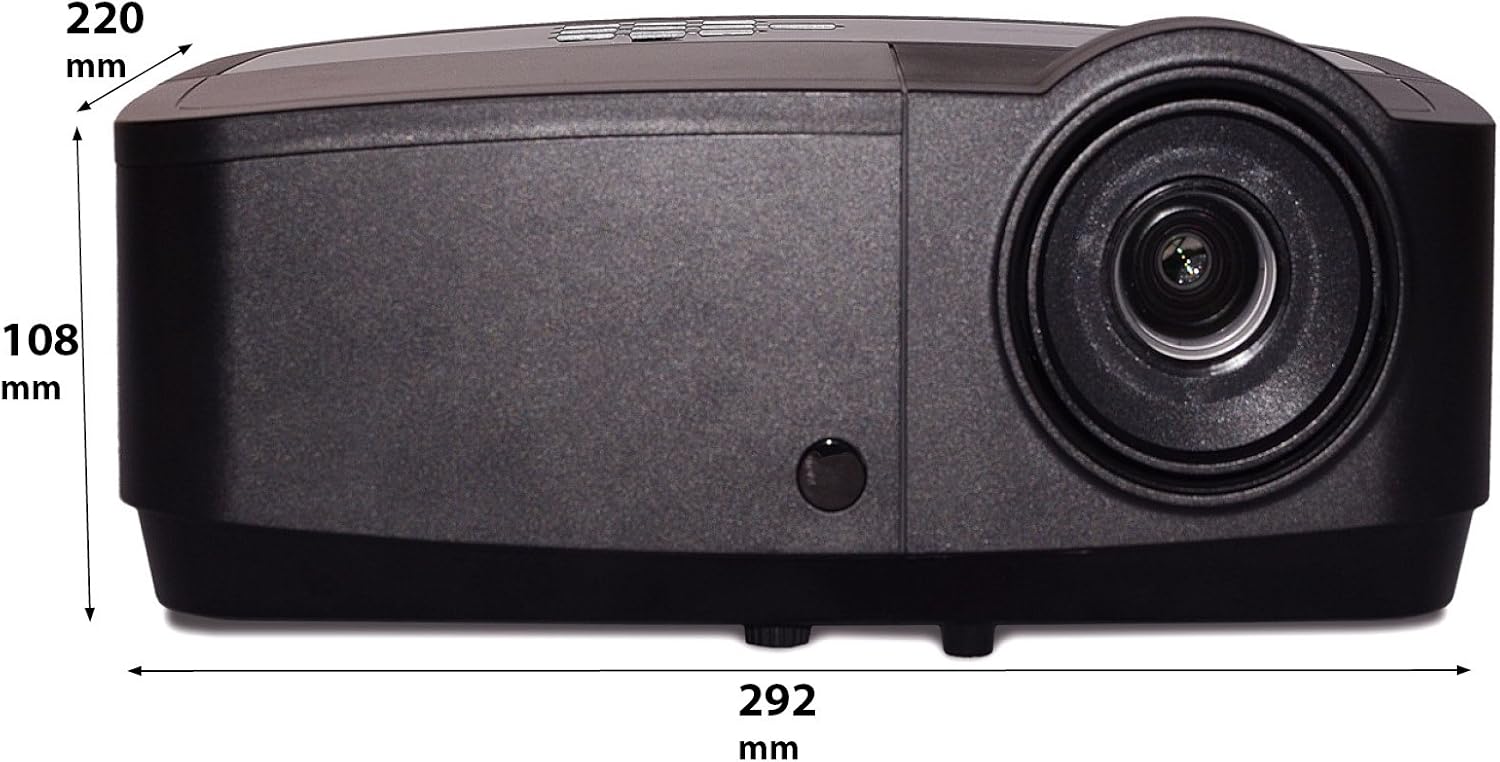
This image shows a side profile of the InFocus IN124a projector, illustrating its physical dimensions: approximately 292 mm in length, 108 mm in height, and 220 mm in width.
Setup
1. Placement
Position the projector on a stable, flat surface or mount it securely. Ensure the projector is at an appropriate distance from the screen to achieve the desired image size. Avoid direct sunlight or strong ambient light on the screen for optimal viewing.
2. Connecting Power
- Connect the power cord to the projector's power inlet.
- Plug the other end of the power cord into a grounded electrical outlet.
3. Connecting Video Sources
The IN124a offers multiple connectivity options:
- HDMI: Connect an HDMI cable from your source device (e.g., laptop, Blu-ray player) to the HDMI port on the projector.
- VGA (Computer 1/2): Use a VGA cable to connect your computer to either the 'COMPUTER 1' or 'COMPUTER 2' port.
- S-Video/Video: For older devices, connect S-Video or composite video cables to the respective ports.
- USB: The USB-A port can be used for displaying content directly from a USB drive. The USB-B port supports USB display functionality.
- Audio: Connect external audio sources to 'AUDIO 1' or 'AUDIO 2' inputs, and use 'AUDIO OUT' for external speakers if needed.
4. Wireless Setup (Optional)
For wireless connectivity, an optional USB adapter is required. Insert the wireless USB adapter into the designated USB port on the projector. Refer to the adapter's specific instructions for software installation and connection procedures on your source device.
Operating
1. Powering On/Off
- Power On: Press the 'Power' button on the projector's control panel or remote control. The power indicator light will turn steady blue.
- Power Off: Press the 'Power' button again. A confirmation message may appear. Press 'Power' a second time to confirm shutdown. The fan will continue to run briefly to cool the lamp before shutting down completely.
2. Adjusting Image
- Focus: Rotate the focus ring around the lens until the image appears sharp and clear.
- Zoom: Rotate the zoom ring around the lens to adjust the image size without moving the projector.
- Keystone Correction: If the image appears trapezoidal, use the keystone correction function in the projector's menu to square the image.
3. Source Selection
Press the 'Source' button on the control panel or remote control repeatedly to cycle through available input sources (HDMI, Computer 1, Computer 2, S-Video, Video, USB). The projector will automatically detect an active signal.
4. Menu Navigation
Press the 'Menu' button to access the On-Screen Display (OSD) menu. Use the arrow buttons to navigate through options and 'Enter' to select. Press 'Menu' or 'Exit' to close the OSD.
5. 3D Mode
The InFocus IN124a is 3D-Ready. To utilize 3D functionality, you will need compatible 3D content, a 3D-capable source device, and active 3D glasses. Refer to your 3D source device's manual for specific setup instructions. The projector will automatically detect a 3D signal when available.
Maintenance
1. Lamp Replacement
The projector lamp has a lifespan of up to 7,000 hours. When the lamp life is nearing its end, a warning message may appear, or the lamp indicator light will illuminate. Only replace the lamp with an authorized InFocus replacement lamp. Always allow the projector to cool completely before attempting lamp replacement.
2. Cleaning
- Projector Casing: Use a soft, lint-free cloth dampened with a mild, non-abrasive cleaner. Do not use harsh chemicals.
- Lens: Gently wipe the lens with a lens cleaning cloth or lens tissue. Avoid touching the lens surface with your fingers.
- Air Vents: Periodically check and clean the air vents to prevent dust buildup, which can lead to overheating. Use a soft brush or compressed air to clear obstructions.
Troubleshooting
If you encounter issues with your projector, refer to the following common problems and solutions:
| Problem | Possible Cause | Solution |
|---|---|---|
| No image displayed | Power not connected; Incorrect input source; Source device not active. | Check power connection; Select correct input source; Ensure source device is on and outputting signal. |
| Image is blurry or out of focus | Lens focus not adjusted; Projector too close/far from screen. | Adjust the focus ring on the lens; Adjust projector distance or use zoom ring. |
| Remote control not working | Batteries depleted; Obstruction between remote and projector; Remote sensor blocked. | Replace batteries; Remove obstructions; Ensure remote sensor on projector is clear. |
| Projector overheats and shuts down | Blocked ventilation; Dusty air filter. | Ensure vents are clear; Clean air filter (if applicable) and vents. |
Specifications
| Feature | Specification |
|---|---|
| Native Resolution | XGA (1024 x 768) |
| Brightness | 3500 Lumens |
| Contrast Ratio | 15000:1 |
| Lamp Life | Up to 7,000 hours (Eco Mode) |
| Connectivity Technology | Wireless (with optional adapter), HDMI, USB video |
| Special Feature | 3D-Ready |
| Product Dimensions | 14.25 x 12 x 7.75 inches (36.2 x 30.5 x 19.7 cm) |
| Item Weight | 5.4 pounds (2.45 kg) |
| Recommended Uses | Indoor/Outdoor |
Warranty and Support
For warranty information and technical support, please refer to the warranty card included with your product or visit the official InFocus website. Keep your purchase receipt as proof of purchase for warranty claims.


