
1. Initial Setup
Before using your Sony HDR-AS100VR Action Video Camera, please follow these steps to ensure proper setup and functionality.
1.1 Unboxing and Components
Carefully unpack all items from the box. The package includes:
- Sony HDR-AS100VR Action Video Camera
- Live View Remote
- USB Cable
- Battery
- Various Mounting Brackets and Adhesive Plates
- Documentation
Video: Unboxing and overview of the Sony HDR-AS100VR Action Video Camera and its included accessories.
1.2 Charging the Battery
Insert the included battery into the camera. Connect the camera to a USB power source using the supplied USB cable. The charging indicator will illuminate. Ensure the battery is fully charged before first use.
1.3 Inserting a Memory Card
The camera supports both Micro SD cards and Sony's Memory Stick Micro flash cards. Open the memory card slot cover, insert the card until it clicks into place, and then close the cover securely.
Note: Use a Class 2 or Class 4 or higher speed memory card for optimal performance, especially for XAVC-S HD recording.
2. Operating Your Camera
2.1 Powering On/Off
Press and hold the power button located on the side of the camera to turn it on or off. The display screen will show the current mode and settings.
2.2 Recording Video and Capturing Photos
Press the large red REC/ENTER button to start or stop video recording. To switch to photo mode, navigate through the menu options using the PREV/NEXT buttons and select the photo icon. Press REC/ENTER to capture a still image.

Image: The Sony HDR-AS100VR Action Camera, showcasing its compact design and front lens.
2.3 Using the Live View Remote
The included Live View Remote allows you to view what your camera is recording in real-time and control its functions from your wrist. Pair the remote with your camera via Wi-Fi. The remote features a display screen and control buttons for recording, menu navigation, and playback.

Image: The Sony Live View Remote, designed to be worn on the wrist for convenient camera control and live viewing.
Video: Comparison of the Sony Live View Remote with a competitor's remote, highlighting the ease of framing shots with Sony's live view feature.
2.4 Live Streaming
The camera supports live streaming via Wi-Fi. Connect the camera to a smartphone's tethering hotspot or a Wi-Fi router. You can stream your footage directly to platforms like Ustream and even monitor live viewer counts on the camera's display.
Video: Demonstration of the Sony Action Cam's live streaming capabilities and how to check view counts.
3. Key Features
- Advanced Steady Shot Image Stabilization: Reduces blur and shakiness in your footage, even during high-action activities.
- Splash-Proof Body with Tripod Mount: The camera's body is designed to withstand splashes, and it includes a built-in tripod mount for versatile attachment.
- XAVC S HD Recording: Capture professional-quality video at 60p (50 Mbps) for stunning detail and clarity.
- High Frame Rates: Record at 120p (720p) and 240p (480p) for smooth slow-motion playback.
- Built-in GPS: Automatically records location data, allowing you to overlay speed and path information onto your videos.
- Stereo Microphones: Capture clear, immersive audio with the integrated stereo microphones.
- 170-Degree Field of View: The wide-angle lens captures expansive scenes.
- 13.5 Megapixel Still Images: Capture high-resolution photos.
Video: A demonstration of the Sony Action Cam's features, including image stabilization and GPS overlay.
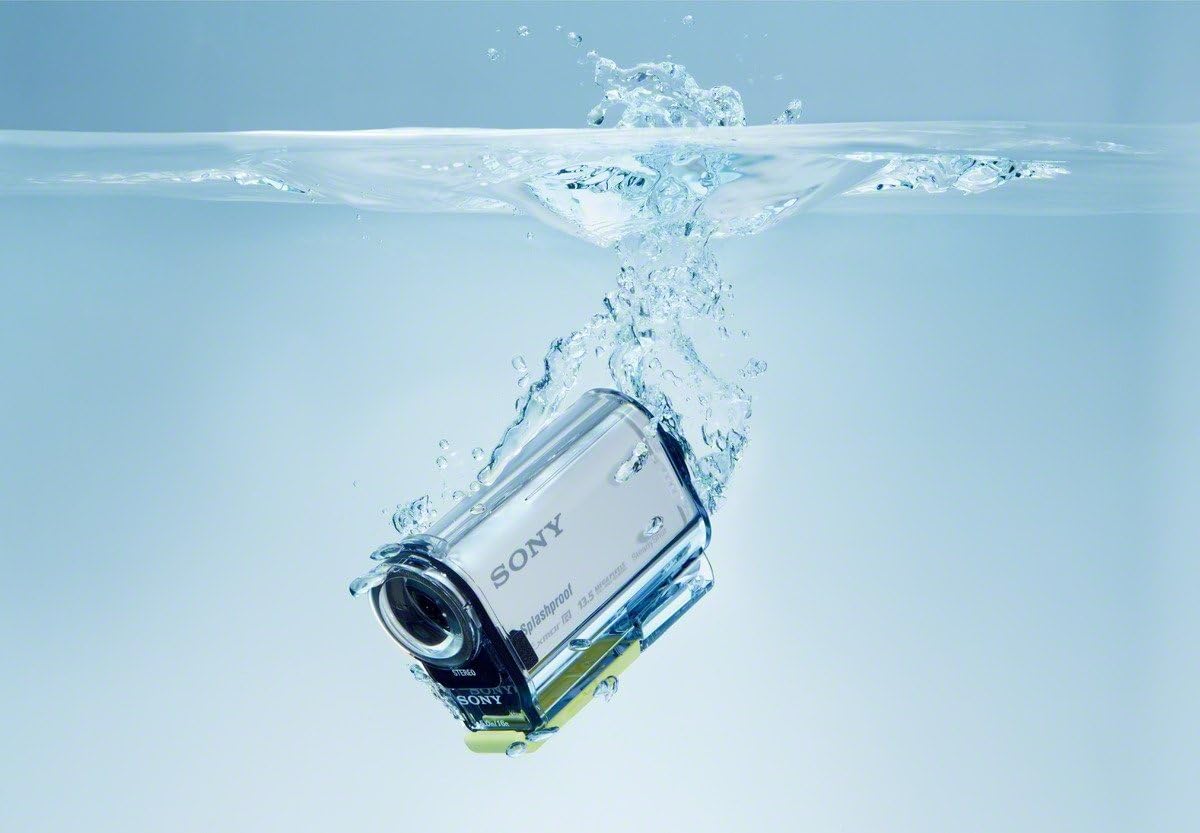
Image: The Sony Action Camera being submerged in water, demonstrating its splash-proof design.
4. Maintenance
- Cleaning: Use a soft, dry cloth to clean the camera body and lens. For stubborn dirt, slightly dampen the cloth with water.
- Water Exposure: While splash-proof, avoid prolonged submersion without the appropriate waterproof housing. After exposure to saltwater, rinse the camera with fresh water and dry thoroughly.
- Battery Care: Store batteries in a cool, dry place. Avoid extreme temperatures.
- Firmware Updates: Periodically check the Sony support website for firmware updates to ensure optimal performance and new features.
5. Troubleshooting
- Camera Not Powering On: Ensure the battery is fully charged and correctly inserted.
- Video Footage is Shaky: Verify that Advanced Steady Shot is enabled in the camera settings.
- Live View Remote Not Connecting: Ensure both the camera and remote have sufficient battery, Wi-Fi is enabled on both, and they are within range.
- Poor Video Quality: Check your recording settings (e.g., XAVC S HD, frame rate) and ensure you are using a compatible, high-speed memory card.
- Camera Overheating: Extended recording, especially in high-resolution modes or warm environments, can cause the camera to heat up. Allow it to cool down if this occurs.
6. Technical Specifications
| Feature | Detail |
|---|---|
| Brand | Sony |
| Model Number | HDRAS100VR/W |
| Camcorder Type | Action Camera |
| Video Capture Resolution | 1080p |
| Effective Still Resolution | 13.5 Megapixels |
| Image Stabilization | Advanced Steady Shot |
| Connectivity Technology | HDMI, NFC, Wi-Fi |
| Special Features | Remote Control, Shock Resistance, Built-in GPS |
| Item Weight | 67 Grams |
| Supported Memory | Micro SD, Memory Stick Micro |
7. Warranty & Support
This product is covered by a 90-day Limited Hardware Warranty from Sony. For detailed warranty information and support, please refer to the official Sony support channels or the documentation included with your product.
For further assistance, please visit the Sony Store on Amazon.


