
Introduction
The Garmin Dash Cam 20 is a high-definition driving recorder designed to capture video footage of your journeys. It features automatic incident detection, GPS data stamping, and a compact design for easy installation. This manual provides essential information for setting up, operating, and maintaining your device.
Setup
Follow these steps to properly set up your Garmin Dash Cam 20:
- Mounting the Device: Attach the suction cup mount to your vehicle's windshield. Ensure the mounting location does not obstruct your view of the road. Secure the Dash Cam 20 to the mount.
- Insert Memory Card: Insert the included memory card into the designated slot on the Dash Cam. The device requires a memory card to record footage.
- Connect Power: Plug the power cable into the Dash Cam and then into your vehicle's 12V power outlet. The device will automatically power on and begin recording when your vehicle starts.
- Initial Settings: Upon first use, you may be prompted to set the date, time, and language. Follow the on-screen instructions using the buttons below the display.
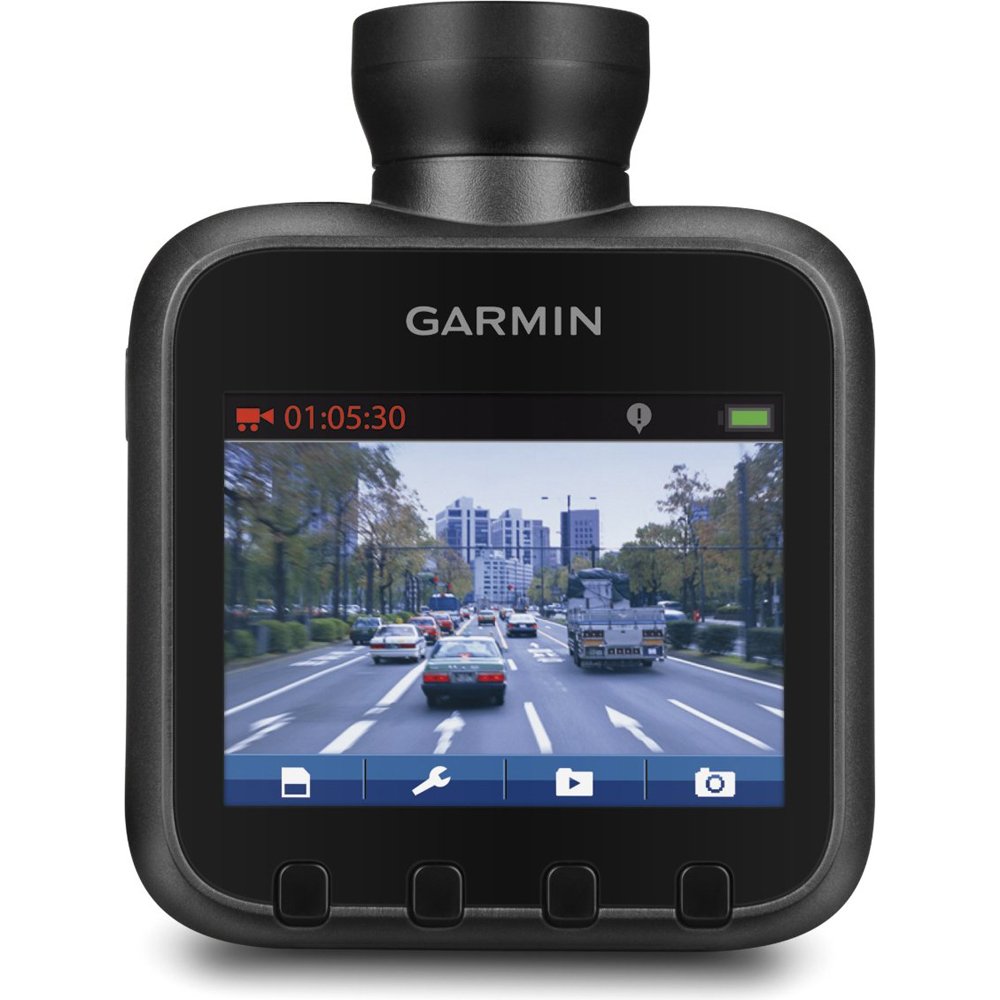
This image shows the Garmin Dash Cam 20 attached to a windshield using its suction cup mount. The device features a screen displaying a live road view, indicating it is ready for operation.
Operating Instructions
Understand the key functions of your Dash Cam 20:
- Automatic Recording: The Dash Cam 20 automatically begins recording when powered on and stops when power is removed. No manual intervention is typically required to start recording.
- Incident Detection (G-Sensor): The integrated G-Sensor automatically detects incidents like sudden braking or collisions and saves the corresponding footage, protecting it from being overwritten. Sensitivity settings can be customized in the device menu.
- Snapshot Feature: Press the designated button to take a still image at any time during recording. You can also remove the Dash Cam from its mount to capture collision damage or other relevant scenes.
- Audio Recording: The integrated microphone allows for audio recording inside your vehicle. This feature can be enabled or disabled through the device settings.
- Viewing Footage: Recorded videos and still images can be reviewed directly on the 2.3-inch LCD display. Navigate through files using the device's buttons.
- GPS Data: Footage is stamped with location, direction, speed, and time data, providing a comprehensive record of events.
Maintenance
Proper maintenance ensures the longevity and optimal performance of your Dash Cam 20:
- Cleaning the Device: Use a soft, dry cloth to clean the Dash Cam's lens and body. Avoid abrasive cleaners or solvents.
- Memory Card Management: Regularly format the memory card (at least once a month) to prevent data corruption and ensure continuous recording. Refer to the device settings for the formatting option. Replace the memory card if you experience frequent recording errors.
- Firmware Updates: Periodically check the Garmin website for available firmware updates. Updates can improve performance and add new features. Follow the instructions provided by Garmin for updating the device firmware.
Troubleshooting
If you encounter issues with your Dash Cam 20, refer to the following common problems and solutions:
- Device not powering on: Ensure the power cable is securely connected to both the Dash Cam and the vehicle's power outlet. Check the vehicle's 12V power outlet for functionality.
- Not recording: Verify that a memory card is inserted and properly formatted. The memory card may be full or corrupted; try formatting it or using a new one.
- Poor video quality: Clean the camera lens. Ensure the windshield area where the camera is mounted is clean. Check video resolution settings in the device menu.
- G-Sensor too sensitive/not sensitive enough: Adjust the G-Sensor sensitivity settings in the device menu to match your driving conditions.
- GPS not acquiring signal: Ensure the device has a clear view of the sky. Avoid mounting locations that are heavily obstructed.
Specifications
| Feature | Detail |
|---|---|
| Brand | Garmin |
| Model Name | 20 |
| Vehicle Service Type | Car |
| Connectivity Technology | Bluetooth |
| Special Feature | Lightweight |
| Video Capture Resolution | 1080p |
| Included Components | Memory Card |
| Mounting Type | Windshield Mount |
| Color | Black |
| Field Of View | 140 Degrees |
Warranty and Support
For warranty information, technical support, and additional resources, please refer to the official Garmin website or contact Garmin customer service directly. Keep your purchase receipt as proof of purchase for warranty claims.


