
1. Introduction
This manual provides essential instructions for the safe and efficient installation, operation, and maintenance of your Intel DPS-750PB AXX750WPS 750W Power Supply. This power supply unit (PSU) is designed to provide stable and reliable power to your personal computer components. Please read this manual thoroughly before proceeding with installation or operation.
2. Safety Information
Always observe the following safety precautions to prevent injury or damage to your equipment:
- Disconnect Power: Before installing, removing, or servicing the power supply, always ensure the computer is turned off and unplugged from the wall outlet.
- Proper Grounding: Ensure your computer system is properly grounded to prevent electrical shock.
- Do Not Open: The power supply unit contains high voltage components. Do not open the casing; there are no user-serviceable parts inside. Opening the unit will void the warranty and poses a risk of electric shock.
- Ventilation: Ensure adequate airflow around the power supply. Do not block ventilation openings.
- Moisture: Keep the power supply away from water, humidity, and other liquids.
- Temperature: Operate the power supply within its specified temperature range. Avoid extreme heat or cold.
3. Package Contents
Verify that your package contains the following items:
- Intel DPS-750PB AXX750WPS 750W Power Supply Unit
- (Power cable and mounting screws may be included depending on the retailer)
4. Setup and Installation
Follow these steps to install your Intel DPS-750PB AXX750WPS power supply:
- Preparation: Turn off your computer completely and unplug the power cord from the wall outlet. Open your computer case.
- Remove Old PSU (if applicable): If replacing an existing power supply, disconnect all cables from the motherboard and components. Unscrew and remove the old PSU from the case.
- Install New PSU: Carefully slide the Intel DPS-750PB AXX750WPS into the power supply bay of your computer case. Ensure the fan is oriented correctly for optimal airflow (usually facing downwards or towards the rear vent).
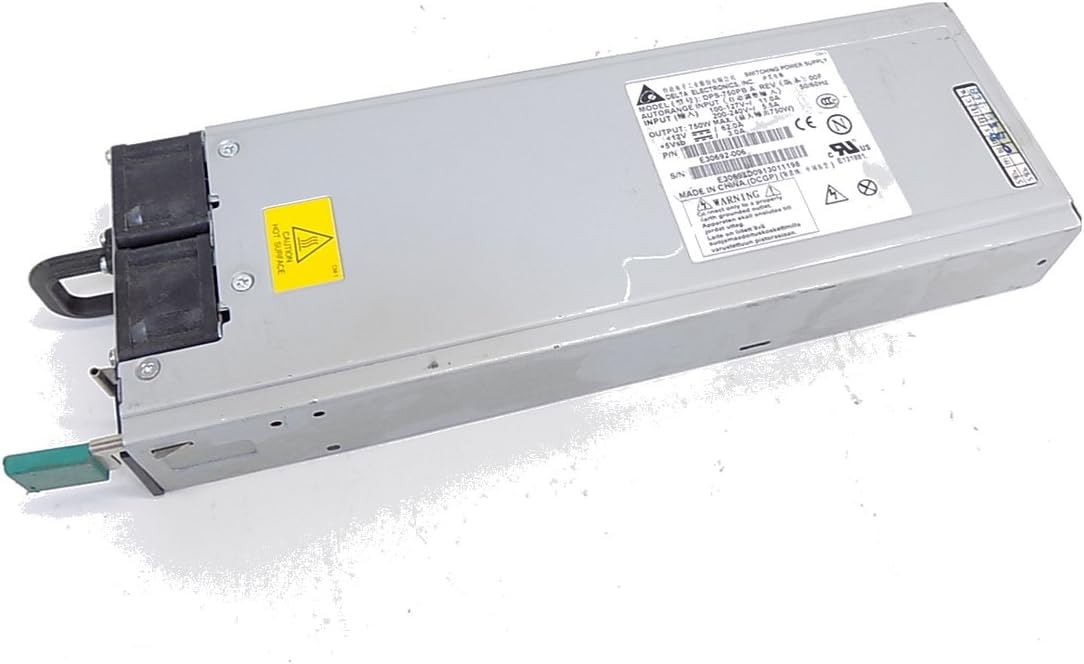
Figure 4.1: Front view of the Intel DPS-750PB AXX750WPS Power Supply, showing the cooling fan and AC power input.
- Secure the PSU: Align the screw holes on the power supply with those on the computer case. Secure the PSU using the appropriate screws (typically 4 screws).
- Connect Cables: Connect the power supply cables to your motherboard and other components. Refer to your motherboard manual for specific connector locations.
- 24-pin ATX Motherboard Connector: Connect this main power cable to your motherboard.
- 4/8-pin CPU Power Connector: Connect this to the CPU power socket on your motherboard.
- PCIe Connectors: Connect these to your graphics cards (if applicable).
- SATA Power Connectors: Connect these to your SATA hard drives, SSDs, and optical drives.
- Peripheral (Molex) Connectors: Connect these to other peripherals that require Molex power.

Figure 4.2: Rear view of the Intel DPS-750PB AXX750WPS Power Supply, illustrating the various output connectors for system components.
- Cable Management: Route cables neatly to improve airflow and aesthetics within the case.
- Close Case: Once all connections are secure, close your computer case.
5. Operating Instructions
After successful installation, follow these steps to operate your system:
- Connect Power: Plug the AC power cord into the power supply's inlet and then into a grounded wall outlet.
- Power On: Flip the power switch on the back of the power supply to the 'ON' (I) position.
- Start Computer: Press the power button on your computer case. The system should power on and begin the boot sequence.
- Normal Operation: The power supply will operate quietly, providing stable power to your components. The fan will adjust its speed based on the internal temperature to maintain optimal cooling.
6. Maintenance
Regular maintenance helps ensure the longevity and optimal performance of your power supply:
- Keep Vents Clear: Ensure that the intake and exhaust vents of the power supply are not obstructed by dust, cables, or other objects.
- Dust Cleaning: Periodically (e.g., every 6-12 months), use compressed air to gently clean dust from the power supply's fan and vents. Ensure the computer is powered off and unplugged before cleaning.
- Cable Inspection: Occasionally inspect all power cables connected to the PSU for any signs of wear, fraying, or loose connections.
7. Troubleshooting
If you encounter issues with your power supply, refer to the following troubleshooting tips:
- No Power:
- Ensure the AC power cord is securely plugged into both the power supply and the wall outlet.
- Check that the power switch on the back of the PSU is in the 'ON' (I) position.
- Verify that the wall outlet is functional by testing it with another device.
- Confirm all internal power cables (24-pin ATX, CPU, PCIe, SATA) are firmly connected.
- System Instability/Random Shutdowns:
- Ensure the power supply's wattage (750W) is sufficient for all your system components.
- Check for overheating. Ensure proper ventilation and clean any dust from the PSU fan and case.
- Verify all power connections are secure.
- Excessive Fan Noise:
- A certain level of fan noise is normal, especially under load.
- If the noise is unusually loud or grinding, it may indicate dust buildup or a failing fan. Clean the fan as described in the Maintenance section.
If problems persist after attempting these steps, contact customer support or a qualified technician.
8. Specifications
The following table details the technical specifications of the Intel DPS-750PB AXX750WPS Power Supply:
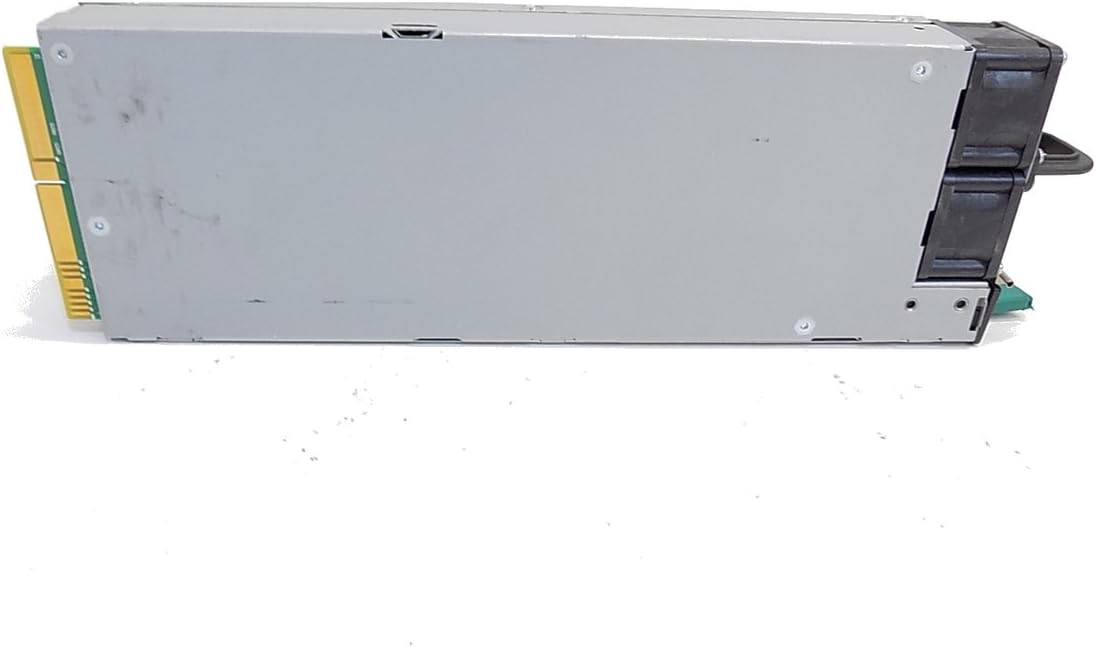
Figure 8.1: Side view of the Intel DPS-750PB AXX750WPS Power Supply, showing the product label with detailed specifications.
| Feature | Specification |
|---|---|
| Model Name | AXX750WPS |
| Brand | Intel |
| Compatible Devices | Personal Computer |
| Connector Type | ATX |
| Output Wattage | 750 Watts |
| Form Factor | ATX |
| Cooling Method | Air |
| Item Weight | 5 Pounds |
| Fan Count | 1 |
| Maximum Input Voltage | 240 Volts (AC) |
| Minimum Input Voltage | 110 Volts (AC) |
| UPC | 796762576876 |
| Manufacturer Part Number | AXX750WPS |
9. Warranty Information
This Intel power supply is covered by a manufacturer's warranty. The specific terms and duration of the warranty may vary based on your region and point of purchase. Please retain your proof of purchase for warranty claims. For detailed warranty information, refer to the official Intel website or contact your retailer.
10. Customer Support
For technical assistance, troubleshooting beyond this manual, or warranty inquiries, please contact Intel customer support through their official website. You may also reach out to your product retailer for support.
When contacting support, please have your product model (AXX750WPS) and serial number (if available) ready.


