
Introduction
The MyQ Garage Universal Smartphone Garage Door Controller, model 821lm, allows you to monitor and control your garage door and home lighting from your smartphone, tablet, or computer. This device enhances convenience and security by integrating your garage access with smart technology.
Product Features
- Enables smartphone control for most major garage door opener brands and gate operators.
- Monitor, open, and close your garage door and control home lighting remotely.
- Controls up to two garage doors simultaneously (requires an additional door sensor, sold separately).
- Manages up to 16 MyQ enabled devices.
Package Contents
Verify that all components are present before beginning installation:
- MyQ Garage Universal Smartphone Garage Door Controller (Main Unit)
- Door Sensor
- Power Adapter
- Mounting Hardware
- Instruction Manual
Setup Instructions
- Mount the Main Unit: Select a central location in your garage, ensuring it is within Wi-Fi range and has access to a power outlet. Mount the main unit securely using the provided hardware.
- Connect to Power: Plug the power adapter into the main unit and then into a standard electrical outlet. The unit's indicator light should illuminate.
- Download the MyQ App: Download the MyQ app from your smartphone's app store (iOS or Android). Create an account or log in if you already have one.
- Connect to Wi-Fi: Follow the in-app instructions to connect your MyQ Garage Controller to your home Wi-Fi network. Ensure your Wi-Fi signal is strong in the garage area.
- Pair with Garage Door Opener: The app will guide you through the process of pairing the MyQ controller with your existing garage door opener. This typically involves pressing a 'learn' button on your garage door opener. For older models or specific issues, consult your garage door opener's original manual for alternative pairing methods.
- Install the Door Sensor: Attach the included door sensor to the top panel of your garage door. Ensure it is securely mounted and aligned correctly for accurate open/close detection.
- Test Operation: Use the MyQ app to test opening and closing your garage door. Verify that the app accurately reflects the door's status.
Operating Instructions
- Opening/Closing the Garage Door: Open the MyQ app on your smartphone or tablet. Select the desired garage door from the device list. Tap the open or close button to operate the door.
- Receiving Notifications: Configure notification settings within the MyQ app to receive alerts when your garage door opens, closes, or remains open for a specified duration.
- Controlling Lights: If you have MyQ-enabled lighting devices, you can control them through the app.
- Granting Access: The MyQ app may allow you to grant temporary or scheduled access to others without sharing your physical remote or codes.
Maintenance
- Keep Clean: Periodically wipe the main unit and door sensor with a soft, dry cloth to remove dust and debris.
- Check Door Sensor Battery: The door sensor operates on a battery. Replace the battery when indicated by the MyQ app or if the sensor becomes unresponsive.
- Ensure Stable Wi-Fi: A stable Wi-Fi connection is crucial for reliable operation. If you experience connectivity issues, check your router and Wi-Fi signal strength in the garage.
- App and Firmware Updates: Regularly update the MyQ app and the device firmware to ensure you have the latest features and security enhancements.
Troubleshooting
- Garage Door Not Responding:
- Verify the main unit is powered on and connected to Wi-Fi.
- Check the door sensor for proper installation and battery life.
- Ensure your smartphone has an active internet connection.
- Pairing Issues with Garage Door Opener:
- Some older garage door openers may require specific pairing sequences. Refer to your garage door opener's original instruction manual for detailed pairing procedures.
- If issues persist, contact Liftmaster/Chamberlain customer support for assistance.
- Notifications Not Working:
- Check notification settings within the MyQ app.
- Verify your smartphone's operating system notification settings for the MyQ app.
- Intermittent Connectivity:
- Relocate the main unit closer to your Wi-Fi router or consider a Wi-Fi extender.
- Ensure there are no large metal objects or other wireless devices causing interference near the controller.
Specifications
| Manufacturer | Liftmaster / Chamberlain |
| Part Number | 821lm |
| Item Weight | 1.05 pounds |
| Product Dimensions | 10 x 5 x 5 inches |
| Item Model Number | 821lm |
| Color | Black |
| Style | Modern |
| Special Feature | Universal |
| Max Number of Supported Devices | 16 |
| Compatible Devices | Smartphone |
Warranty and Support
This product is covered by the manufacturer's standard warranty. For specific warranty details, please refer to the documentation included with your purchase or visit the official Liftmaster/Chamberlain website. For technical assistance, troubleshooting, or warranty claims, please contact Liftmaster/Chamberlain customer support directly.
Product Images
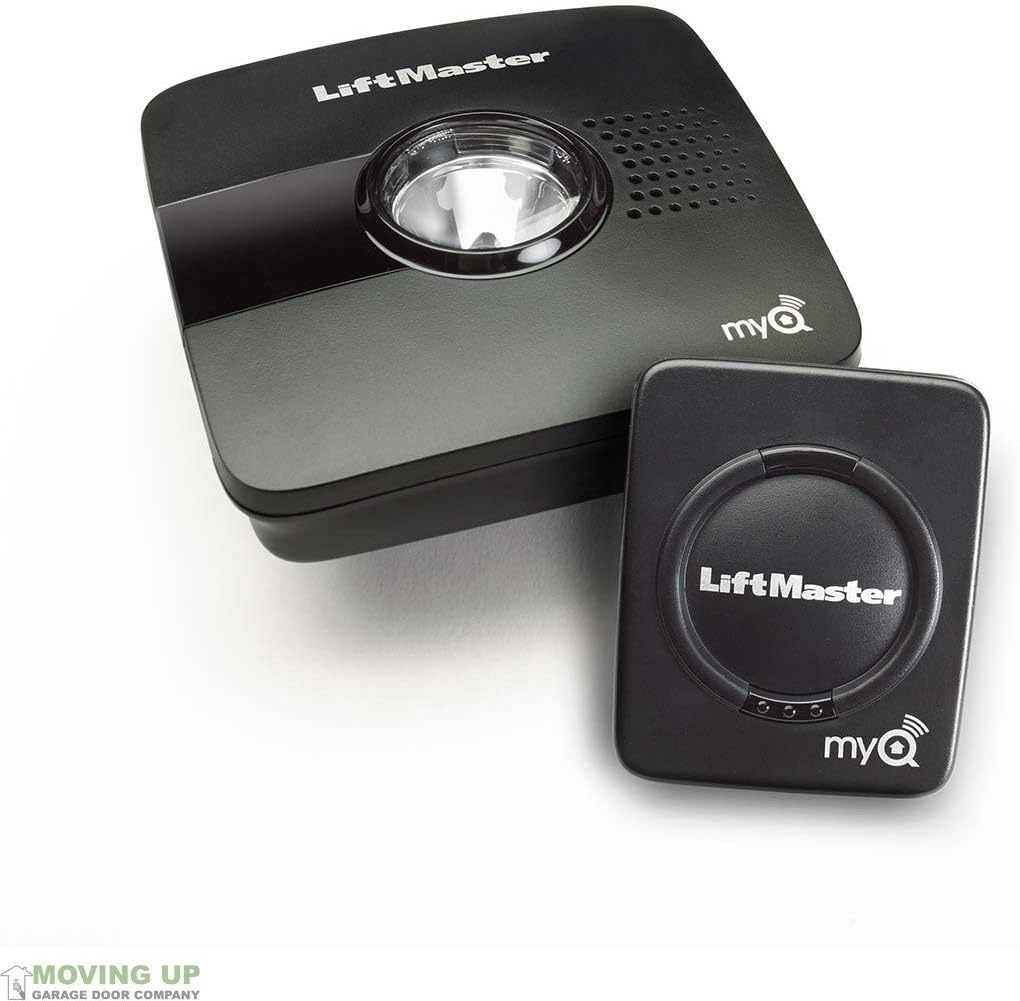
This image displays the main MyQ Garage Universal Smartphone Garage Door Controller unit alongside its accompanying door sensor. Both components are black with the 'LiftMaster' and 'myQ' logos visible. The main unit features a central light and speaker grille, while the sensor is a smaller, rectangular device.