
Introduction
This manual provides detailed instructions for the setup, operation, and maintenance of your NETGEAR Unite Pro 4G LTE Mobile WiFi Hotspot, model AC-781S. This device offers portable internet connectivity, allowing multiple devices to share a 4G LTE connection.
Setup
Package Contents
Verify that your package contains the following items:
- NETGEAR Unite Pro 4G LTE Mobile WiFi Hotspot (Model AC-781S)
- Charger
- Lithium Ion Battery
Inserting the SIM Card and Battery
To begin using your hotspot, you must first insert a compatible SIM card and the battery.
- Carefully remove the back cover of the device.
- Locate the SIM card slot. Insert your Mini SIM card into the designated slot, ensuring proper orientation.
- Insert the provided Lithium Ion battery into its compartment.
- Replace the back cover, ensuring it clicks securely into place.

Image: Front view of the NETGEAR Unite Pro Hotspot, showing the touchscreen display with network information.
Powering On
Press and hold the Power button located on the device until the screen illuminates and the NETGEAR logo appears. The device will then initiate its startup sequence.
Operating the Device
Navigating the Touchscreen Display
The NETGEAR Unite Pro features a touchscreen display for easy navigation. Use your finger to tap on icons and swipe through menus to access various settings and information.
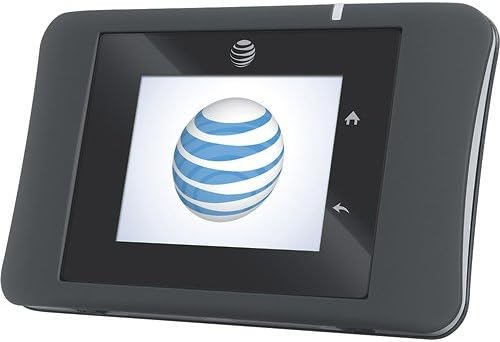
Image: Front view of the NETGEAR Unite Pro Hotspot, displaying the AT&T logo during startup.
Connecting to Wi-Fi
To connect your devices to the hotspot:
- On the hotspot's display, locate the Wi-Fi network name (SSID) and password.
- On your client device (e.g., smartphone, laptop), search for available Wi-Fi networks.
- Select the hotspot's SSID from the list and enter the password when prompted.
Managing Connected Devices
The Unite Pro can support connectivity for up to 15 devices simultaneously. You can view connected devices and manage network access through the device's web interface.
Advanced Features
- Battery Boost: The device can act as a power bank to charge other USB-powered devices. Connect your device to the hotspot's USB port using a compatible cable.
- WPS (Wi-Fi Protected Setup): Use the WPS button on the device for quick and secure connection to compatible Wi-Fi devices without manually entering the password.
- Web Interface: For advanced settings, such as changing Wi-Fi name/password, parental controls, or APN settings, access the device's web interface by typing
192.168.1.1into a web browser while connected to the hotspot's Wi-Fi network.
Maintenance
Charging the Device
To charge your NETGEAR Unite Pro, connect the provided charger to the Micro USB port located on the bottom edge of the device. The battery indicator on the screen will show charging status.

Image: Bottom view of the hotspot, highlighting the Micro USB charging port and external accessory connectors.
Battery Life
The device is equipped with a Lithium Ion battery designed for extended use. Expect up to 16 hours of active use and up to 472 hours of standby time, depending on network conditions and usage patterns.
Cleaning
Use a soft, dry cloth to clean the exterior of the device. Avoid using liquid cleaners or abrasive materials, as these may damage the device.
Troubleshooting
If you encounter issues with your NETGEAR Unite Pro, consider the following:
- No Internet Connection: Ensure the SIM card is correctly inserted and activated with your service provider. Check the signal strength indicator on the device screen. Verify that the Access Point Name (APN) settings are correctly configured via the web interface.
- Slow Speeds: Check the number of connected devices. Too many devices or heavy usage can reduce speeds. Ensure you have good signal strength.
- Device Not Powering On: Ensure the battery is charged. Connect the device to the charger and attempt to power it on again.
- Random Restarts: This could indicate a faulty unit or battery. Ensure the battery is properly seated. If the issue persists, contact customer support.
Specifications
| Feature | Detail |
|---|---|
| Product Dimensions | 2.23 x 0.77 x 3.64 inches |
| Item Weight | 4.4 ounces |
| Item Model Number | AC-781S |
| Batteries | 1 Lithium Ion battery required (included) |
| OS | Google Android (internal system) |
| Frequency | 5 GHz (Dual-Band support) |
| Wireless Communication Technologies | 4G, Wi-Fi (802.11b, 802.11g, 802.11n) |
| Special Features | WPS |
| Display Resolution | 240 x 320 pixels |
| Human Interface Input | Touchscreen with Stylus Support |
| Form Factor | Candy Bar |
| Color | Black |
| Phone Talk Time | 600 Minutes |
| Phone Standby Time (with data) | 472 hours |
| Manufacturer | AT&T (Original Carrier) / NETGEAR (Brand) |
| Date First Available | December 20, 2013 |
Warranty Information and Support
For warranty details, technical support, and additional resources, please refer to the documentation included with your product or visit the official NETGEAR support website. Keep your proof of purchase for warranty claims.


