
1. Introduction
Welcome to the user manual for your Nokia 8800 Sirocco Edition mobile phone. This guide provides essential information on how to set up, operate, and maintain your device, ensuring optimal performance and longevity. Please read this manual carefully before using your phone.
2. Product Overview
The Nokia 8800 Sirocco Edition is a premium mobile phone featuring a distinctive slider design and robust construction. Its display is protected by sapphire-coated glass, enhancing durability. The phone integrates a 2-megapixel camera and supports various connectivity options.
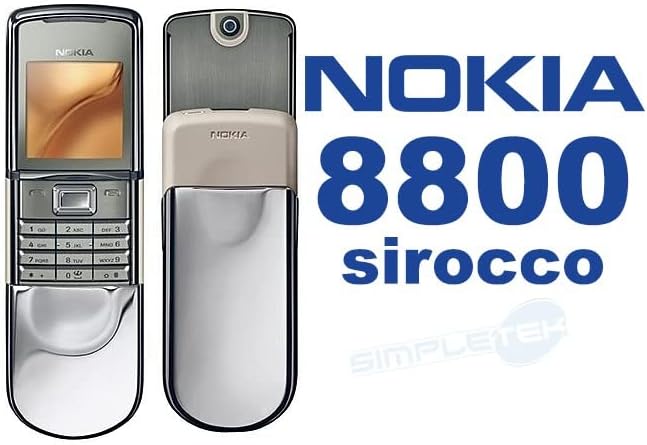
Figure 2.1: Front view of the Nokia 8800 Sirocco Edition in its closed position, showcasing the display and keypad.
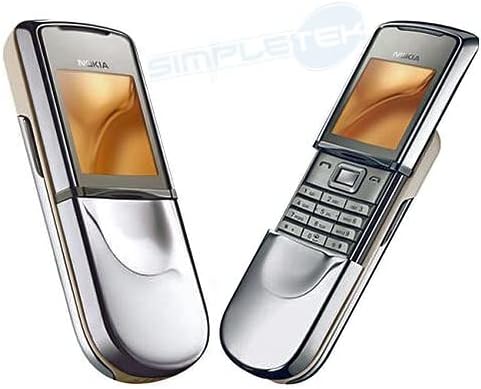
Figure 2.2: Side-by-side view of the Nokia 8800 Sirocco Edition, illustrating both the closed and open slider positions.
Key Components:
- Display: 262K colors TFT screen, protected by sapphire-coated glass.
- Keypad: Standard alphanumeric keypad for navigation and input.
- Slider Mechanism: Smooth sliding action to reveal the keypad.
- Camera: Integrated 2.0 MP camera on the rear.
- Speaker: For calls and audio playback.
- Charging Port: Located at the bottom of the device.
3. Setup
3.1. Inserting the SIM Card
- Ensure the phone is powered off.
- Remove the back cover of the phone.
- Locate the SIM card slot.
- Insert your SIM card with the gold contacts facing down and the cut corner aligned as indicated.
- Replace the back cover.
3.2. Battery Installation and Charging
The Nokia 8800 Sirocco Edition uses a BP-6X battery with a capacity of 700 mAh.
- Ensure the phone is powered off.
- Remove the back cover.
- Insert the BP-6X battery into its compartment, aligning the contacts.
- Replace the back cover.
- Connect the charger to the phone's charging port and then to a power outlet.
- Allow the battery to fully charge before initial use. A full charge provides approximately 2.75 hours of talk time.

Figure 3.1: The Nokia 8800 Sirocco Edition retail package, including the phone, charger, and other accessories.
4. Operating Instructions
4.1. Powering On/Off
- To Power On: Press and hold the power key (usually the red 'End Call' key) until the phone vibrates and the screen lights up.
- To Power Off: Press and hold the power key until the power-off options appear, then select 'Power off'.
4.2. Basic Navigation
Use the navigation keys (up, down, left, right) and the center selection key to browse menus and select options. The soft keys below the display perform functions indicated on the screen.
4.3. Making and Receiving Calls
- Making a Call: Enter the phone number using the keypad and press the green 'Call' key.
- Answering a Call: Press the green 'Call' key when the phone rings.
- Ending a Call: Press the red 'End Call' key.
4.4. Display Features
The phone features a 1.7-inch TFT display with 262K colors and a resolution of 320 x 240 pixels. You can customize themes and wallpapers to personalize your device's appearance.
5. Camera Features
The Nokia 8800 Sirocco Edition is equipped with a 2.0-megapixel camera, allowing you to capture photos. The camera is located on the rear of the device, visible when the slider is open.

Figure 5.1: Side view of the Nokia 8800 Sirocco Edition with the slider open, highlighting the rear camera lens.
5.1. Taking Photos
- Open the phone's slider to reveal the camera lens.
- Navigate to the Camera application from the main menu.
- Frame your shot using the display as a viewfinder.
- Press the dedicated camera key or the center selection key to capture the image.
- Photos are saved to the phone's internal memory (128 MB storage capacity).
6. Messaging
The phone supports standard SMS (Short Message Service) and MMS (Multimedia Messaging Service) for text and multimedia messages. It supports sending messages in 47 languages, including major European, African, Asia-Pacific, and American languages.
6.1. Sending a Text Message (SMS)
- Go to the 'Messages' menu.
- Select 'Create new message' or 'New SMS'.
- Enter your message using the keypad.
- Enter the recipient's phone number or select from your contacts.
- Select 'Send'.
6.2. Sending a Multimedia Message (MMS)
MMS allows you to send messages containing text, images, audio, and video clips.
- Go to the 'Messages' menu.
- Select 'Create new message' or 'New MMS'.
- Add text, attach an image or video from your gallery, or record new media.
- Enter the recipient's phone number or select from your contacts.
- Select 'Send'.
7. Connectivity
The Nokia 8800 Sirocco Edition offers various connectivity options for data transfer and communication.
7.1. Bluetooth
Bluetooth allows for wireless connection to compatible devices such as headsets, car kits, and other mobile phones for data exchange.
- Go to 'Menu' > 'Settings' > 'Connectivity' > 'Bluetooth'.
- Turn Bluetooth 'On'.
- Select 'Paired devices' or 'New device' to search for and connect to other Bluetooth devices.
- Follow the on-screen prompts to complete the pairing process.
7.2. Internet Access
The phone supports internet access via EDGE / EGPRS / GPRS / GSM network technology. It includes a built-in internet browser and supports email access.
- Ensure your network operator provides data services and your SIM card is configured for internet access.
- Go to 'Menu' > 'Internet' or 'Web'.
- Enter the desired web address or select a bookmark.
8. Maintenance
Proper care and maintenance will extend the life of your Nokia 8800 Sirocco Edition.
8.1. Cleaning the Device
- Use a soft, lint-free cloth to wipe the screen and body of the phone.
- Avoid using harsh chemicals, cleaning solvents, or strong detergents.
- Do not expose the phone to excessive moisture.
8.2. Battery Care
- Do not expose the battery to extreme temperatures.
- Avoid fully discharging the battery frequently.
- Use only Nokia-approved chargers and batteries.
8.3. Software Updates
Periodically check for software updates from Nokia (if available) to ensure your phone has the latest features and performance enhancements. Refer to the phone's settings menu for update options.
9. Troubleshooting
If you encounter issues with your phone, try the following solutions before seeking professional assistance.
| Problem | Possible Solution |
|---|---|
| Phone does not power on | Ensure the battery is charged. Check if the battery is correctly inserted. |
| No network signal | Check SIM card insertion. Ensure you are in an area with network coverage. Restart the phone. |
| Battery not charging | Verify the charger is properly connected to the phone and power outlet. Try a different charger if available. Check for damage to the charging port. |
| Cannot make or receive calls | Check network signal. Ensure your SIM card is active. Verify call barring settings. |
| Phone freezes or is unresponsive | Remove and reinsert the battery to perform a hard reset. |
10. Specifications
Detailed technical specifications for the Nokia 8800 Sirocco Edition.
| Feature | Detail |
|---|---|
| Model | Nokia 8800 Sirocco Edition |
| Operating System | Symbian |
| Display | 1.7-inch TFT, 262K colors, 320 x 240 resolution |
| Camera | 2.0 MP |
| Internal Storage | 128 MB |
| Battery Capacity | 700 mAh (BP-6X) |
| Talk Time | Up to 2.75 hours |
| Network Technology | GSM 900/1800/1900 (Tri-Band), EDGE / EGPRS / GPRS |
| Connectivity | Bluetooth |
| Messaging | SMS, MMS (supports 47 languages) |
| Form Factor | Slider |
| Weight | 0.01 ounces |
11. Warranty and Support
For warranty information and customer support, please refer to the documentation provided at the time of purchase or contact your retailer. Nokia's official website may also provide support resources for legacy devices.
This product was manufactured by Nokia.


