1. Introduction
This manual provides essential information for the proper installation, operation, and maintenance of your TRIPP LITE P566-006 Digital Video Cable. Please read these instructions carefully before use to ensure optimal performance and longevity of the product. Keep this manual for future reference.
2. Product Overview
The TRIPP LITE P566-006 is a high-quality digital video cable designed to connect devices with HDMI outputs to devices with DVI-D inputs. It features gold-plated connectors for superior signal transfer and corrosion resistance, ensuring a reliable and clear video connection.
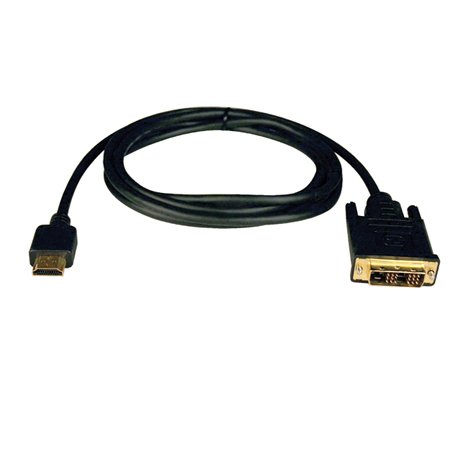
Image 1: The TRIPP LITE P566-006 Digital Video Cable, showing its HDMI (left) and DVI-D (right) connectors. The cable is black and coiled, highlighting its male-to-male configuration.
3. Setup
Follow these steps to properly connect your digital video cable:
- Identify Ports: Locate the HDMI output port on your source device (e.g., computer, Blu-ray player) and the DVI-D input port on your display device (e.g., monitor, projector).
- Connect HDMI: Carefully insert the HDMI connector of the P566-006 cable into the HDMI output port of your source device. Ensure it is firmly seated.
- Connect DVI-D: Insert the DVI-D connector of the P566-006 cable into the DVI-D input port of your display device. Tighten the thumbscrews on the DVI-D connector, if present, to secure the connection.
- Power On Devices: Turn on both your source device and your display device.
- Select Input: On your display device, select the correct input source (e.g., DVI, PC input) using the display's menu or input selection button.
Note: This cable transmits video signals only. For audio, a separate audio cable connection is required.
4. Operating
Once the cable is properly connected and devices are powered on, the video signal from your source device should automatically display on your connected screen. If no image appears or the image quality is poor, refer to the Troubleshooting section.
- Ensure both devices are set to compatible resolutions.
- Avoid bending the cable sharply, as this can damage internal wires and affect signal integrity.
5. Maintenance
Proper care will extend the life of your TRIPP LITE P566-006 cable:
- Cleaning: Use a soft, dry cloth to gently wipe the cable and connectors. Avoid using harsh chemicals or abrasive materials.
- Storage: When not in use, store the cable in a cool, dry place, away from direct sunlight and extreme temperatures. Avoid tightly coiling the cable to prevent stress on the internal conductors.
- Handling: Always grasp the connector housing when plugging or unplugging the cable, rather than pulling on the cable itself.
6. Troubleshooting
If you encounter issues with your digital video cable, try the following solutions:
- No Video Signal:
- Verify that both ends of the cable are securely connected to their respective ports.
- Ensure both the source device and the display device are powered on.
- Check that the correct input source is selected on your display device.
- Test the cable with another known working device or try a different cable to isolate the problem.
- Poor Picture Quality (Flickering, Distortion):
- Ensure the cable is not damaged or kinked.
- Check for any interference from other electronic devices.
- Verify that the resolution and refresh rate settings on your source device are compatible with your display.
7. Specifications
| Feature | Detail |
|---|---|
| Brand | TRIPP LITE |
| Model Number | P566-006 |
| Connector Type | HDMI Male to DVI-D Male |
| Connector Gender | Male-to-Male |
| Color | Black (Cable), Gold (Connectors) |
| Shape | Round |
| Unit Count | 1 Count |
| UPC | 373321229192 |
| ASIN | B00GH1KXMQ |
8. Warranty and Support
TRIPP LITE products are designed for reliability and performance. For information regarding warranty coverage, technical support, or customer service, please refer to the official TRIPP LITE website or contact their customer support directly. Keep your purchase receipt as proof of purchase for warranty claims.
Please visit the official TRIPP LITE website for the most current warranty terms and contact information.


