
1. Introduction
This manual provides comprehensive instructions for the setup, operation, and maintenance of your A4tech Natural A Ergonomic Keyboard, model KRS-85. Designed with patented A-Shape keys and round-edged keycaps, this keyboard aims to promote a natural typing position, thereby helping to prevent Repetitive Strain Injury (RSI).
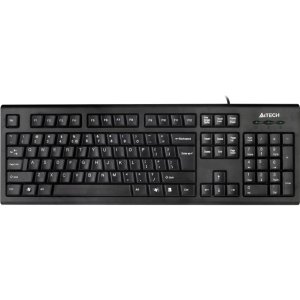
Figure 1: A4tech Natural A Ergonomic Keyboard (KRS-85). This image displays the full layout of the black wired keyboard, highlighting its ergonomic design with A-Shape keys and round keycaps.
2. Setup
2.1 System Requirements
- IBM or Compatible Systems
- Windows 2000 / XP (X64) / 2003 (X64) / Vista
2.2 Connecting the Keyboard
- Locate an available USB port on your computer.
- Insert the USB connector of the A4tech KRS-85 keyboard firmly into the USB port.
- Your operating system should automatically detect and install the necessary drivers. This process may take a few moments.
- Once installation is complete, the keyboard is ready for use.
3. Operating Instructions
The A4tech Natural A Keyboard is designed for comfortable and efficient typing. Its unique features are intended to enhance your typing experience and reduce strain.
3.1 Key Features
- Patented A-Shape Keys: The layout of the keys is designed to align with the natural position of your hands and wrists, promoting a more relaxed posture.
- Round Edged Keycaps: These keycaps provide a smooth and comfortable typing surface.
- Standard Layout: The keyboard features a full-size layout including a numeric keypad, function keys (F1-F12), and navigation keys.
3.2 Basic Usage
Use the keyboard as you would any standard computer keyboard for typing, navigating, and executing commands. The ergonomic design is intended to provide comfort during extended use.
4. Maintenance
Proper maintenance ensures the longevity and optimal performance of your keyboard.
4.1 Cleaning
- Disconnect the keyboard from your computer before cleaning.
- Use a soft, lint-free cloth slightly dampened with water or a mild cleaning solution to wipe the surface of the keyboard.
- Avoid using harsh chemicals, abrasive cleaners, or excessive moisture.
- For cleaning between keys, use compressed air to remove dust and debris.
5. Troubleshooting
If you encounter issues with your A4tech Natural A Keyboard, please refer to the following common solutions.
5.1 Keyboard Not Responding
- Ensure the USB cable is securely connected to a working USB port on your computer. Try a different USB port.
- Restart your computer.
- Check your computer's Device Manager (Windows) to see if the keyboard is recognized and if there are any driver issues.
5.2 Specific Key Combinations Not Working (e.g., Ctrl-Alt-Del)
- Some users have reported that certain key combinations, such as Ctrl-Alt-Del, may not function as expected on this keyboard with Windows operating systems. This is a known compatibility limitation for some configurations.
- If this issue persists, consider using alternative methods for these functions within your operating system, or consult A4tech support for potential workarounds or driver updates if available.
6. Specifications
| Feature | Detail |
|---|---|
| Product Name | Natural_A Rounded Edge Keyboard |
| Model Number | KRS-85 |
| Connectivity Technology | Cable (USB) |
| Keyboard Description | Ergonomic |
| Number of Keys | 85 |
| Product Dimensions | 19.69 x 7.87 x 1.97 inches |
| Item Weight | 2.2 pounds |
| Manufacturer | ERGOGUYS (A4tech Co., Ltd) |
| Date First Available | October 31, 2013 |
7. Warranty Information
The A4tech Natural A Ergonomic Keyboard (KRS-85) comes with a 1-Year Limited Warranty from the manufacturer. This warranty covers defects in materials and workmanship under normal use.
Please retain your proof of purchase for warranty claims. For detailed terms and conditions, refer to the warranty documentation provided with your product or contact the manufacturer directly.
8. Support
For further assistance, technical support, or warranty inquiries, please contact the manufacturer or your point of purchase. Ensure you have your product model number (KRS-85) and proof of purchase ready when contacting support.
