
1. Introduction
This manual provides detailed instructions for the setup, operation, maintenance, and troubleshooting of your Ducky Shine 3 Mechanical Keyboard. Please read this manual thoroughly before using the product to ensure proper function and longevity.
The Ducky Shine 3 Mechanical Keyboard features Cherry-MX Red switches for a smooth linear feel and Green LED backlighting. It is designed for use with Windows PC systems.
2. Package Contents
- Ducky Shine 3 Mechanical Keyboard
- USB Cable
- User Manual (this document)
3. Setup
3.1 Connecting the Keyboard
- Unpack the Ducky Shine 3 Mechanical Keyboard and its accessories from the packaging.
- Locate an available USB port on your Windows PC.
- Connect the USB cable to the keyboard and then to the USB port on your computer.
- Your operating system should automatically detect and install the necessary drivers. No additional software installation is typically required.
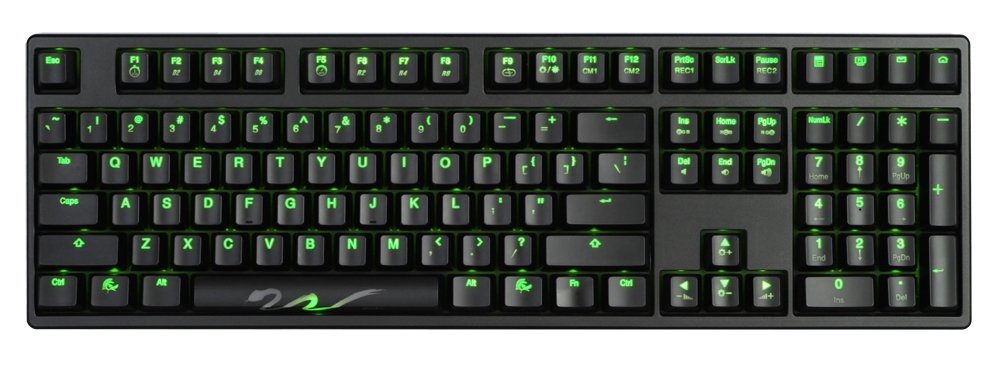
Figure 1: Ducky Shine 3 Mechanical Keyboard. This image shows the full keyboard with its green LED backlighting active, illustrating its layout and design.
4. Operating the Keyboard
4.1 Basic Functionality
The Ducky Shine 3 functions as a standard 108-key mechanical keyboard. All keys perform their labeled functions upon connection.
4.2 LED Backlighting Modes
The keyboard features 7 distinct LED backlighting modes. These modes can be cycled through and adjusted using specific key combinations. Refer to the keycap legends for specific function keys related to LED control.
- Mode Cycling: Typically activated by pressing Fn + F10 (or similar function key indicated on the keyboard).
- Brightness Adjustment: Use Fn + F11 (decrease) and Fn + F12 (increase) to adjust LED brightness.
- Customization: Some modes allow for individual key lighting customization. Consult the keyboard's specific keycap legends for advanced programming instructions.
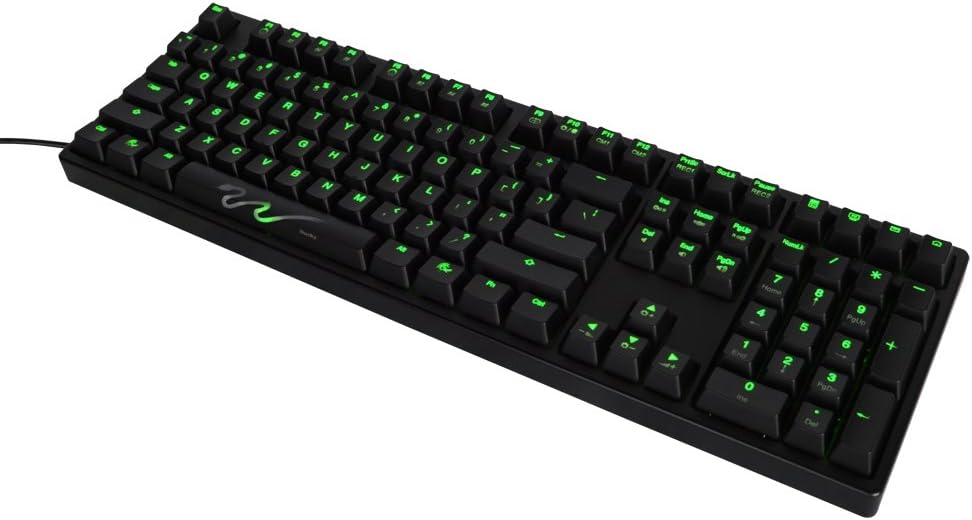
Figure 2: Close-up view of the Ducky Shine 3 keyboard. This image highlights the individual keycaps and the green LED illumination, demonstrating the clarity of the legends.
5. Maintenance
5.1 Cleaning the Keyboard
- Disconnect the keyboard from your computer before cleaning.
- Use a soft, lint-free cloth slightly dampened with water or a mild cleaning solution to wipe the keycaps and chassis.
- Avoid spraying liquids directly onto the keyboard.
- For dust and debris between keys, use compressed air.
5.2 Storage
Store the keyboard in a cool, dry place away from direct sunlight and extreme temperatures when not in use for extended periods.
6. Troubleshooting
| Problem | Possible Cause | Solution |
|---|---|---|
| Keyboard not responding | Loose USB connection, faulty USB port, driver issue. |
|
| LEDs not lighting up | LED brightness set to minimum, LED mode off. |
|
| Certain keys not working | Debris under keycap, faulty switch. |
|
7. Specifications
- Model Name: Shine 3
- Model Number: DK9008S3-RUSALAAG1
- Switch Type: Cherry-MX Red Mechanical Switches
- LED Color: Green
- Layout: Full size 108-key
- Connectivity: USB
- Compatible Devices: Windows PC
- Construction: Dual layer PCB
- Weight: Approximately 3 Pounds (1.36 kg)
8. Warranty and Support
Ducky products are manufactured to high quality standards. For warranty information and technical support, please refer to the official Ducky website or contact your local retailer.
For further assistance, visit the official Ducky website: www.duckychannel.com.tw


