
Beats BT OV STU BLU
Beats Studio Wired 2.0 Over-Ear Headphone User Manual
Model: BT OV STU BLU
Brand: Beats by Apple
1. Introduction
This user manual provides comprehensive instructions for the Beats Studio Wired 2.0 Over-Ear Headphones. It covers essential information regarding product features, setup, operation, maintenance, and troubleshooting to ensure you get the most out of your listening experience. Please read this manual thoroughly before using your headphones.

Image 1.1: Front view of the Beats Studio Wired 2.0 Over-Ear Headphones in blue.
2. Product Features
The Beats Studio Wired 2.0 headphones are engineered for a superior audio experience, combining advanced technology with a comfortable design.
- Beats Acoustic Engine: Delivers a precise and emotional listening experience, designed to reproduce music as the artist intended.
- Dual-Mode Adaptive Noise Canceling (ANC): Actively reduces ambient noise, allowing for immersive listening. It balances music and external sound when playing audio, and increases noise cancellation in ANC-only mode.
- 20-Hour Rechargeable Battery: Provides extended listening time. Features an Auto On/Off function to conserve power and a visible Battery Fuel Gauge to monitor charge level.
- RemoteTalk Cable: Enables control over music playback (play/pause, skip tracks) and call management directly from the cable.
- Lightweight and Comfortable Design: Reimagined with fast curves, smooth surfaces, and no visible screws. Features a lighter, stronger headband and softer, ergonomic ear cups for a flexible, custom fit.
3. Package Contents
Upon unboxing your Beats Studio Wired 2.0 Over-Ear Headphones, please ensure all the following items are present:
- Beats Studio Over-Ear Headphones
- USB 2.0 Charging Cable (USB-A to USB Micro-B)
- USB Power Adapter
- 3.5 mm Audio Cable
- RemoteTalk Cable (3.5mm audio cable with in-line mic and remote)
- Hard Shell Carrying Case with Carabineer Clip
- Beats Cleaning Cloth
- Quick Start-up Guide (separate document)
4. Setup
4.1 Charging the Headphones
Before initial use, fully charge your Beats Studio headphones. A full charge provides approximately 20 hours of listening time.
- Locate the micro USB port on the right ear cup.
- Connect the small end of the USB 2.0 charging cable to the micro USB port on the headphone.
- Connect the large end of the USB 2.0 charging cable to the USB power adapter.
- Plug the USB power adapter into a wall outlet.
- The Battery Fuel Gauge LEDs will illuminate to indicate charging status. All five LEDs will glow solid white when fully charged.
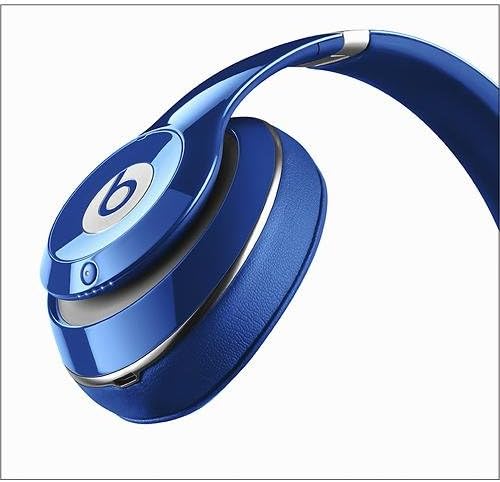
Image 4.1: Close-up view of the right ear cup, highlighting the charging port and LED indicators.
4.2 Connecting to an Audio Source
The Beats Studio Wired 2.0 headphones connect to your audio device via a 3.5mm audio cable.
- Insert one end of the 3.5mm audio cable (either the standard audio cable or the RemoteTalk cable) into the audio input jack on the left ear cup.
- Insert the other end of the cable into the 3.5mm headphone jack of your audio device (e.g., smartphone, tablet, computer, MP3 player).
- Ensure the cable is securely connected at both ends.
5. Operation
5.1 Powering On/Off and Adaptive Noise Canceling (ANC)
The Beats Studio headphones feature an integrated power button that also controls the Adaptive Noise Canceling (ANC) function.
- To Power On: Press and hold the power button (located on the right ear cup) for 1 second. The Battery Fuel Gauge LEDs will light up.
- To Power Off: Disconnect the audio cable from the headphones. The Auto On/Off feature will automatically power down the headphones to conserve battery.
- ANC Mode (with audio): When the headphones are powered on and an audio cable is connected, ANC automatically balances your music with external noise.
- ANC-Only Mode (without audio): To use ANC without playing music, ensure no audio cable is connected, then press the power button. The ANC level will automatically increase to provide maximum noise cancellation.
5.2 Using the RemoteTalk Cable
The RemoteTalk cable provides convenient control over your audio and calls.
- Play/Pause: Press the center button once.
- Skip Forward: Press the center button twice quickly.
- Skip Backward: Press the center button three times quickly.
- Volume Up: Press the "+" button.
- Volume Down: Press the "-" button.
- Answer/End Call: Press the center button once during an incoming call or active call.
- Decline Call: Press and hold the center button for 2 seconds during an incoming call.
5.3 Battery Fuel Gauge
The Battery Fuel Gauge on the right ear cup indicates the remaining battery life.
- Five white LEDs: Full charge.
- Fewer LEDs: Decreasing battery level.
- Single red LED: Low battery, recharge soon.
6. Maintenance
6.1 Cleaning
To maintain the appearance and performance of your headphones:
- Use the provided Beats cleaning cloth to gently wipe the surfaces of the headphones.
- Do not use abrasive cleaners, alcohol, or chemical solvents.
- Keep moisture away from openings and ports.
6.2 Storage
When not in use, store your headphones in the provided hard shell carrying case to protect them from dust, scratches, and impacts.

Image 6.1: Beats Studio headphones folded compactly for storage in the carrying case.
7. Troubleshooting
If you encounter issues with your Beats Studio Wired 2.0 headphones, refer to the following common problems and solutions:
| Problem | Possible Cause / Solution |
|---|---|
| No sound or low volume. |
|
| Adaptive Noise Canceling (ANC) not working or "hissing" sound. |
|
| Headphones not charging. |
|
| RemoteTalk cable controls not responding. |
|
8. Specifications
| Feature | Detail |
|---|---|
| Model Number | BT OV STU BLU (B0500) |
| Connectivity Technology | Wired (3.5 mm Jack) |
| Ear Placement | Over Ear |
| Noise Control | Active Noise Cancellation (Dual-Mode) |
| Battery Life | Up to 20 hours (rechargeable Lithium Ion) |
| Charging Port | Micro USB |
| Dimensions (Product) | 1 x 7.99 x 1 inches (approximate) |
| Item Weight | 9.1 ounces (0.26 kg) |
| Material | Plastic |
| Color | Blue |
| Manufacturer | Beats Electronics, LLC |
9. Warranty and Support
For information regarding warranty coverage, please refer to the warranty card included with your product or visit the official Beats by Apple support website.
If you require further assistance or have questions not covered in this manual, please contact Beats by Apple customer support. You can also refer to the official User Manual (PDF) for additional details.
Related documentsBT OV STU BLU


Ask a question about this manual
Ask about setup, troubleshooting, compatibility, parts, safety, or missing instructions. Manuals+ will review the question and use this page’s manual context to help answer it.