
1. Introduction
This user manual provides comprehensive instructions for the setup, operation, maintenance, and troubleshooting of your TSC TDP-225 Label Printer. Please read this manual thoroughly before using the printer to ensure proper functionality and to prevent damage.
2. Safety Information
Always follow basic safety precautions when using this product to reduce the risk of fire, electric shock, and injury to persons.
- Do not place the printer in an unstable location.
- Do not expose the printer to water or moisture.
- Use only the power adapter and cables supplied or recommended by the manufacturer.
- Unplug the printer from the power outlet before cleaning or performing maintenance.
- Keep the printer away from heat sources and direct sunlight.
3. Package Contents
Verify that all items listed below are included in your package. If any items are missing or damaged, please contact your vendor.
- TSC TDP-225 Label Printer
- Power Adapter
- Power Cable
- USB Cable
- Quick Start Guide (not included in this manual)

Image: The TSC TDP-225 Label Printer shown with its power adapter, power cable, USB cable, and a roll of labels.
4. Product Overview
4.1 Front View

Image: Front view of the TSC TDP-225 printer, highlighting the control panel and label output slot.
4.2 Rear View and Ports
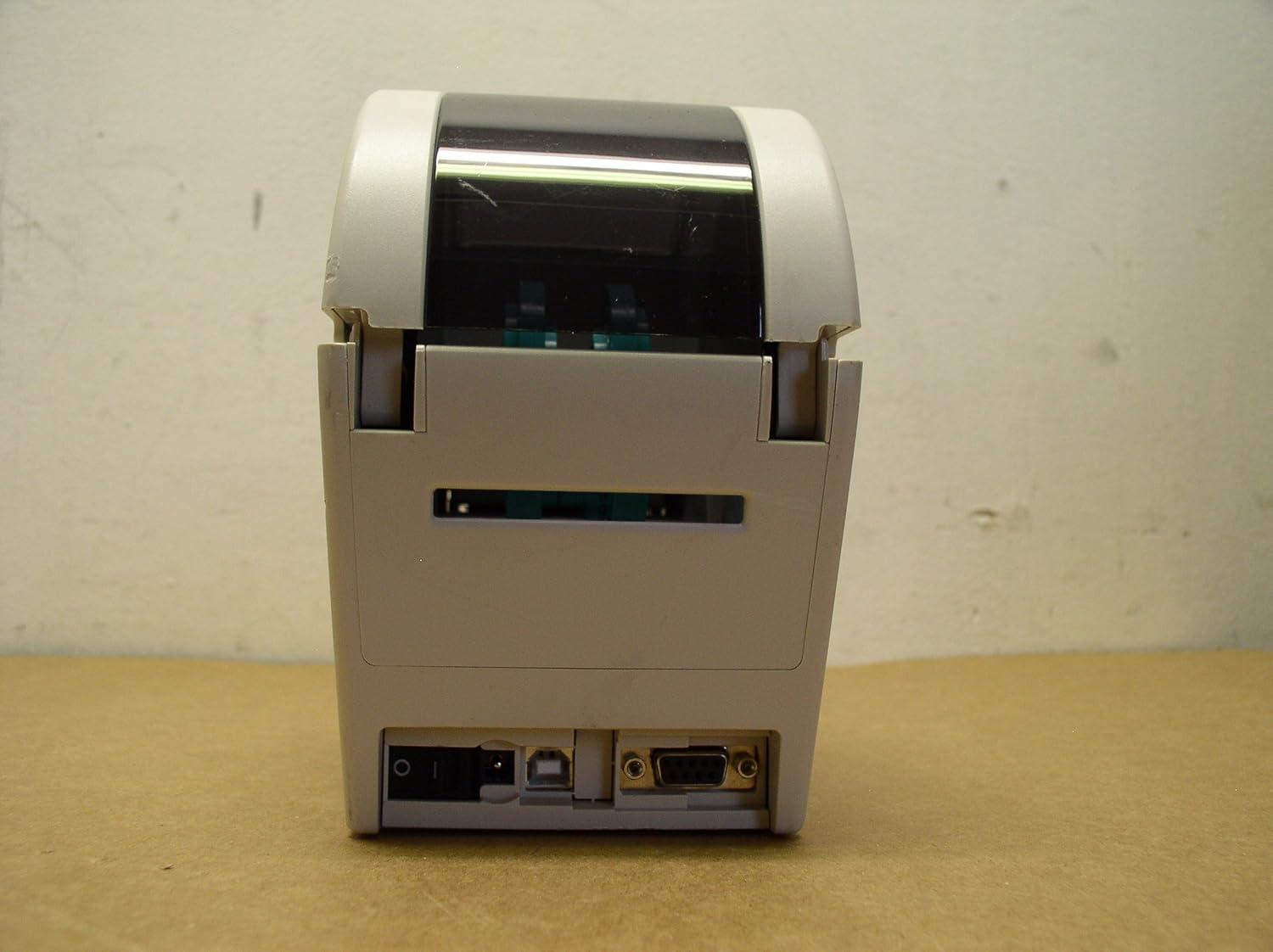
Image: Rear view of the TSC TDP-225 printer, showing the power input, USB port, and serial port.
4.3 Bottom View

Image: Bottom view of the TSC TDP-225 printer, displaying the model number, serial number, and regulatory compliance information.
5. Setup
5.1 Connecting Power
- Connect the power cable to the power adapter.
- Plug the power adapter into the power input port on the rear of the printer.
- Plug the power cable into a grounded electrical outlet.
5.2 Connecting to Computer
The TSC TDP-225 printer supports USB connectivity.
- Connect one end of the USB cable to the USB port on the rear of the printer.
- Connect the other end of the USB cable to an available USB port on your computer.
5.3 Loading Labels
Proper label loading is crucial for optimal print quality and printer longevity.

Image: Internal view of the TSC TDP-225 printer with the top cover open, illustrating the label roll compartment and feed mechanism.
- Open the top cover of the printer.
- Place the label roll onto the media supply spindle, ensuring the labels feed from the bottom.
- Feed the leading edge of the labels through the media guides until it extends past the print head.
- Adjust the media guides to fit the width of your labels snugly, but without restricting movement.
- Close the top cover securely.
5.4 Driver Installation
Before printing, you must install the appropriate printer drivers on your computer. Drivers are typically provided on a CD with the printer or can be downloaded from the official TSC website. Follow the on-screen instructions during the installation process.
6. Operating the Printer
6.1 Basic Printing
- Ensure the printer is powered on and connected to your computer.
- Open the document or application from which you wish to print labels.
- Select "Print" from the application's menu.
- Choose the "TSC TDP-225" as your printer.
- Adjust print settings (e.g., label size, orientation, darkness) as needed in the printer preferences.
- Click "Print" to send the job to the printer.
6.2 Test Print
A test print can help verify printer functionality and driver installation.

Image: A sample label printed by the TSC TDP-225, displaying printer information such as serial port, speed, and memory details.
Refer to your printer driver's documentation for instructions on how to perform a test print from your operating system.
7. Maintenance
7.1 Cleaning the Print Head
Regular cleaning of the print head ensures optimal print quality and extends the life of your printer.
- Turn off the printer and unplug it from the power outlet.
- Open the top cover.
- Gently wipe the print head surface with a lint-free cloth moistened with isopropyl alcohol.
- Allow the print head to dry completely before closing the cover and reconnecting power.
7.2 General Cleaning
Wipe the exterior of the printer with a soft, damp cloth. Do not use abrasive cleaners or solvents.
8. Troubleshooting
| Problem | Possible Cause | Solution |
|---|---|---|
| Printer not powering on | Power cable not connected; Power outlet issue | Ensure power cable is securely connected; Try a different power outlet. |
| No print output | Printer not connected to computer; Incorrect driver installed; Labels not loaded correctly | Check USB connection; Reinstall printer drivers; Verify label loading as per Section 5.3. |
| Poor print quality | Dirty print head; Incorrect darkness setting; Low quality labels | Clean the print head (Section 7.1); Adjust darkness setting in printer preferences; Use recommended labels. |
| Labels jamming | Labels not aligned; Damaged labels; Media guides too tight | Re-align labels; Use undamaged labels; Adjust media guides. |
9. Specifications
| Feature | Detail |
|---|---|
| Brand | TSC |
| Model Name | TDP 225 |
| Item Model Number | 99-039A001-00LF |
| Printing Technology | Thermal |
| Connectivity Technology | USB |
| Printer Output | Monochrome |
| Max Print Speed Monochrome | 1 ppm |
| Resolution | 300 x 300 dpi (Max copy resolution black-white: 203 dpi) |
| Maximum Media Size | 5 inches |
| Sheet Size | 2 inches |
| Memory Storage Capacity | 8 MB |
| Item Weight | 4.6 pounds (2.09 Kilograms) |
| Product Dimensions | 6.93 x 7.56 x 30.24 inches |
| Included Components | Power Cable |
10. Warranty and Support
10.1 Warranty Information
The TSC TDP-225 Label Printer comes with a limited warranty. Please refer to the warranty card included with your product or visit the official TSC website for detailed warranty terms and conditions.
10.2 Technical Support
For technical assistance, driver downloads, or further product information, please visit the official TSC support website or contact their customer service department. Contact details can typically be found on the manufacturer's website or in the product packaging.


