
Introduction
This manual provides instructions for the installation, operation, maintenance, and troubleshooting of Nuance Dragon Dictate Medical for Mac, Model T301A-G00-3.0. This software is designed to convert spoken words into text, specifically tailored for medical terminology, enhancing documentation efficiency on macOS systems.
Please read this manual thoroughly before using the software to ensure proper setup and optimal performance.
Setup
1. System Requirements
- Operating System: macOS (specific version compatibility may vary; refer to product packaging or Nuance website for details).
- Processor: Intel Core 2 Duo 2.4 GHz or faster (Intel Core i3, i5, i7, or Xeon recommended).
- RAM: 4 GB minimum (8 GB recommended).
- Hard Disk Space: 8 GB free disk space.
- Microphone: Nuance-approved noise-canceling headset microphone (included or purchased separately).
- Internet Connection: Required for product activation and updates.
2. Installation Process
- Insert Installation Media: If using a physical disc, insert it into your Mac's optical drive. If you have a digital download, locate the downloaded installer file.
- Run Installer: Double-click the installer icon and follow the on-screen prompts.
- Accept License Agreement: Read and accept the software license agreement to proceed.
- Enter License Key: During installation, you will be prompted to enter your unique product license key. This key is essential for activating the software. Ensure it is entered accurately. If you encounter issues locating your license key, refer to the packaging or your purchase confirmation.
- Complete Installation: Allow the installer to complete the process. This may take several minutes.
- Restart (if prompted): If the installer prompts you to restart your computer, do so to finalize the installation.
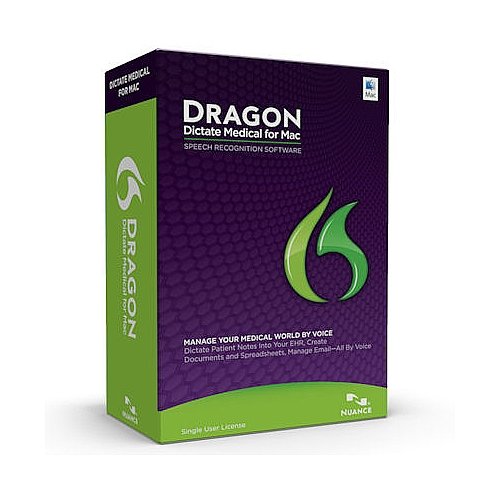
Image: Retail box for Nuance Dragon Dictate Medical for Mac. The box typically contains the installation media and the license key.
Operating the Software
1. Creating a User Profile
Upon first launch, Dragon Dictate Medical will guide you through creating a user profile. This involves reading a short passage to train the software to your voice and speaking style. This step is crucial for achieving high accuracy.
2. Basic Dictation
- Launch Application: Open Dragon Dictate Medical from your Applications folder.
- Activate Microphone: Ensure your microphone is connected and selected within the DragonBar (the control panel for Dragon). Click the microphone icon to turn it on (green indicates active).
- Start Dictating: Speak clearly and naturally into your microphone. Dragon will transcribe your speech into the active application (e.g., a word processor, EHR system).
- Punctuation: Speak punctuation marks (e.g., "period," "comma," "new paragraph").
3. Using Voice Commands
Dragon Dictate Medical supports a wide range of voice commands for editing, formatting, and navigating your computer. Examples include:
- "Select [word or phrase]"
- "Delete that"
- "Bold [word or phrase]"
- "Open Safari"
- "Switch to Mail"
Refer to the in-application help for a comprehensive list of available commands.
4. Correcting Errors
If Dragon makes a transcription error, you can correct it using your voice or keyboard:
- Voice Correction: Say "Correct [word or phrase]" or "Correct that." A correction menu will appear, allowing you to choose the correct word or spell it out.
- Manual Correction: Use your keyboard and mouse to manually edit the text. Dragon learns from your corrections, improving accuracy over time.
Maintenance
1. User Profile Management
Regularly training your user profile helps maintain and improve accuracy. You can access profile management options from the DragonBar to:
- Add Words: Teach Dragon new words, names, or medical terms not in its vocabulary.
- Run Acoustic Optimizer: This tool analyzes your dictation and makes adjustments to your profile for better recognition.
- Backup Profile: Regularly back up your user profile to prevent data loss.
2. Software Updates
Nuance periodically releases software updates that may include bug fixes, performance improvements, and new features. It is recommended to keep your software updated.
- Check for Updates: Access the "Check for Updates" option within the Dragon Dictate Medical application menu.
- Install Updates: Follow the on-screen instructions to download and install any available updates. An internet connection is required.
Troubleshooting
1. Poor Recognition Accuracy
- Microphone Check: Ensure your microphone is properly connected, positioned correctly (about an inch from your mouth), and functioning. Test it with another application.
- Environment: Dictate in a quiet environment to minimize background noise interference.
- Speaking Style: Speak clearly and consistently. Avoid mumbling or speaking too quickly.
- Retrain Profile: Consider running the Acoustic Optimizer or creating a new user profile if accuracy issues persist.
2. Software Not Responding or Crashing
- Restart Application: Close and reopen Dragon Dictate Medical.
- Restart Mac: A system restart can resolve many software glitches.
- Check System Resources: Ensure your Mac meets the minimum system requirements and has sufficient RAM and CPU available. Close other demanding applications.
- Software Updates: Ensure your software is up to date, as updates often include stability fixes.
3. License Activation Issues
- Verify Key: Double-check that the license key was entered correctly, paying attention to characters that can be easily confused (e.g., '0' and 'O', '1' and 'I').
- Internet Connection: Ensure your Mac has an active internet connection for activation.
- Contact Support: If activation fails, contact Nuance Customer Support. Be prepared to provide your license key and proof of purchase.
Specifications
| Feature | Detail |
|---|---|
| Product Name | Dragon Dictate Medical for Mac |
| Model Number | T301A-G00-3.0 |
| Manufacturer | Nuance |
| ASIN | B00FWYU71G |
| Package Dimensions | 7.8 x 5.1 x 2.5 inches |
| Package Weight | 4.96 ounces |
| First Available Date | October 15, 2013 |
Warranty and Support
1. Product Warranty
Nuance products typically come with a limited warranty. Details regarding the warranty period and coverage can be found in the product's End User License Agreement (EULA) or on the official Nuance website. Please retain your proof of purchase for warranty claims.
2. Technical Support
For technical assistance, product inquiries, or troubleshooting beyond the scope of this manual, please contact Nuance Customer Support. Support resources often include:
- Online Knowledge Base: A searchable database of articles and FAQs.
- Community Forums: Peer-to-peer support and discussions.
- Direct Support: Contact options via phone, email, or live chat.
Visit the official Nuance website (www.nuance.com) for the most current support contact information and resources.

