
1. Introduction
This manual provides comprehensive instructions for the setup, operation, maintenance, and troubleshooting of your A4tech Bloody V7M Gaming Mouse. Designed for precision and speed, the Bloody V7M offers an enhanced gaming experience with its advanced features.
What's in the Box:
- Bloody V7M Gaming Mouse
- Download Software Instruction Card
- Warranty Card
- Bloody Tattoo

Figure 1: The retail packaging for the A4tech Bloody V7M Gaming Mouse, showing the mouse and its branding.
2. Setup
2.1 Connecting the Mouse
The Bloody V7M Gaming Mouse connects via a standard USB 2.0/3.0 port. Simply plug the USB connector into an available USB port on your computer. The mouse is plug-and-play compatible with most operating systems, including Windows 7, Windows XP, and Linux.
Figure 2: The A4tech Bloody V7M Gaming Mouse, showing its wired USB connection.
2.2 Software Installation
For full functionality and customization, it is recommended to download and install the official Bloody software. Refer to the "Download Software Instruction Card" included in your package for details on where to obtain the latest software. This software allows for programming the 7 buttons, adjusting DPI settings, and utilizing advanced features like auto recoil suppression and trajectory adjustments.
Note: Some advanced features may require software activation or a license.
3. Operating Instructions
The Bloody V7M Gaming Mouse is designed for high-performance gaming with several customizable features.
3.1 Button Functions
The mouse features 7 programmable buttons plus a scroll wheel. Default functions include left-click, right-click, scroll wheel click, and side buttons. Specific button assignments can be customized through the Bloody software.
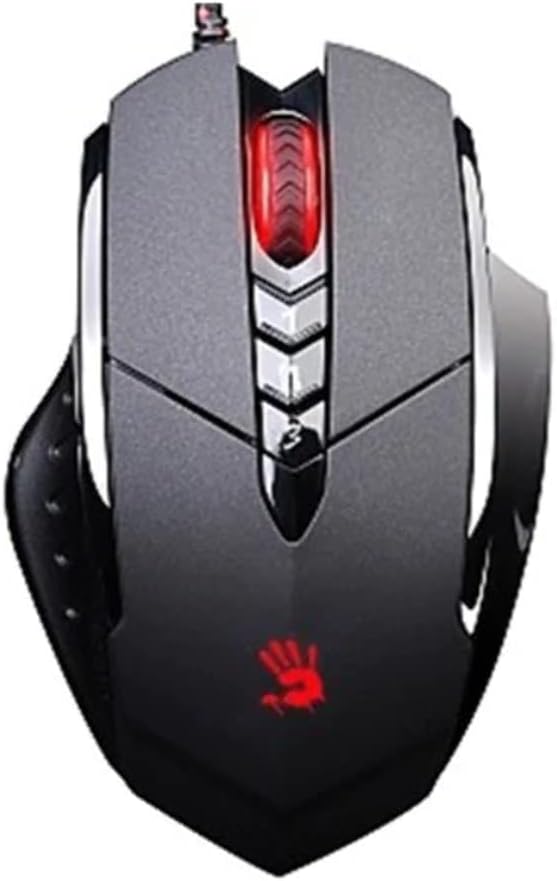
Figure 3: Top view of the Bloody V7M mouse, highlighting the main buttons and scroll wheel.
3.2 DPI Adjustment
The mouse supports adjustable DPI settings from 200 DPI to 3200 DPI. These settings can typically be cycled through using a dedicated DPI button (often located near the scroll wheel) or configured precisely within the Bloody software. Adjusting DPI allows you to change cursor sensitivity on the fly.
3.3 Shooting Modes and Advanced Features
The Multi-Core design offers 3 shooting modes and 6 sniper modes, enhancing precision in gaming. Features like "Ahead" technology reduce key response time to 1ms, and auto recoil suppression provides a competitive edge. These advanced functionalities are primarily managed and configured via the Bloody software.
- Metal X Glide Armour Feet: These feet are designed to eliminate friction, providing smoother motion and improved accuracy.
- Zero-Shot Delay: Ensures immediate response for critical actions.
- No Double Click, Zero Bouncing Output: Guarantees precise single clicks without unintended double inputs.

Figure 4: An angled top view of the Bloody V7M mouse, showcasing its ergonomic design and button layout.
4. Maintenance
4.1 Cleaning the Mouse
To maintain optimal performance, regularly clean your mouse. Use a soft, dry cloth to wipe down the surface. For stubborn dirt, a slightly damp cloth with mild soap can be used, but ensure no liquid enters the mouse. Avoid abrasive cleaners or solvents.
4.2 Caring for X Glide Armour Feet
The Metal X Glide Armour feet are durable, but keeping them clean and free of debris will ensure smooth gliding. Periodically check the feet for any accumulated dust or dirt and gently wipe them clean.

Figure 5: Side view of the Bloody V7M mouse, illustrating its contoured shape for comfortable grip.
5. Troubleshooting
Common Issues and Solutions:
- Mouse not responding:
- Ensure the USB cable is securely plugged into a working USB port.
- Try plugging the mouse into a different USB port.
- Restart your computer.
- Check device manager for driver issues.
- Cursor movement is erratic or jumpy:
- Clean the optical sensor on the bottom of the mouse.
- Ensure you are using the mouse on a suitable surface (non-reflective, uniform color).
- Adjust DPI settings.
- Buttons not working or double-clicking:
- Ensure the Bloody software is installed and updated.
- Check button assignments in the software.
- Restart your computer.
- Software not detecting mouse:
- Reinstall the Bloody software.
- Ensure your operating system is up to date.
- Temporarily disable antivirus/firewall to check for conflicts.
6. Specifications
| Feature | Detail |
|---|---|
| Model | V7M |
| Resolution | 200 - 3,200 DPI (5 ranges adjustable) |
| Image Processing | 368 mega pixels / sec |
| Acceleration | 30g |
| Tracking Speed | 75 inches / sec |
| Report Rate | 1,000 Hz (4 ranges adjustable) |
| Key Response Time | 1ms |
| Onboard Memory | 160K |
| Mouse Dimensions (LxWxH) | 125 x 64 x 39 mm (4.92 x 2.52 x 1.54 inches) |
| Cable Length | 1.8 m |
| Mouse Weight | 155 g (5.5 ounces) |
| Connectivity | USB (2.0/3.0) |
| Operating System Compatibility | Linux, Windows 7, Windows XP |
| Hardware Platform | PC |
| Color | Black |
7. Warranty and Support
7.1 Warranty Information
Your A4tech Bloody V7M Gaming Mouse comes with a manufacturer's warranty. Please refer to the "Warranty Card" included in your product package for specific terms, conditions, and duration of the warranty. Keep your proof of purchase for warranty claims.
7.2 Technical Support
For technical assistance, software downloads, or further inquiries, please visit the official A4tech website or contact their customer support. Contact information can typically be found on the manufacturer's website or on the product packaging.


