
Introduction
This manual provides essential information for the proper use and maintenance of your Silicon Power Armor A30 portable external hard drive. Please read these instructions carefully before using the device to ensure optimal performance and longevity.
Package Contents
- Silicon Power Armor A30 Portable External Hard Drive
- USB 3.0 Cable
- Quick Start Guide (this document)
Setup
1. Connecting the Drive
To connect your Armor A30 hard drive, simply plug the included USB 3.0 cable into the corresponding port on the drive and then into an available USB port on your computer or compatible device. The drive is bus-powered, meaning it draws power directly from the USB connection, eliminating the need for an external power adapter.

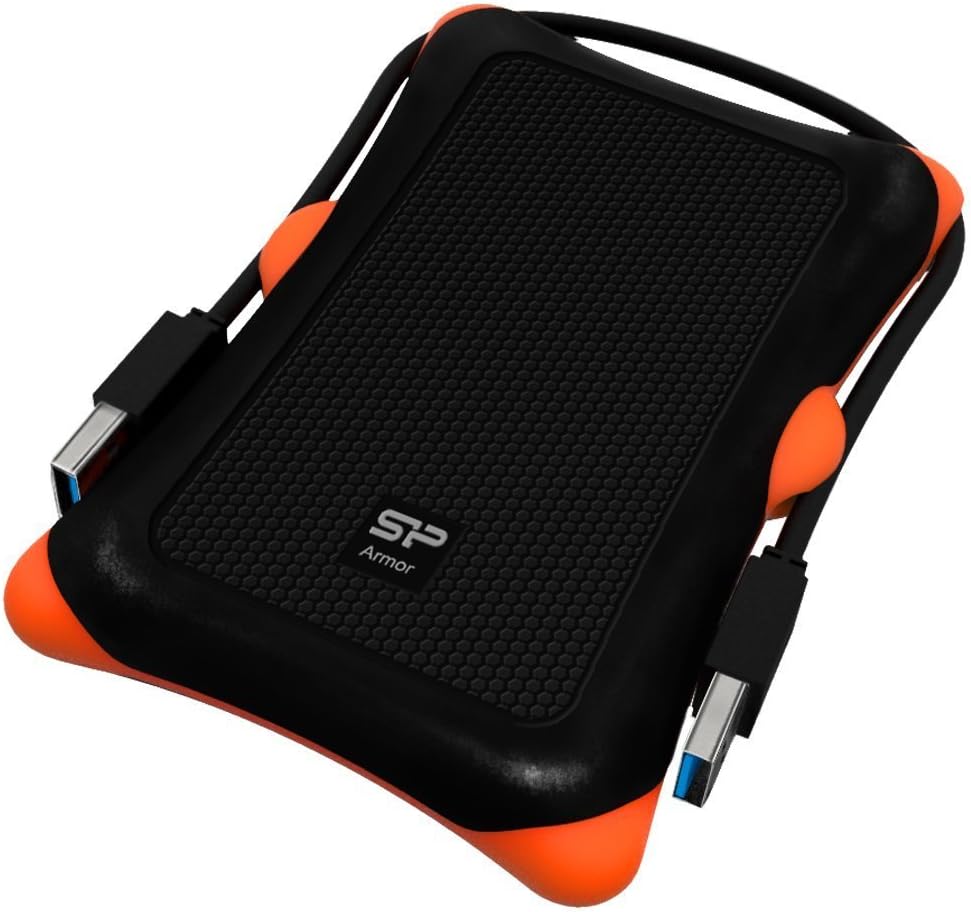
Front view of the Silicon Power Armor A30 external hard drive, showcasing its rugged design and integrated USB cable storage.
2. Initial Recognition and Formatting
Upon first connection, your operating system (Windows, macOS, Linux) should automatically detect and install the necessary drivers for the Armor A30. The drive comes pre-formatted, typically in NTFS for Windows compatibility. If you intend to use the drive primarily with macOS, you may consider reformatting it to HFS+ (Mac OS Extended) or exFAT for cross-platform compatibility. Please note that reformatting will erase all data on the drive.
The Armor A30 external hard drive connected to a laptop, demonstrating its plug-and-play functionality.
Operating the Drive
Data Transfer
Once connected and recognized, the Armor A30 will appear as a removable drive in your computer's file explorer (Windows) or Finder (macOS). You can transfer files by dragging and dropping them to and from the drive, or by using copy/paste functions. For optimal transfer speeds, ensure you are connected to a USB 3.0 port.
Safe Removal
Always safely eject the drive before disconnecting it to prevent data corruption. In Windows, right-click the drive icon in 'This PC' and select 'Eject'. In macOS, drag the drive icon to the Trash or click the Eject button next to the drive in Finder.
Device Compatibility
The Armor A30 is compatible with a wide range of devices and operating systems:
- Operating Systems: Windows 10, 8.1, 8, 7, Vista, XP; Mac OS 10.5.x and later; Linux 2.6.x and later.
- Gaming Consoles: PlayStation 4 (PS4, PS4 Pro, PS4 Slim), Xbox One, Xbox 360.
Maintenance
Physical Care
- Keep the drive clean by wiping it with a soft, dry cloth. Avoid harsh chemicals.
- While the Armor A30 is designed to be shockproof, avoid unnecessary drops or impacts.
- Ensure the integrated cable is properly secured in its slot when not in use to prevent damage.
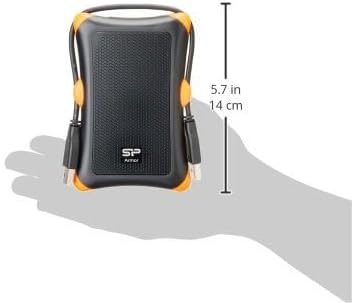
The Armor A30 hard drive held in a hand, providing a visual reference for its portable size and approximate dimensions.
Data Care
- Regularly back up important data from your external drive to another storage medium.
- For Windows users, periodically run Disk Defragmenter to optimize performance.
- For macOS users, use Disk Utility to verify and repair disk permissions if issues arise.
Troubleshooting
| Issue | Possible Solution |
|---|---|
| Drive not detected |
|
| Slow transfer speeds |
|
| Drive makes unusual noises |
|
Specifications
| Feature | Detail |
|---|---|
| Capacity | 1 TB |
| Interface | USB 3.0 (backward compatible with USB 2.0) |
| Dimensions (LxWxH) | 5.28 x 3.43 x 0.71 inches (134 x 87.5 x 18.6 mm) |
| Weight | 6.4 ounces (181g) |
| Operating Temperature | 5°C to 55°C (41°F to 131°F) |
| Storage Temperature | -40°C to 70°C (-40°F to 158°F) |
| Operating Voltage | DC 5V (USB powered) |
| Supported OS | Windows 10/8.1/8/7/Vista/XP, Mac OS 10.5.x+, Linux 2.6.x+ |
| Shock Resistance | U.S. military-grade shockproof (MIL-STD-810G Method 516.6 Procedure IV) |
Warranty and Support
Warranty Information
The Silicon Power Armor A30 typically comes with a 3-year limited warranty. For specific warranty terms and conditions, please refer to the official Silicon Power website or the warranty card included with your product. Product registration may be required to activate or verify your warranty.
You can register your product and check warranty status at: http://www.silicon-power.com/trace/index.php?code=834
Customer Support
For technical assistance, troubleshooting beyond this manual, or warranty claims, please visit the official SP Silicon Power website for their support section. You can typically find FAQs, driver downloads, and contact information for customer service.


