
Introduction
This manual provides comprehensive instructions for the installation, operation, maintenance, and troubleshooting of your RCA Technicolor TC8717T DOCSIS 3.0 Telephony Wireless Modem Router. This device integrates a high-speed cable modem, a wireless router, and a telephony adapter into a single unit, designed to provide robust internet connectivity and voice services.
The TC8717T supports up to 16 bonded downstream channels and 4 bonded upstream channels, enabling speeds of up to 640 Mbps downstream and 160 Mbps upstream. It features a 4-port Gigabit wired router and supports 2 VoIP lines, offering full connectivity for various devices in your home, including set-top boxes via MoCA.
Setup and Installation
Follow these steps to set up your Technicolor TC8717T modem router:
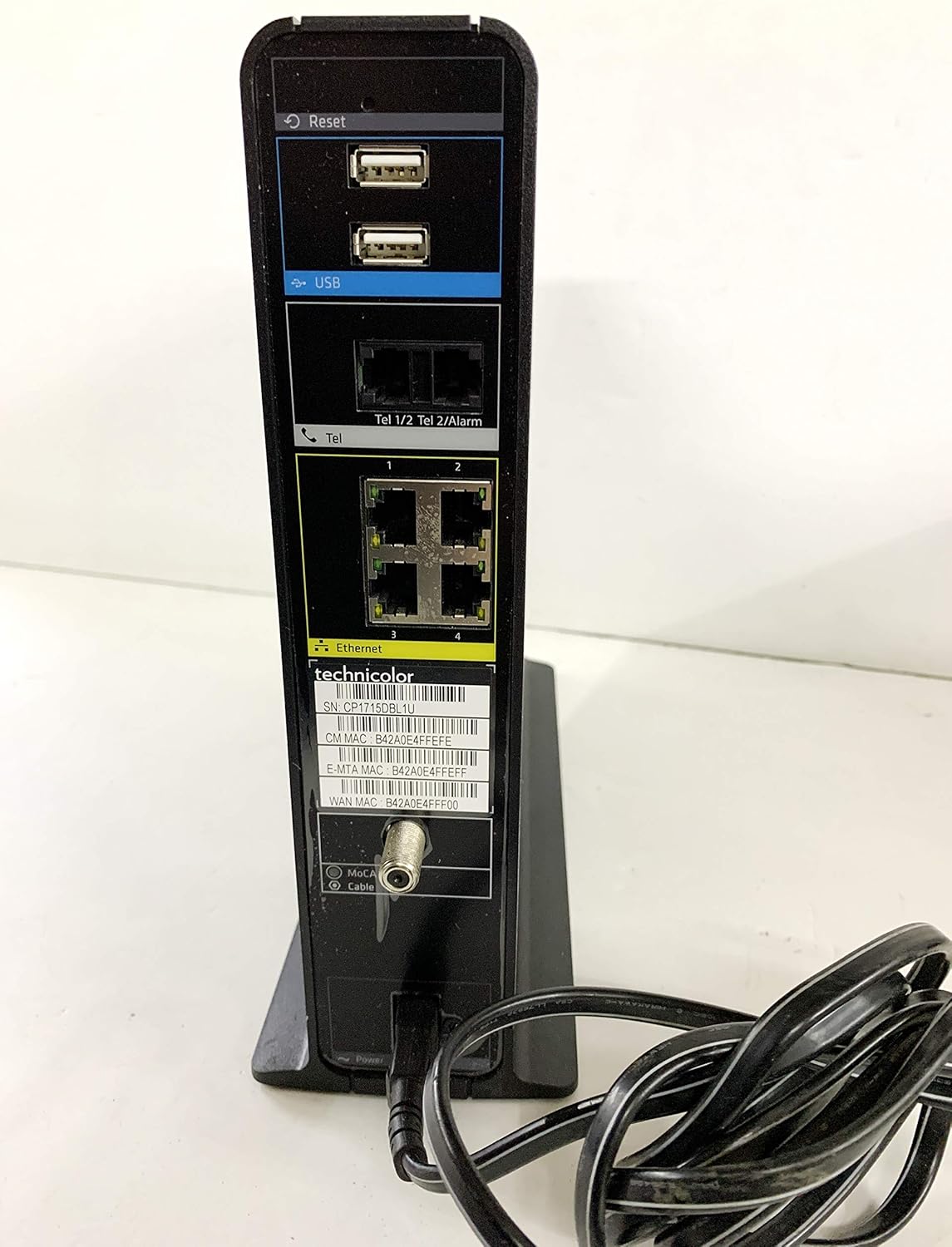
- Connect the Coaxial Cable: Connect one end of the coaxial cable to the cable wall outlet and the other end to the 'Coax/Internet' port on the back of the modem router. Ensure the connection is finger-tight.
- Connect the Power Adapter: Plug the power adapter into the '12V === 3.5A' power port on the back of the modem router, then plug the other end into a standard electrical outlet.
- Power On: Press the 'On/Off' button located near the power port. The Power LED on the front panel should illuminate.
- Wait for Initialization: Allow several minutes for the modem router to power on and connect to your internet service provider's network. Observe the LED indicators on the front panel. The 'US/DS' and 'Online' LEDs should eventually turn solid green, indicating a successful connection.
- Connect Devices (Wired): For wired connections, use Ethernet cables to connect your computer or other network devices to any of the four 'Ethernet' ports on the back of the modem router.
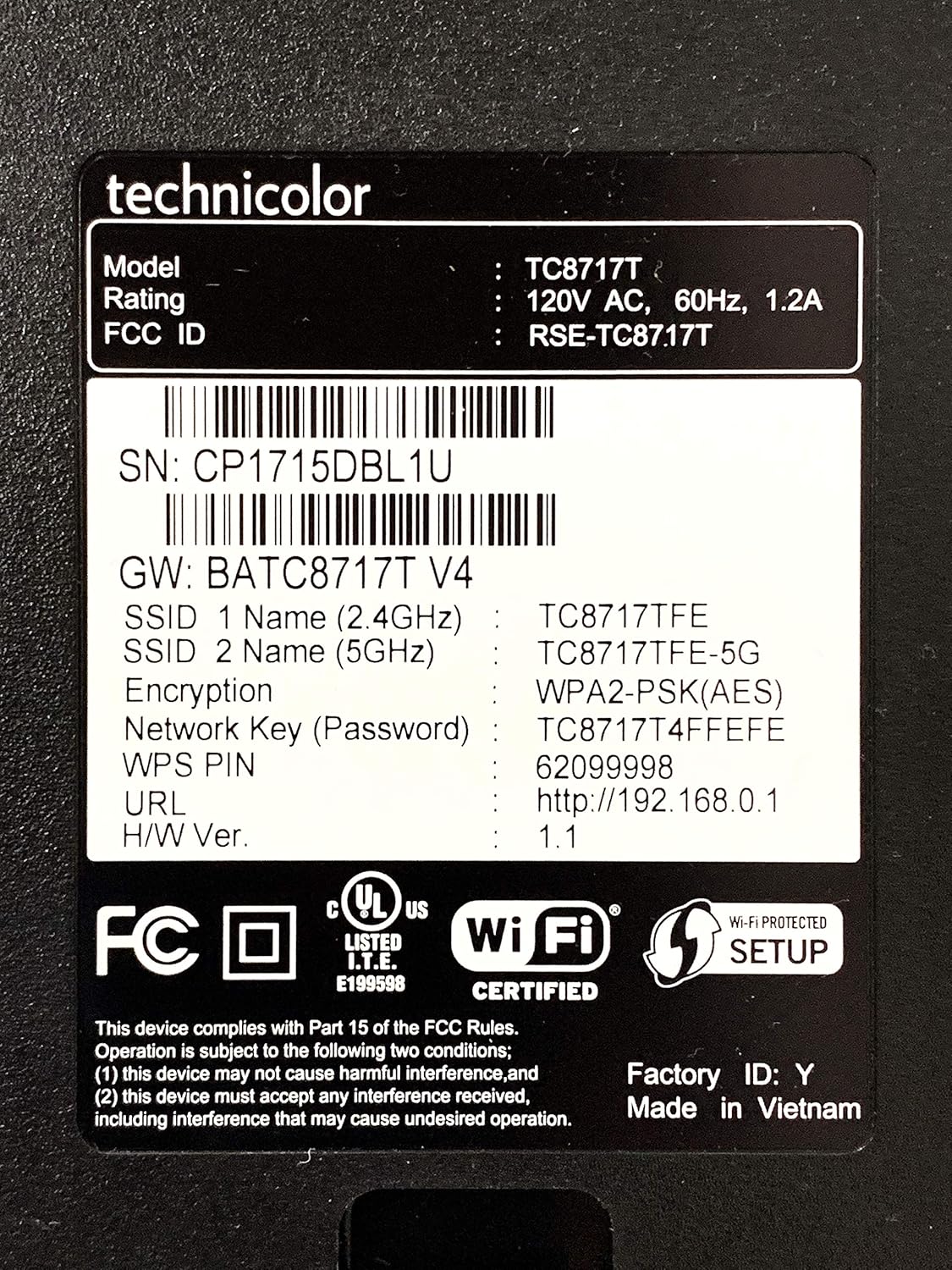
- Connect Devices (Wireless): To connect wirelessly, locate the Wi-Fi Network Name (SSID) and Network Key (Password) printed on the label at the bottom of your modem router. Select the appropriate SSID (2.4 GHz or 5 GHz) on your device and enter the Network Key when prompted.
- Telephony Connection: If you have VoIP service, connect your telephone to the 'Tel 1' or 'Tel 2' port using a standard telephone cable.
- Service Activation: Contact your internet service provider (ISP) to activate your new modem router. You may need to provide the MAC address (CM MAC and E-MTA MAC) and Serial Number (SN) found on the label.
Operating Instructions
Understanding the LED indicators on the front panel is key to monitoring the status of your modem router:
- Power: Indicates the power status of the device. Solid green means the device is powered on.
- US/DS (Upstream/Downstream): Indicates the status of the upstream and downstream channels. Solid green means channels are bonded and connected. Blinking indicates scanning for channels.
- Online: Indicates internet connectivity. Solid green means the modem router is online and connected to the internet. Blinking indicates connection in progress.
- 2.4 GHz: Indicates the status of the 2.4 GHz Wi-Fi network. Solid green means the network is active. Blinking indicates data transfer.
- 5 GHz: Indicates the status of the 5 GHz Wi-Fi network. Solid green means the network is active. Blinking indicates data transfer.
- Phone 1 / Phone 2: Indicates the status of the telephony lines. Solid green means the line is active. Blinking indicates a call in progress.
- Battery: Indicates the status of the backup battery (if installed). Solid green means the battery is charged. Blinking or off indicates low battery or no battery.

The modem router operates on dual-band frequencies (2.4 GHz and 5 GHz) to provide flexible wireless connectivity. The 2.4 GHz band offers wider coverage, while the 5 GHz band provides faster speeds over shorter distances.
Maintenance
To ensure optimal performance and longevity of your Technicolor TC8717T modem router, consider the following maintenance tips:
- Placement: Place the device in a well-ventilated area, away from direct sunlight, heat sources, and obstructions that could block airflow. Avoid placing it in enclosed spaces.
- Cleaning: Regularly dust the exterior of the modem router with a soft, dry cloth. Do not use liquid cleaners or abrasive materials.
- Power Cycling: If you experience connectivity issues, a simple power cycle can often resolve them. Disconnect the power adapter, wait for 30 seconds, then reconnect it and allow the device to fully restart.
- Cable Management: Ensure all cables are securely connected and not excessively bent or tangled.
Troubleshooting
If you encounter issues with your modem router, refer to the following troubleshooting steps:
- No Power: If the Power LED is off, ensure the power adapter is securely connected to both the modem router and the electrical outlet. Verify the outlet is functional.
- No Internet Connection: If the 'Online' LED is off or blinking, check all coaxial and Ethernet cable connections. Power cycle the modem router. If the issue persists, contact your ISP as there might be a service outage or activation problem.
- Slow Internet Speeds: Ensure your devices are connected to the appropriate Wi-Fi band (5 GHz for faster speeds, closer range). Check for interference from other electronic devices. Consider power cycling the modem router.
- Wi-Fi Not Connecting: Verify you are using the correct Wi-Fi Network Name (SSID) and Network Key (Password) from the label. Ensure the 2.4 GHz or 5 GHz LED is solid green.
- Telephony Issues: If phone service is not working, check the phone cable connections to the 'Tel' ports. Ensure the 'Phone 1' or 'Phone 2' LED is active. Contact your ISP if the problem continues.
- Factory Reset: If all other troubleshooting fails, you may perform a factory reset. Locate the small 'Reset' button on the back of the device (often recessed). Use a paperclip or a similar pointed object to press and hold the button for about 10-15 seconds until the LEDs flash. This will restore the modem router to its factory default settings, including Wi-Fi credentials. You will need to reconfigure any custom settings and may need to contact your ISP for re-activation.
Specifications
| Feature | Description |
|---|---|
| Model Name | TC8717T |
| Brand | RCA (Manufactured by Technicolor) |
| DOCSIS Version | 3.0 |
| Channel Bonding | 16 Downstream x 4 Upstream |
| Max Downstream Speed | Up to 640 Mbps |
| Max Upstream Speed | Up to 160 Mbps |
| Wired Ports | 4 Gigabit Ethernet Ports |
| Telephony Ports | 2 VoIP Lines |
| Wireless Standard | 802.11ac |
| Frequency Band Class | Dual-Band (2.4 GHz and 5 GHz) |
| Security Protocol | WPS, WPA2-PSK |
| Special Feature | WPS (Wi-Fi Protected Setup) |
| Compatible Devices | Personal Computer, MoCA-enabled devices |
| Recommended Uses | Home |
| Connectivity Technology | Wi-Fi |
| Operating System | RouterOS |
| Package Dimensions | 14 x 12.3 x 6.6 inches |
| Item Weight | 3.89 pounds |
| Date First Available | September 23, 2013 |
Warranty and Support
The Technicolor TC8717T modem router comes with a 1-Year Full Coverage Warranty. For warranty claims or technical assistance, please contact your internet service provider (ISP) or the manufacturer, Technicolor. Ensure you have your product's model number and serial number ready when contacting support.


