
Introduction
Welcome to your T'nB K-Blue Bluetooth 3.0 Wireless Keyboard. This manual provides detailed instructions for setting up, operating, and maintaining your device to ensure optimal performance and longevity.
Package Contents
- T'nB K-Blue Bluetooth Keyboard
- 2 x AAA Batteries (included)
- User Manual (this document)
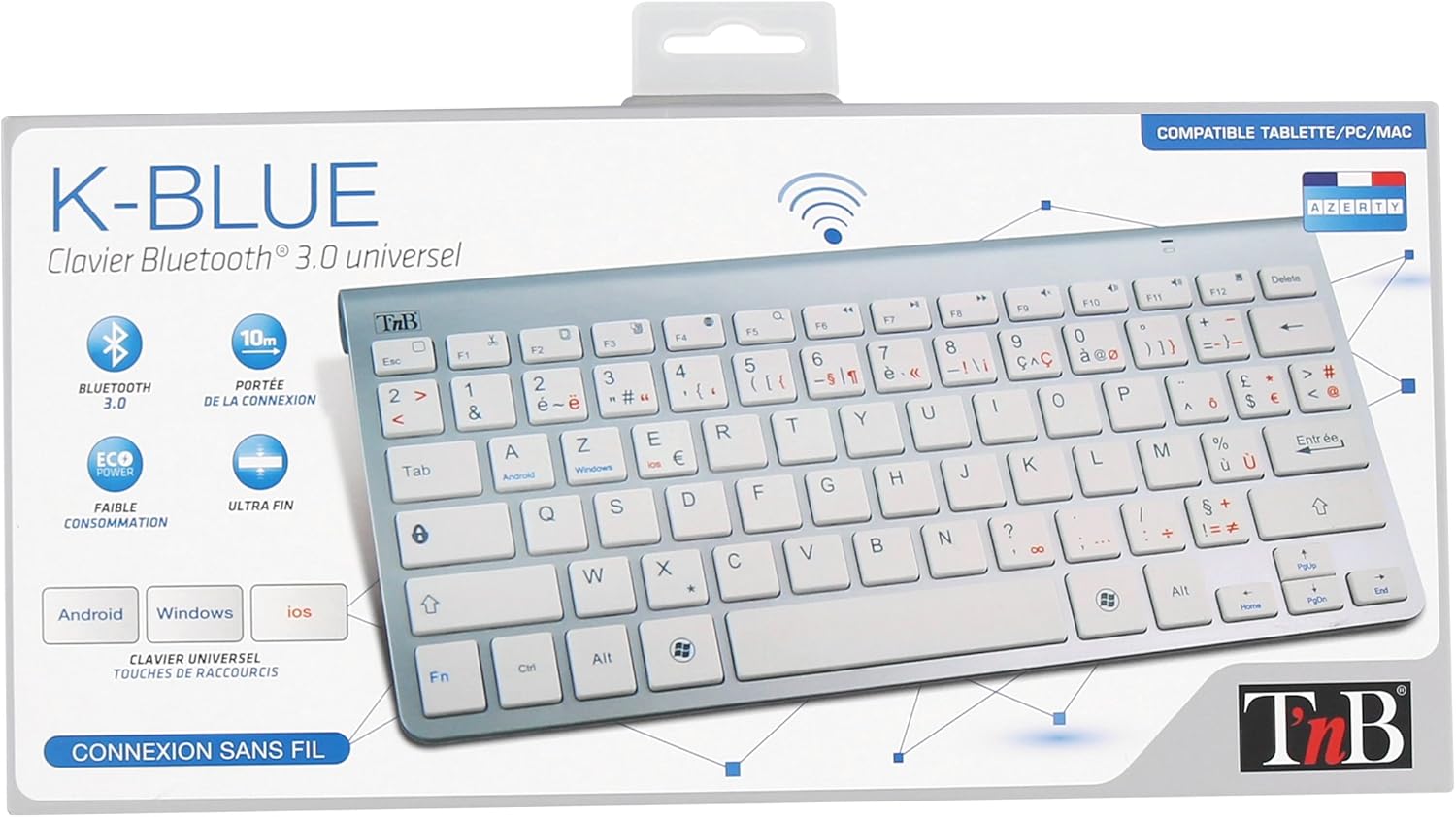
Image: The retail packaging for the T'nB K-Blue Bluetooth Keyboard, showing the keyboard inside a clear plastic tray within a cardboard box. The box highlights features like Bluetooth 3.0, 10m range, eco power, and ultra-thin design, along with compatibility for Android, Windows, and iOS.
Product Features
- Bluetooth 3.0 Connectivity: Ensures stable and efficient wireless connection.
- Universal Compatibility: Works with Android, Windows, and iOS devices, including smartphones, tablets, and computers.
- Multimedia Keys: Dedicated keys for quick access to media controls and system functions.
- Ultra-Thin Design: Portable and lightweight for on-the-go use.
- Low Power Consumption: Extended battery life for prolonged use.
- 10-Meter Range: Reliable connection up to 10 meters (33 feet) from your device.

Image: A top-down view of the T'nB K-Blue Bluetooth Keyboard, showcasing its full QWERTY layout with function keys, multimedia shortcuts, and operating system specific keys (Android, Windows, iOS) highlighted in blue and red text.

Image: An angled view of the T'nB K-Blue Bluetooth Keyboard, highlighting its silver finish and white keys. The slim profile and full key layout are visible, along with the T'nB logo in the upper left corner.
Setup
Battery Installation
- Locate the battery compartment on the underside of the keyboard.
- Open the battery compartment cover.
- Insert two AAA batteries, ensuring correct polarity (+/-) as indicated inside the compartment.
- Close the battery compartment cover securely.
Bluetooth Pairing
- Turn on the keyboard using the power switch, typically located on the side or back. A blue indicator light may flash, indicating it is in pairing mode.
- On your device (smartphone, tablet, computer), enable Bluetooth from its settings menu.
- Search for available Bluetooth devices. The keyboard should appear in the list as "T'nB K-Blue" or a similar identifier.
- Select the keyboard from the list to initiate the pairing process.
- If prompted, enter the pairing code displayed on your device's screen using the T'nB K-Blue keyboard, then press the Enter key.
- Once successfully paired, the indicator light on the keyboard will stop flashing or turn solid, confirming the connection.
Operating Instructions
Switching Operating Systems
The T'nB K-Blue keyboard supports multiple operating systems. Use the following key combinations to switch modes for optimal functionality with your specific device:
- Fn + Android Key: For Android devices.
- Fn + Windows Key: For Windows devices.
- Fn + iOS Key: For iOS (Apple) devices.
Multimedia and Function Keys
The top row of keys (F1-F12) on the keyboard often doubles as multimedia or special function keys. To activate these secondary functions, press the Fn key simultaneously with the desired function key.
Examples of common multimedia functions:
- Fn + F1: Home
- Fn + F2: Search
- Fn + F3: Select All
- Fn + F4: Copy
- Fn + F5: Paste
- Fn + F6: Cut
- Fn + F7: Previous Track
- Fn + F8: Play/Pause
- Fn + F9: Next Track
- Fn + F10: Mute
- Fn + F11: Volume Down
- Fn + F12: Volume Up
Maintenance
Cleaning
To clean the keyboard, gently wipe the surface with a soft, dry, or slightly damp cloth. Avoid using harsh chemicals, abrasive materials, or excessive moisture, which can damage the electronics.
Storage
Store the keyboard in a cool, dry place away from direct sunlight and extreme temperatures. If storing for extended periods, it is recommended to remove the AAA batteries to prevent potential leakage and damage to the device.
Troubleshooting
Keyboard Not Connecting
- Ensure the keyboard is turned on and batteries are correctly installed and charged.
- Make sure Bluetooth is enabled on your device and it is discoverable.
- Try unpairing the keyboard from your device's Bluetooth settings and then re-pairing it.
- Ensure the keyboard is within the 10-meter operating range of your device.
- Check if the correct operating system mode (Fn + Android/Windows/iOS) is selected on the keyboard.
Keys Not Responding
- Check the battery level and replace if necessary.
- Re-establish the Bluetooth connection by turning the keyboard off and on, or by re-pairing.
- Restart both the keyboard and your connected device.
Intermittent Connection
- Move closer to your device to ensure you are within the optimal range.
- Avoid sources of strong electromagnetic interference (e.g., microwaves, Wi-Fi routers, other Bluetooth devices).
Specifications
| Feature | Detail |
|---|---|
| Model | K-Blue Bluetooth Keyboard |
| Brand | T'nB |
| Connectivity | Bluetooth 3.0 |
| Operating Range | Up to 10 meters (33 feet) |
| Power Source | 2 x AAA Batteries |
| Compatible OS | Android, Windows, iOS |
| Special Features | Multimedia Keys, Ultra-Thin Design |
| Material | Plastic |
| Color | Silver/White |

Image: A side view of the T'nB K-Blue Bluetooth Keyboard, emphasizing its ultra-thin profile and sleek design. This view highlights the portability of the device.
Support
For further assistance, technical support, or warranty information, please refer to the official T'nB website or contact their customer service directly. Contact details can typically be found on the product packaging or the manufacturer's website.
