
1. Introduction
This manual provides essential instructions for the proper use and care of your Transcend 32GB microSDHC Memory Card with SD Adapter. This product is designed to expand the storage capacity of compatible electronic devices such as smartphones, tablets, and digital cameras, allowing you to store more photos, videos, music, and other data.
2. Product Overview
Your Transcend memory card package includes:
- Transcend 32GB microSDHC Memory Card: A small, high-capacity flash memory card.
- SD Adapter: An adapter that allows the microSDHC card to be used in devices with a standard SD card slot.
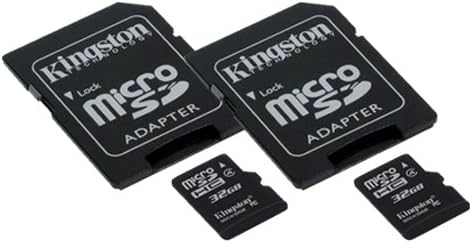
Image 1: A Transcend 32GB microSDHC memory card shown next to its larger SD adapter. The microSDHC card is small and black, with "microSDHC" and "32GB" printed on it. The SD adapter is also black, designed to house the microSDHC card, and features a lock switch on the side.
3. Setup and Installation
Follow these steps to properly install your memory card:
- Identify Card Slot: Locate the memory card slot on your device (e.g., smartphone, camera). This is typically a small slot, sometimes covered by a flap.
- Insert microSDHC Card: For devices with a microSDHC slot, gently insert the 32GB microSDHC card into the slot with the gold contacts facing down (or as indicated by your device's manual) until it clicks into place. Do not force the card.
- Using the SD Adapter: If your device uses a standard SD card slot, first insert the 32GB microSDHC card into the SD adapter. Ensure it is fully seated. Then, insert the SD adapter (with the microSDHC card inside) into your device's SD card slot.
- Device Recognition: Power on your device. The device should automatically detect the new memory card. You may receive a notification or be prompted to format the card.
- Formatting (Optional but Recommended): For optimal performance and compatibility, it is often recommended to format the memory card using your device's built-in formatting function. Warning: Formatting will erase all data on the card. Back up any important data before formatting.
4. Operating Instructions
Once installed, your Transcend 32GB microSDHC card functions as additional storage for your device.
- Storing Data: Photos, videos, documents, and applications can be saved directly to the memory card, depending on your device's settings. Consult your device's manual for specific instructions on how to manage storage locations.
- Transferring Data:
- To/From Device: Use your device's file manager or gallery application to move files between internal storage and the memory card.
- To/From Computer: Connect your device to a computer via USB, or remove the microSDHC card (using the SD adapter if necessary) and insert it into a computer's card reader. The card will appear as a removable drive, allowing you to drag and drop files.
- Write Protection (SD Adapter): The SD adapter has a small lock switch on its side. Sliding this switch to the "Lock" position will prevent new data from being written to the card and existing data from being deleted. Slide it to the "Unlock" position to enable writing. The microSDHC card itself does not have a lock switch.
5. Maintenance and Care
Proper care ensures the longevity and reliability of your memory card:
- Handle with Care: Avoid bending, dropping, or applying excessive force to the memory card or adapter.
- Keep Contacts Clean: Do not touch the gold contacts on the card. If necessary, gently clean them with a soft, dry, lint-free cloth.
- Environmental Conditions: Store the card in a cool, dry place, away from extreme temperatures, direct sunlight, moisture, and strong magnetic fields.
- Safe Removal: Always safely eject the memory card from your device or computer before physically removing it to prevent data corruption.
- Data Backup: Regularly back up important data from your memory card to another storage device (e.g., computer hard drive, cloud storage) to prevent data loss.
6. Troubleshooting
If you encounter issues with your memory card, try the following solutions:
- Card Not Detected:
- Ensure the card is fully and correctly inserted into the slot.
- If using the SD adapter, check that the microSDHC card is properly seated within the adapter.
- Restart your device.
- Try the card in another compatible device to determine if the issue is with the card or the device.
- Cannot Write/Delete Files:
- If using the SD adapter, check if the lock switch is in the "Lock" position. Slide it to "Unlock".
- Ensure the card is not full. Delete unnecessary files or transfer them to another storage.
- Check your device's permissions for writing to external storage.
- Slow Performance:
- Ensure your device supports the card's speed class.
- Avoid filling the card to its absolute maximum capacity.
- Consider formatting the card (after backing up data) to refresh its file system.
- Data Corruption: If files are corrupted or inaccessible, stop using the card immediately to prevent further damage. Data recovery services may be an option, but success is not guaranteed. Regular backups are crucial.
7. Specifications
| Feature | Detail |
|---|---|
| Brand | Transcend |
| Flash Memory Type | Micro SDHC |
| Memory Storage Capacity | 32 GB |
| Compatible Devices | Smartphone (and other devices supporting microSDHC/SD) |
| Special Feature | Lightweight |
| Item Weight | 0.03 Pounds (approx. 0.48 ounces) |
| UPC | 021859500275 |
| ASIN | B00F9HC9A8 |
| Date First Available | December 1, 2009 |
8. Warranty and Support
For information regarding the product warranty, technical support, or service, please refer to the official Transcend website or contact Transcend customer service directly. Keep your proof of purchase for warranty claims.
You can visit the Transcend Store on Amazon for more product information and support resources.


