
1. Introduction
The TP-Link TL-WA855RE N300 Universal Wi-Fi Range Extender is designed to expand the coverage and improve the signal strength of an existing wireless network. It eliminates Wi-Fi dead zones, providing reliable wireless connectivity for your devices throughout your home or office. This manual provides instructions for setting up, operating, and maintaining your range extender.
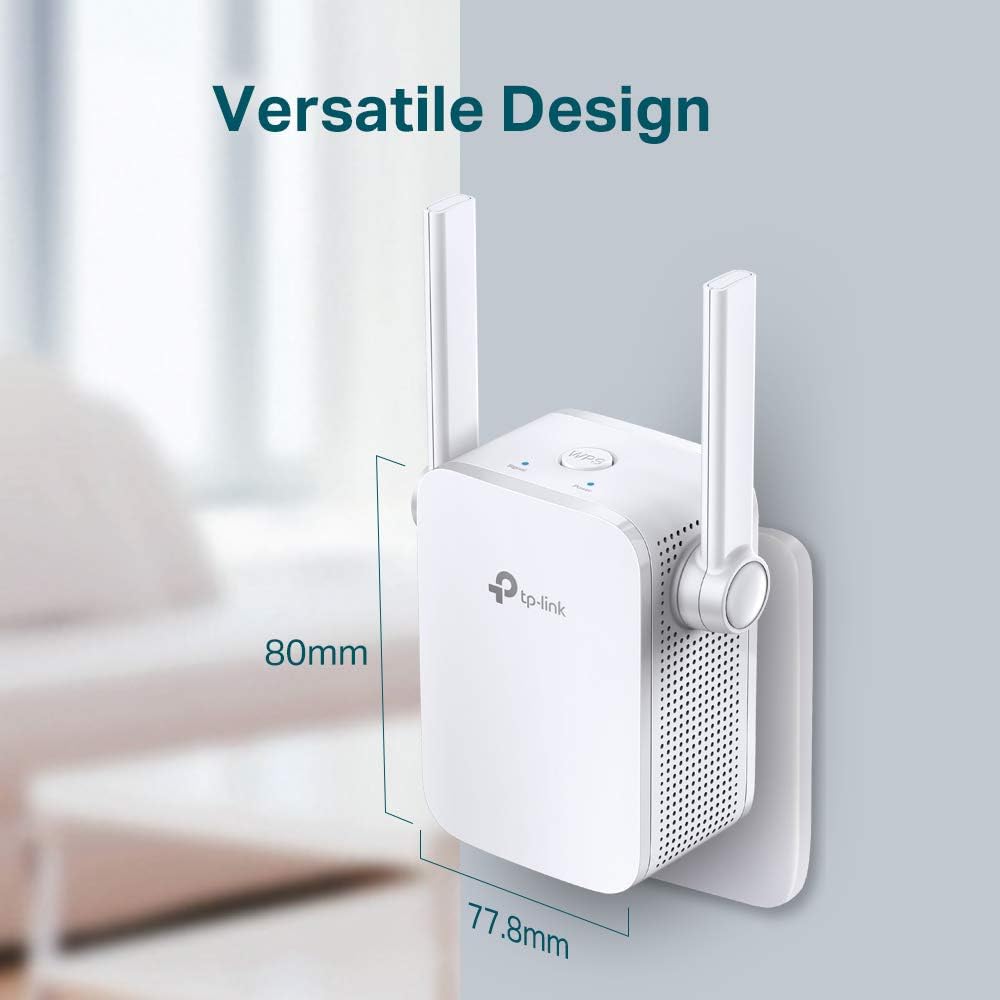
Figure 1.1: The TL-WA855RE extends the coverage of your existing Wi-Fi router, reducing dead zones and improving signal strength in previously unreachable areas.

Figure 1.2: The compact design of the TL-WA855RE, measuring approximately 80mm in height and 77.8mm in width, allows for flexible placement.
2. Package Contents
Verify that your package contains the following items:
- TP-Link TL-WA855RE N300 Universal Wi-Fi Range Extender (with integrated power adapter and antennas)
- Quick Installation Guide
3. Features
- Enhanced Wi-Fi Coverage: Extends existing Wi-Fi coverage to eliminate dead zones.
- N300 Speed: Delivers Wi-Fi speeds of up to 300 Mbps, ideal for streaming and browsing.
- Universal Compatibility: Works with any standard Wi-Fi router or wireless access point.
- Ethernet Port: Allows the extender to function as a wireless adapter to connect wired devices.
- Smart Signal Indicator: Helps find the best location for optimal Wi-Fi coverage.
- Easy Setup: Simple setup via WPS button or TP-Link Tether app.
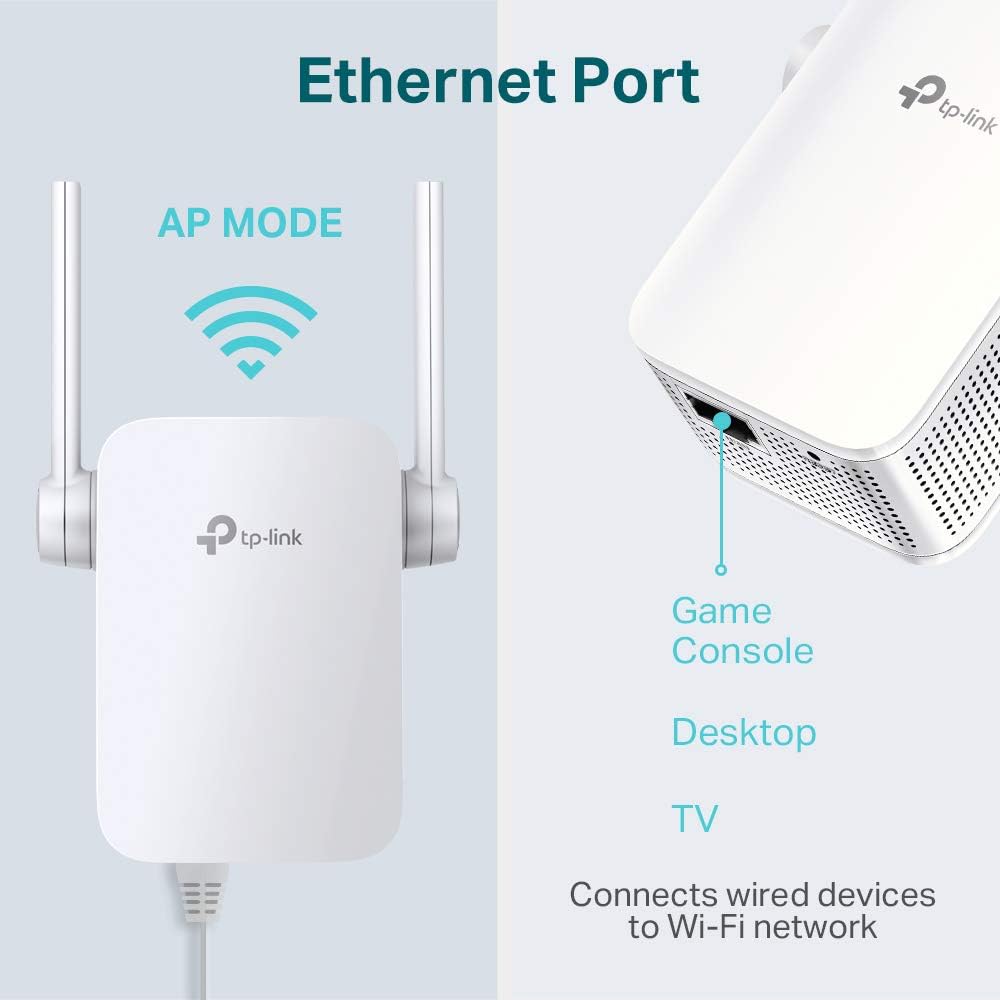
Figure 3.1: The TL-WA855RE supports N300 Wi-Fi with 300 Mbps data transfer rates and 2x2 MIMO technology for efficient wireless performance.

Figure 3.2: The range extender offers universal compatibility, working seamlessly with any standard Wi-Fi router or access point.
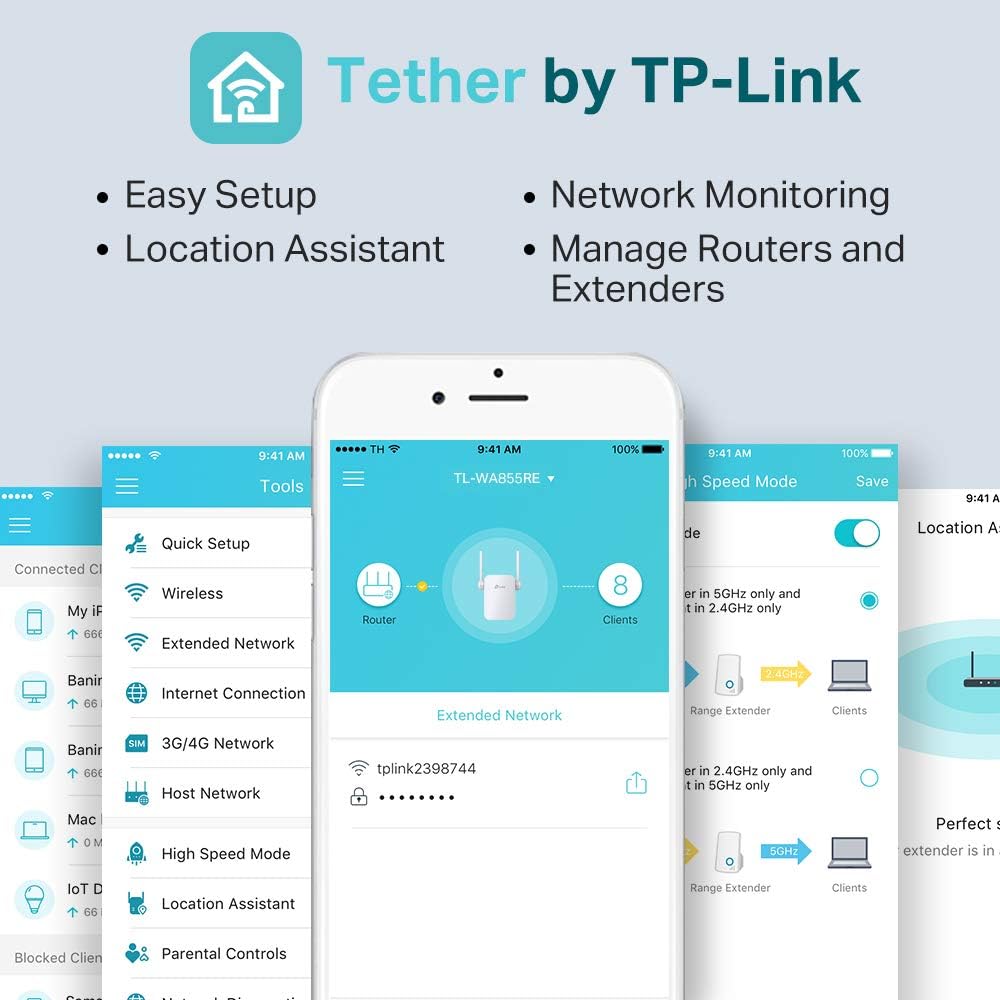
Figure 3.3: The integrated Ethernet port allows the extender to connect wired devices like game consoles, desktops, or smart TVs to your Wi-Fi network, or to operate in Access Point (AP) mode.
4. Setup
4.1 Quick Setup via WPS Button
The easiest way to set up your range extender is using the WPS (Wi-Fi Protected Setup) button.
- Plug the extender into an electrical outlet near your router.
- Wait for the Power LED to turn solid.
- Press the WPS button on your router.
- Within two minutes, press the WPS/RE button on your extender.
- The Signal LED on the extender should turn solid, indicating a successful connection.
- Relocate the extender to a suitable location between your router and the Wi-Fi dead zone. Ensure the Signal LED shows at least two bars for optimal performance.

Figure 4.1: The WPS button on the extender allows for one-touch connection to your router. The signal indicators (Strong Signal: Green, Weak Signal: Red) help in finding the perfect location for the extender.
4.2 Setup via Web Browser
If your router does not have a WPS button, or if you prefer manual configuration, use the web browser method.
- Plug the extender into an electrical outlet near your router.
- Connect your computer to the extender's Wi-Fi network (e.g., "TP-Link_Extender").
- Open a web browser and type tplinkrepeater.net or 192.168.0.254 into the address bar.
- Create a login password.
- Follow the on-screen instructions to select your host network and configure the extender.
- Relocate the extender to a suitable location.
4.3 Setup via TP-Link Tether App
The TP-Link Tether app provides an intuitive way to set up and manage your extender from your smartphone.
- Download the TP-Link Tether app from the App Store or Google Play.
- Plug the extender into an electrical outlet.
- Connect your smartphone to the extender's Wi-Fi network.
- Open the Tether app and follow the instructions to add and configure your extender.

Figure 4.2: The TP-Link Tether app offers easy setup, network monitoring, and management of your router and extender from your mobile device.
5. Operating Modes
5.1 Range Extender Mode
In Range Extender mode, the device wirelessly connects to your existing router's network and retransmits the signal to areas with weak or no Wi-Fi coverage. This is the primary function of the TL-WA855RE.
5.2 Access Point (AP) Mode
The TL-WA855RE can also function as an Access Point. In AP mode, it connects to a wired network (via the Ethernet port) and transforms it into a wireless network. This is useful for adding Wi-Fi capability to a wired-only network or for creating a new Wi-Fi network.
- To use AP mode, connect an Ethernet cable from your router or network switch to the Ethernet port on the TL-WA855RE.
- Configure the device to AP mode via the web management interface or Tether app.
6. Maintenance
- Firmware Updates: Regularly check the TP-Link website for firmware updates to ensure optimal performance and security.
- Cleaning: Use a soft, dry cloth to clean the device. Do not use liquid or aerosol cleaners.
- Placement: Ensure the extender is placed in a well-ventilated area, away from direct sunlight, heat sources, and moisture.
- Reset: If the device is not functioning correctly, you may perform a factory reset by pressing and holding the Reset button for approximately 5 seconds while the device is powered on.
7. Troubleshooting
- Q1: What should I do if I cannot access the extender's web management page?
- A1: Ensure your computer is connected to the extender's Wi-Fi network. Verify that tplinkrepeater.net or 192.168.0.254 is correctly typed in the browser. If issues persist, try clearing your browser's cache or using a different browser. A factory reset may also resolve the issue.
- Q2: What if the Signal LED is off?
- A2: This indicates no connection to the host router. Ensure the extender is within range of your router. Try moving the extender closer to the router and repeat the setup process. Check if your router's Wi-Fi is enabled.
- Q3: How do I reset the extender to factory default settings?
- A3: With the extender powered on, use a pin to press and hold the Reset button (located in a small hole) for approximately 5 seconds until all LEDs flash briefly. The extender will then restart with factory default settings.
- Q4: Why is my extended network speed slow?
- A4: Ensure the extender is placed in an optimal location, indicated by a solid green Signal LED. Obstacles like thick walls or metal objects can degrade signal quality. Avoid placing the extender near large electrical appliances. Check for interference from other wireless devices.
8. Specifications
| Feature | Detail |
|---|---|
| Model Number | TL-WA855RE |
| Wireless Standard | IEEE 802.11n, IEEE 802.11g, IEEE 802.11b |
| Frequency | 2.4 GHz |
| Data Transfer Rate | Up to 300 Mbps |
| Interface | 1 x 10/100M Ethernet Port (RJ45) |
| Buttons | RE (Range Extender) Button, Reset Button |
| Power Consumption | About 3W |
| Dimensions (W x D x H) | 2.05 x 1.34 x 2.56 inches (52 x 34 x 65 mm) |
| Item Weight | 5.3 ounces |
| Color | White |
| Special Features | Range Extender button, Access Point Mode |
9. Warranty and Support
For warranty information and technical support, please refer to the official TP-Link website or contact TP-Link customer service. Warranty terms may vary by region and product. Keep your purchase receipt for warranty claims.
TP-Link Support Website: https://www.tp-link.com/support/


