
1. Product Overview
The Fujitsu ScanSnap SV600 is a contactless overhead document scanner designed for scanning various types of documents, including books, magazines, and delicate items, without direct contact. It features a CCD optical sensor, dual white LED illumination, and connects via USB 2.0. The scanner supports document thickness up to 30mm and formats from A8 up to A3.

Figure 1: Front view of the Fujitsu ScanSnap SV600 Document Scanner.
2. Setup
- Unpack the Scanner: Carefully remove all components from the packaging. Ensure the scanner unit, USB cable, AC adapter, and black mat are present.
- Place the Scanner: Position the scanner on a stable, flat surface. Ensure sufficient space for the black mat and documents to be placed underneath the scanner head.
- Connect the USB Cable: Connect one end of the provided USB 2.0 cable to the scanner and the other end to an available USB port on your computer.
- Connect the AC Adapter: Plug the AC adapter into the scanner's power input and then into a wall outlet.
- Install Software: Download and install the necessary software for Windows or Mac OS from the official Fujitsu ScanSnap website. This typically includes ScanSnap Manager and other utilities like CardMinder and ABBYY FineReader for ScanSnap.
- Place the Black Mat: Lay the black mat flat on the scanning surface, centered beneath the scanner head. This mat provides a contrasting background for optimal scanning results.

Figure 2: The ScanSnap SV600 set up with the black mat, ready for scanning documents.
3. Operating Instructions
3.1 Basic Document Scanning
- Power On: Ensure the scanner is connected and powered on. The indicator light should be blue.
- Place Document: Place the document face-up on the black mat, ensuring it is within the marked scanning area.
- Start Scan: Open the ScanSnap software on your computer. Click the 'Scan' button within the application or press the physical 'Scan' button on the scanner. The scanner will illuminate and capture the image.
- Review and Save: The scanned image will appear on your screen. You can review, crop, rotate, or make other adjustments using the software. Save the document in your desired format (e.g., PDF, JPEG).
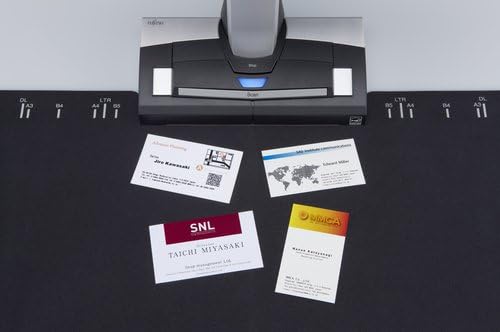
Figure 3: Scanning multiple small items like business cards simultaneously.
3.2 Scanning Books and Magazines
The SV600 is ideal for scanning bound materials without damaging them. Its advanced features ensure high-quality results.
- Position Book: Open the book or magazine and place it face-up on the black mat. Gently hold the pages flat with your fingers if necessary.
- Initiate Scan: Press the 'Scan' button. The scanner will capture the double-page spread.
- Automatic Book Correction: The software includes an automatic book correction function that flattens the curved pages and corrects distortions, ensuring a flat, readable image.
- Finger Erase Function: If you used your fingers to hold down pages, the software's 'finger erase' function can automatically remove them from the scanned image.
- Page Turning Detection: For continuous scanning, the software can detect when a page has been turned, allowing for efficient scanning of entire books.
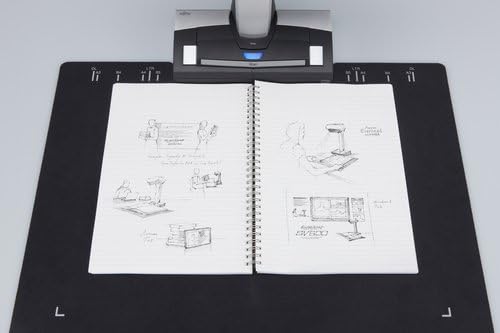
Figure 4: Scanning an open notebook, demonstrating the scanner's ability to handle bound documents.
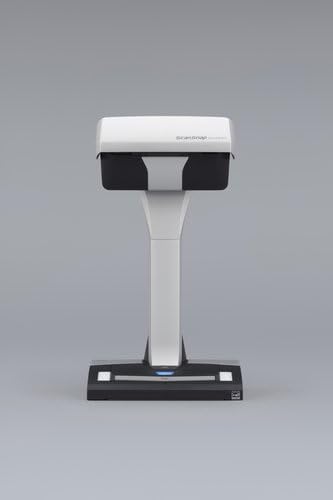
Figure 5: The ScanSnap SV600 positioned over an open book for scanning.
3.3 Scanning Thick or Delicate Items
The overhead design allows for scanning items up to 30mm thick, such as framed photos, artwork, or fragile documents that cannot be fed through a traditional scanner.

Figure 6: Scanning a document with various graphics and text.
3.4 Software Features
- Easy-to-Use Interface: The ScanSnap Home software provides an intuitive interface for managing scanned documents.
- Multiple Document Detection: The scanner can automatically detect and crop multiple documents placed on the mat in a single scan.
- OCR (Optical Character Recognition): Integrated OCR functionality allows for searchable PDF creation, making text within scanned documents editable and searchable.
- Image Correction: Features like de-skew, auto-crop, and color correction enhance scan quality.
Video 1: Demonstration of the Fujitsu ScanSnap SV600's scanning capabilities, including scanning a legal pad, multiple documents, and books with automatic correction features.
4. Maintenance
- Cleaning the Scanner: Regularly wipe the scanner's exterior with a soft, dry cloth. For the scanning glass and LED lights, use a lint-free cloth lightly dampened with a mild, non-abrasive cleaner. Ensure the scanner is powered off and unplugged before cleaning.
- Software Updates: Periodically check the Fujitsu support website for software and firmware updates to ensure optimal performance and access to the latest features.
- Mat Care: Keep the black mat clean and free of debris to prevent marks on scanned images.
5. Troubleshooting
- Scanner Not Recognized: If the computer does not recognize the scanner, try the following:
- Ensure the USB cable is securely connected to both the scanner and the computer.
- Verify the scanner is powered on.
- Restart the computer and the scanner.
- Check for updated USB drivers or ScanSnap software.
- Poor Scan Quality:
- Clean the scanning glass and LED lights.
- Ensure the document is placed flat on the mat and within the scanning area.
- Adjust scan settings (e.g., resolution, color mode) in the ScanSnap software.
- Software Crashes: Ensure your operating system and ScanSnap software are up to date. Avoid attempting to edit extremely large PDF files on underpowered systems.
6. Specifications
| Feature | Detail |
|---|---|
| Model Name | SV600 |
| Item Model Number | PA03641-B301 |
| Scanner Type | Document |
| Optical Sensor Technology | CCD |
| Connectivity Technology | USB 2.0 |
| Resolution | 600 dpi |
| Maximum Media Size | A3 |
| Document Thickness | Up to 30mm |
| Product Dimensions | 6.14 x 8.27 x 15.08 inches |
| Item Weight | 6.61 pounds (3000 Grams) |
| Wattage | 20 watts |
| Minimum System Requirements | Windows 7 |
7. Warranty and Support
For warranty information, please refer to the documentation included with your product or visit the official Fujitsu support website. For technical assistance, driver downloads, or further inquiries, please contact Fujitsu customer support directly.
Online Resources:
- Fujitsu ScanSnap Support Website: www.fujitsu.com/scansnap-support


