
Introduction
The Epson WorkForce DS-510 is a high-performance sheet-fed color document scanner designed for efficient document management. It offers fast scanning speeds and duplex scanning capabilities, allowing it to scan both sides of a document in a single pass. This scanner is compatible with both PC and Mac systems and includes features for scanning to various cloud services and for document editing.
- Achieves scan speeds of 26 pages per minute (ppm) and 52 images per minute (ipm), scanning both sides in one pass.
- Supports scanning directly to popular cloud services such as SharePoint, Evernote, and Google Drive.
- Enables scanning and editing of documents, with the ability to save scanned documents as PDF files. OCR software is included for searchable PDFs.
- Features a compact design suitable for various environments, along with advanced functions like Color Enhance, Color Dropout, and automatic paper size detection.
For optimal use, it is recommended to refer to this user manual and any available instructional videos.
Product Overview
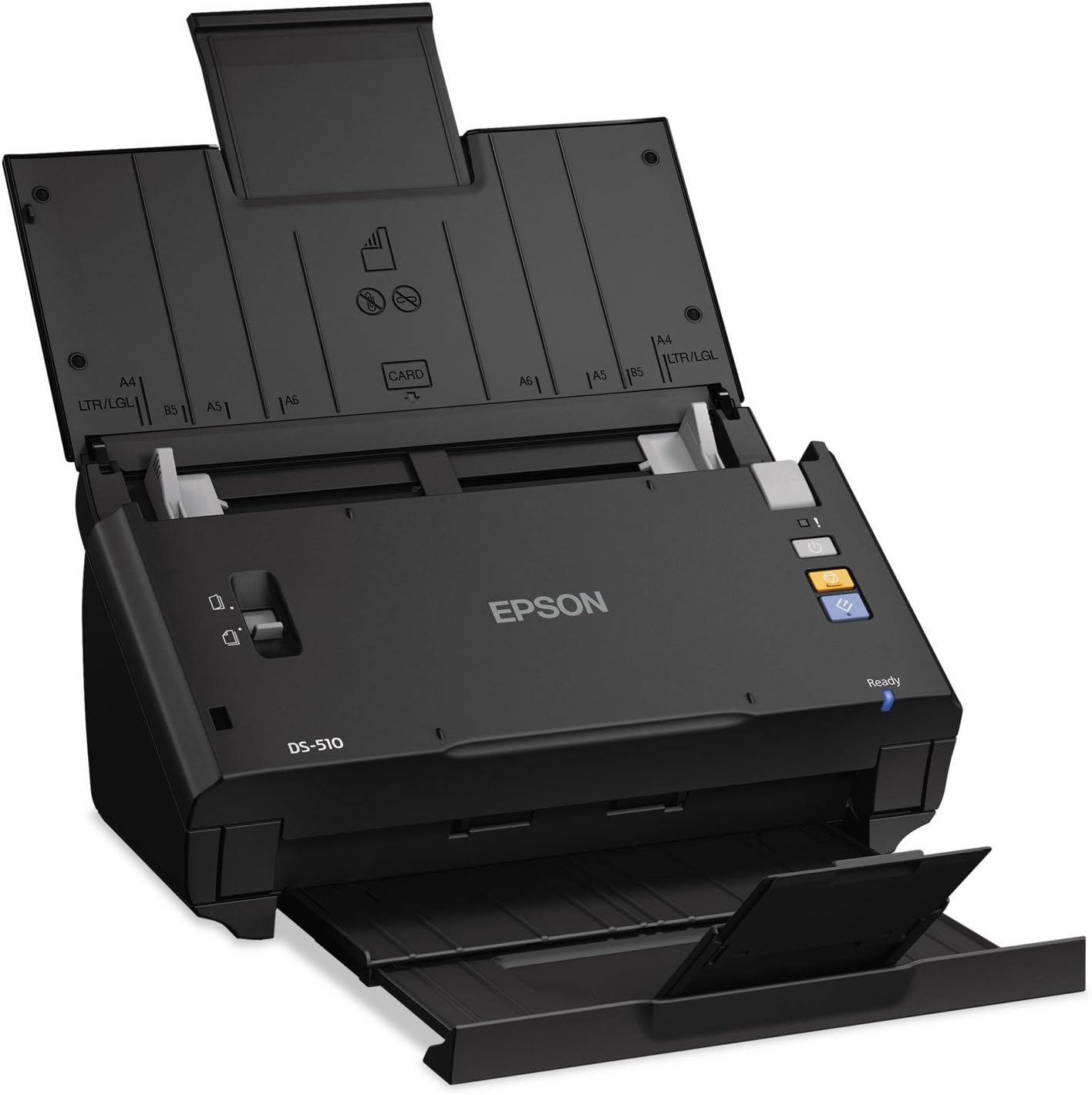
Figure 1: Epson WorkForce DS-510 Color Document Scanner. This image shows the scanner from an angled front view, with the input tray extended upwards and the output tray extended forwards. The Epson logo and DS-510 model number are visible on the front panel. Various paper size guides (A4, LTR/LGL, B5, A5, A6, CARD) are marked on the input tray.
The Epson WorkForce DS-510 is a compact and efficient document scanner. It features an automatic document feeder (ADF) for batch scanning and a straight-through paper path to minimize jams, especially useful for delicate or varied document types.
- Input Tray: Located at the top, designed to hold multiple documents for automatic feeding. Features adjustable paper guides for various sizes including A4, Letter/Legal, B5, A5, A6, and Card.
- Control Panel: Located on the right side, includes power button, scan buttons, and a "Ready" indicator light.
- Output Tray: Extends from the front to collect scanned documents.
Setup
Unpacking and Initial Placement
Carefully remove the scanner and all components from the packaging. Ensure all protective materials are removed. Place the scanner on a stable, flat surface with adequate space for the input and output trays to extend fully.
Connecting the Scanner
- Power Connection: Connect the provided AC adapter to the scanner's power input and then plug it into a standard electrical outlet.
- USB Connection: Connect the USB cable from the scanner to an available USB port on your computer (PC or Mac).
Software Installation
Before using the scanner, you must install the necessary drivers and software. The installation process is generally straightforward:
- Insert the software CD-ROM (if included) into your computer's optical drive, or download the latest software package from the official Epson support website.
- Follow the on-screen instructions to complete the installation. This typically includes installing the scanner driver, Epson Scan utility, and OCR software.
- Restart your computer if prompted after the installation is complete.
Note: Ensure your operating system is up to date for best compatibility. For specific system requirements, refer to the official Epson documentation or website.
Operating the Scanner
Loading Documents
- Extend the input tray and output tray.
- Adjust the paper guides on the input tray to match the width of your documents.
- Load documents face-down into the input tray, ensuring they are aligned properly. The scanner supports various document sizes, including standard paper, business cards, and photos.
Performing a Scan
The Epson WorkForce DS-510 can scan documents quickly and efficiently, including duplex (two-sided) scanning in a single pass.
- Open the Epson Scan utility or your preferred scanning application on your computer.
- Select the Epson WorkForce DS-510 as your scanner.
- Configure scan settings such as:
- Scan Mode: Color, Grayscale, or Black & White.
- Resolution: Typically 200-300 DPI for documents, higher for photos (up to 600 DPI optical resolution).
- Document Size: Auto-detection is often available, or manually select.
- Duplex Scanning: Enable this option for two-sided documents.
- Image Adjustments: Utilize features like Color Enhance, Color Dropout, brightness, and contrast. For photos, adjusting contrast (e.g., -15) and brightness (e.g., -45) can significantly improve results.
- Choose the destination for your scanned files (e.g., local folder, PDF, email, cloud service like SharePoint, Evernote, Google Drive).
- Click the "Scan" button in the software or press the scan button on the scanner.
- The scanner will feed and process the documents, saving each scanned page as a separate file or compiling them into a single multi-page document (e.g., PDF).
Using OCR Software
The included OCR (Optical Character Recognition) software allows you to convert scanned images of text into editable and searchable text documents. This is particularly useful for creating searchable PDF files.
Consult the OCR software's specific instructions for detailed usage, as it may be integrated into the scanning utility or be a standalone application.
Maintenance
Cleaning the Scanner
Regular cleaning helps maintain optimal scanning quality and extends the life of your scanner.
- Power Off: Always turn off the scanner and unplug the AC adapter before cleaning.
- Exterior: Wipe the exterior of the scanner with a soft, damp cloth. Do not use abrasive cleaners or solvents.
- Glass Surfaces: Gently wipe the scanner's glass surfaces (if accessible) with a lint-free cloth moistened with a non-abrasive glass cleaner.
- Rollers: Periodically clean the paper feed rollers with a soft, lint-free cloth to prevent paper feeding issues. Refer to the detailed user manual for specific instructions on accessing and cleaning the rollers.
Consumables
The paper feed rollers and separation pad are consumable parts that may need replacement over time due to wear. Consult the official Epson website or your user manual for information on replacement parts and procedures.
Troubleshooting
This section provides solutions to common issues you might encounter with your Epson WorkForce DS-510 scanner.
Common Issues and Solutions
| Problem | Possible Cause / Solution |
|---|---|
| Scanner not recognized by computer |
|
| Paper Jams or "Bad Feeds" |
|
| Poor Scan Quality (Streaks, Blurry Images) |
|
| Software Compatibility Issues (e.g., with macOS Yosemite) |
|
If you continue to experience problems, refer to the comprehensive user manual available on the Epson support website or contact Epson customer support.
Specifications
| Feature | Detail |
|---|---|
| Model Name | DS-510 |
| Scanner Type | Document (Sheet-fed) |
| Brand | Epson |
| Connectivity Technology | USB |
| Optical Resolution | 600 DPI |
| Color Depth | 48 bpp |
| Scan Speed | 26 ppm / 52 ipm (pages/images per minute) |
| Standard Sheet Capacity | 50 sheets (Automatic Document Feeder) |
| Product Dimensions | 9.5 x 16.5 x 11 inches |
| Item Weight | 5.5 pounds (2.5 Kilograms) |
| Wattage | 18 watts |
| Language | English |
| Date First Available | March 30, 2011 |
Warranty and Support
Warranty Information
This product typically comes with a manufacturer's warranty. For detailed information regarding the warranty period and coverage, please refer to the warranty card included with your product or visit the official Epson support website. Extended company warranties and protection plans may also be available for purchase.
Customer Support
For technical assistance, troubleshooting, or further inquiries, please contact Epson customer support. You can find contact information and additional resources, including the full User Manual (PDF), on the official Epson support website:
Official User Manual (PDF): Download User Manual
Epson Support Website: Visit epson.com/support for drivers, FAQs, and contact details.
Note: Instructional videos may be available on the Epson support website or official Epson channels to provide visual guidance for setup and operation.


