1. Introduction
This manual provides essential information for the safe and efficient operation of your Supersonic SC-1393 Portable Audio System. Please read this manual thoroughly before using the device and retain it for future reference.
1.1 Safety Information
- Do not expose the unit to rain or moisture to prevent fire or electric shock.
- Do not open the casing. Refer all servicing to qualified personnel.
- Ensure proper ventilation. Do not block ventilation openings.
- Use only the power adapter specified for this device.
- Avoid extreme temperatures. Do not place near heat sources or in direct sunlight.
- Keep out of reach of children.
2. Product Overview
2.1 Package Contents
Verify that all items are present in the package:
- Supersonic SC-1393 Portable Audio System
- Remote Control
- AC Power Cable
- User Manual
2.2 Controls and Connections
Familiarize yourself with the various controls and connection ports on your device.
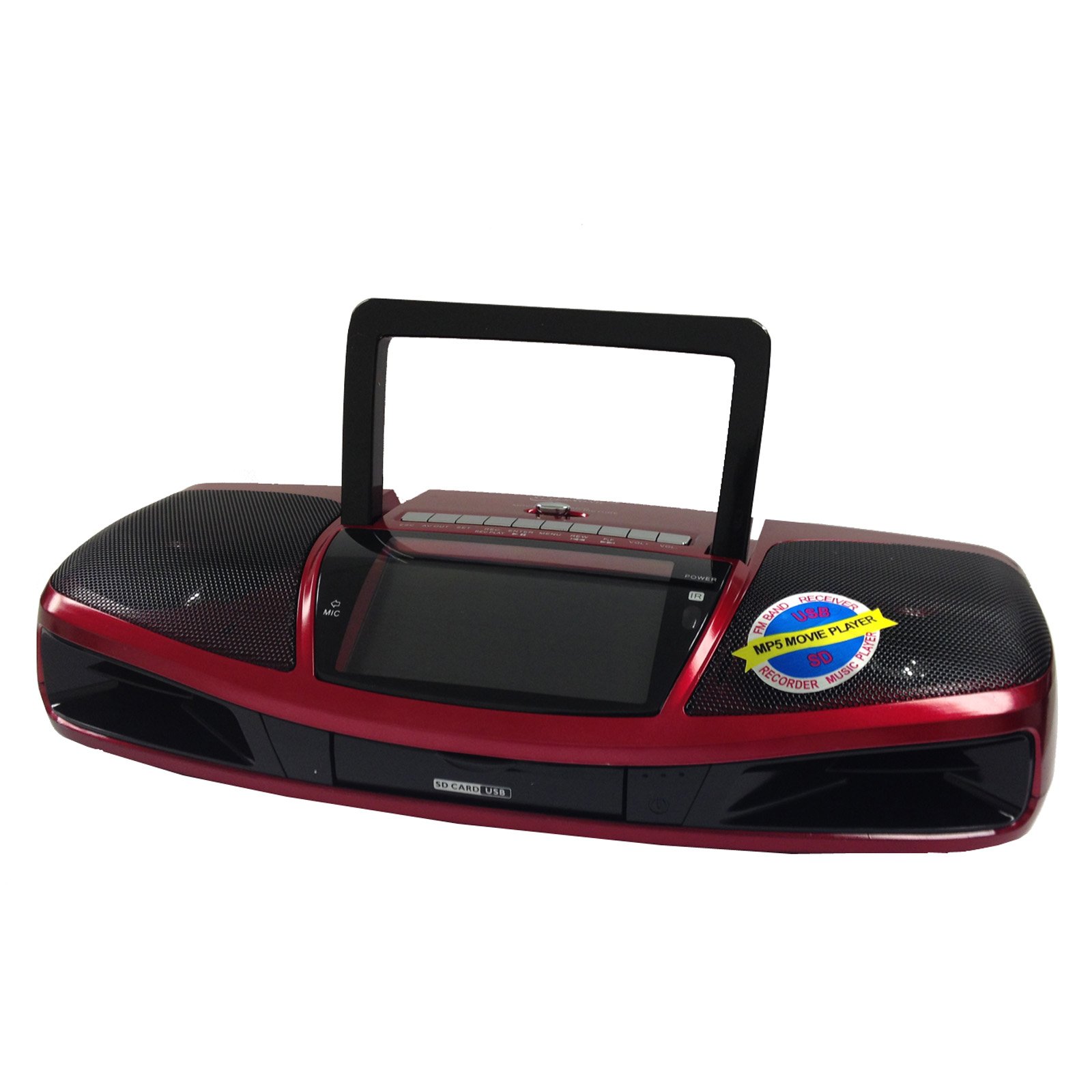
Figure 1: Front view of the Supersonic SC-1393 Portable Audio System, showing the 4.3-inch LCD screen, speaker grilles, and main control buttons.
Front Panel Controls:
- LCD Screen: Displays video, song titles, and system information.
- Power Button: Turns the unit on/off.
- Mode Button: Switches between functions (Radio, USB, SD, AUX, Video).
- Play/Pause Button: Starts or pauses playback.
- Previous/Next Buttons: Navigates tracks, stations, or menu options.
- Volume Control: Adjusts audio output level.
Rear Panel Connections:
- USB Port: For connecting USB flash drives.
- SD Card Slot: For inserting SD memory cards.
- AUX Input (3.5mm): For connecting external audio devices.
- AV Output: For connecting to an external display or audio system.
- AC Power Input: For connecting the AC power cable.
- Antenna: Extendable rod antenna for radio reception.
Remote Control:
The included remote control provides convenient access to all functions from a distance.
- Power: On/Off.
- Mode: Select input source.
- Numeric Keypad: Direct track selection or radio frequency input.
- Volume Up/Down: Adjust volume.
- Mute: Silence audio output.
- EQ: Equalizer settings (if available).
- Repeat: Repeat playback mode.
3. Setup
3.1 Powering the Unit
The SC-1393 can be powered by AC power, D-cell batteries (not included), or its built-in rechargeable battery.
- AC Power: Connect the supplied AC power cable to the AC power input on the rear panel and plug the other end into a standard 110V - 60Hz wall outlet.
- Battery Operation: For portable use, insert four (4) D-cell batteries into the battery compartment on the bottom of the unit, observing correct polarity. Alternatively, the built-in rechargeable battery will provide power when disconnected from AC.
3.2 Initial Battery Charging
Before first use, it is recommended to fully charge the built-in rechargeable battery. Connect the unit to AC power and allow it to charge for approximately 6-8 hours. The charging indicator (if present) will illuminate during charging and may change color or turn off when fully charged. There is no explicit indicator for the status of the rechargeable battery.
4. Operating Instructions
4.1 General Operation
- Press the Power button to turn the unit on.
- Press the Mode button repeatedly to cycle through available input sources: Radio (AM/FM/SW), USB, SD, AUX, Video.
- Adjust the Volume Control to your desired listening level.
4.2 Radio Operation (AM/FM/SW)
- Select Radio mode using the Mode button.
- Extend the telescopic antenna for optimal FM and SW reception.
- Use the Previous/Next buttons to manually tune to a station or press and hold to auto-scan for available stations.
- Some units may have pre-set stations. Refer to the on-screen display for details. Note that pre-set stations may not be editable in all regions.
4.3 USB/SD Card Playback
- Insert a USB flash drive into the USB Port or an SD card into the SD Card Slot. Ensure the USB drive fits properly into the recessed port.
- Select USB or SD mode using the Mode button. The unit will automatically detect and begin playing compatible audio/video files.
- Use the Play/Pause, Previous/Next buttons to control playback.
- The 4.3-inch LCD will display file information.
4.4 AUX Input
- Connect an external audio device (e.g., smartphone, MP3 player) to the AUX Input using a 3.5mm audio cable (not included).
- Select AUX mode using the Mode button.
- Control playback from your connected external device.
4.5 MP5 Video Playback
The SC-1393 supports MP5 video playback from USB or SD cards.
- Ensure compatible video files are stored on your USB drive or SD card.
- Insert the USB drive or SD card and select the corresponding mode.
- Navigate to your video files using the Previous/Next buttons and press Play to start playback.
- The video will display on the 4.3-inch LCD screen.
- Use Fast Forward and Rewind functions for navigation within videos.
4.6 Recording Function
The unit features a built-in microphone and recording function. Recordings are typically saved to the inserted USB drive or SD card.
- Ensure a USB drive or SD card with sufficient free space is inserted.
- Select the desired input source (e.g., Radio, AUX) if you wish to record from it, or simply use the built-in microphone.
- Press the Record button (usually found on the unit or remote) to start recording.
- Press the Record button again or Stop button to end recording.
- Recorded files can be accessed and played back from the USB/SD card mode.
5. Maintenance
5.1 Cleaning
- Disconnect the unit from power before cleaning.
- Wipe the exterior with a soft, dry cloth.
- Do not use abrasive cleaners, waxes, or solvents.
- For the LCD screen, use a soft, lint-free cloth specifically designed for electronics screens.
5.2 Battery Care
- If using D-cell batteries, remove them if the unit will not be used for an extended period to prevent leakage.
- For the built-in rechargeable battery, avoid fully discharging it frequently to prolong its lifespan. Recharge it regularly.
- Do not expose batteries to excessive heat.
6. Troubleshooting
| Problem | Possible Cause | Solution |
|---|---|---|
| No power | AC cable not connected; Batteries depleted or incorrectly inserted; Built-in battery depleted. | Check AC connection; Replace D-cell batteries or ensure correct polarity; Charge built-in battery. |
| No sound | Volume too low; Mute activated; Incorrect input mode selected; Headphones connected. | Increase volume; Deactivate mute; Select correct mode; Disconnect headphones. |
| Poor radio reception | Antenna not extended; Weak signal; Interference. | Extend and adjust antenna; Relocate unit for better reception; Avoid placing near electronic devices. |
| USB/SD not playing | Incorrect mode; Incompatible file format; USB/SD card not inserted correctly or damaged; USB drive too large or incompatible design. | Select USB/SD mode; Ensure files are compatible (e.g., MP3, MP4); Reinsert or try another USB/SD card; Use a standard-sized USB drive that fits the port. |
| Remote control not working | Batteries depleted; Obstruction between remote and unit; Remote not pointed at sensor. | Replace remote batteries; Remove obstructions; Point remote directly at the unit's IR sensor. |
7. Specifications
| Feature | Detail |
|---|---|
| Model Number | SC1393 |
| Display | 4.3-inch LCD |
| Inputs | USB, SD Card, AUX (3.5mm) |
| Outputs | AV Output |
| Radio Frequencies | AM, FM, SW |
| Power Source | AC 110V - 60Hz, 4x D-cell batteries (not included), Built-in rechargeable battery |
| Recording Function | Built-in Microphone |
| Dimensions (Package) | 15.1 x 7.9 x 4.2 inches |
| Weight (Item) | 3.55 pounds |
8. Warranty and Support
8.1 Warranty Information
Supersonic products are designed and manufactured to the highest quality standards. For specific warranty details, including duration and coverage, please refer to the warranty card included with your product or visit the official Supersonic website. Keep your purchase receipt as proof of purchase for warranty claims.
8.2 Customer Support
If you encounter any issues not covered in this manual or require further assistance, please contact Supersonic customer support. Contact information can typically be found on the product packaging, warranty card, or the official Supersonic website.
For online resources and support, visit: www.supersonicinc.com


