
Gembird KB-BT-001-W-DE
Gembird KB-BT-001-W-DE Slimline Bluetooth Keyboard User Manual
Model: KB-BT-001-W-DE | Brand: Gembird
1. Introduction
This manual provides detailed instructions for the Gembird KB-BT-001-W-DE Slimline Bluetooth Keyboard. Please read this manual thoroughly before using the product to ensure proper operation and to maximize its lifespan. This keyboard is designed for seamless wireless connectivity with various Bluetooth-enabled devices.
2. Package Contents
- Gembird KB-BT-001-W-DE Bluetooth Keyboard (German QWERTZ Layout, White)
- USB Cable
- User Manual
3. Key Features
- Slimline Bluetooth V 3.0 Wireless Keyboard (German QWERTZ Layout)
- Ultra-flat and ergonomic design
- Supports common Bluetooth-enabled devices: smartphones, tablets, PCs, and laptops
- Soft-touch keys for comfortable typing
- Convenient multimedia keys
- Compact size (28.7 x 2 x 13.7 cm) ideal for travel
- Compatible with Windows (XP, Vista, 7, 8) and Apple (iPad, iPhone, iPod Touch, MAC OS)
- Operating range: Up to 10 meters
4. System Requirements
- Device with Bluetooth connectivity (e.g., PC, laptop, tablet, smartphone)
- Supported Operating Systems: Windows XP/Vista/7/8, Apple iOS (iPad, iPhone, iPod Touch), Mac OS
5. Setup and Pairing
5.1. Powering On the Keyboard
Locate the power switch on the keyboard, usually on the side or back. Slide it to the "ON" position. The keyboard's indicator light (often blue or green) should illuminate briefly, indicating it is powered on and ready for pairing.
5.2. Pairing with Your Device
- Enable Bluetooth on Your Device: Go to your device's settings and ensure Bluetooth is turned on.
- Enter Pairing Mode: On the Gembird keyboard, press the Connect or Pairing button (if available, typically a small button on the back or bottom, or a key combination like Fn + C). The indicator light should start blinking rapidly, signifying it is in pairing mode.
- Search for Devices: On your device, search for available Bluetooth devices. The keyboard should appear as "Gembird KB-BT-001-W-DE" or similar.
- Select and Connect: Select the keyboard from the list. Your device may prompt you to enter a pairing code displayed on the screen. Type this code using the Gembird keyboard and press Enter.
- Confirmation: Once successfully paired, the indicator light on the keyboard will stop blinking and remain solid or turn off, and your device will show the keyboard as "Connected."
Note: The exact pairing process may vary slightly depending on your device's operating system. Refer to your device's manual for specific Bluetooth pairing instructions.
6. Operating Instructions
6.1. Basic Usage
Once paired, the keyboard functions like a standard QWERTZ keyboard. Simply begin typing. Ensure the keyboard is within the 10-meter operating range of your device for optimal performance.
6.2. Multimedia and Function Keys
The Gembird KB-BT-001-W-DE keyboard includes dedicated function keys (F1-F12) and multimedia shortcuts. To activate the secondary functions (blue icons) on the F-keys, press and hold the Fn key (located near the left Ctrl key) and then press the desired F-key.
| Key Combination | Function | Description |
|---|---|---|
| Fn + F1 | F11 | Standard F11 key function. |
| Fn + F2 | F12 | Standard F12 key function. |
| Fn + F3 | Opens default email client. | |
| Fn + F4 | Browser/Home | Opens default web browser or navigates to home page. |
| Fn + F5 | Media Player | Launches default media player. |
| Fn + F6 | Previous Track | Skips to the previous track in media playback. |
| Fn + F7 | Play/Pause | Toggles play/pause for media playback. |
| Fn + F8 | Next Track | Skips to the next track in media playback. |
| Fn + F9 | Mute | Mutes/unmutes audio. |
| Fn + F10 | Volume Down | Decreases system volume. |
| Fn + F11 | Volume Up | Increases system volume. |
| Fn + F12 | Lock Screen | Locks the computer screen. |
| Fn + Num Lock | Numeric Keypad Toggle | Activates/deactivates the embedded numeric keypad (U, I, O, J, K, L, M keys). |
6.3. Keyboard Layout (German QWERTZ)
This keyboard features a German QWERTZ layout. Key positions for special characters and symbols may differ from standard QWERTY layouts. Refer to the keycaps for specific character placements.
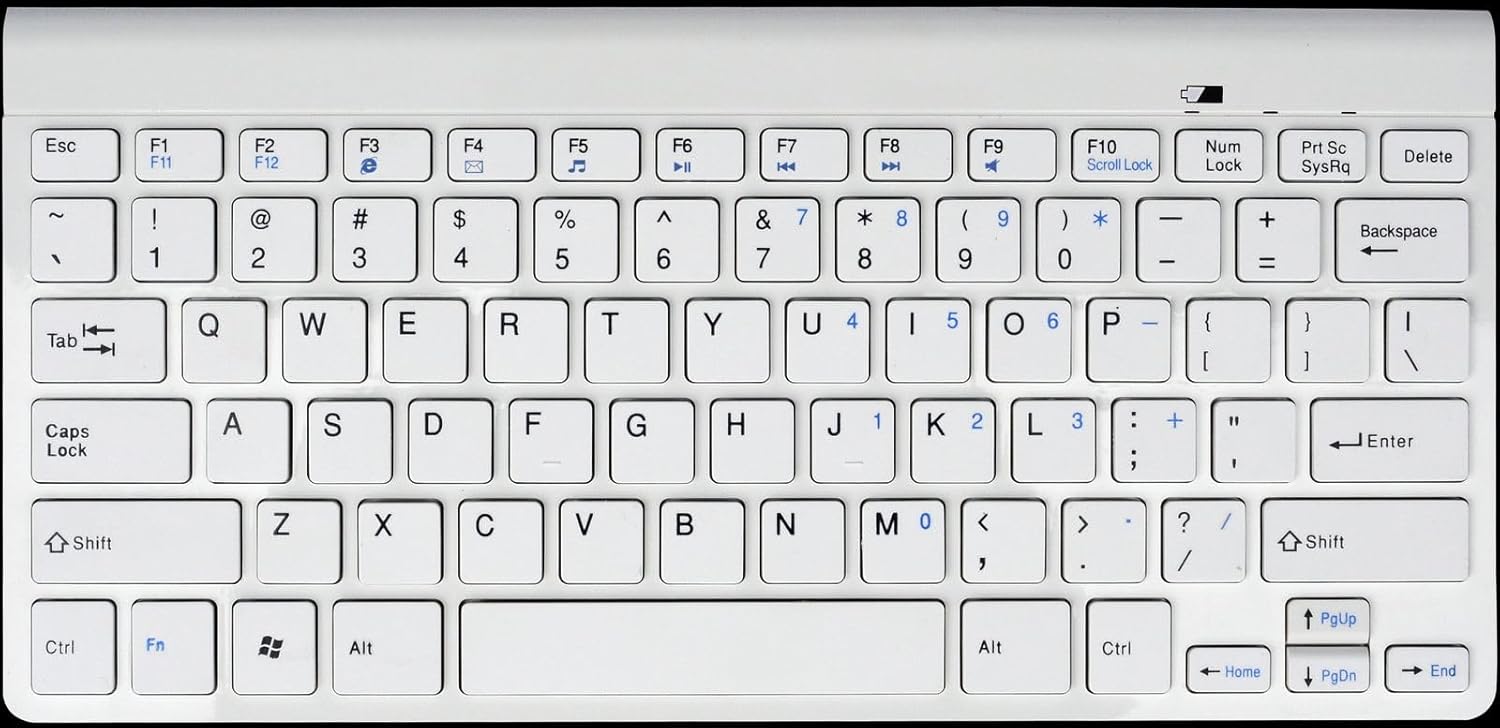
Figure 1: Gembird KB-BT-001-W-DE Slimline Bluetooth Keyboard. This image displays the full keyboard, highlighting its compact design and German QWERTZ key layout, including function keys with multimedia shortcuts and the embedded numeric keypad on the right side.
7. Maintenance
7.1. Cleaning
- Disconnect the keyboard from power and turn it off before cleaning.
- Use a soft, lint-free cloth slightly dampened with water or a mild cleaning solution.
- Avoid excessive moisture and do not spray cleaners directly onto the keyboard.
- For dust and debris between keys, use compressed air.
7.2. Battery Care
- If the keyboard uses rechargeable batteries, charge it regularly using the provided USB cable.
- If it uses disposable batteries, replace them when the low battery indicator (if present) illuminates or performance degrades.
- Turn off the keyboard when not in use for extended periods to conserve battery life.
8. Troubleshooting
| Problem | Possible Cause | Solution |
|---|---|---|
| Keyboard not connecting/pairing. | Bluetooth is off on device; keyboard not in pairing mode; low battery; too far from device. | Ensure Bluetooth is enabled. Put keyboard in pairing mode. Charge/replace batteries. Move keyboard closer to device (within 10m). Try re-pairing. |
| Keys not responding or delayed input. | Low battery; interference; out of range. | Charge/replace batteries. Move away from other wireless devices. Ensure keyboard is within range. |
| Incorrect characters typed (e.g., Y and Z swapped). | Device's keyboard layout is set to QWERTY instead of QWERTZ. | Change your device's keyboard input language/layout to German (QWERTZ). |
| Multimedia keys not working. | Fn key not pressed; software incompatibility. | Ensure you are holding the Fn key while pressing the F-key. Update device drivers if applicable. |
9. Specifications
| Feature | Detail |
|---|---|
| Brand | Gembird |
| Model Number | KB-BT-001-W-DE |
| Connectivity Technology | Bluetooth v3.0 |
| Compatible Devices | PC, Smartphone, Tablet |
| Keyboard Description | Multimedia |
| Number of Keys | 78 |
| Keyboard Layout | QWERTZ (German) |
| Included Components | USB Cable |
| Operating Range | Up to 10 meters |
| Dimensions (approx.) | 28.7 x 13.7 x 2 cm (11.3 x 5.4 x 0.8 inches) |
10. Warranty and Support
For warranty information and technical support, please refer to the documentation included with your purchase or visit the official Gembird website. Contact details for support are typically provided in the product packaging or on the manufacturer's website.
- Manufacturer: Gembird
- Support: Telephone support and email support are mentioned in the product features. Please check the included manual or Gembird's official website for current contact information.
Related documentsKB-BT-001-W-DE


Ask a question about this manual
Ask about setup, troubleshooting, compatibility, parts, safety, or missing instructions. Manuals+ will review the question and use this page’s manual context to help answer it.