Introduction
This manual provides comprehensive instructions for the Polycom VVX 410 12-Line Desktop Phone. It covers essential topics such as initial setup, daily operation, routine maintenance, and common troubleshooting steps to ensure optimal performance and longevity of your device. Please read this manual thoroughly before using the phone.
Product Overview
The Polycom VVX 410 is a high-quality 12-line desktop phone designed for enhanced business communication. It features a vibrant color display, Polycom HD Voice technology for superior audio clarity, and a range of programmable line keys to customize your communication experience.
Key Features
- 3.5" TFT (320 x 240) color display for clear visual information.
- 12 lines with programmable line keys for flexible call management and speed dial functions.
- HD Voice technology, supporting up to 7KHz on all audio paths (Speaker, Handset, Headset) for natural voice conversations.
- Dual Ethernet ports (10/100 or GigE) for network connectivity and PC pass-through.
- Dedicated hard keys for essential functions: 12-key dial pad, home, speaker, mute, headset, volume control, messages, hold, and transfer.
Components
Familiarize yourself with the main components of your Polycom VVX 410 phone:

This image shows the Polycom VVX 410 phone from the front, highlighting its color display, numeric keypad, and handset. It provides a general overview of the device's layout.
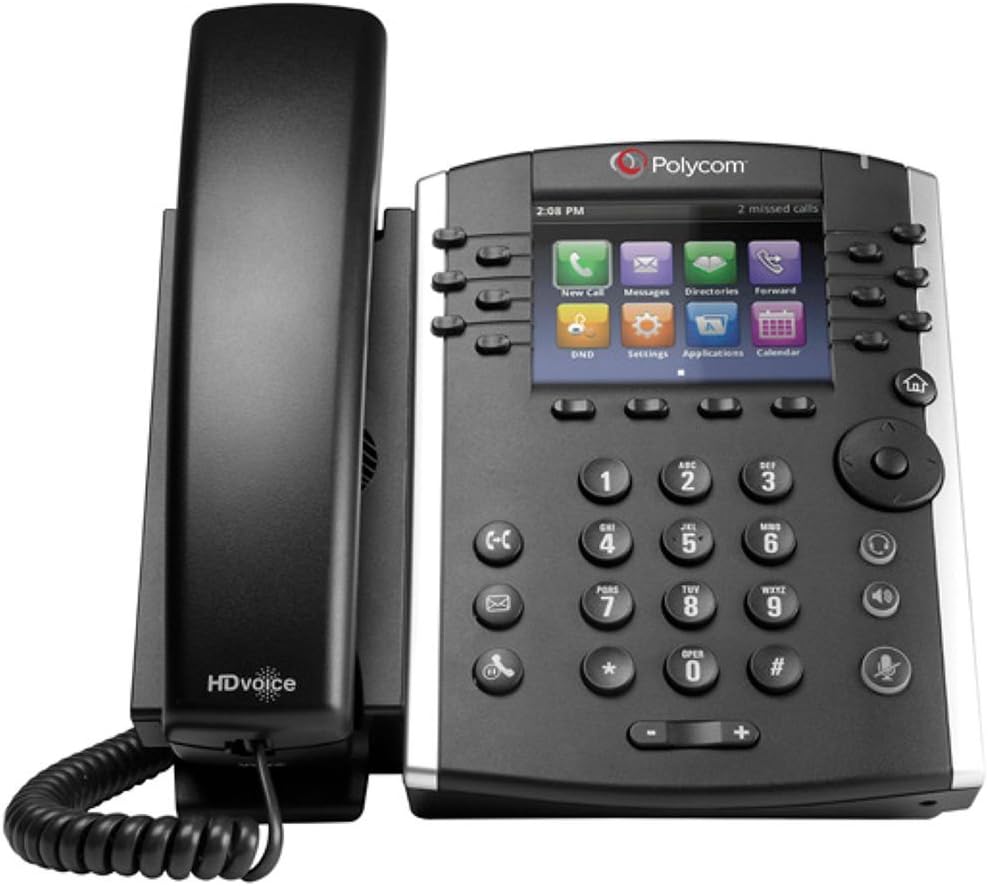
A closer view of the Polycom VVX 410, emphasizing the screen interface with icons for New Call, Messages, Directories, and Forward, along with the numeric keypad and function buttons. This view details the user interface.

The rear view of the Polycom VVX 410 phone, showing the integrated stand and various ports for network, power, and handset connections. This image is useful for understanding cable management and setup.
Setup
Unpacking
Carefully remove all components from the packaging. Ensure all parts are present: the phone base, handset, coiled handset cord, Ethernet cable, and power adapter (if not utilizing Power over Ethernet).
Connecting the Phone
- Connect the coiled handset cord to the handset and the port labeled with a handset icon on the phone base.
- Connect one end of the Ethernet cable to the LAN port on the phone (typically labeled with a network icon) and the other end to your network switch or router.
- If your network does not provide Power over Ethernet (PoE), connect the included power adapter to the phone's power port and then to a standard electrical outlet.
- Allow the phone to power on and initialize. This process may take a few minutes as the phone connects to your network and registers with your VoIP service.
Operating Instructions
Making a Call
- Pick up the handset, press the Speaker button, or press an available line key.
- Dial the desired phone number using the numeric keypad.
- Press the "Dial" soft key on the screen or wait for the call to connect automatically.
Answering a Call
When the phone rings, you can answer by picking up the handset, pressing the Speaker button, or pressing the flashing line key corresponding to the incoming call.
Ending a Call
To end an active call, simply hang up the handset, press the Speaker button again (if using speakerphone), or press the "End Call" soft key on the display.
Using Programmable Line Keys
The 12 programmable line keys on your VVX 410 can be configured for various functions, such as speed dial, busy lamp field (BLF) indicators, or additional call appearances. The specific configuration of these keys is typically managed by your system administrator or VoIP service provider.
Conference Calls
The Polycom VVX 410 supports 3-way conference calls, allowing you to connect with two other parties simultaneously.
- While on an active call, press the "Conference" soft key on the display.
- Dial the number of the third party you wish to add to the conference.
- Once the third party answers, press the "Conference" soft key again to join all parties into a single conversation.
Voicemail
To access your voicemail messages, press the dedicated "Messages" button (often indicated by an envelope icon) and follow the audio prompts provided by your voicemail system.
Maintenance
Cleaning
To clean the exterior of your Polycom VVX 410 phone, use a soft, slightly damp cloth. Avoid using abrasive cleaners, solvents, or strong chemical solutions, as these can damage the phone's surface and internal components.
Care
To ensure the longevity of your phone, avoid placing it in direct sunlight or near heat sources. Keep the phone away from liquids and excessive dust. Handle the handset and cords with care to prevent damage.
Troubleshooting
No Dial Tone
- Check all cable connections, especially the Ethernet cable connected to the LAN port and the power adapter (if not using PoE).
- Ensure the phone is receiving power and the display is active.
- If the issue persists, contact your VoIP service provider or system administrator for assistance.
Cannot Make or Receive Calls
- Verify that your network connection is active and stable.
- Check if the phone is successfully registered with your VoIP service. The display usually indicates registration status.
- Ensure the phone's firmware is up to date. Consult your system administrator for firmware update procedures.
Display Issues
- Try restarting the phone by disconnecting and reconnecting the power source.
- If the screen has minor cosmetic scratches, as sometimes noted, these typically do not affect the display's functionality or readability.
Specifications
| Feature | Detail |
|---|---|
| Product Dimensions | 7.5 x 7 x 6 inches |
| Item Weight | 3.05 pounds |
| ASIN | B00E7GOWBQ |
| Item model number | 2200-46162-001 |
| Is Discontinued By Manufacturer | No |
| Date First Available | July 28, 2013 |
| Manufacturer | POLYCOM |
| Brand | Polycom |
| Color | Silver, Black |
| Telephone Type | Corded |
| Power Source | Corded Electric |
| Dialer Type | Single Keypad |
| Answering System Type | Digital |
| Compatible Devices | VoIP services, PSTN/ISDN networks, Computer systems and networks |
| Recording Capacity | 16 minutes |
| Conference Call Capability | 3 way |
Warranty and Support
For detailed warranty information, technical support, and access to the latest firmware updates and configuration guides, please refer to the official Polycom website or contact your authorized Polycom reseller. Product support resources are typically available online to assist with advanced setup and troubleshooting.


