
Introduction
This user manual provides detailed instructions for the setup, operation, maintenance, and troubleshooting of your Cisco CP-7921G-A-K9 Unified Wireless IP Phone. Designed for seamless integration into Cisco Unified Communications environments, this device offers robust wireless connectivity and advanced telephony features. Please read this manual thoroughly to ensure proper use and to maximize the functionality of your phone.
Setup
Package Contents
Before you begin, please verify that all items are present in your package:
- Cisco CP-7921G-A-K9 Unified Wireless IP Phone
- Charging Cradle (Desktop Charger)
- AC Power Adapter
- Rechargeable Battery Pack
Battery Installation
To install the battery:
- Locate the battery compartment on the back of the phone.
- Align the battery pack with the compartment, ensuring the gold contacts on the battery match the contacts in the phone.
- Gently push the battery into place until it clicks securely.
- Replace the battery compartment cover if applicable.
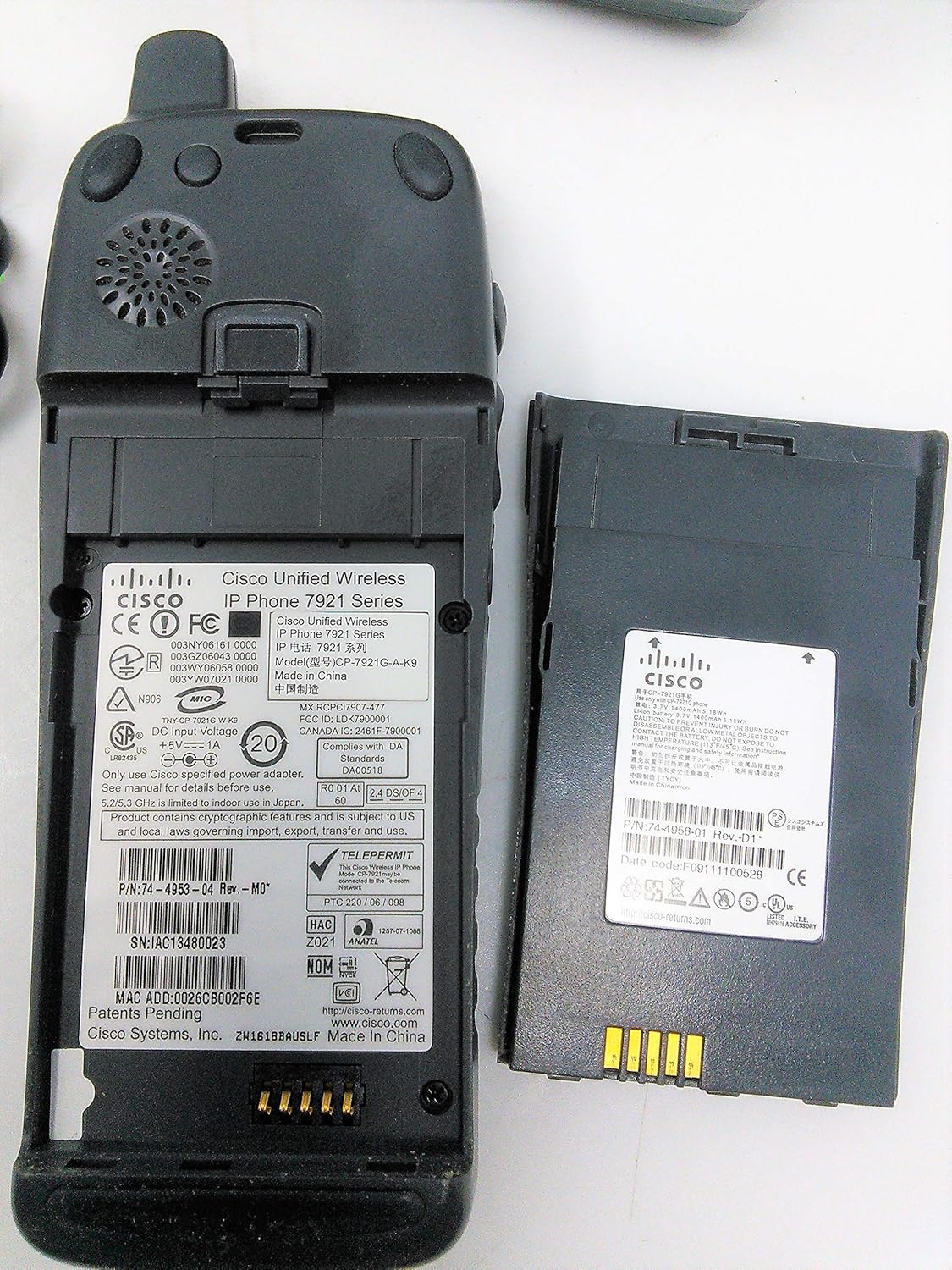
Image: Rear view of the Cisco CP-7921G-A-K9 phone, illustrating the battery compartment and various regulatory labels. The battery pack is shown separately, highlighting its contact points.
Charging the Phone
For initial use, fully charge the phone's battery. Place the phone in the charging cradle and connect the AC power adapter to the cradle and a power outlet.
- Connect the AC power adapter cable to the power input port on the back of the charging cradle.
- Plug the AC power adapter into a standard electrical outlet.
- Place the Cisco CP-7921G-A-K9 phone into the charging slot of the cradle. Ensure it is seated correctly and the charging indicator (if present) illuminates.

Image: The Cisco CP-7921G-A-K9 wireless IP phone docked in its charging cradle, with the accompanying AC power adapter visible. This setup demonstrates the typical charging configuration.

Image: Components of the Cisco CP-7921G-A-K9 system, including the wireless IP phone, its charging cradle, and the power adapter, displayed individually to show all parts.

Image: The underside of the Cisco CP-7921G-A-K9 desktop charger, displaying its model number (CP-DSKCH-7921G), serial number, and various compliance and manufacturing details.
Initial Power On and Network Connection
Once charged, press and hold the Power button to turn on the phone. The phone will attempt to connect to a configured wireless network. If prompted, enter your network credentials (SSID and password) to establish a connection to your VoIP services.
Operating Instructions
Basic Call Functions
- Making a Call: Dial the desired number using the keypad and press the Call button.
- Answering a Call: When the phone rings, press the Answer button or lift the phone from the cradle.
- Ending a Call: Press the End Call button or place the phone back in the cradle.
Advanced Features
- Hold: During an active call, press the Hold button to place the call on hold. Press again to resume.
- Transfer: To transfer a call, press the Transfer button, dial the new number, and then press Transfer again.
- Conference: To initiate a conference call, press the Conference button during an active call, dial the third party, and then press Conference again to join all parties.
- Mute: Press the Mute button to mute your microphone during a call. Press again to unmute.
Voicemail Access
To access your voicemail, press the Messages button and follow the voice prompts. You may need to enter your voicemail PIN.
Contacts/Directory
The phone supports a local directory and can integrate with corporate directories. Use the navigation buttons to access and search your contacts.
Maintenance
Cleaning
To clean your phone and charging cradle, use a soft, lint-free cloth. For stubborn marks, slightly dampen the cloth with water. Avoid using harsh chemicals, abrasive cleaners, or spraying liquids directly onto the device.
Battery Care
To prolong battery life:
- Avoid exposing the phone to extreme temperatures.
- Fully charge the battery before initial use.
- If the phone will not be used for an extended period, store it with a partial charge (around 50%) and in a cool, dry place.
Software Updates
Periodically, Cisco may release software updates to improve performance and add features. These updates are typically managed by your IT administrator. Consult your IT department for information on available updates and installation procedures.
Troubleshooting
This section addresses common issues you might encounter with your Cisco CP-7921G-A-K9 IP Phone.
| Problem | Possible Cause | Solution |
|---|---|---|
| Phone does not power on. | Low or depleted battery; incorrect battery installation; power adapter issue. | Ensure battery is correctly installed and fully charged. Verify power adapter is securely connected to cradle and outlet. |
| Cannot connect to wireless network. | Incorrect Wi-Fi password; out of range; network issues. | Verify Wi-Fi password. Move closer to the wireless access point. Contact your IT administrator to check network status. |
| No dial tone. | No network connection; VoIP service issue. | Check network connection status on the phone. Contact your IT administrator or VoIP service provider. |
| Poor call quality (static, drops). | Weak Wi-Fi signal; network congestion. | Move to an area with better Wi-Fi signal strength. Report persistent issues to your IT administrator. |
| Phone not charging in cradle. | Improper seating in cradle; dirty contacts; faulty power adapter. | Ensure phone is correctly seated. Clean contacts on phone and cradle with a dry cloth. Test with another power adapter if available. |
Specifications
Key technical specifications for the Cisco CP-7921G-A-K9 Unified Wireless IP Phone:
| Feature | Value |
|---|---|
| Model Number | CP-7921G-A-K9 |
| Brand | Cisco |
| Product Dimensions (L x W x H) | 11 x 8 x 5 inches |
| Item Weight | 4 ounces |
| Color | black |
| Telephone Type | Cordless |
| Power Source | Corded Electric |
| Answering System Type | Digital |
| Compatible Devices | Cisco Unified Communications family of products, VoIP services, wireless networks |
| Conference Call Capability | advanced |
| Multiline Operation | Multi-Line Operation |
| Caller Identification | Yes |
| Manufacturer | Cisco Systems, Inc |
| Date First Available | October 21, 2015 |
Warranty and Support
This Cisco product is covered by a standard manufacturer's warranty. For specific warranty terms and conditions, please refer to the documentation provided with your purchase or visit the official Cisco website.
For technical support, additional documentation, or service inquiries, please visit the Cisco Store on Amazon or the main Cisco support website. Your IT administrator is also a primary resource for support within your organization's network environment.

