
1. Introduction
The StarTech.com UNI3510U2EB is a versatile and cost-effective external storage solution designed to transform any 3.5-inch Serial ATA (SATA, SATA II, SATA III) or IDE hard drive into an external eSATA or USB 2.0 connected storage device. This enclosure supports high-capacity drives, tested with up to 4TB, making it ideal for expanding your storage capabilities.
Key features include a large built-in 80mm fan for enhanced heat dissipation, crucial for maintaining data integrity and extending the lifespan of high-speed or high-capacity drives. It also offers a unique snap-in, screwless hard drive installation and a One-Touch Backup function for simplified data management.
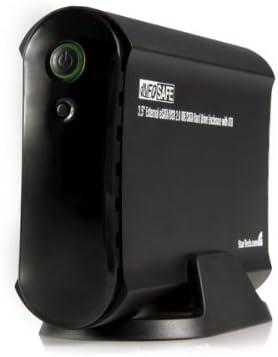
Figure 1: An angled view of the StarTech.com UNI3510U2EB external hard drive enclosure, showing its black casing, power button, and stand.
2. Package Contents
- 1x UNI3510U2EB Hard Drive Enclosure
- 1x Universal Power Adapter
- 1x USB 2.0 Cable
- 1x eSATA Cable
- 1x Software CD (for One-Touch Backup utility)
- 1x Instruction Manual
3. System Requirements
- Available USB 2.0 port or eSATA port
- Windows® XP/Vista/7/8/10 or macOS® (OS X) compatible operating system
- 3.5-inch SATA I/II/III or IDE hard drive
4. Setup
4.1. Hard Drive Installation
- Ensure the enclosure is powered off and disconnected from your computer.
- Gently open the enclosure. The unique snap-in design allows for screwless installation.
- For a SATA hard drive: Connect the SATA data and power connectors from the enclosure to the corresponding ports on your 3.5-inch SATA hard drive.
- For an IDE hard drive: Connect the IDE ribbon cable and 4-pin Molex power connector from the enclosure to the corresponding ports on your 3.5-inch IDE hard drive. Ensure the IDE drive's jumper settings are configured correctly (e.g., Master or Cable Select).
- Carefully slide the hard drive into the enclosure until it is securely seated.
- Close the enclosure, ensuring all latches or clips are engaged.
4.2. Connecting to Your Computer
- Connect the universal power adapter to the enclosure's power input and then to a power outlet.
- For USB connection: Connect one end of the USB 2.0 cable to the enclosure's USB port and the other end to an available USB port on your computer.
- For eSATA connection: Connect one end of the eSATA cable to the enclosure's eSATA port and the other end to an available eSATA port on your computer. Note: eSATA connection is only compatible with SATA hard drives.
- Power on the enclosure using the power button. The operating system should detect the new hardware automatically.
- If the hard drive is new, it may need to be initialized, partitioned, and formatted through your operating system's Disk Management (Windows) or Disk Utility (macOS) before use.
5. Operating Instructions
5.1. Basic Operation
- Once connected and recognized by your computer, the external hard drive will appear as a removable storage device.
- You can drag and drop files, copy, paste, and manage data just like any other internal or external drive.
- Always safely eject or unmount the drive from your operating system before disconnecting the enclosure or powering it off to prevent data corruption.
5.2. One-Touch Backup (OTB)
The UNI3510U2EB features a One-Touch Backup function, which automates backup tasks for files and folders. This feature requires the installation of the included software utility from the provided CD.
- Install the One-Touch Backup software from the included CD.
- Launch the software and configure your backup settings, including source folders, destination on the external drive, and backup schedule.
- Once configured, you can initiate a backup by simply pressing the dedicated One-Touch Backup button on the enclosure.
- Refer to the software's help documentation for detailed instructions on configuring and using the One-Touch Backup utility.
6. Maintenance
- Keep the enclosure clean and free from dust. Use a soft, dry cloth for cleaning.
- Ensure the built-in 80mm fan is not obstructed to allow for proper airflow and cooling. Periodically check for dust buildup on the fan blades and vents.
- Avoid exposing the enclosure to extreme temperatures, humidity, or direct sunlight.
- Do not attempt to open or service the enclosure beyond hard drive installation, as this may void the warranty.
7. Troubleshooting
7.1. Drive Not Detected
- Check Power: Ensure the power adapter is securely connected to both the enclosure and a working power outlet, and the enclosure is powered on.
- Check Cables: Verify that the USB or eSATA cable is securely connected to both the enclosure and your computer. Try a different port or cable if available.
- Hard Drive Connection: Ensure the internal SATA or IDE hard drive is correctly seated and connected within the enclosure.
- Driver Installation: For Windows, check Device Manager to see if the device is listed. If there's a yellow exclamation mark, try updating or reinstalling the driver.
- Disk Initialization: If it's a new hard drive, it may need to be initialized, partitioned, and formatted. Access Disk Management (Windows) or Disk Utility (macOS) to check the drive status.
- Try Another Computer: Test the enclosure with another computer to rule out computer-specific issues.
7.2. Slow Transfer Speeds
- USB 2.0 vs. eSATA: USB 2.0 offers a maximum theoretical speed of 480 Mbps, while eSATA offers up to 3 Gbps (SATA II) or 6 Gbps (SATA III). Ensure you are using the eSATA connection for optimal performance if your system supports it.
- USB Port Type: Ensure you are connected to a native USB 2.0 port. Connecting to a USB 1.1 port will result in significantly slower speeds.
- Drive Health: A failing or fragmented hard drive can impact transfer speeds.
8. Specifications
| Feature | Detail |
|---|---|
| Model Number | UNI3510U2EB |
| Supported Drive Type | 3.5-inch SATA I/II/III or IDE Hard Drives |
| Max Drive Capacity | Up to 4TB (tested) |
| External Interface | USB 2.0, eSATA |
| Internal Interface | SATA, IDE |
| Fan | Built-in 80mm cooling fan |
| Material | Aluminum Casing |
| Color | Black |
| Connectivity Technology | USB |
| Hardware Interface | USB |
| UPC | 132017909943 |
9. Warranty and Technical Support
The StarTech.com UNI3510U2EB is backed by a 2-year warranty and free lifetime technical support. For technical assistance or warranty claims, please visit the official StarTech.com website or contact their support team directly.