
Introduction
The Etekcity ZAP 4L Wireless Remote Control Outlet System provides convenient control over your household appliances and lighting. This system allows you to switch devices on or off remotely, eliminating the need to reach difficult-to-access outlets. It is designed for ease of use and can help manage energy consumption by powering off devices when not in use.
The system includes multiple outlet receivers and a single remote control transmitter, offering flexibility in controlling individual or multiple devices.
Package Contents
- 4 x Etekcity Outlet Receivers
- 1 x Remote Control Transmitter
- 1 x 12V Battery (for remote)
- 1 x User Manual (this document)
Safety Information
- Do not exceed the maximum load capacity of 1200W/10A.
- For indoor use only. Do not expose to water or damp conditions.
- Ensure the outlet receiver is fully inserted into the wall socket.
- Keep the remote control and battery away from children.
- Do not disassemble or attempt to repair the devices. Contact customer support for assistance.
Setup
1. Install Remote Battery
- Open the battery compartment on the back of the remote control.
- Insert the included 12V (23A) battery, ensuring correct polarity (+/-).
- Close the battery compartment.
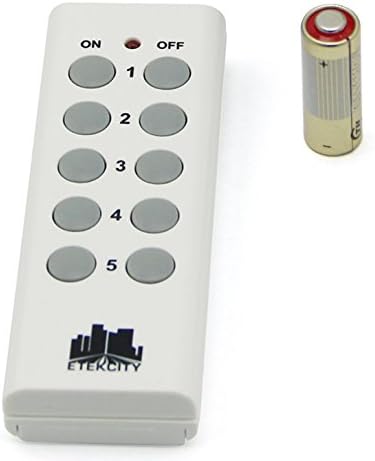
Image: The white remote control with five pairs of ON/OFF buttons (numbered 1-5) and a single 12V battery next to it.
2. Plug in Outlet Receivers
- Plug an Etekcity ZAP 4L outlet receiver into a standard 120V wall outlet.
- The LED indicator on the receiver will light up briefly.
- Connect your desired appliance or light into the Etekcity outlet receiver.

Image: Front view of the white Etekcity ZAP 4L wireless outlet receiver, showing the three-prong receptacle and the "REMOTE CONTROL LED" indicator.

Image: Side view of the Etekcity ZAP 4L wireless outlet receiver, showing the two-prong plug for insertion into a wall outlet.
Operating Instructions
Each outlet receiver is pre-programmed to correspond with a specific button pair (1-4) on the remote control. The fifth button pair (5) is typically programmed to control all outlets simultaneously.
- To turn on a device connected to an outlet receiver, press the ON button corresponding to that receiver's number on the remote control.
- To turn off a device, press the OFF button corresponding to that receiver's number.
- The LED indicator on the receiver will illuminate when the outlet is ON and turn off when the outlet is OFF.
- The remote control has an operating range of up to 100 feet (30 meters) in an open area. Obstacles like walls and furniture may reduce this range.
Learning Function (Programming)
The learning function allows you to customize which remote button controls which outlet receiver. You can program any button on the remote to control any outlet, or even multiple outlets with a single button.
To Program an Outlet Receiver:
- Plug the outlet receiver into a wall socket.
- Press and hold the small Learning Button located on the side of the outlet receiver for approximately 3 seconds until the LED indicator begins to flash slowly.
- While the LED is flashing, press either the ON or OFF button of your desired channel (1-5) on the remote control.
- The LED on the receiver will stop flashing and turn off, indicating successful pairing.
- Test the connection by pressing the ON/OFF buttons for the selected channel.
Tip: To program multiple outlets to a single remote button, repeat steps 1-4 for each additional outlet using the same remote button.
To Reset an Outlet Receiver (Clear Programming):
If you need to clear the programming for an outlet receiver, follow these steps:
- Unplug the outlet receiver from the wall socket.
- Press and hold the small Learning Button on the side of the outlet receiver.
- While still holding the Learning Button, plug the outlet receiver back into the wall socket.
- Continue holding the button for approximately 5 seconds until the LED indicator flashes rapidly, then turns off. This indicates the programming has been cleared.
- You can now reprogram the outlet receiver as desired.
Troubleshooting
| Problem | Possible Cause | Solution |
|---|---|---|
| Outlet receiver does not respond to remote. |
|
|
| Multiple outlets activate with one remote button. | Multiple outlets are programmed to the same remote button. | Use the "Reset an Outlet Receiver" steps to clear the programming for the affected outlets, then reprogram them individually to different remote buttons if desired. |
| Outlets remain off after a power outage. | This is a safety feature. | Press the ON button on the remote for the desired outlet to restore power. |
Specifications
| Power Input: | 120V/60Hz |
| Max Power Output: | 1200W/10A |
| Transmission Frequency: | 433.92MHz |
| Remote Battery: | DC 12V (23A) |
| Power Consumption (Standby): | 0.6W |
| Remote Range: | Up to 100 feet (30 meters) in open area |
| Item Weight: | 1.2 pounds (total package) |
| Product Dimensions: | 8.8 x 5.2 x 2.7 inches (package) |
Maintenance
- Clean the devices with a dry, soft cloth. Do not use abrasive cleaners or solvents.
- Replace the remote control battery when its range decreases or the LED indicator on the remote becomes dim.
- Store the devices in a cool, dry place when not in use for extended periods.
Warranty Information
Etekcity products are designed and manufactured to the highest quality standards. For specific warranty details, please refer to the warranty card included with your purchase or visit the official Etekcity website. Keep your proof of purchase for warranty claims.
Customer Support
For technical support, troubleshooting assistance, or general inquiries, please contact Etekcity Customer Support. You can find contact information on the official Etekcity website or through your purchase platform.
Visit the Etekcity Store on Amazon for more products and information.


