
TECKNET EWM01308
TECKNET Bluetooth Wireless Mouse User Manual
Model: EWM01308
1. Introduction
Thank you for choosing the TECKNET Bluetooth Wireless Mouse. This manual provides essential information for setting up, operating, and maintaining your mouse to ensure optimal performance and longevity. Please read this manual thoroughly before using the product.

Image: Top view of the TECKNET Bluetooth Wireless Mouse, showcasing its ergonomic design and central scroll wheel.
2. Safety Information
- Do not expose the mouse to extreme temperatures, humidity, or direct sunlight.
- Avoid dropping or subjecting the mouse to strong impacts.
- Keep out of reach of children.
- Dispose of batteries according to local regulations. Do not mix old and new batteries or different types of batteries.
3. Package Contents
Please check the package contents to ensure all items are present:
- 1 x TECKNET Bluetooth Wireless Mouse
- 1 x User Manual
4. Product Overview
Familiarize yourself with the different parts and buttons of your TECKNET mouse:

Image: Labeled diagram showing the six buttons of the TECKNET mouse: Left Button, Right Button, Scroll Wheel, DPI Switch Button, Low Battery Indicator, Backward Button, and Forward Button.
- Left Button: Standard left-click function.
- Right Button: Standard right-click function.
- Scroll Wheel: For vertical scrolling and middle-click function.
- DPI Switch Button: Adjusts the mouse's sensitivity (DPI).
- Low Battery Indicator: Illuminates to indicate low battery power.
- Backward Button: Navigates back in web browsers or file explorers.
- Forward Button: Navigates forward in web browsers or file explorers.
Underside of the mouse:

Image: The underside of the TECKNET mouse, displaying the battery compartment, optical sensor, and Bluetooth pairing button.
- Optical Sensor: Provides precise tracking on various surfaces.
- Battery Compartment: Holds two AA batteries.
- Bluetooth Pairing Button: Used to initiate Bluetooth pairing mode.
- On/Off Switch: Powers the mouse on or off to conserve battery.
5. Setup
5.1. Battery Installation
The mouse requires two AA batteries (not included).
- Open the battery compartment cover on the underside of the mouse.
- Insert two AA batteries, ensuring correct polarity (+/-).
- Close the battery compartment cover securely.
- Turn on the mouse using the On/Off switch located on the underside.
5.2. Bluetooth Pairing
To connect your TECKNET mouse via Bluetooth:
- Ensure the mouse is powered on.
- Press and hold the Bluetooth pairing button on the underside of the mouse for 3-5 seconds until the blue LED indicator on top of the mouse starts blinking rapidly. This indicates the mouse is in pairing mode.
- On your computer or device, enable Bluetooth and search for new devices.
- Select "TECKNET Mouse" or a similar name from the list of available devices.
- Follow any on-screen prompts to complete the pairing process. The LED indicator on the mouse will stop blinking and remain solid blue once successfully paired.
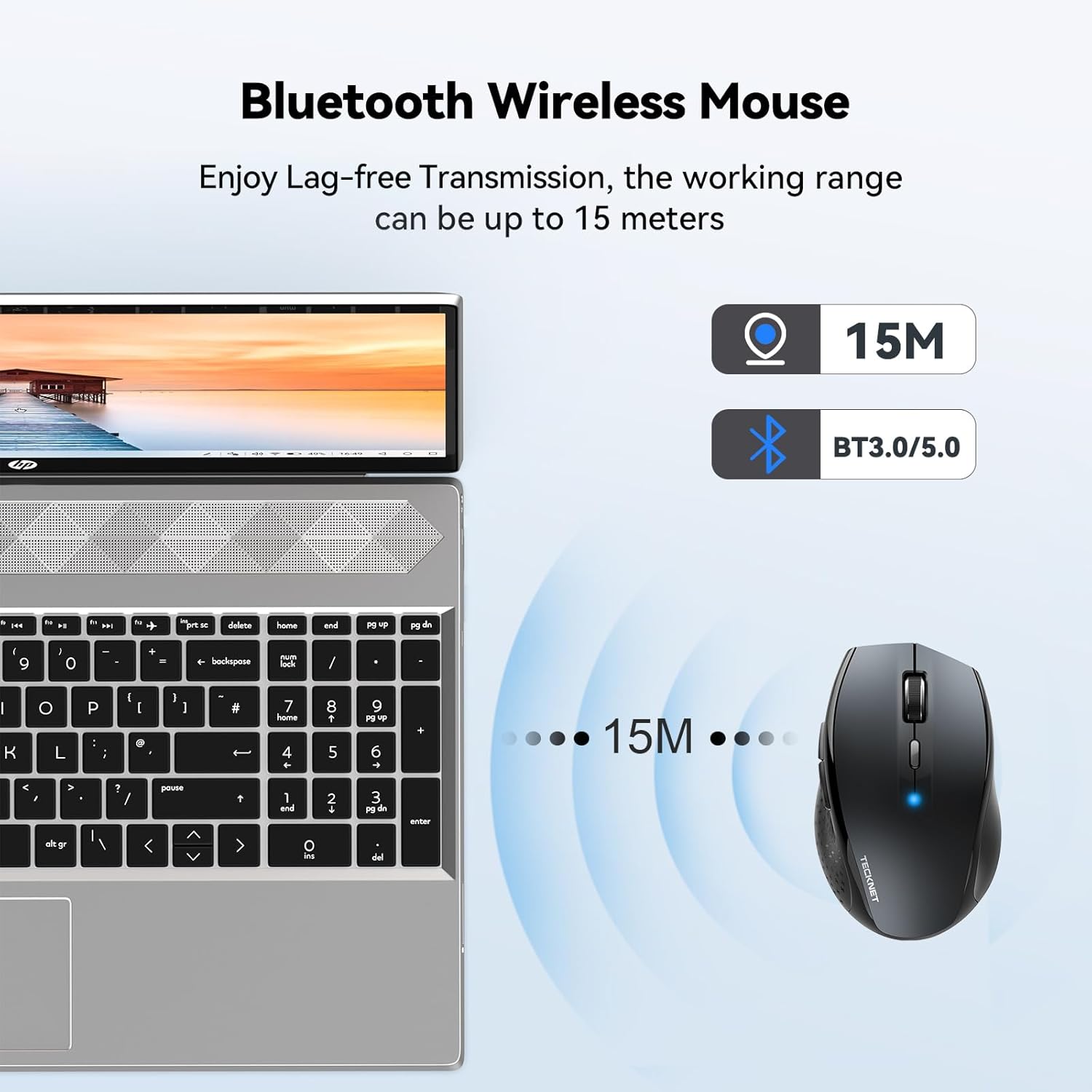
Image: Diagram illustrating the Bluetooth wireless connection range of up to 15 meters between the mouse and a laptop.
5.3. Compatibility
The TECKNET Bluetooth Wireless Mouse is compatible with a wide range of operating systems:
- Windows XP, Vista, 7, 8, 10, 11
- macOS
- Linux
- Chrome OS
- iPadOS
- Android
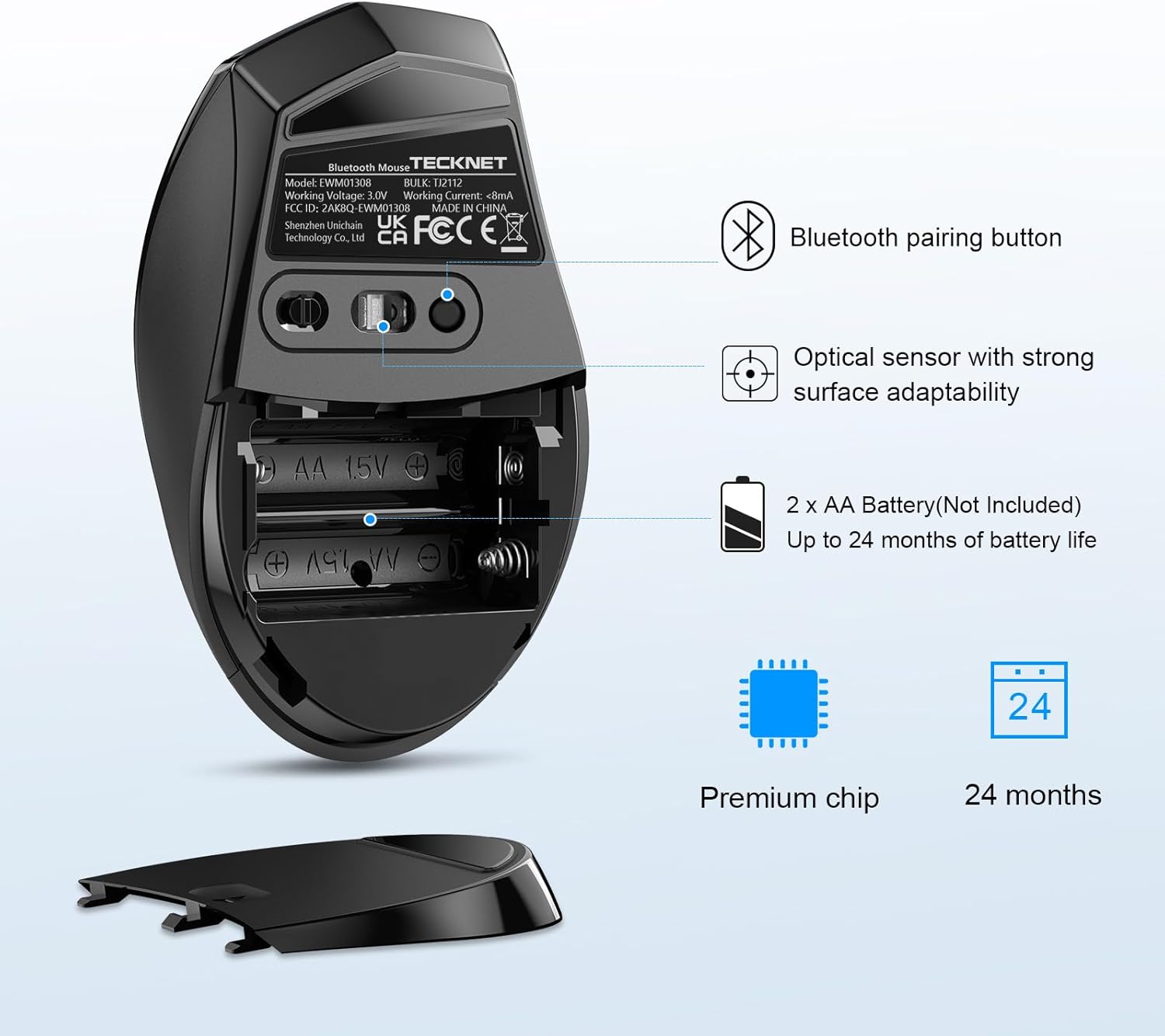
Image: A user operating the TECKNET mouse next to a laptop, with the Windows logo indicating compatibility.
6. Operating Instructions
6.1. DPI Adjustment
The mouse features 6 adjustable DPI levels, allowing you to customize cursor sensitivity for different tasks. Press the DPI Switch Button (located behind the scroll wheel) to cycle through the following settings:
- 800 DPI
- 1200 DPI
- 1600 DPI
- 2000 DPI
- 2400 DPI
- 3200 DPI

Image: A visual representation of the 6 adjustable DPI levels (800 to 3200) available on the TECKNET mouse, indicating how one button changes the pointer's moving speed.
6.2. TruWave Tracking Technology
The TECKNET mouse incorporates TruWave tracking technology, providing precise and intelligent cursor control on a wide variety of surfaces. This allows for consistent performance whether you are on a desk, a fabric surface, or other common materials.

Image: Illustration demonstrating the TECKNET mouse's strong durability and ability to track accurately on diverse materials such as resin, wood, paper, cloth, and leather.
6.3. Smart Sleep Technology
To conserve battery life, the mouse features Smart Sleep technology. If the mouse is inactive for a period, it will automatically enter a low-power sleep mode. To wake the mouse, simply move it or click any button.
6.4. Durability
The mouse is designed for long-lasting usage, having undergone a 10 million times click test to ensure reliability and durability of its buttons.

Image: A close-up of a hand using the TECKNET mouse, highlighting its robust construction and the claim of 10 million click durability.
7. Maintenance
- Cleaning: Use a soft, dry cloth to clean the mouse. For stubborn dirt, slightly dampen the cloth with water. Do not use harsh chemicals or abrasive cleaners.
- Battery Replacement: When the low battery indicator illuminates, replace the two AA batteries promptly to ensure uninterrupted operation.
8. Troubleshooting
| Problem | Possible Cause | Solution |
|---|---|---|
| Mouse not connecting/pairing | Low battery; Bluetooth off on device; Mouse not in pairing mode; Interference. | Replace batteries; Ensure Bluetooth is enabled on your device; Press and hold pairing button on mouse; Move closer to device; Restart device. |
| Cursor erratic or unresponsive | Dirty optical sensor; Unsuitable surface; Low battery. | Clean optical sensor with a soft cloth; Use on a clean, non-reflective surface or mouse pad; Replace batteries. |
| Short battery life | Frequent usage; Old batteries; Mouse not turned off when not in use. | Use high-quality alkaline batteries; Turn off mouse when not in use for extended periods. |
9. Specifications
| Brand | TECKNET |
| Model Number | EWM01308 |
| Color | Grey |
| Connectivity Technology | Bluetooth 5.2 |
| Movement Detection Technology | Optical (TruWave Tracking) |
| DPI Levels | 800 / 1200 / 1600 / 2000 / 2400 / 3200 |
| Number of Buttons | 6 |
| Hand Orientation | Ambidextrous |
| Recommended Use | Office |
| Compatible Operating Systems | Windows XP/Vista/7/8/10/11, macOS, Linux, Chrome OS, iPadOS, Android |
| Power Source | 2 x AA Batteries (not included) |
| Battery Life | Up to 24 months (with Smart Sleep Technology) |
| Item Weight | 75 Grams |
10. Warranty and Support
TECKNET provides a 36-month warranty for this product. To activate your warranty, please register your product on the official TECKNET website. For any questions, technical support, or warranty claims, please contact TECKNET customer service. Contact information can typically be found on the TECKNET website or on the product packaging.
Related documentsEWM01308


Ask a question about this manual
Ask about setup, troubleshooting, compatibility, parts, safety, or missing instructions. Manuals+ will review the question and use this page’s manual context to help answer it.