
Introduction
This manual provides comprehensive instructions for the Beyution Replacement TV Remote Control, model URMT34JHG001. This remote is designed to function as a direct replacement for a wide range of Philips television models, eliminating the need for complex programming. Please read this manual thoroughly to ensure proper use and to maximize your remote control's functionality.
Product Overview
The Beyution URMT34JHG001 is an infrared (IR) replacement remote control for Philips TVs. It features a standard button layout for intuitive operation and is constructed from durable ABS material. The remote offers a control range of up to 33 feet (10 meters) and is designed for multi-angle control within a 0-30 degree range.
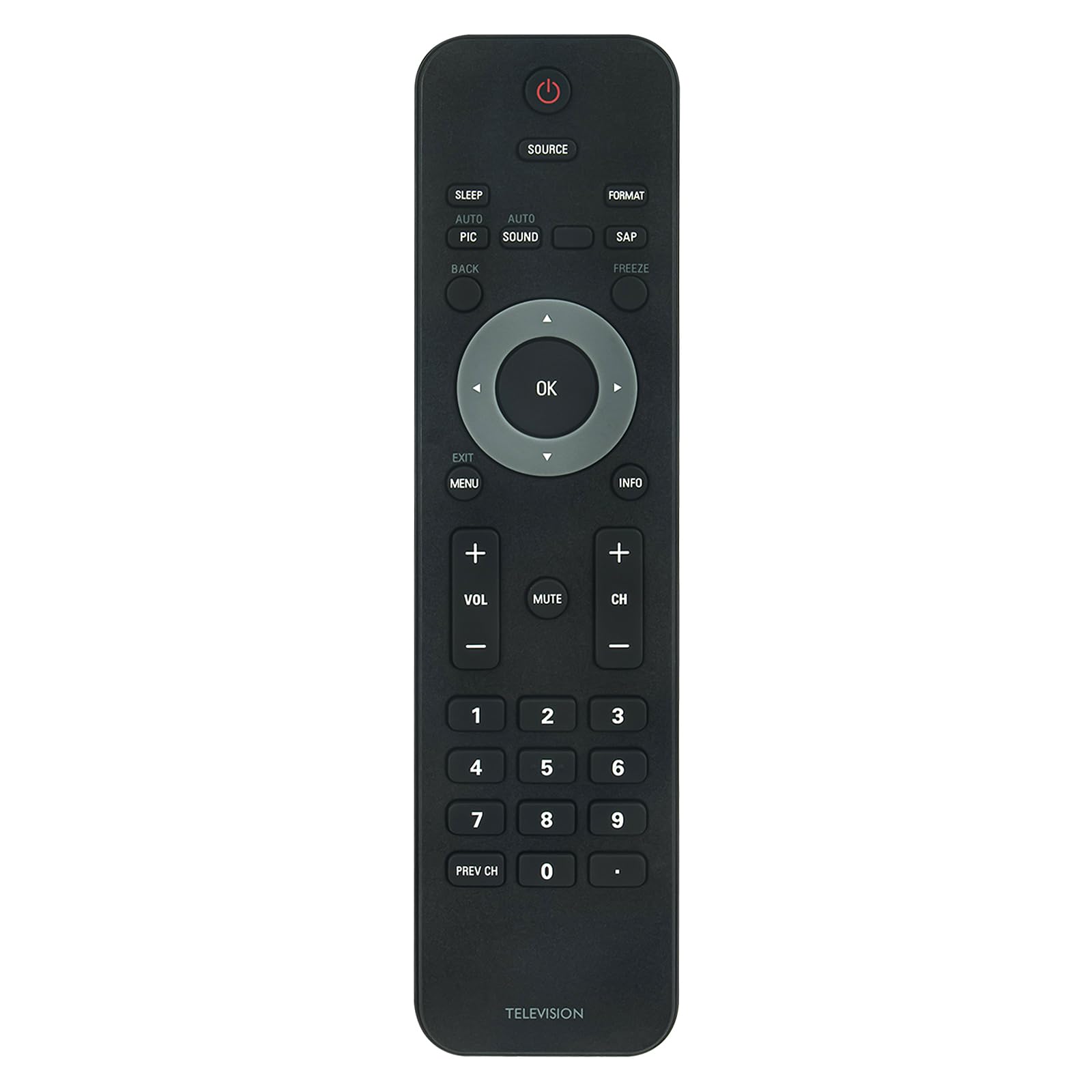
Image: Front view of the Beyution Replacement TV Remote Control.
This remote is compatible with numerous Philips TV models, including but not limited to: 32PFL3504D/F7, 19PFL3504D, 32PFL3514D, 22PFL3504, 42PFL3704D/F7, 42PFL7603, and 47PFL7603.
Setup
Battery Installation
The remote control requires two AAA alkaline batteries (not included) for operation. No programming or code setup is required; simply insert the batteries, and the remote will be ready to use with compatible Philips TVs.
- Locate the battery compartment on the back of the remote control.
- Press down on the tab and slide the battery cover downwards to open it.
- Insert two AAA batteries, ensuring the positive (+) and negative (-) terminals align correctly with the markings inside the compartment.
- Slide the battery cover back into place until it clicks securely.

Image: Rear view of the remote control with the battery compartment open, showing where to insert AAA batteries.
Operating Instructions
Once batteries are installed, the remote control is ready for immediate use. Point the remote directly at your Philips TV and press the desired function button.

Image: The remote control displaying its button layout, highlighting its advanced IR technology with a 30-foot range and multi-angle control.
Key Functions:
- Power (Red Button): Turns the TV on or off.
- Source: Selects input sources (e.g., HDMI, AV).
- OK (Center Button): Confirms selections in menus.
- Directional Arrows: Navigates through menus and options.
- VOL +/-: Adjusts the volume level.
- CH +/-: Changes TV channels.
- Mute: Mutes or unmutes the TV audio.
- Menu: Accesses the TV's main menu.
- Exit: Exits the current menu or screen.
- Info: Displays information about the current program or input.
- Number Buttons (0-9): Directly selects channels.
- Prev CH: Returns to the previously viewed channel.
- Sleep: Sets a sleep timer for the TV.
- Auto Pic / Auto Sound: Adjusts picture or sound settings automatically.
- SAP: Selects Secondary Audio Program (if available).
- Freeze: Pauses the current image on screen.
- Format: Changes the screen aspect ratio or display format.
- Back: Returns to the previous step or screen.
Maintenance
To ensure the longevity and optimal performance of your remote control, follow these maintenance guidelines:
- Cleaning: Wipe the remote control with a soft, dry cloth. Do not use liquid cleaners, abrasive pads, or chemical solvents, as these can damage the surface or internal components.
- Battery Replacement: Replace batteries when the remote's response becomes sluggish or stops working. Always replace both batteries at the same time with new AAA alkaline batteries. Do not mix old and new batteries, or different types of batteries.
- Storage: If the remote will not be used for an extended period, remove the batteries to prevent leakage, which can cause damage. Store the remote in a cool, dry place away from direct sunlight and extreme temperatures.
- Avoid Drops: Protect the remote from physical impact, as drops can damage internal circuitry.
Troubleshooting
If you experience issues with your remote control, refer to the following common problems and solutions:
- Remote is not working:
- Check if the batteries are inserted correctly with the correct polarity (+/-).
- Replace old batteries with new AAA alkaline batteries.
- Ensure there are no obstructions between the remote control and the TV's infrared sensor.
- Make sure you are within the effective operating range (up to 33 feet) and pointing the remote directly at the TV.
- Some buttons are not responding:
- This remote is a direct replacement and should function without programming. However, compatibility can vary slightly between specific TV models. Verify your TV model is listed as compatible.
- Clean the remote control buttons and surface to ensure no debris is interfering with button presses.
- TV is not responding consistently:
- Interference from strong light sources (like direct sunlight or fluorescent lights) can affect IR signal transmission. Try operating the remote in a different lighting condition.
- Ensure the TV's IR receiver is not blocked or dirty.
Specifications

Image: The remote control with its dimensions (7.28 inches length, 1.97 inches width) and material properties (ABS material, soft touch, anti-dusted).
| Brand | Beyution |
| Model Name | URMT34JHG001 |
| Compatible Devices | Philips Televisions |
| Connectivity Technology | Infrared (IR) |
| Maximum Range | 33 Feet (10 meters) |
| Number of Buttons | 20 |
| Battery Type | 2 x AAA Alkaline Batteries (not included) |
| Item Dimensions (L x W x H) | 7.28" x 1.97" x 0.5" (approximately) |
| Material | ABS |
Warranty and Support
Warranty Information
This Beyution remote control comes with a 1-year limited warranty from the date of purchase. This warranty covers manufacturing defects under normal use. It does not cover damage caused by misuse, accidents, unauthorized modifications, or battery leakage.
Customer Support
For technical assistance or warranty claims, please refer to the contact information provided with your purchase or visit the Beyution official support channels. Please have your product model number (URMT34JHG001) and proof of purchase ready when contacting support.