
Targus THZ192US
Targus Versavu Keyboard Case for iPad 5G (THZ192US) User Manual
Model: THZ192US
Product Overview
The Targus Versavu Keyboard Case is designed to enhance your iPad 5th Generation experience by providing robust protection and versatile functionality. This case allows for multiple viewing angles and includes a removable Bluetooth keyboard, transforming your iPad into a highly productive workstation or an entertainment hub.

Image: The Targus Versavu Keyboard Case with an iPad inserted, displayed in landscape orientation with the keyboard extended for typing. This illustrates the primary use of the product.
Setup Guide
1. Inserting Your iPad
- Gently align your iPad 5th Generation with the custom-fit cradle within the case.
- Press firmly but carefully around the edges of the iPad until it securely snaps into place. Ensure all corners are seated properly.
- Verify that all ports, buttons, and the camera are accessible and unobstructed.
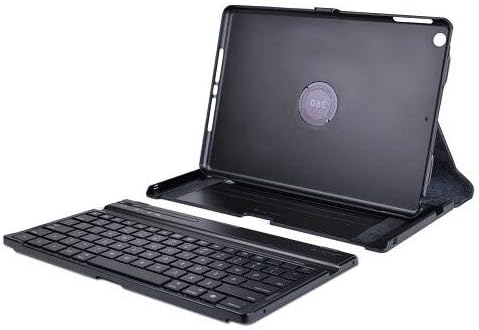
Image: A view of the back of the Targus Versavu Keyboard Case, highlighting the secure cradle for the iPad and the central 360-degree rotation mechanism. This shows how the iPad is held and can be rotated.
2. Charging the Bluetooth Keyboard
Before initial use, fully charge the Bluetooth keyboard. A USB charging cable is included with your Versavu Keyboard Case.
- Locate the charging port on the side of the keyboard.
- Connect the small end of the USB charging cable to the keyboard's charging port.
- Connect the larger end of the USB cable to a powered USB port (e.g., computer, USB wall adapter).
- The charging indicator light on the keyboard will illuminate during charging and turn off when fully charged.
3. Pairing the Bluetooth Keyboard
To use the keyboard wirelessly, it must be paired with your iPad.
- Ensure the keyboard is charged and powered on. Look for a power switch, usually on the side or back of the keyboard.
- On your iPad, go to Settings > Bluetooth.
- Turn Bluetooth On. Your iPad will begin searching for discoverable devices.
- On the Targus keyboard, press the Bluetooth pairing button (refer to the keyboard's specific button, often indicated by a Bluetooth symbol). The indicator light will flash, signifying it's in pairing mode.
- On your iPad, select "Targus Keyboard" (or similar name) from the list of devices.
- If prompted, enter the displayed pairing code on the Targus keyboard and press Enter.
- Once paired, the keyboard will show as "Connected" on your iPad's Bluetooth settings.
Operating the Case
Adjusting Viewing Angles
The Versavu case features an innovative slide rail system for customizable viewing angles.
- With the iPad in the case, gently slide the iPad section along the rail to achieve your desired viewing angle.
- The design allows for various positions, accommodating both comfortable viewing and typing.
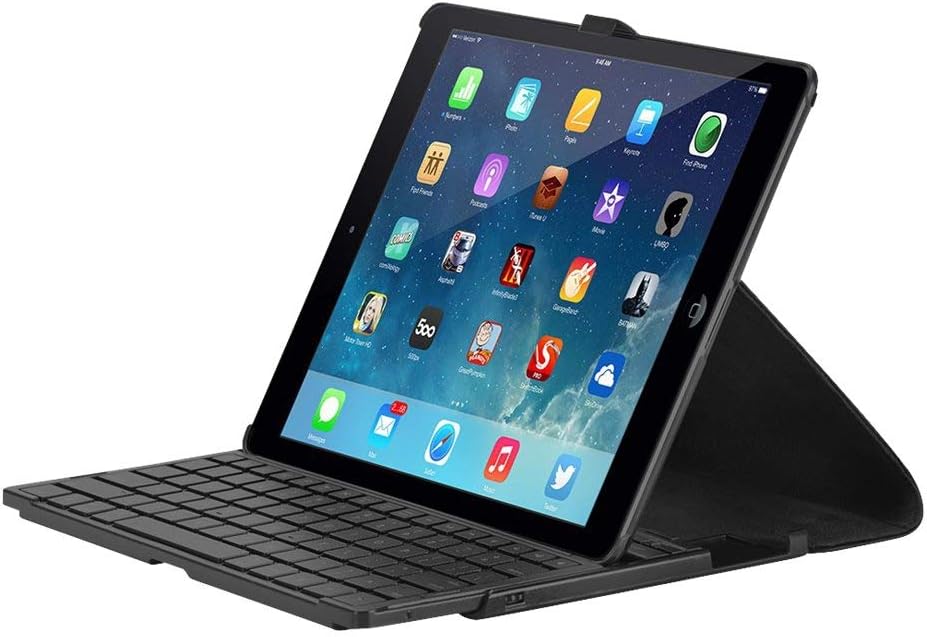
Image: The Targus Versavu Keyboard Case demonstrating its flexibility with an iPad positioned at various viewing angles. The image also highlights the removable nature of the keyboard, allowing for versatile use.
360-Degree Screen Rotation
The patent-pending 360-degree rotating design allows seamless switching between portrait and landscape viewing.
- While the iPad is securely in its cradle, gently rotate the iPad section clockwise or counter-clockwise to switch between landscape and portrait orientations.
- The mechanism is designed to hold the iPad firmly in place once rotated.
Using the Removable Bluetooth Keyboard
The Bluetooth keyboard can be used attached to the case or detached for more flexible typing positions.
- To remove the keyboard, gently slide it out from its designated slot at the front of the case.
- To reattach, align the keyboard with the slot and slide it back in until it clicks into place.
- The keyboard features a standard QWERTY layout and includes customized shortcut keys optimized for the iPad 5th Generation, enhancing your user experience.
Maintenance
Cleaning Instructions
- For the exterior faux leather or twill material, wipe gently with a soft, damp cloth. Avoid harsh chemicals or abrasive cleaners.
- For the polycarbonate tray and keyboard, use a soft, dry, lint-free cloth. If necessary, a slightly damp cloth can be used, ensuring no moisture enters the keyboard's electronic components.
- Do not submerge the case or keyboard in water.
Storage
When not in use, store the Versavu Keyboard Case in a cool, dry place away from direct sunlight and extreme temperatures to preserve its material integrity and battery life.
Troubleshooting
Keyboard Not Connecting via Bluetooth
- Ensure the keyboard is fully charged and powered on.
- Verify Bluetooth is enabled on your iPad.
- Try unpairing and re-pairing the keyboard from your iPad's Bluetooth settings.
- Restart both your iPad and the keyboard.
- Ensure the keyboard is within the effective Bluetooth range (typically 10 meters or 33 feet).
iPad Not Sitting Securely in Cradle
- Ensure you have the correct model iPad (iPad 5th Generation) for this case.
- Press firmly around all edges of the iPad to ensure it snaps into the custom-fit cradle.
- Check for any debris or foreign objects in the cradle that might prevent a secure fit.
Case Closure Tab Not Securing
- Ensure the keyboard is fully seated in its slot.
- Check for any obstructions preventing the closure tab from engaging properly.
Specifications
| Feature | Detail |
|---|---|
| Model Number | THZ192US |
| Compatible Devices | iPad 5th Generation |
| Keyboard Type | Removable Bluetooth 3.0 QWERTY |
| Connectivity | Bluetooth (Keyboard), USB (Charging) |
| Material | Faux leather exterior with polycarbonate tray |
| Color | Noir |
| Dimensions (LxWxH) | 10.51 x 7.56 x 1.06 inches |
| Weight | 9.9 ounces |
| Battery | 1 Lithium Ion battery (included) |
Warranty and Support
Targus products are designed for quality and performance. For information regarding warranty coverage, product registration, or technical support, please visit the official Targus website or contact their customer service department. Keep your proof of purchase for warranty claims.
Official Targus Website: www.targus.com
Ask a question about this manual
Ask about setup, troubleshooting, compatibility, parts, safety, or missing instructions. Manuals+ will review the question and use this page’s manual context to help answer it.