
Supersonic SC-25
SuperSonic SC-25 2.0 Channel DVD Player with USB Input User Manual
Model: SC-25
Introduction
Thank you for purchasing the SuperSonic SC-25 2.0 Channel DVD Player with USB Input. This manual provides essential information for the safe and efficient operation of your new device. Please read it thoroughly before use and retain it for future reference.
Safety Precautions
- Do not expose the unit to rain or moisture to prevent fire or electric shock.
- Do not open the casing. Refer all servicing to qualified personnel.
- Ensure proper ventilation around the unit.
- Avoid placing the unit on unstable surfaces.
- Disconnect the power cord during lightning storms or when unused for long periods.
Package Contents
Before setup, please verify that all items are present:
- 1 SuperSonic SC-25 DVD Player Unit
- 1 Remote Control
- 1 User Manual (this document)
- Power Cable
- Audio/Video (AV) Cable
Setup Instructions
1. Connecting to a Television
- Ensure both the DVD player and your television are powered off.
- Connect one end of the AV cable (red, white, yellow connectors) to the corresponding output jacks on the back of the DVD player.
- Connect the other end of the AV cable to the corresponding input jacks on your television.
- For optimal video quality, ensure the television input is set to the correct AV channel (e.g., Video 1, AV1). The player supports NTSC video format.
2. Power Connection
- Plug the power cable into the AC IN port on the back of the DVD player.
- Plug the other end of the power cable into a standard electrical outlet.
3. Initial Power On
- Press the Power button on the front panel of the DVD player or on the remote control.
- Turn on your television and select the correct input source (e.g., AV1, Video 1) to see the DVD player's display.
Operating Instructions
1. Disc Playback
- Press the OPEN/CLOSE button on the front panel or remote control to open the disc tray.
- Place a compatible disc (DVD, CD, VCD, SVCD, MP3, Picture CD, CD-R, CD-RW) onto the disc tray with the label side facing up.
- Press the OPEN/CLOSE button again to close the disc tray. The player will automatically begin reading the disc.
- Use the PLAY, PAUSE, STOP, FAST FORWARD, and REWIND buttons on the remote control to manage playback.
- The player supports multi-level fast forward and backward scan functionalities.
2. USB Playback
- Insert a USB flash drive into the USB input port on the front of the DVD player.
- The player should automatically detect the USB device and display its contents. If not, use the SOURCE or USB button on the remote to switch to USB mode.
- Navigate through your files using the arrow keys and SELECT/ENTER button on the remote.
- The player supports MP3 file format for audio playback.
3. Language and Subtitle Settings
- During DVD playback, press the AUDIO button on the remote to cycle through available audio languages (up to 8 languages supported).
- Press the SUBTITLE button on the remote to cycle through available subtitle languages (up to 32 subtitles supported).
Maintenance
1. Cleaning the Unit
- Wipe the exterior of the DVD player with a soft, dry cloth.
- Do not use liquid cleaners or aerosol sprays, as they may damage the finish or internal components.
2. Cleaning Discs
- Handle discs by their edges to avoid fingerprints.
- If a disc is dirty, wipe it gently from the center outwards with a soft, lint-free cloth.
- Do not use abrasive cleaners or solvents on discs.
3. Storage
- Store the DVD player in a cool, dry place away from direct sunlight and extreme temperatures.
- When not in use, store discs in their cases to protect them from dust and scratches.
Troubleshooting
| Problem | Possible Cause | Solution |
|---|---|---|
| No power | Power cord not connected; Power outlet not active. | Ensure power cord is securely plugged in. Test the outlet with another device. |
| No picture or sound | AV cables incorrectly connected; Incorrect TV input selected. | Check AV cable connections. Select the correct input source on your TV. |
| Disc not playing | Disc is dirty or scratched; Disc is incompatible; Disc inserted incorrectly. | Clean the disc. Ensure the disc type is supported. Insert disc with label side up. |
| USB device not recognized | USB device not properly inserted; Unsupported file format on USB. | Re-insert the USB device. Ensure files are in MP3 format. |
Specifications
- Brand: Supersonic
- Model Number: SC-25
- Media Type: CD, DVD (Compatible with DVD/CD/VCD/SVCD/MP3/Picture/CD-R/CD-RW)
- Connectivity Technology: Powerline (Implies standard AC power connection)
- Color: Black
- Item Weight: 1.9 Pounds
- Compatible Devices: Television
- Input Video Compatibility: NTSC
- Number of Channels: 2
- Analog Video Format: NTSC
- Controller Type: Remote Control
- File Format (USB): MP3
- UPC: 639131000254
- Manufacturer: SUPERSONIC INC.
- Package Dimensions: 7.874 H x 24.13 L x 24.13 W (centimeters)
- Package Weight: 2.160 pounds
- Country of Origin: China
Warranty and Support
This SuperSonic SC-25 DVD Player is covered by a Manufacturer Warranty. For specific details regarding warranty terms and conditions, please refer to the documentation included with your purchase or contact SuperSonic customer support.
For technical assistance or customer service inquiries, please visit the official SuperSonic website or contact their support channels. Keep your purchase receipt for warranty claims.
Product Overview
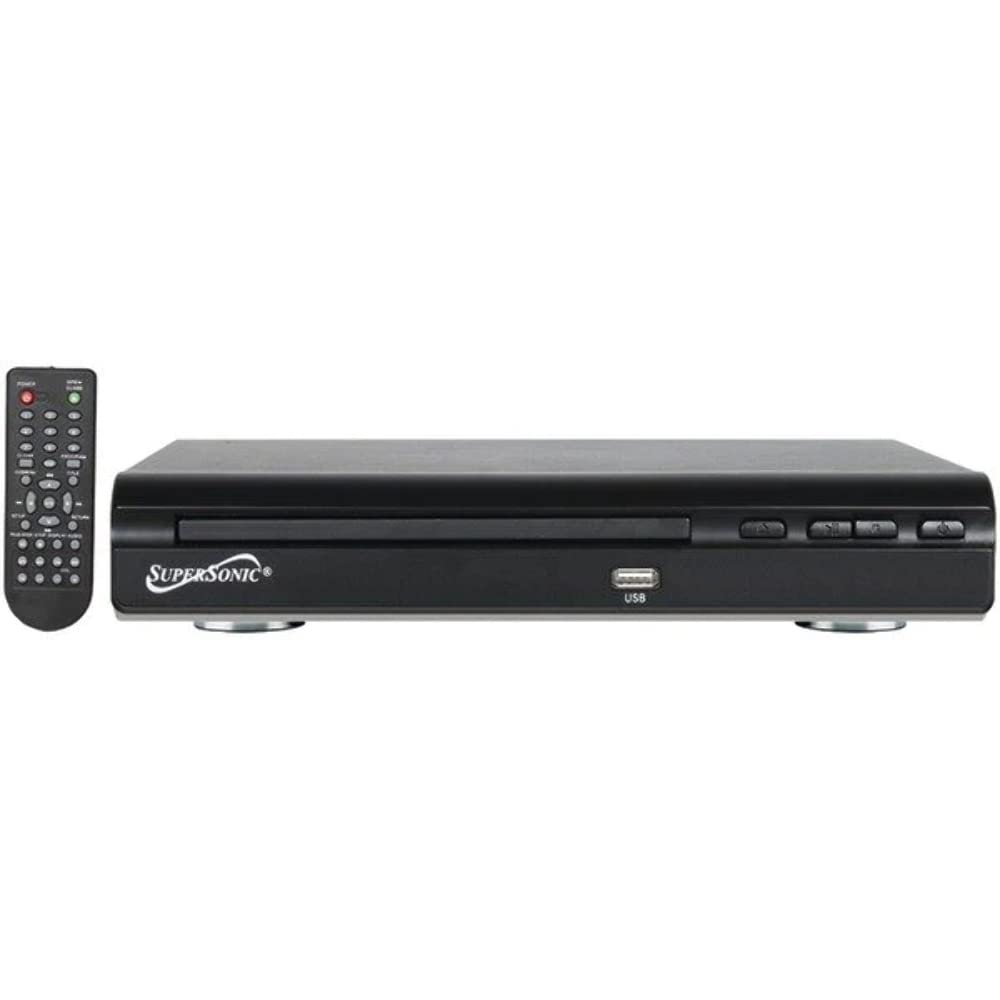
Front view of the SuperSonic SC-25 DVD player, showing the disc tray, USB port, and control buttons.
Related documentsSC-25


Ask a question about this manual
Ask about setup, troubleshooting, compatibility, parts, safety, or missing instructions. Manuals+ will review the question and use this page’s manual context to help answer it.