1. Introduction
This manual provides detailed instructions for setting up, operating, and maintaining your Linksys AC1600 Wi-Fi Wireless Dual-Band+ Router (EA6400). This router is designed to deliver high-speed wireless connectivity using the 802.11ac standard, offering enhanced performance for your home network.
2. Package Contents
Ensure all items are present in your product package:
- Linksys AC1600 Wi-Fi Wireless Dual-Band+ Router (EA6400)
- Power Adapter
- Ethernet Cable
- Quick Start Guide
- Wireless Regulatory Information
3. Physical Overview
Familiarize yourself with the router's physical components and ports.
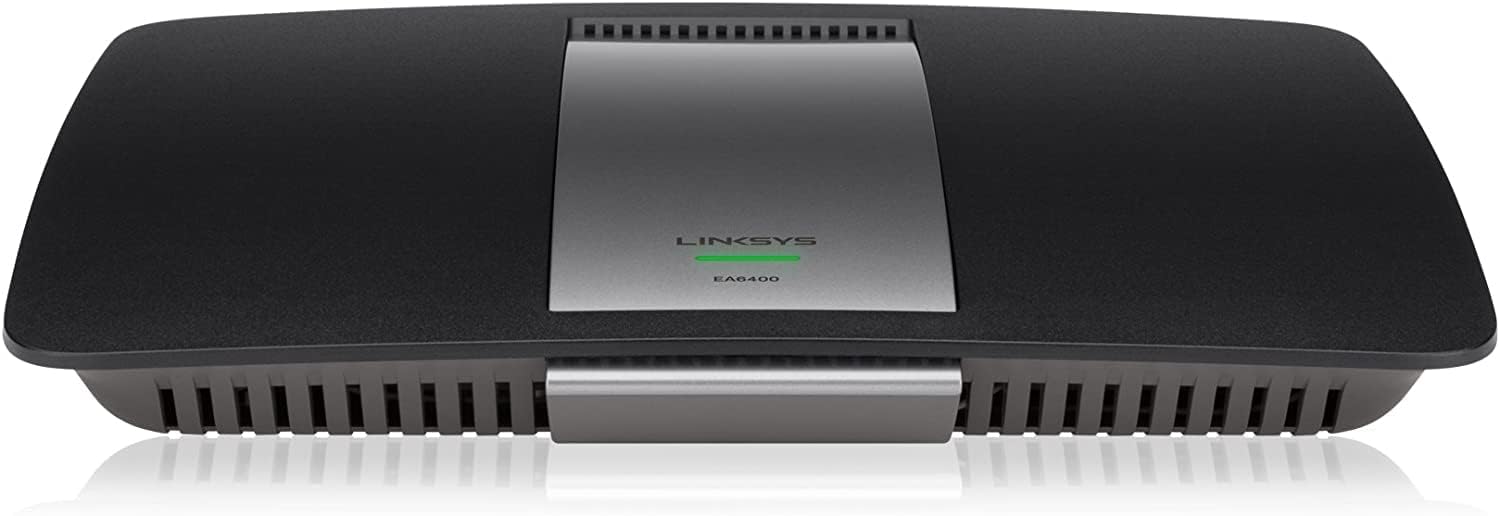
Figure 1: Front view of the Linksys EA6400 Router, showing its sleek black design with a central silver panel and the Linksys logo.

Figure 2: Rear view of the Linksys EA6400 Router, highlighting the various connection ports including Ethernet, USB, and power input.
Rear Panel Ports and Buttons:
- Power Port (12VDC): Connect the included power adapter here.
- Power Switch: Toggles the router's power on or off.
- Internet Port (Yellow): Connect an Ethernet cable from your modem to this port.
- Ethernet Ports 1-4 (Blue): Connect wired devices such as computers, gaming consoles, or smart TVs using Ethernet cables. These are Gigabit Ethernet ports for high-speed wired connections.
- USB Ports (USB1, USB2): Connect USB storage devices or printers for network sharing.
- Reset Button: Press and hold for several seconds to restore the router to factory default settings.
- Wi-Fi Protected Setup (WPS) Button: Use for easy, secure connection of WPS-compatible devices.
4. Setup
Follow these steps to set up your Linksys EA6400 Router:
- Unpack the Router: Remove all components from the packaging.
- Position the Router: Place the router in a central location in your home for optimal Wi-Fi coverage. Avoid placing it near large metal objects or appliances that may cause interference.
- Connect to Modem: Connect one end of the included Ethernet cable to the Internet port (yellow) on the router and the other end to your modem's Ethernet port.
- Connect Power: Plug the power adapter into the router's power port and then into an electrical outlet. Turn on the router using the power switch.
- Wait for Initialization: Allow a few minutes for the router to power on and initialize. The indicator light on the front should turn solid white or blue.
- Connect a Device: Connect a computer or mobile device to the router's Wi-Fi network. The default Wi-Fi network name (SSID) and password can be found on a label on the bottom of the router or in the Quick Start Guide.
- Run Setup Wizard: Open a web browser on the connected device. The Linksys Smart Wi-Fi setup wizard should automatically launch. Follow the on-screen instructions to configure your network settings, including changing the Wi-Fi name and password. Alternatively, download the Linksys Smart Wi-Fi App for guided setup.
Video 1: An overview of the Linksys EA6400 router, demonstrating its physical features and connectivity options.
5. Operating Instructions
Dual-Band Wi-Fi:
The EA6400 is a dual-band router, meaning it broadcasts two separate Wi-Fi networks: 2.4 GHz and 5 GHz. The 2.4 GHz band offers wider coverage and better penetration through walls, while the 5 GHz band provides faster speeds and less interference for devices closer to the router.
- 2.4 GHz Band: Ideal for older devices, devices further from the router, and general internet browsing.
- 5 GHz Band: Best for newer devices, high-bandwidth activities like streaming HD video, online gaming, and large file transfers, especially when closer to the router.
Linksys Smart Wi-Fi App:
Manage your network from anywhere using the Linksys Smart Wi-Fi App. This app allows you to:
- View connected devices.
- Set up guest access.
- Prioritize devices for optimal performance.
- Manage parental controls.
- Perform speed tests.
Gigabit Ethernet Ports:
Utilize the four Gigabit Ethernet ports for wired connections to devices that require maximum speed and stability, such as desktop computers, network-attached storage (NAS) devices, or smart home hubs.
NFC Simple Tap:
For NFC-enabled devices, simply tap the Simple Tap card (included with some models or available via the app) to easily connect to your home network without manually entering credentials.
6. Maintenance
To ensure optimal performance and security for your router:
- Firmware Updates: Regularly check for and install firmware updates through the Linksys Smart Wi-Fi App or the web interface. Updates often include security patches and performance improvements.
- Placement: Keep the router in an open area, away from obstructions and other electronic devices that may cause interference.
- Security: Use a strong, unique password for your Wi-Fi network and router administration. Enable WPA2/WPA3 encryption for maximum security.
- Cleaning: Periodically clean the router's exterior with a soft, dry cloth to prevent dust buildup in ventilation areas.
7. Troubleshooting
If you encounter issues with your router, try the following:
- No Internet Connection:
- Check all cable connections between the modem and router.
- Restart your modem and router by unplugging them for 30 seconds and then plugging them back in.
- Verify your Internet Service Provider (ISP) is not experiencing an outage.
- Slow Wi-Fi Speed:
- Ensure your devices are connected to the appropriate Wi-Fi band (5 GHz for faster speeds, 2.4 GHz for better range).
- Move closer to the router to improve signal strength.
- Reduce the number of devices actively using the network, especially for high-bandwidth tasks.
- Check for firmware updates.
- Cannot Connect to Wi-Fi:
- Double-check your Wi-Fi network name (SSID) and password.
- Try restarting the router.
- If using WPS, ensure the device is compatible and the WPS button is pressed correctly.
- Factory Reset: If all else fails, perform a factory reset by pressing and holding the Reset button on the rear panel for approximately 10 seconds. This will erase all custom settings, and you will need to reconfigure the router.
8. Specifications
| Feature | Specification |
|---|---|
| Brand | Linksys |
| Model Name | EA6400 |
| Wireless Type | 802.11a/b/g/n/ac |
| Frequency Band Class | Dual-Band (2.4 GHz, 5 GHz) |
| Wireless Speed | AC1600 (up to 1300 Mbps) |
| Ethernet Ports | 4 x 10/100/1000 Gigabit Ethernet LAN Ports |
| Broadband Port | 1 x 10/100/1000 Gigabit Ethernet WAN Port |
| USB Ports | 2 x USB Ports (USB1, USB2) |
| Special Feature | WPS, Smart Wi-Fi App Enabled |
| Operating System Compatibility | Windows, Mac |
| Item Weight | 1.1 pounds |
| Product Dimensions | 10.8 x 7.25 x 1.58 inches |
| Color | Black |
| Batteries | 1 AAA batteries required (Note: This is an unusual specification for a router and may be a generic data entry error. The router typically operates via AC power.) |
9. Warranty and Support
Your Linksys EA6400 Router typically comes with a 1-Year Limited Hardware Warranty. For specific warranty details, please refer to the documentation included in your package or visit the official Linksys support website.
For technical assistance, troubleshooting, or additional information, please visit the Linksys Support Website or use the Linksys Smart Wi-Fi App.


