
WD 103751
WD 2TB Elements Portable External Hard Drive User Manual
Model: 103751
1. Introduction
This manual provides comprehensive instructions for the WD 2TB Elements Portable External Hard Drive. Designed for reliable, high-capacity storage and fast data transfer, this device offers universal connectivity with USB 3.0 and USB 2.0. It is ideal for backing up photos, videos, and other files on the go.
2. Product Overview
The WD Elements Portable External Hard Drive is a compact and lightweight storage solution. Key features include:
- 2TB Storage Capacity
- USB 3.0 and USB 2.0 compatibility
- Extra storage for your photos, videos, music and files
- Formatted for Windows 8, 7, Vista & XP; Easily Reformat Drive for Mac
- WD quality and reliability
- Operating Temperature 5 Degrees Celsius to 35 Degrees Celsius

3. Setup
The WD Elements drive is designed for plug-and-play functionality. Follow these steps to set up your device:
- Connect the Drive: Use the provided USB cable to connect the WD Elements drive to an available USB port on your computer (PC or Mac), PS4, or Xbox. The drive supports both USB 3.0 and USB 2.0 connections.
- Power On: The drive is bus-powered via the USB connection, so no external power adapter is needed.
- Initial Recognition: Your operating system should automatically detect the new drive. For Windows users, the drive is pre-formatted and ready for immediate use.
- Mac Compatibility: If you are a Mac user, the drive may need to be reformatted to a Mac-compatible file system (e.g., HFS+ or APFS) for full read/write functionality. This can be done using Disk Utility.
- Xbox Setup: For Xbox One users, ensure your console is powered up before plugging in the drive. The console may prompt you to format the drive for game saves and downloads, which will erase any existing data.
4. Operating the Drive
Once connected and recognized, your WD Elements drive functions like any other storage device. You can drag and drop files, or use backup software to manage your data.
- Data Transfer: Utilize the high-speed USB 3.0 connection for rapid transfer of large files. For older systems, USB 2.0 is also supported.
- Backup Solutions: The drive is compatible with various backup software. A free trial of WD SmartWare Pro backup software for local and cloud backup is included.
- Improving PC Performance: Transferring large files from your computer's internal drive to the external drive can free up space and improve system performance.


5. Maintenance
To ensure the longevity and optimal performance of your WD Elements drive, consider the following maintenance tips:
- Safe Removal: Always safely eject or "remove" the drive from your operating system before unplugging the USB cable. This prevents data corruption and potential damage to the drive.
- Operating Environment: Maintain an operating temperature between 5°C and 35°C (41°F to 95°F). Avoid extreme temperatures.
- Physical Protection: Handle the drive with care. While robust, excessive shocks or drops can damage the internal components. Some WD drives include an internal G-Sensor to park read/write heads during a fall, minimizing damage.
- Regular Backups: Periodically back up important data from your computer to the external drive, and consider having multiple backups in different locations for critical files.

6. Troubleshooting
If you encounter issues with your WD Elements drive, refer to the following common solutions:
- Drive Not Recognized:
- Ensure the USB cable is securely connected to both the drive and your computer.
- Try a different USB port or cable.
- Restart your computer.
- For Mac users, check Disk Utility to see if the drive is detected but requires formatting.
- For Xbox users, ensure the console is powered on before connecting the drive.
- Slow Data Transfer:
- Ensure you are using a USB 3.0 port on your computer for optimal speeds. USB 2.0 ports will result in slower transfers.
- Avoid running multiple demanding applications during large file transfers.
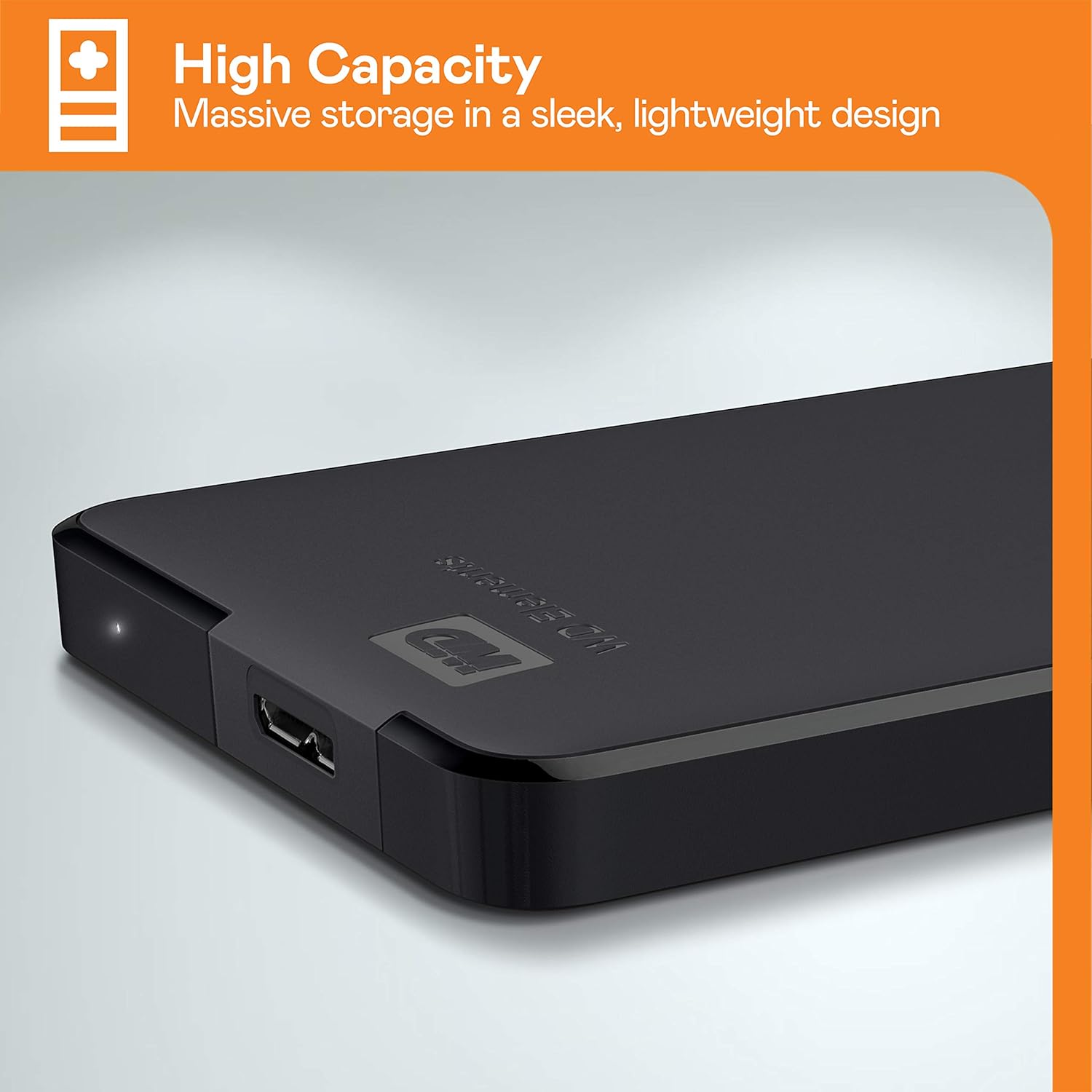
- LED Indicator Behavior: The drive features a single white LED. Rapid flashing indicates active read/write operations. Slower flashing indicates the drive has spun down to a standby state. Avoid disconnecting the drive during rapid flashing. It is generally safe to remove the drive when it is slowly flashing after being safely ejected from the OS.
7. Specifications
| Feature | Detail |
|---|---|
| Hard Drive Capacity | 2 TB Portable |
| Number of USB 3.0 Ports | 1 |
| Brand | WD |
| Series | WD Elements Portable |
| Model Number | 103751 |
| Hardware Platform | PC; Mac |
| Operating System Compatibility | Windows 8, 7, Vista & XP |
| Item Weight | 4.6 ounces |
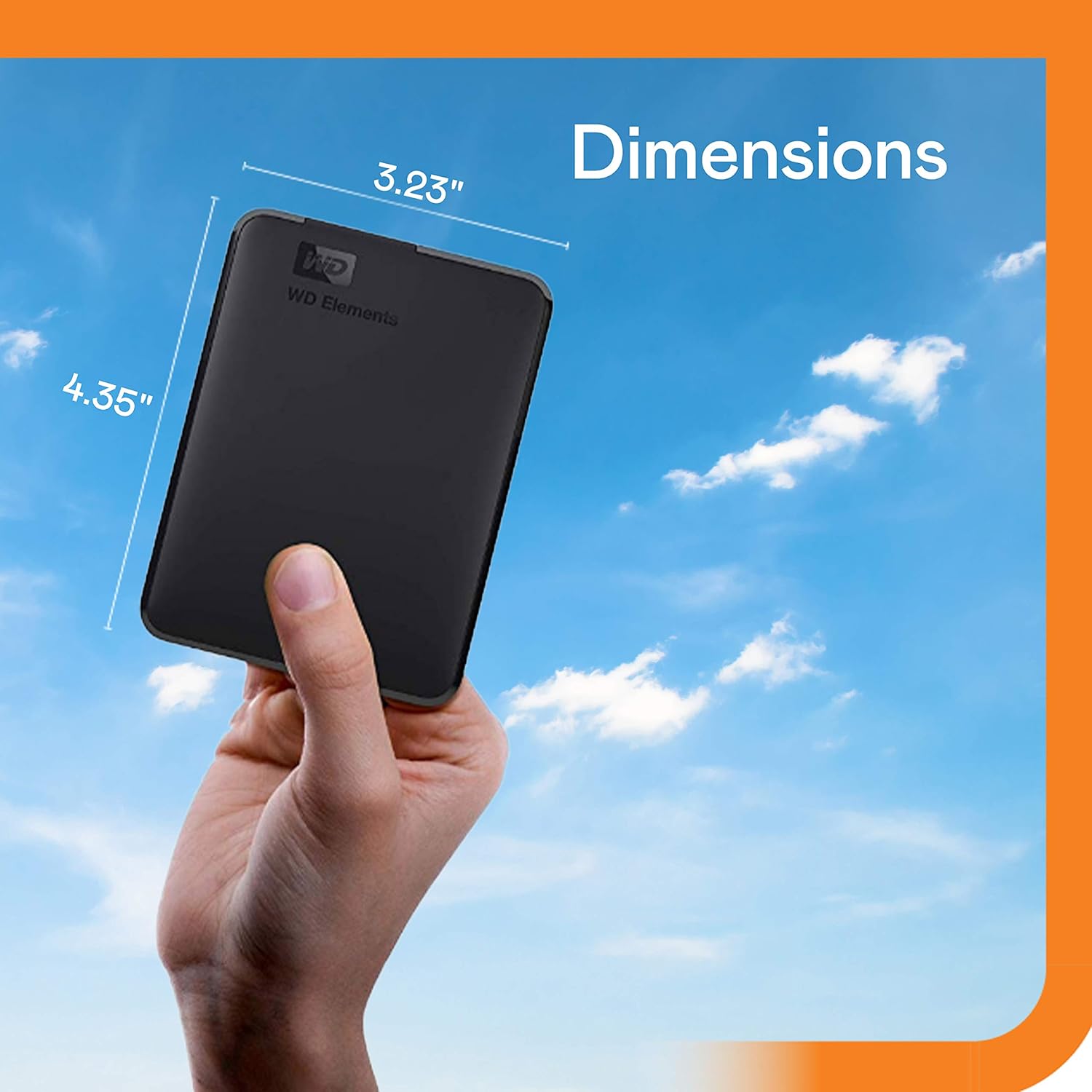
| Product Dimensions (LxWxH) | 3.24 x 4.37 x 0.83 inches |
| Color | Black |
| Hard Drive Interface | USB 2.0/3.0 |
| Power Source | USB Powered (no external batteries required) |
8. Warranty and Support
Your WD Elements Portable External Hard Drive comes with a 2-year limited warranty, ensuring peace of mind regarding product quality and reliability.
What's in the Box:
- WD Elements 2TB USB 3.0 Portable Hard Drive (WDBU6Y0020BBK-WESN)
- USB Cable
- Free Trial of WD SmartWare Pro Backup Software for Local and Cloud Backup
For further assistance or to access the full terms of your warranty, please visit the official WD support website. Remember to handle the product with care as per the legal disclaimer.

Related documents103751


Ask a question about this manual
Ask about setup, troubleshooting, compatibility, parts, safety, or missing instructions. Manuals+ will review the question and use this page’s manual context to help answer it.