
1. Introduction
The Optoma ML550 is an ultra-compact, lightweight, and portable LED projector designed for professionals on the go. It delivers an impressive 500 lumens and a 10,000:1 contrast ratio, providing razor-sharp focus and magnificent color accuracy for presentations and media consumption. Its LED light source is rated to last over 20,000 hours, eliminating the need for frequent bulb replacements. This projector is 3D Ready for an immersive viewing experience and offers comprehensive connectivity for maximum compatibility, including MHL-enabled HDMI and wireless presentation capabilities via an optional adapter.

Figure 1: The Optoma ML550 projector, demonstrating its ultra-compact design.
2. Safety Information
WARNING: This product contains chemicals known to the State of California to cause cancer and birth defects or other reproductive harm. Please handle with care and refer to local regulations for disposal.
Always ensure proper ventilation around the projector during operation to prevent overheating. Do not block any ventilation openings. Avoid direct eye exposure to the projector lens when the lamp is on, as the intense light can cause eye damage.
3. What's in the Box
- Optoma Projector Model ML550
- Power Cable
- Power Adapter
- Universal I/O Cable (for audio output)
- Remote Control
- Carrying Case
4. Product Overview
4.1. Front View
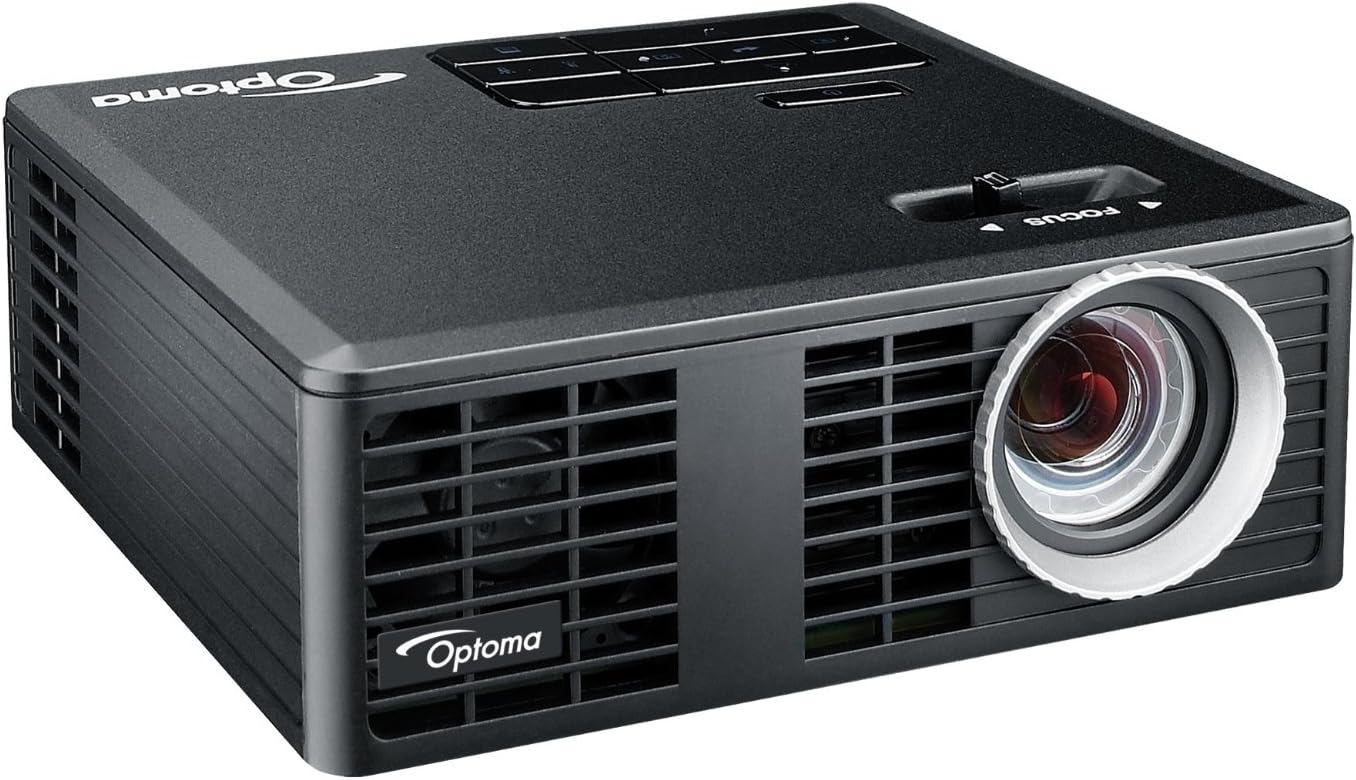
Figure 2: Front view of the Optoma ML550 projector, highlighting the projection lens.
4.2. Top View and Controls

Figure 3: Top view of the projector with the focus slider and integrated control panel.
4.3. Rear Panel and Ports

Figure 4: Rear panel showing the Micro SD slot, Universal I/O port, HDMI/MHL port, USB port, DC In, and built-in speaker grille.
- Micro SD Slot: For PC-free presentations and media playback from a Micro SD card.
- Universal I/O: Multi-purpose port for connecting various accessories, including the provided audio output cable.
- HDMI/MHL Port: Connects to HDMI-compatible devices or MHL-enabled mobile devices for high-definition video and audio.
- USB Port: For connecting USB drives for PC-free presentations or powering external devices.
- DC In: Power input for the projector.
- IR Receiver: Receives signals from the remote control.
- Kensington Lock Port: For securing the projector.
- Built-in Speaker: Provides basic audio output.
5. Setup
5.1. Powering On
- Connect the power adapter to the 'DC In' port on the projector.
- Plug the power cable into a suitable electrical outlet.
- Press the power button on the projector or the remote control to turn on the device.
- Allow the projector approximately 5-10 minutes to warm up for optimal performance and image stability.
5.2. Adjusting Focus
After powering on and allowing warm-up, use the 'FOCUS' slider located on the top of the projector to adjust the image clarity. Slide it left or right until the projected image appears sharp and clear.
5.3. Connecting Devices
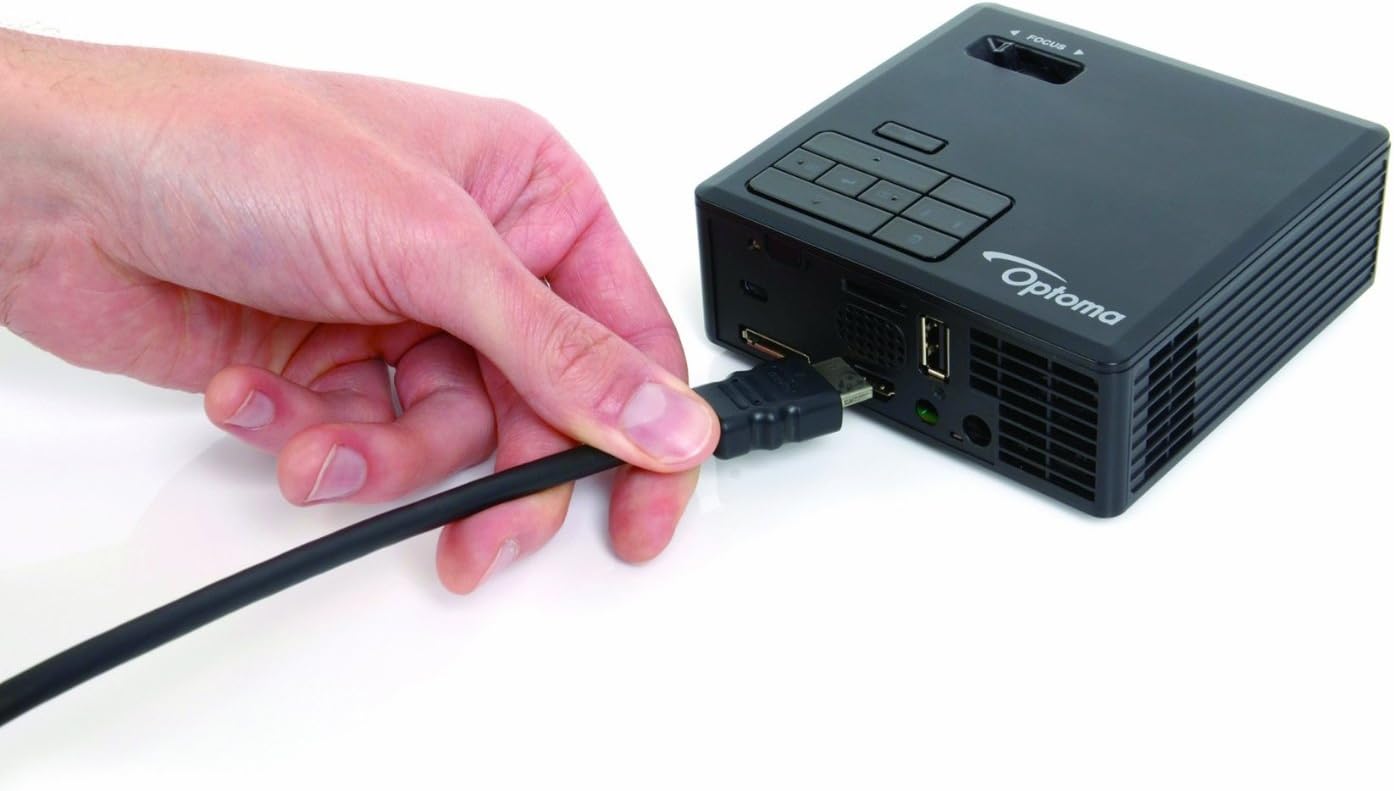
Figure 5: Connecting an HDMI cable to the projector for video input.
- HDMI/MHL: Connect your laptop, Blu-ray player, or MHL-compatible smartphone/tablet using an HDMI cable. The projector will automatically detect the input.
- USB: Insert a USB flash drive into the USB port for direct media playback.
- Micro SD: Insert a Micro SD card into the Micro SD slot for direct media playback.
- Universal I/O: Use the provided Universal I/O cable to connect to older devices or for audio output to external speakers/headphones.
6. Operating Instructions
6.1. Menu Navigation

Figure 6: The remote control for navigating menus and controlling playback.
Use the control buttons on the top panel of the projector or the included remote control to navigate through the on-screen menu. The remote control offers additional functions for easier operation.
- Power Button: Turns the projector on/off.
- Source Button: Selects input sources (HDMI, USB, Micro SD, Universal I/O).
- Menu Button: Accesses the main settings menu.
- Navigation Buttons (Arrows): Move through menu options or control media playback.
- Enter Button: Confirms selections.
- Keystone Correction: Adjusts the image to be rectangular if the projector is not perfectly aligned with the screen.
6.2. PC-Free Presentations and Media Playback
The ML550 features a built-in media player and office viewer, allowing you to present directly from a USB drive or Micro SD card without a computer. Supported file types include videos, photos, and common office documents (Word, Excel, PowerPoint, PDF).
6.3. MHL Connectivity
Connect your MHL-enabled smartphone or tablet directly to the HDMI/MHL port to mirror your device's screen on a larger display. This is ideal for sharing content from your mobile device.
6.4. Wireless Presentations (Optional)
For wireless presentations, an optional BI-EXTBGN adapter is required. Insert the adapter into the USB port and follow the on-screen instructions to connect your device wirelessly.
Video 1: Official Optoma ML550 Product Overview. This video demonstrates the compact size, LED technology, MHL connectivity, and PC-free presentation capabilities of the projector.
7. Maintenance
- Cleaning the Lens: Use a soft, lint-free cloth specifically designed for optical lenses. Do not use abrasive cleaners or solvents.
- Cleaning the Casing: Wipe the projector casing with a soft, damp cloth. Avoid using harsh chemicals.
- Ventilation: Ensure the ventilation grilles are free from dust and obstructions to maintain proper airflow and prevent overheating.
- Storage: When not in use, store the projector in its carrying case in a cool, dry place away from direct sunlight and extreme temperatures.
8. Troubleshooting
- No Image/Signal:
- Ensure the power cable is securely connected and the projector is turned on.
- Verify the input source is correctly selected (HDMI, USB, Micro SD).
- Check the connection cable between the source device and the projector.
- Blurry Image:
- Adjust the 'FOCUS' slider on the top of the projector.
- Ensure the projector has warmed up for 5-10 minutes before final focus adjustment.
- Distorted Image (Trapezoid Shape):
- Use the keystone correction feature via the control panel or remote control to adjust the image to a rectangular shape.
- Poor Color Quality/Oversaturation:
- Access the projector's menu to adjust color settings. The manual notes that fine-tuning for home theater use might be limited, as it's primarily marketed for business/education.
- Try different pre-defined color profiles if available.
- No Audio from Projector:
- Check the volume settings on the projector and the source device.
- If using external speakers, ensure they are properly connected to the Universal I/O port via the audio output cable.
- Remote Control Not Responding:
- Ensure there are no obstructions between the remote and the projector's IR receiver.
- Replace the remote control batteries if necessary.
9. Specifications
| Feature | Specification |
|---|---|
| Model Number | ML550 |
| Product Dimensions | 4.1 x 4.2 x 1.5 inches |
| Item Weight | 14.1 ounces |
| Display Resolution | 1280 x 800 (WXGA) |
| Brightness | 500 Lumens |
| Contrast Ratio | 10,000:1 |
| Light Source | LED (20,000+ hours lamp life) |
| 3D Ready | Yes |
| Connectivity Technology | HDMI, MHL |
| Recommended Uses | Business, Education |
| Projection Screen Size | 0.43 - 2.54m (17" - 100") Diagonal 16:10 |
| Projection Distance | 0.55 - 3.23 metres |
| Manufacturer | OPTOMA TECHNOLOGY |
10. Warranty and Support
For detailed warranty information and technical support, please refer to the official Optoma website or contact Optoma customer service. Keep your purchase receipt as proof of purchase for any warranty claims.


