1. Introduction
This manual provides comprehensive instructions for the Baseus A05 Wireless Bluetooth 5.0 Headset and its accompanying USB Docking Station. Please read this manual carefully before using the product to ensure proper operation and to maximize its lifespan. Keep this manual for future reference.
2. Product Overview
The Baseus A05 is a wireless Bluetooth headset designed for convenient communication and audio playback. It features Bluetooth 5.0 connectivity and comes with a unique USB docking station for charging and storage.
2.1. Package Contents
- Baseus A05 Wireless Bluetooth Headset
- USB Docking Station (integrated with headset)
- Interchangeable Ear Tips (various sizes)
- Ear Hook
- USB-C Adapter
- User Manual (this document)
2.2. Component Identification
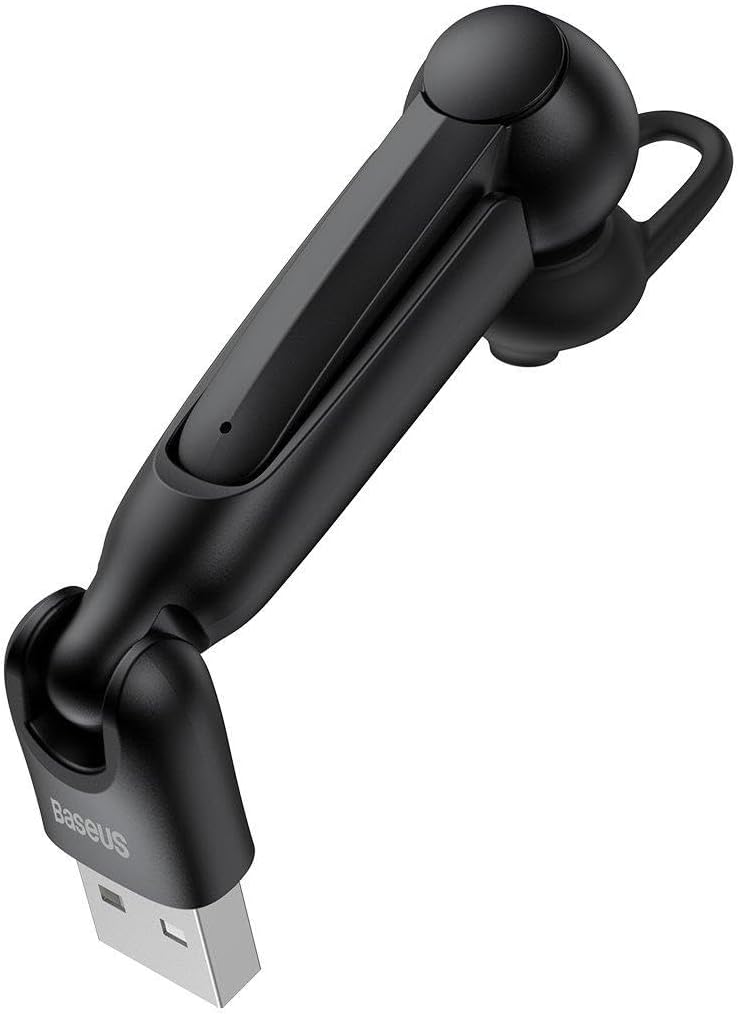
Figure 1: Baseus A05 Wireless Bluetooth Headset with its integrated USB connector. This image shows the headset in its extended form, ready for use or charging via the USB-A plug.

Figure 2: All components included with the Baseus A05 headset. This includes the main headset unit, two sizes of ear tips, an ear hook for secure fit, and a USB-C adapter for broader compatibility.

Figure 3: A detailed close-up of the Baseus A05 earpiece, showing the ergonomic design and the ear tip in place. This view highlights the part that fits into the ear canal.

Figure 4: The Baseus A05 headset magnetically docked into its USB charging station. This illustrates how the headset connects to the USB-A plug for power, showing the magnetic connection points.
3. Setup
3.1. Charging the Headset
- Locate the USB connector integrated into the headset.
- Plug the USB connector directly into a powered USB port (e.g., computer, wall adapter, car charger). If your device has a USB-C port, use the provided USB-C adapter.
- The indicator light on the headset will illuminate during charging and change color or turn off when fully charged.
- A full charge typically takes approximately 1.5 hours.
Note: Ensure the headset is fully charged before first use.
3.2. Fitting the Headset
- Select the appropriate ear tip size for a comfortable and secure fit. Gently pull off the pre-installed ear tip and replace it with your preferred size.
- If desired, attach the ear hook for added stability. The ear hook can be rotated to fit either the left or right ear.
- Insert the earpiece into your ear canal and adjust the headset until it feels secure and comfortable.
4. Operating Instructions
4.1. Power On/Off
- Power On: Press and hold the Multi-function Button (MFB) for approximately 3 seconds until the indicator light flashes blue.
- Power Off: Press and hold the MFB for approximately 5 seconds until the indicator light flashes red and then turns off.
4.2. Bluetooth Pairing
- Ensure the headset is powered off.
- Press and hold the MFB for approximately 5-7 seconds until the indicator light flashes red and blue alternately. This indicates pairing mode.
- On your device (smartphone, tablet, computer), enable Bluetooth and search for available devices.
- Select "Baseus A05" from the list of found devices.
- Once paired, the indicator light on the headset will flash blue slowly.
- If a password is required, enter "0000".
Note: The headset will automatically attempt to reconnect to the last paired device when powered on.
4.3. Call Management
- Answer/End Call: Short press the MFB.
- Reject Call: Press and hold the MFB for approximately 2 seconds.
- Redial Last Number: Double-press the MFB.
4.4. Music Playback
- Play/Pause: Short press the MFB.
- Next Track: Press and hold the Volume Up button (if available, otherwise use device controls).
- Previous Track: Press and hold the Volume Down button (if available, otherwise use device controls).
Note: Specific button functions may vary slightly depending on your connected device.
5. Maintenance
- Cleaning: Use a soft, dry cloth to clean the headset. Do not use abrasive cleaners or solvents.
- Storage: When not in use, store the headset in a cool, dry place, away from direct sunlight and extreme temperatures.
- Battery Care: To prolong battery life, avoid fully discharging the headset frequently. Charge it regularly, even if not in use for extended periods.
- Water Resistance: This headset is not waterproof. Avoid exposure to liquids.
6. Troubleshooting
| Problem | Possible Cause | Solution |
|---|---|---|
| Headset does not power on. | Low battery. | Charge the headset fully. |
| Cannot pair with device. | Headset not in pairing mode; Bluetooth off on device; device too far. | Ensure headset is in pairing mode (flashing red/blue). Turn on Bluetooth on your device. Move headset closer to device (within 10 meters). |
| No sound or poor audio quality. | Volume too low; headset not properly connected; interference. | Increase volume on both headset and device. Re-pair the headset. Move away from sources of interference. |
| Microphone not working (as per user review). | Microphone obstruction; software issue; hardware defect. | Ensure microphone is not covered. Check device settings for microphone input. If issue persists, contact customer support. |
7. Specifications
- Brand: Baseus
- Model Name: A05
- Model Number: A0002011
- Connectivity Technology: Wireless (Bluetooth 5.0)
- Battery: Rechargeable Lithium-ion
- Total USB Ports: 1 (integrated for charging)
- Special Features: Magnetic docking for charging
- Item Weight: 50 Grams
- Compatible Devices: Auriculares (Headphones/Earphones) - Note: This likely refers to the headset itself being an earphone device.
- Cable Feature: Tangle-free (as it's wireless)
- Age Range Description: Adult
8. Warranty and Support
Specific warranty information for the Baseus A05 headset is not provided in this document. For details regarding warranty coverage, technical support, or service, please refer to the official Baseus website or contact your retailer.
For further assistance, please visit: www.baseus.com (This is a placeholder link, please verify the official support website).


