
1. Introduction
The Kinesis Freestyle2 is an ergonomic keyboard designed to enhance comfort and productivity by adapting to individual body types and preferences. Its unique split design allows for adjustable separation, splay, and tenting, promoting natural hand, wrist, and forearm positions to reduce muscle tension and strain.
This keyboard features a standard Windows layout, including dedicated hotkeys for common functions like Cut, Copy, and Paste, as well as multimedia controls. An embedded numeric 10-key further supports productivity. The Freestyle2 utilizes low-force membrane key switches with tactile feedback, engineered to minimize finger fatigue and impact during typing.
The Freestyle2 is a plug-and-play device, requiring no special software or drivers for operation with Windows 7-10, Linux, and Chrome operating systems.
2. Setup
2.1. Package Contents
- Kinesis Freestyle2 USB Wired Keyboard (Standard Windows Layout)
- Detachable Pivot Tether (for adjustable splay)
- Quick Start Guide
2.2. Connecting the Keyboard
- Locate an available USB port on your computer.
- Plug the USB cable from the Freestyle2 keyboard into the USB port.
- The keyboard is plug-and-play and should be recognized automatically by your operating system (Windows 7-10, Linux, Chrome). No additional drivers are typically required.
2.3. Adjusting Keyboard Separation and Splay
The Freestyle2 keyboard consists of two independent modules connected by a cable, allowing for flexible positioning.
- Separation: Gently pull the two keyboard modules apart to achieve your desired separation, up to 9 inches. This allows you to position your hands and wrists in a more natural, shoulder-width alignment.
- Splay: The detachable pivot tether, located at the top center of the keyboard, allows you to adjust the splay angle of the modules. This helps to keep your wrists straight and reduce ulnar deviation. Experiment with different angles to find the most comfortable position.
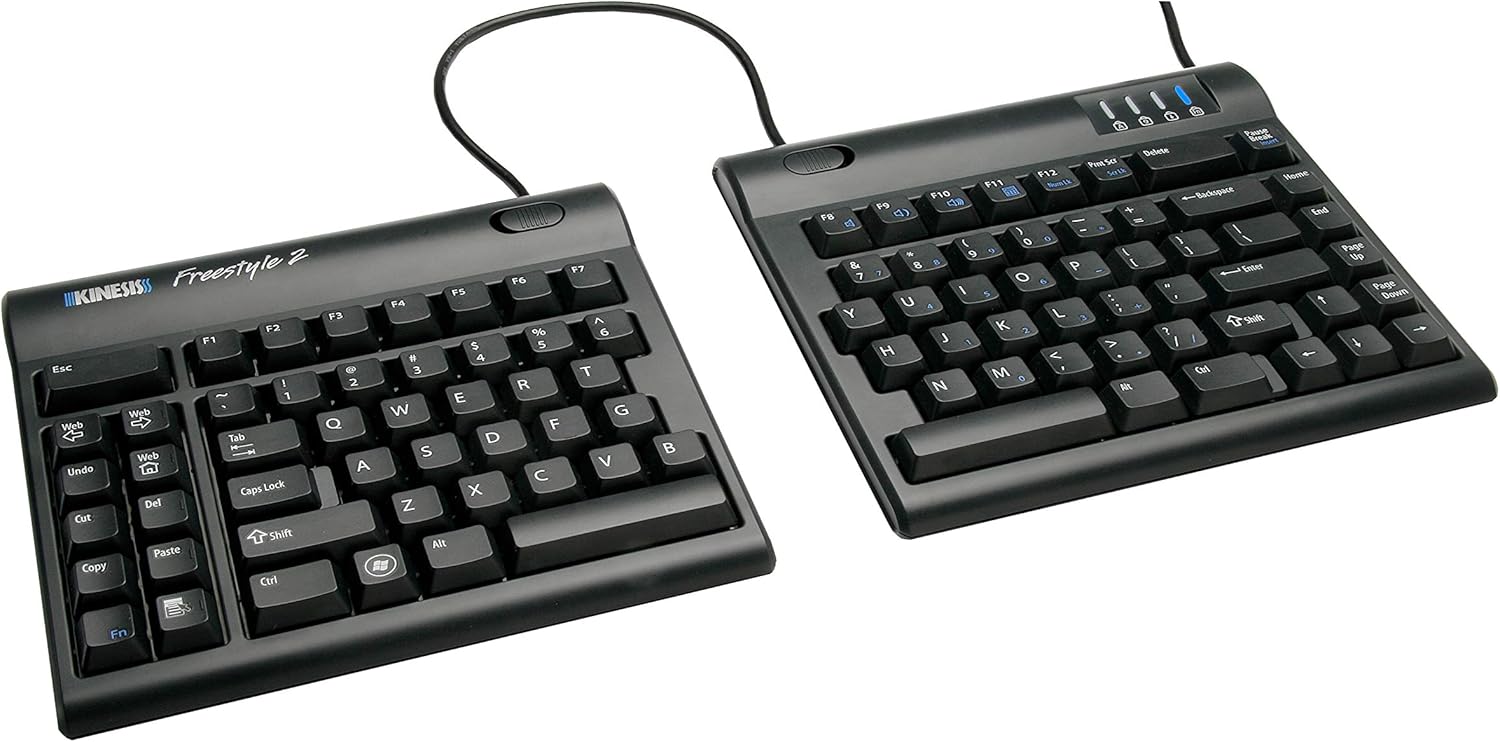
Image: The Kinesis Freestyle2 ergonomic keyboard showing its split design with 9-inch separation.

Image: The two modules of the Kinesis Freestyle2 keyboard separated on a desk, demonstrating how this positioning helps maintain straight wrists.

Image: The Kinesis Freestyle2 keyboard with optional cushioned palm supports, illustrating the adjustable splay angle using the pivot tether.
3. Operating Instructions
3.1. Standard Layout and Hotkeys
The Freestyle2 keyboard features a standard QWERTY Windows layout. On the left module, dedicated hotkeys are provided for common functions:
- Web: Opens your default web browser.
- Undo: Performs the undo action.
- Cut: Cuts selected text or items.
- Copy: Copies selected text or items.
- Paste: Pastes copied or cut text/items.
- Del: Deletes characters or selected items.
The keyboard also includes multimedia keys for volume control and playback, typically accessed via the Fn key in combination with function keys (F1-F12).

Image: A top-down view of the Kinesis Freestyle2 keyboard, highlighting its standard Windows layout and the dedicated hotkeys on the left module.
3.2. Embedded Numeric 10-Key
An embedded numeric 10-keypad is integrated into the right module of the keyboard. This allows for numerical data entry without requiring a separate keypad. Refer to the Quick Start Guide for specific key combinations to activate and use the embedded numeric keypad.

Image: A user's hands typing on the separated Kinesis Freestyle2 keyboard modules, with an optional external numeric keypad positioned between them.

Image: A close-up of a user's hands typing on the Kinesis Freestyle2 keyboard, emphasizing the low-force, tactile key switches designed to reduce finger impact and fatigue.
3.3. Optional Accessories
For enhanced comfort, optional accessories such as cushioned palm supports and tenting kits (e.g., VIP3 accessory) are available. These accessories can further optimize wrist and forearm positioning.

Image: The Kinesis Freestyle2 keyboard shown with the VIP3 tenting accessory (AC820), which provides adjustable tenting angles for increased comfort.
4. Maintenance
4.1. Cleaning
To maintain the keyboard's performance and appearance:
- Disconnect the keyboard from your computer before cleaning.
- Use a soft, lint-free cloth slightly dampened with water or a mild cleaning solution to wipe the surface.
- Avoid using harsh chemicals, abrasive cleaners, or spraying liquids directly onto the keyboard.
- For dust and debris between keys, use compressed air.
5. Troubleshooting
5.1. Keyboard Not Responding
- Ensure the USB cable is securely connected to both the keyboard and the computer.
- Try plugging the keyboard into a different USB port on your computer.
- Restart your computer.
- Test the keyboard on another computer to determine if the issue is with the keyboard or the computer system.
5.2. Keys Not Functioning Correctly
- Check for any debris or obstructions under the affected keys. Use compressed air to clear if necessary.
- Ensure no software conflicts are present. Try using the keyboard in a different application or a clean boot environment.
- If specific hotkeys or multimedia keys are not working, verify that the Fn key (if applicable) is being used correctly or that no software has remapped the keys.
6. Specifications
| Feature | Detail |
|---|---|
| Product Dimensions | 15.94 x 9.25 x 1.26 inches |
| Item Weight | 2 pounds |
| Manufacturer | Kinesis Corporation |
| Item Model Number | KIN-FS2-01US |
| Connectivity Technology | USB |
| Compatible Devices | Windows 7-10, Linux, Chrome |
| Keyboard Description | Ergonomic, split-design keyboard with standard Windows layout, low-force tactile switches, embedded numeric keypad |
| Recommended Uses | Office |
| Special Feature | Ergonomic |
| Color | 9 Inch Separation (Black) |
| Date First Available | October 3, 2010 |
7. Warranty and Support
For warranty information and technical support, please refer to the official Kinesis Corporation website or contact their customer service directly. Details regarding product registration, warranty claims, and support resources are typically available through these channels.
Manufacturer: Kinesis Corporation
For further assistance, visit the Kinesis Store on Amazon.


