
1. Introduction
This manual provides comprehensive instructions for the proper use and maintenance of your Horizon SF-400D Digital Precision Scale. Please read this manual thoroughly before operating the device to ensure accurate measurements and prolong its lifespan.
The Horizon SF-400D is a versatile digital precision scale designed for various weighing applications, including jewelry, coins, herbs, spices, and medication. It offers high accuracy and multiple weighing modes, along with a convenient counting function.

Figure 1: Horizon SF-400D Digital Precision Scale. This image shows the overall design of the scale, featuring a black body, a stainless steel weighing platform, and a blue backlit LCD display with control buttons.
2. Safety Precautions
- Do not overload the scale beyond its maximum capacity of 500g.
- Avoid exposing the scale to extreme temperatures, humidity, or direct sunlight.
- Keep the scale away from strong electromagnetic fields.
- Clean the scale with a soft, damp cloth. Do not use abrasive cleaners or immerse the unit in water.
- Ensure the scale is placed on a stable, level surface during operation to ensure accuracy.
3. Product Components
Familiarize yourself with the main parts of your SF-400D scale:
- Weighing Platform: Stainless steel surface for placing items.
- LCD Display: Backlit screen showing weight, units, and other indicators.
- ON/OFF Button: Powers the scale on or off.
- MODE Button: Changes weighing units (g, oz, ct, dwt, gn, T).
- TARE Button: Resets the display to zero, useful for weighing items in a container.
- PCS Button: Activates the piece counting function.
- CAL Button: Used for calibration.
- Adjustable Legs: Located on the bottom for leveling the scale.
- Bubble Level: Integrated on the scale to assist with leveling.
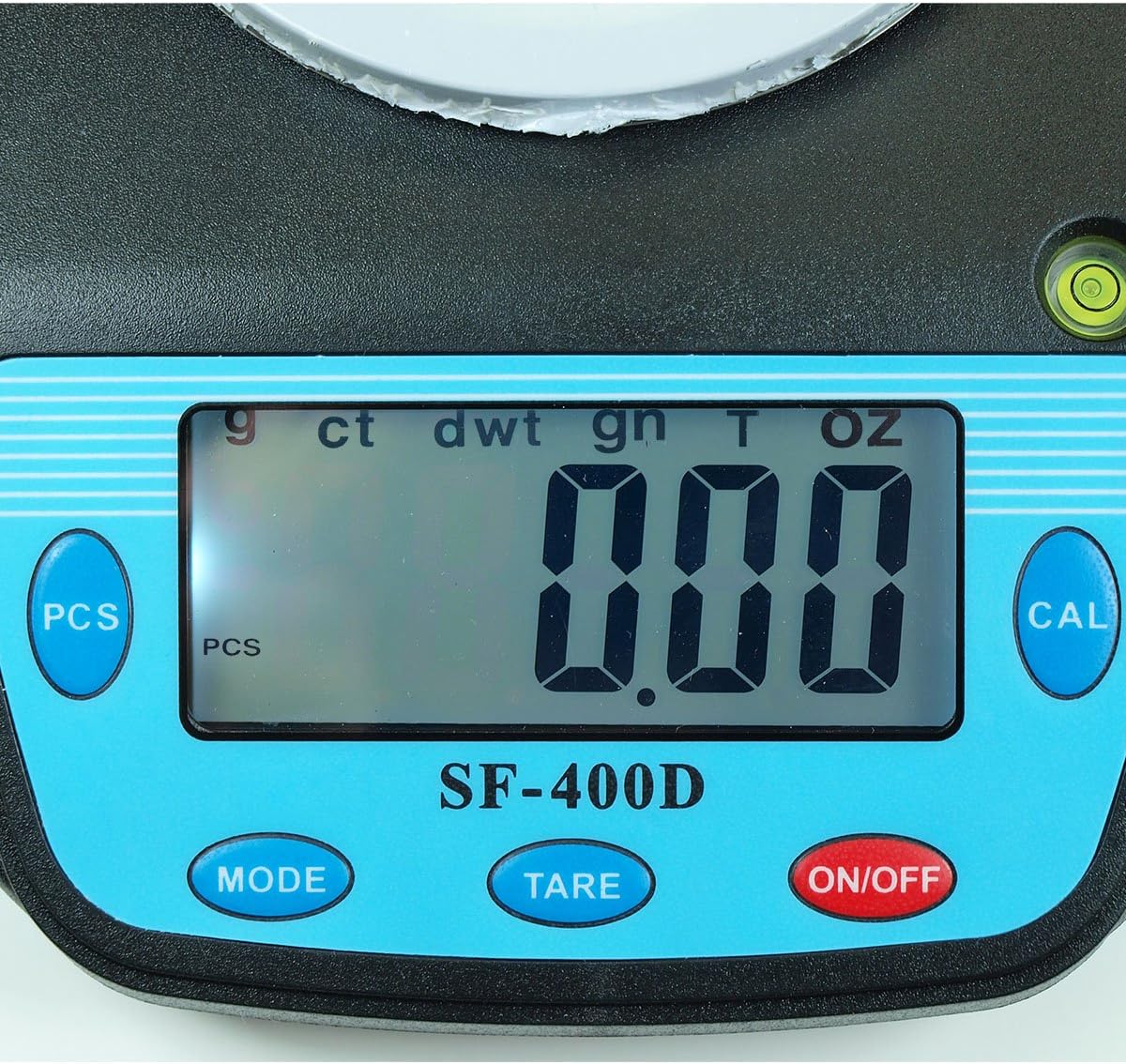
Figure 2: Close-up of the SF-400D display and control buttons. This image highlights the LCD screen, showing various unit indicators (g, ct, dwt, gn, T, oz), and the function buttons: PCS, MODE, TARE, ON/OFF, and CAL.

Figure 3: Underside of the SF-400D scale showing adjustable legs. Green arrows indicate the location of the four adjustable feet, which are used to level the scale for accurate measurements.
4. Setup
4.1. Power Supply
The SF-400D scale operates on two AA batteries (included) or an optional AC power adapter (not included).
- Open the battery compartment cover on the underside of the scale.
- Insert two AA batteries, ensuring correct polarity (+/-).
- Close the battery compartment.
- Alternatively, connect a compatible AC power adapter (6V, amperage not specified in product details, consult manufacturer if needed) to the power port.
4.2. Placement and Leveling
For optimal accuracy, the scale must be placed on a stable, flat, and level surface.
- Place the scale on your desired weighing surface.
- Observe the integrated bubble level.
- Adjust the four adjustable legs on the bottom of the scale by rotating them until the bubble is centered within the level indicator.
5. Operating Instructions
5.1. Basic Weighing
- Press the ON/OFF button to turn on the scale. The display will show "88888" and then "0.00" (or "0.0" depending on the unit).
- If the display does not show zero, press the TARE button to zero the scale.
- Press the MODE button to select your desired weighing unit (g, oz, ct, dwt, gn, T).
- Gently place the item(s) to be weighed on the center of the stainless steel platform.
- Read the stable weight displayed on the LCD screen.
- To turn off the scale, press and hold the ON/OFF button for a few seconds. The scale also features an auto shut-off function to conserve battery power.
5.2. Tare Function
The Tare function allows you to subtract the weight of a container, so only the contents are weighed.
- Place an empty container on the weighing platform.
- Wait for the display to stabilize and show the container's weight.
- Press the TARE button. The display will reset to "0.00" (or "0.0").
- Add the items you wish to weigh into the container. The display will now show only the net weight of the items.
- To clear the tare, remove all items from the platform and press TARE again if the display does not return to zero automatically.
5.3. Piece Counting Function (PCS)
This function is useful for counting multiple identical items.
- Turn on the scale and ensure it is zeroed.
- Press the PCS button. The display will show "PCS" and a sample size (e.g., "25", "50", "75", "100").
- Press the MODE button to cycle through the available sample sizes (25, 50, 75, 100 pieces). Select the sample size that matches the number of items you will place on the scale for sampling.
- Place the exact number of sample items (e.g., 25 pieces) onto the weighing platform according to your selected sample size.
- Press the PCS button again to confirm the sample. The display will now show the number of pieces.
- You can now add more items of the same type, and the scale will display the total count.
- To exit the counting mode, press the MODE button.
5.4. Calibration
Calibration ensures the accuracy of your scale. It is recommended to calibrate the scale periodically or if you suspect inaccurate readings. You will need a known calibration weight (e.g., 500g) for this process.

Figure 4: SF-400D display showing "CAL" during calibration mode. This image illustrates the scale's screen indicating it is in calibration mode, prompting the user to place a calibration weight.
- Ensure the scale is on a stable, level surface and turned off.
- Press and hold the CAL button, then press the ON/OFF button simultaneously. Release both buttons when the display shows "CAL".
- The display will then show a flashing weight value (e.g., "500.00g"). This is the required calibration weight.
- Place the exact calibration weight (e.g., 500g) onto the center of the weighing platform.
- Wait for the display to stabilize and show "PASS" or return to normal weighing mode. This indicates successful calibration.
- Remove the calibration weight. The scale is now calibrated and ready for use.
- If "FAIL" or an error message appears, repeat the calibration process.
6. Maintenance
6.1. Cleaning
- Wipe the scale surface with a soft, slightly damp cloth.
- Do not use harsh chemicals, abrasive cleaners, or immerse the scale in water.
- Ensure the scale is completely dry before storage or next use.
6.2. Storage
- Store the scale in a cool, dry place, away from direct sunlight and extreme temperatures.
- If storing for an extended period, remove the batteries to prevent leakage.
7. Troubleshooting
| Problem | Possible Cause | Solution |
|---|---|---|
| Scale does not turn on. | Low or dead batteries; incorrect battery installation; no power from AC adapter. | Replace batteries; check battery polarity; ensure AC adapter is properly connected and functional. |
| Inaccurate readings. | Scale not level; unstable surface; needs calibration; overloaded; strong air currents or vibrations. | Ensure scale is level using adjustable legs and bubble level; place on stable surface; perform calibration; do not exceed 500g capacity; operate in a stable environment. |
| "O_Ld" or "EEEE" displayed. | Scale is overloaded. | Remove excess weight immediately. Do not exceed 500g capacity. |
| Display shows "UNST". | Unstable environment or surface. | Move the scale to a more stable location, away from vibrations or drafts. |
| Counting function not working correctly. | Incorrect sample size selected; sample items not identical in weight. | Ensure the sample size matches the number of items placed for sampling; use identical items for accurate counting. |
8. Specifications
| Feature | Detail |
|---|---|
| Model | SF-400D |
| Capacity | 500 grams (g) / 17.5 ounces (oz) |
| Accuracy (Readability) | 0.01 grams (g) / 0.0005 ounces (oz) |
| Weighing Modes | g (grams), oz (ounces), ct (carats), dwt (pennyweights), gn (grains), T (troy ounces), pcs (pieces) |
| Platform Material | Stainless Steel |
| Platform Diameter | 4.2 inches |
| Display | LCD with backlight |
| Power | 2 x AA batteries (included) or 6V AC adapter (not included) |
| Dimensions (L x W x H) | 8.25" x 6.0" x 1.75" |
| Features | Tare function, Piece Counting, Auto Shut-Off, Backlit Display, Adjustable Legs, Bubble Level |
9. Warranty and Support
For warranty information or technical support, please refer to the documentation included with your purchase or contact the retailer. Specific warranty terms may vary by region and retailer.
For general inquiries or to explore other products, you may visit the Horizon Store on Amazon.


