
Tascam Pocketstudio 5
Tascam Pocketstudio 5 User Manual
Compact 8-Channel USB Audio Interface & Recorder with 100+ Effects and MIDI Support
1. Introduction
The Tascam Pocketstudio 5 is a versatile and compact 8-channel USB audio interface and recorder designed for musicians and audio enthusiasts. This device integrates an internal MIDI tone module, allowing for the playback of sequences alongside audio tracks. It comes pre-loaded with 100 standard MIDI files, providing immediate backing music for various genres.
Additionally, the Pocketstudio 5 features over 100 built-in effects, enhancing both instrument and vocal recordings. Its portable design makes it an ideal mobile recording studio solution.
2. Product Features
- Mobile recording studio capabilities.
- Integrated internal MIDI tone module for sequence playback.
- Includes 100 standard MIDI files for immediate use.
- Over 100 built-in effects for instruments and vocals.
- 8-channel audio interface.
- USB connectivity for seamless integration with computers.
3. Package Contents
Please verify that all components are present in the package. The standard package typically includes:
- Tascam Pocketstudio 5 Unit
- USB Cable
- Power Adapter (if applicable)
- Owner's Manual (this document)
- Software CD (if applicable)
Note: Specific contents may vary based on region or bundle. Refer to your product packaging for exact details.
4. Setup Guide
Follow these steps to set up your Tascam Pocketstudio 5 for initial use:
- Power Connection: Connect the appropriate power adapter to the DC IN port on the rear of the unit and plug it into a power outlet.

Figure 4.1: Rear panel connections including USB, DC IN, and MIDI ports.
- USB Connection: Connect the Pocketstudio 5 to your computer (Laptop or Personal Computer) using a standard USB cable. The unit is compatible with Linux, Windows, and macOS operating systems.
- MIDI Connections: If you plan to use external MIDI devices, connect them to the MIDI IN and MIDI OUT ports on the unit. The Pocketstudio 5 supports standard MIDI software.
- Audio Input/Output: Connect your microphones, instruments, or headphones to the appropriate input/output jacks on the unit.

Figure 4.2: Example of compatible headphones with microphone for audio input/output.
- Software Installation: If required, install any necessary drivers or accompanying software from the provided CD or Tascam's official website.
5. Operating Instructions
The Tascam Pocketstudio 5 offers a range of functionalities for recording and playback. Below are general operating guidelines:

Figure 5.1: Front panel of the Tascam Pocketstudio 5, showing the display, faders, and control buttons.
5.1. Recording Audio
To record audio, ensure your input sources (microphones, instruments) are properly connected. Select the desired input channels and arm them for recording. Adjust input levels to prevent clipping. Press the record button to begin recording. The Pocketstudio 5 allows for multitrack recording across its 8 channels.
5.2. Playing MIDI Files and Sequences
Utilize the internal MIDI tone module to play back MIDI sequences. The unit comes with 100 standard MIDI files. You can also import your own MIDI files. Connect a MIDI keyboard to the MIDI IN jack to control the internal tone module or external MIDI devices.
5.3. Applying Effects
The Pocketstudio 5 includes over 100 built-in effects. Navigate through the unit's menu system to select and apply effects to individual tracks or the master output. Effects can enhance vocals, instruments, and overall mix quality.
5.4. Data Management
The unit supports memory cards for storing recorded audio and MIDI data. To insert or remove a memory card, locate the card slot on the side of the unit. Ensure the unit is powered off before inserting or removing the card to prevent data corruption.
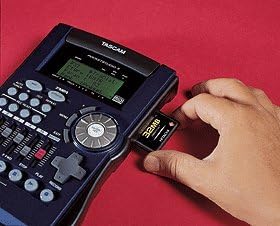
Figure 5.2: Inserting a memory card into the Tascam Pocketstudio 5.
Audio recordings can be converted to MP3 format directly within the recorder for easier sharing and storage.
6. Maintenance
Proper maintenance ensures the longevity and optimal performance of your Tascam Pocketstudio 5:
- Cleaning: Use a soft, dry cloth to clean the exterior of the unit. For stubborn dirt, a slightly damp cloth can be used, but ensure no moisture enters the ports or buttons. Avoid abrasive cleaners or solvents.
- Storage: Store the unit in a cool, dry place away from direct sunlight, extreme temperatures, and high humidity. When not in use for extended periods, disconnect it from power.
- Handling: Handle the unit with care. Avoid dropping it or subjecting it to strong impacts, which can damage internal components.
7. Troubleshooting
If you encounter issues with your Tascam Pocketstudio 5, consider the following common troubleshooting steps:
- No Power: Ensure the power adapter is securely connected to both the unit and a working power outlet. Try a different outlet.
- No Audio Input/Output: Check all cable connections (microphones, instruments, headphones, speakers). Verify input levels are not set too low or muted. Ensure correct drivers are installed on your computer.
- MIDI Issues: Confirm MIDI cables are correctly connected (IN to OUT, OUT to IN). Check MIDI settings within the Pocketstudio 5 and your software.
- Unit Not Recognized by Computer: Reconnect the USB cable. Try a different USB port on your computer. Ensure necessary drivers are installed and up to date. Restart both the Pocketstudio 5 and your computer.
- Distorted Audio: Reduce input gain levels to prevent clipping. Check cable integrity. Ensure sample rates and buffer sizes are correctly configured in your software.
For persistent issues, refer to the official Tascam support resources or contact customer service.
8. Specifications
| Feature | Detail |
|---|---|
| Item Weight | 1.5 pounds |
| Package Dimensions | 10.2 x 7.1 x 3.1 inches |
| Compatible Devices | Laptop, Personal Computer |
| Supported Software | Standard MIDI software |
| Operating System | Linux, Windows, macOS |
| Connectivity Technology | USB |
| Number of Channels | 8 |
| Date First Available | January 27, 2015 |
9. Warranty and Support
For detailed warranty information, please refer to the warranty card included with your product or visit the official Tascam website. Warranty terms and conditions may vary by region.
For technical support, product registration, or to download the latest drivers and firmware, please visit the official Tascam support page or their brand store:
Tascam Official Brand Store on Amazon
Note: No official product videos from the seller were available in the provided data.
Related documentsPocketstudio 5


Ask a question about this manual
Ask about setup, troubleshooting, compatibility, parts, safety, or missing instructions. Manuals+ will review the question and use this page’s manual context to help answer it.