
Introduction
The LogiLink AU0002E USB 2.0 to Serial Adapter provides a simple and reliable solution for connecting serial devices to computers that lack a serial port. This adapter converts a standard USB port into a serial (RS232) port, enabling communication with various serial peripherals such as modems, industrial control devices, and older diagnostic equipment. This manual provides essential information for the proper installation, operation, and maintenance of your LogiLink AU0002E adapter.

Image: LogiLink AU0002E USB 2.0 to Serial Adapter in its retail packaging. The adapter is visible through a clear plastic window, showing its compact design with a USB-A male connector on one end and a D-Sub 9-pin male connector on the other.
Package Contents
Please verify that your package contains the following items:
- 1 x LogiLink AU0002E USB 2.0 to Serial Adapter
- 1 x Driver CD (may be included, or drivers available for download online)
- 1 x USB Extension Cable (may be included for convenience, as noted in some user feedback)
If any items are missing or damaged, please contact your retailer or LogiLink support.
System Requirements
Before installing and using the LogiLink AU0002E adapter, ensure your system meets the following requirements:
- Available USB 1.1 or USB 2.0 port
- Operating System: Windows 7, Windows 8, Windows 10, or later (compatibility with other OS may vary and require specific drivers)
- CD-ROM drive (if installing drivers from the included CD) or internet access for driver download
Setup and Driver Installation
Proper driver installation is crucial for the adapter's functionality. Follow these steps carefully:
- Do not connect the adapter to your computer yet.
- Install Drivers:
- Insert the provided Driver CD into your computer's CD-ROM drive and follow the on-screen instructions to install the drivers.
- Alternatively, download the latest drivers from the official LogiLink website by searching for model AU0002E. Run the downloaded installer.
- Connect the Adapter: After the driver installation is complete, connect the USB-A male connector of the LogiLink AU0002E adapter to an available USB port on your computer.
- Connect Serial Device: Connect your serial device (e.g., modem, scanner) to the D-Sub 9-pin male connector of the LogiLink adapter.
- Verify Installation:
- Open Device Manager (Right-click "This PC" or "My Computer" > Manage > Device Manager).
- Expand "Ports (COM & LPT)". You should see an entry like "USB-SERIAL CH340 (COMx)" or similar, indicating the assigned COM port number.
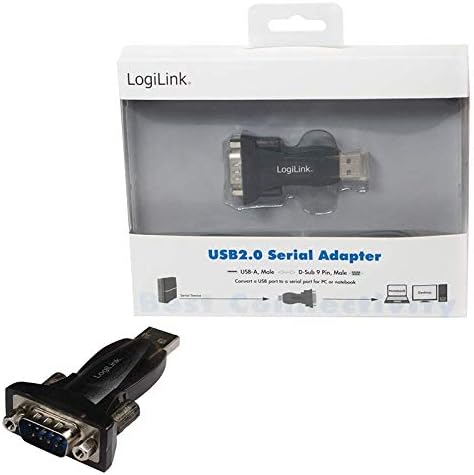
Image: Connection diagram. A serial device connects to the USB to serial adapter, which then connects to either a notebook or a desktop computer.
Important Note: Installing the adapter before the drivers may lead to incorrect driver assignment by the operating system, requiring manual uninstallation and reinstallation. Always install drivers first.
Operating Instructions
Once the adapter is installed and recognized by your system, you can use it to communicate with your serial devices. The process typically involves configuring the COM port settings within your application or device software.
- Identify COM Port: As verified in the Setup section, note the COM port number assigned to the LogiLink adapter in Device Manager.
- Configure Application: Open the software or application that communicates with your serial device. In its settings or preferences, select the identified COM port.
- Match Serial Parameters: It is critical that the serial communication parameters (Baud Rate, Data Bits, Parity, Stop Bits, Flow Control) in your application match those of your serial device. Refer to your serial device's manual for its specific settings.
- Initiate Communication: Once settings are matched, initiate communication from your application.
Example: If your serial device requires a Baud Rate of 9600, 8 Data Bits, No Parity, 1 Stop Bit, and No Flow Control, these exact settings must be configured in your software for the selected COM port.
Maintenance
The LogiLink AU0002E adapter requires minimal maintenance. Follow these guidelines to ensure its longevity:
- Keep the adapter clean and free from dust. Use a soft, dry cloth for cleaning.
- Avoid exposing the adapter to extreme temperatures, humidity, or direct sunlight.
- Do not bend or twist the adapter excessively, especially near the connectors, to prevent internal damage.
- Store the adapter in a safe place when not in use to prevent physical damage.
Troubleshooting
If you encounter issues with your LogiLink AU0002E adapter, refer to the following troubleshooting steps:
- Adapter Not Recognized / Driver Issues:
- Ensure drivers were installed before connecting the adapter. If not, disconnect the adapter, uninstall any existing drivers from Device Manager, restart your computer, and then reinstall the correct drivers before reconnecting.
- Try a different USB port on your computer.
- Download the latest drivers from the LogiLink website.
- No Communication with Serial Device:
- Verify that the correct COM port is selected in your application. Check Device Manager for the assigned COM port number.
- Confirm that all serial communication parameters (Baud Rate, Data Bits, Parity, Stop Bits, Flow Control) in your application exactly match those required by your serial device. This is a common cause of communication failure.
- Ensure the serial device is properly connected to the adapter and powered on.
- Test with a different serial cable if possible.
- Adapter Feels Loose in USB Port:
- Some users report the adapter being bulky. If it obstructs adjacent ports or feels unstable, consider using a short USB extension cable (if not included, one can be purchased separately) to provide more flexibility and reduce strain on the USB port.
If these steps do not resolve the issue, please contact LogiLink technical support or your retailer for further assistance.
Specifications
| Model Number | AU-0002E |
| Connector Type (USB) | USB-A Male |
| Connector Type (Serial) | D-Sub 9-pin Male (RS232) |
| USB Standard | USB 2.0 (backward compatible with USB 1.1) |
| Data Transfer Rate | Up to 1 Mbps |
| Operating System Support | Windows 7/8/10 and later (driver dependent) |
| Color | Black |
| Dimensions (L x W x H) | 6 x 4 x 2.3 cm (approximately) |
| Weight | 20 Grams (approximately) |
Warranty and Support
LogiLink products are designed for reliability and performance. This product is covered by a limited warranty against defects in materials and workmanship. The specific terms and duration of the warranty may vary by region and retailer.
For warranty claims, technical support, or further inquiries, please:
- Refer to the warranty information provided with your purchase.
- Visit the official LogiLink website for support resources, FAQs, and driver downloads.
- Contact your retailer for assistance.
Please have your product model number (AU-0002E) and proof of purchase ready when contacting support.


