
Introduction
This manual provides essential instructions for setting up, operating, maintaining, and troubleshooting your Sony KDL-32W655A 32-inch Full HD Smart TV. Please read this manual thoroughly before using your television to ensure proper and safe operation. Keep this manual for future reference.

Figure 1: Sony KDL-32W655A Smart TV (Front View)
Safety Information
Always observe the following safety precautions when using your television:
- Do not block ventilation openings. Ensure adequate space around the TV for proper airflow.
- Do not place the TV on an unstable cart, stand, tripod, bracket, or table.
- Protect the power cord from being walked on or pinched.
- Unplug the TV during lightning storms or when unused for long periods.
- Refer all servicing to qualified service personnel.
Setup
1. Unpacking
Carefully remove the TV and all accessories from the packaging. Retain the packaging materials for potential future transport or service.
2. Stand Assembly
Attach the desktop stand to the television. Ensure all screws are securely fastened. Refer to the diagram below for proper assembly.

Figure 2: TV with Desktop Stand Attached
Alternatively, the TV can be wall-mounted using a compatible VESA wall mount (sold separately). Consult a professional for wall-mounting installation.
3. Connecting Peripherals
Connect your external devices to the TV's ports. Ensure the TV is unplugged before making any connections.
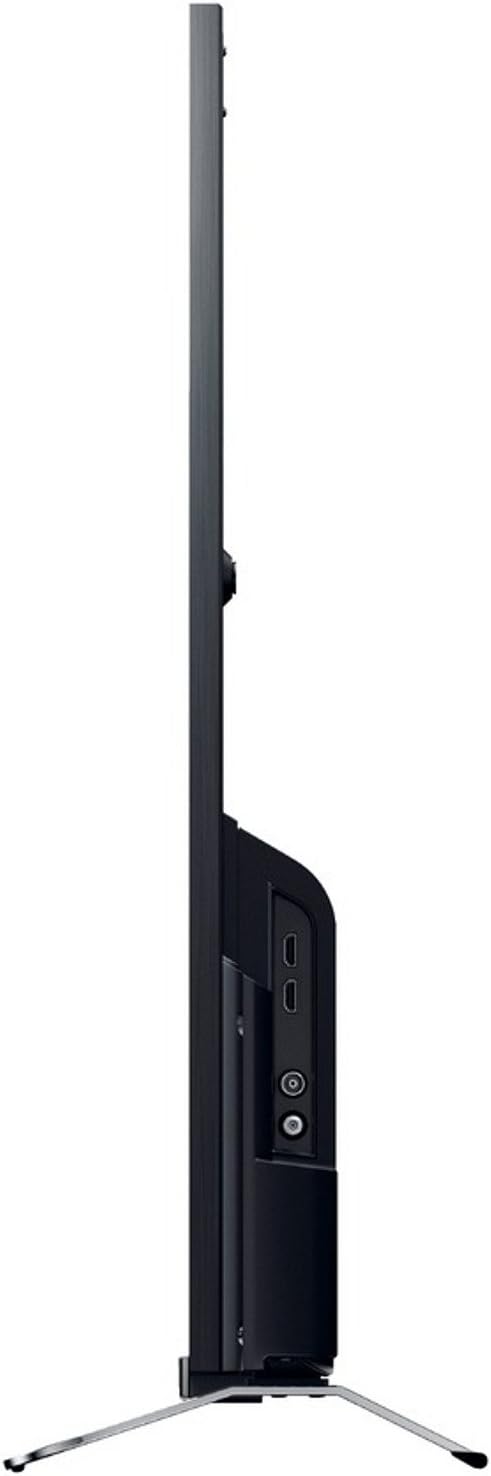
Figure 3: Side View with Connection Ports
- Power: Connect the power cord to the AC inlet on the TV and then to a wall outlet.
- HDMI: Use an HDMI cable to connect devices like Blu-ray players, game consoles, or set-top boxes to the HDMI 1 or HDMI 2 ports.
- USB: Connect USB storage devices for media playback or DVR functionality to the USB 2.0 port.
- Ethernet (LAN): For a wired internet connection, connect an Ethernet cable to the LAN port.
- Antenna/Cable: Connect your antenna or cable TV feed to the RF input.
- Component Video (YPbPr/YCbCr): Connect older video devices using component cables to the dedicated input.
- Composite Video: Connect legacy video devices using a composite video cable to the dedicated input.
- Digital Audio Out (Optical): For connecting to a soundbar or home theater system with an optical input.
- Headphone: Connect headphones for private listening.
4. Initial Setup Wizard
After connecting all cables, plug in the TV and press the power button on the remote control. The initial setup wizard will guide you through:
- Language selection.
- Region/Country selection.
- Channel scanning (for DVB-C, DVB-S, DVB-T).
- Network setup (Wi-Fi or wired Ethernet).
- Time and date settings.
Operating Instructions
1. Remote Control Functions
The included remote control allows you to access all TV functions. Insert the provided batteries into the remote control, observing polarity.
- Power Button: Turns the TV on or off.
- Channel Up/Down: Changes TV channels.
- Volume Up/Down: Adjusts the sound level.
- Input/Source: Selects the input source (HDMI, USB, etc.).
- Home/Smart TV: Accesses the Smart TV interface.
- Navigation Buttons (Arrows, Enter): Navigates menus and confirms selections.
- Back/Return: Returns to the previous screen or menu.
- Options: Displays context-sensitive options.
2. Smart TV Features
Your Sony KDL-32W655A is equipped with Smart TV capabilities, allowing access to internet content and applications.
- Internet Connection: Connect to your home network via Wi-Fi or Ethernet. Navigate to the Network Settings menu to configure.
- Internet TV: Access various online streaming services and content directly from your TV.
- Applications: The TV supports lifestyle applications such as Skype. An Opera browser is also available for web browsing.
- DLNA Certified: Stream media from compatible devices on your home network.
3. Media Playback and Recording
- USB Media Playback: Insert a USB storage device into the USB port. The TV will detect the device, allowing you to browse and play supported media files (JPG, MPO for images; 3GP, AVCHD, AVI, M-JPEG, MKV, MOV, MP4, MPEG1, MPEG2, TS, XVID for video).
- Digital Video Recorder (DVR): Record digital TV broadcasts to a connected USB hard drive. Consult the on-screen menu for DVR setup and scheduling.
4. Picture and Sound Settings
Customize your viewing and listening experience through the TV's settings menus.
- Picture Modes: Select from predefined picture modes such as Cinema, Game, Photo, Sports, and Vivid to optimize display settings for different content types.
- Motionflow 200 Hz: This technology enhances motion clarity for fast-moving scenes.
- Sound Settings: Adjust bass, treble, and other audio parameters using the 6-band equalizer. The TV features 2 built-in speakers with a total RMS power of 10W.
- Screen Format: Adjust the aspect ratio (16:9, 14:9, Auto, Zoom) to fit your content.
5. Additional Features
- Electronic Program Guide (EPG): View upcoming TV programs and schedule recordings.
- Picture-in-Picture (PiP): Display two different sources simultaneously.
- Sleep Timer/On/Off Timer: Set the TV to automatically turn off or on at specified times.
Maintenance
1. Cleaning the TV
- Screen: Gently wipe the screen with a soft, lint-free cloth. For stubborn marks, slightly dampen the cloth with water or a specialized screen cleaner. Do not spray liquid directly onto the screen.
- Cabinet: Wipe the TV cabinet with a soft, dry cloth. Avoid using abrasive cleaners or solvents.
- Ventilation: Ensure the ventilation openings on the back of the TV remain clear of dust and obstructions.
2. Software Updates
Periodically check for software updates to ensure your TV has the latest features and performance improvements. Updates can usually be performed via the network connection in the TV's settings menu.
Troubleshooting
Before contacting customer support, try the following solutions for common issues:
| Problem | Possible Cause / Solution |
|---|---|
| No Power |
|
| No Picture / Black Screen |
|
| No Sound |
|
| Cannot Connect to Wi-Fi |
|
| Remote Control Not Working |
|
If the problem persists after trying these steps, please contact Sony customer support.
Specifications
| Feature | Detail |
|---|---|
| Model | KDL-32W655A |
| Screen Size | 32 inches (81.3 cm) |
| Display Technology | LED |
| Resolution | Full HD (1920 x 1080 pixels) |
| Motion Enhancement | Motionflow 200 Hz |
| Aspect Ratio | 16:9 |
| Smart TV Features | Yes (Internet TV, Skype, Opera Browser, DLNA) |
| Wi-Fi | Yes |
| Ethernet (LAN) | 1 port |
| HDMI Ports | 2 |
| USB 2.0 Ports | 1 |
| SCART Ports | 1 |
| Component Video Input | 1 |
| Composite Video Input | 1 |
| RF Input | 1 |
| Digital Audio Output (Optical) | 1 |
| Headphone Output | 1 |
| Tuner Type | Analog & Digital (DVB-C, DVB-S, DVB-S2, DVB-T) |
| Speakers | 2 (Built-in) |
| RMS Rated Power | 10 W |
| Power Consumption (Operating) | 41 W |
| Power Consumption (Standby) | 0.45 W |
| Annual Energy Consumption | 57 kWh |
| Energy Efficiency Class | A |
| Dimensions (W x H x D) without stand | 725 mm x 438 mm x 69 mm |
| Weight without stand | 6.8 kg |
| Weight with stand | 7.8 kg |
| Color | Black |
Note: Specifications are subject to change without notice.
Warranty and Support
Your Sony KDL-32W655A television comes with a limited warranty. Please refer to the warranty card included in your product packaging for detailed terms and conditions, including the warranty period and coverage.
For technical assistance, product registration, or to find authorized service centers, please visit the official Sony support website or contact Sony customer service in your region. Keep your purchase receipt and product serial number handy when contacting support.
Online Support: https://www.sony.com/electronics/support


