
1. Introduction
This manual provides essential information for the proper setup, operation, and maintenance of your Symbol DS3578 Wireless Barcode Scanner. Please read this guide thoroughly before using the device to ensure optimal performance and safety.
2. Safety Information
- Do not expose the scanner or cradle to extreme temperatures, moisture, or corrosive substances.
- Avoid direct eye exposure to the scanner's light source.
- Use only manufacturer-approved accessories and power supplies.
- Do not attempt to open or modify the device. Refer all servicing to qualified personnel.
- Dispose of batteries according to local regulations.
3. Package Contents
Verify that your package contains the following items:
- Symbol DS3578 Wireless Barcode Scanner
- Charging/Communication Cradle
- USB Communication Cable
- Power Supply (if included with your model)
4. Setup
4.1. Connecting the Cradle
- Connect the USB communication cable to the port on the back of the charging cradle.
- Plug the other end of the USB cable into an available USB port on your host computer.
- If using an external power supply, connect it to the cradle's power input and then to a power outlet.
4.2. Charging the Scanner
- Place the Symbol DS3578 scanner into the charging cradle. Ensure it is seated correctly.
- The scanner's charging indicator light will illuminate, typically amber or green, to confirm charging.
- Allow the scanner to charge fully before initial use. A full charge may take several hours.
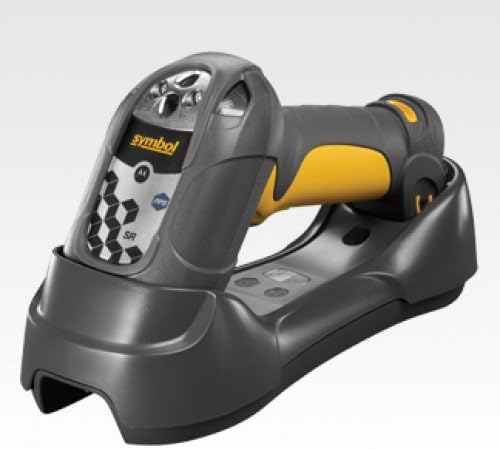
This image displays the Symbol DS3578 wireless barcode scanner, a gray and yellow handheld device, securely placed in its matching gray charging and communication cradle. The scanner features a prominent 'Symbol' logo and various indicator lights on its top surface.
4.3. Pairing the Scanner
The DS3578 scanner typically pairs automatically with its cradle when placed in it for the first time after connection to a host. If manual pairing is required:
- Ensure the cradle is connected to the host computer and powered on.
- Scan the pairing barcode provided in the quick start guide or on the cradle itself (if present).
- The scanner will emit a series of beeps or an indicator light will change to confirm successful pairing.
5. Operating Instructions
5.1. Scanning Barcodes
- Point the scanner's window at the barcode you wish to scan.
- Press and hold the trigger button. A red aiming pattern will appear.
- Center the aiming pattern over the barcode.
- Once the barcode is successfully read, the scanner will emit a 'good read' beep and the LED indicator will flash green.
- Release the trigger button.
5.2. Indicator Lights and Sounds
- Green LED: Good read confirmation.
- Amber LED: Charging in progress.
- Red LED: Low battery or error.
- Beeps: Vary depending on operation (good read, error, pairing confirmation). Refer to the full product reference guide for a complete list of audible indicators.
6. Maintenance
6.1. Cleaning the Scanner
To maintain optimal scanning performance, keep the scanner's window clean.
- Use a soft, lint-free cloth dampened with water or a mild glass cleaner.
- Do not use abrasive cleaners or solvents.
- Ensure the scanner is powered off before cleaning.
6.2. Battery Care
- Charge the battery regularly, even if the scanner is not in constant use.
- Avoid fully discharging the battery frequently, as this can reduce its lifespan.
- Store the scanner in a cool, dry place when not in use for extended periods.
7. Troubleshooting
| Problem | Possible Cause | Solution |
|---|---|---|
| Scanner not powering on | Low or depleted battery | Place scanner in cradle to charge. Ensure cradle is powered. |
| Scanner not reading barcodes | Barcode damaged or poorly printed; Scanner window dirty; Incorrect symbology enabled | Try scanning a different barcode. Clean scanner window. Refer to the full manual for symbology settings. |
| Scanner not connecting to host | Cradle not connected; Scanner not paired; Driver issues | Check USB cable connection. Re-pair scanner. Verify host computer drivers are installed. |
| No 'good read' beep | Scanner settings muted; Barcode not read successfully | Check scanner configuration for audio settings. Ensure barcode is properly aimed and read. |
For more detailed troubleshooting, consult the comprehensive product reference guide or contact customer support.
8. Specifications
- Product Dimensions: 7.09 x 6.3 x 8.27 inches
- Item Weight: 1.32 pounds
- Connectivity Technology: Wireless
- Power Source: Battery Powered
- Compatible Devices: Desktop, Laptop
- Manufacturer: SYMBOL
9. Warranty and Support
For information regarding warranty coverage, technical support, or service, please refer to the documentation provided at the time of purchase or visit the official Symbol (now Zebra Technologies) support website. You may also contact your reseller for assistance.


