
1. Introduction
This manual provides comprehensive instructions for the setup, operation, and maintenance of your D-Link DSL-2750B Wireless N ADSL2+ Modem Router. This device integrates an ADSL2+ modem with a high-speed Wireless N router, enabling internet access and local network connectivity for your home or small office.
2. Package Contents
Verify that your package contains the following items:
- D-Link DSL-2750B Wireless N ADSL2+ Modem Router
- Power Adapter
- Ethernet Cable (RJ-45)
- Telephone Cable (RJ-11)
- Quick Installation Guide (This document serves as a detailed manual)
3. Product Overview
The D-Link DSL-2750B combines an ADSL modem and a wireless router into a single device. It supports Wireless N technology for fast wireless speeds and includes multiple Ethernet ports for wired connections.
3.1 Key Features
- Supports 802.11b/g/n wireless standards, offering speeds up to 300 Mbps (802.11n).
- Operates within the 2.4 GHz to 2.484 GHz frequency range.
- Equipped with 4 Fast Ethernet LAN ports for reliable wired connections.
- Features 1 WAN ADSL port for direct connection to ADSL lines.
- Wireless N 300 Technology provides up to 6 times faster performance than Wireless G.
- Includes a WPS (Wi-Fi Protected Setup) button for simplified, one-touch wireless encryption.
3.2 Device Layout
Below is an image of the D-Link DSL-2750B modem router, highlighting its physical appearance and important labels.
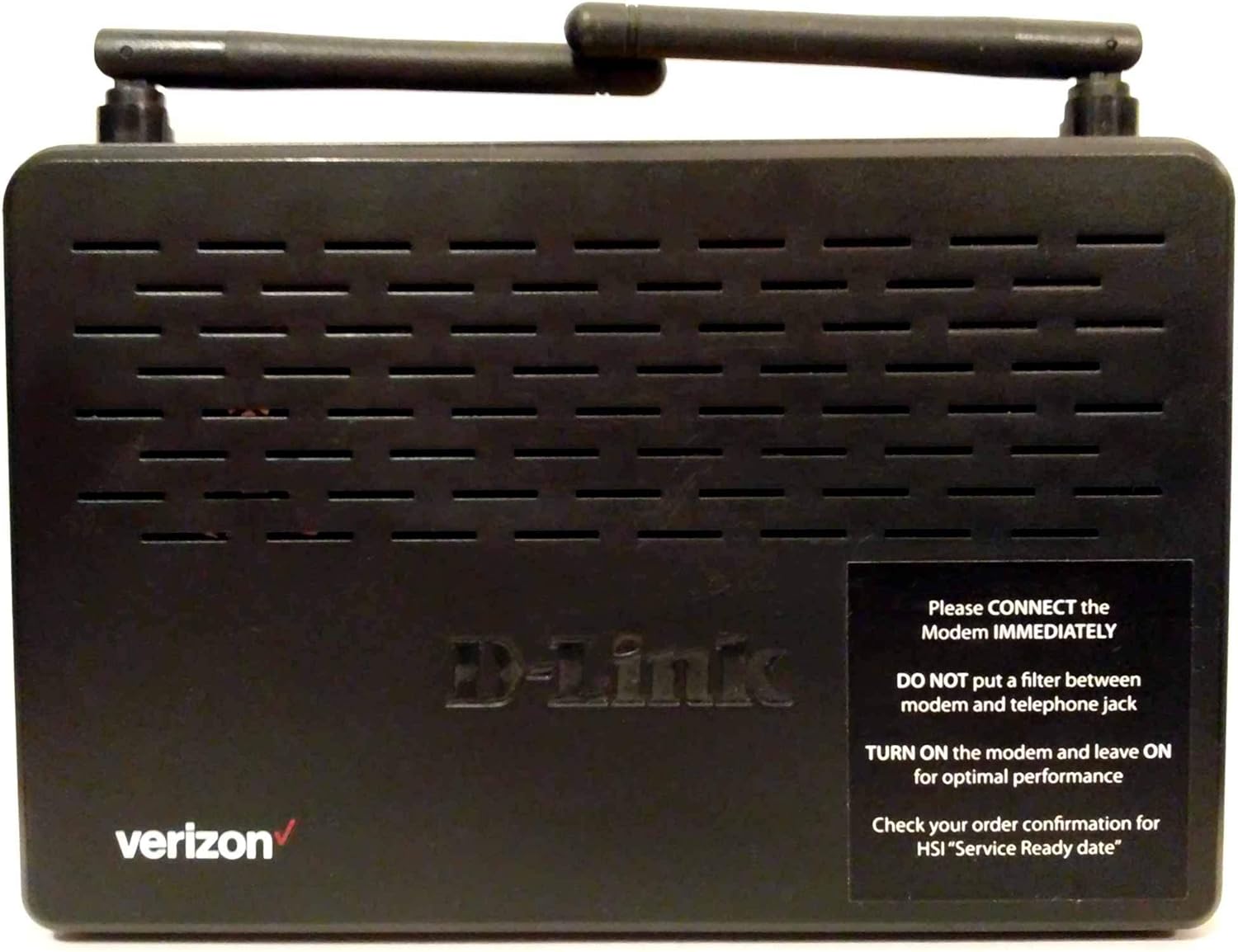
Image Description: A black D-Link DSL-2750B Wireless N ADSL2+ Modem Router. The top surface features ventilation grilles and two external antennas. The front left corner displays the "verizon" logo in red. The center of the device has the "D-Link" logo embossed. A black sticker on the right side provides important setup instructions:
- "Please CONNECT the Modem IMMEDIATELY"
- "DO NOT put a filter between modem and telephone jack"
- "TURN ON the modem and leave ON for optimal performance"
- "Check your order confirmation for HSI 'Service Ready date'"
4. Setup Guide
Follow these steps to set up your D-Link DSL-2750B modem router and establish an internet connection.
4.1 Physical Connection
- Connect to Telephone Line: Connect one end of the telephone cable (RJ-11) to the ADSL port on the back of the DSL-2750B. Connect the other end to your telephone wall jack. Important: Ensure no additional filter is placed directly between the modem's ADSL port and the telephone wall jack, as this can interfere with the connection.
- Connect to Power: Plug the power adapter into the power port on the modem router and then into a standard electrical outlet.
- Power On: Press the Power button (if available) or ensure the device powers on automatically. The Power LED on the front panel should illuminate. Leave the modem on for optimal performance.
- Connect to Computer (Optional for Setup): For initial configuration, connect one end of the Ethernet cable (RJ-45) to any of the LAN ports (1-4) on the modem router and the other end to the Ethernet port on your computer.
- Verify Service Ready Date: Before expecting internet connectivity, confirm your High-Speed Internet (HSI) "Service Ready date" with your internet service provider (e.g., Verizon).
4.2 Initial Configuration
Once physically connected and powered on, you may need to configure the modem router via a web browser.
- Access Web Interface: Open a web browser on a computer connected to the router (either wired or wirelessly). Type the default IP address (e.g.,
192.168.1.1or192.168.0.1) into the address bar and press Enter. Refer to the label on the bottom of your device for the exact IP address and login credentials. - Login: Enter the default username and password. Common defaults are
adminfor both username and password. - Run Setup Wizard: Most D-Link routers include a setup wizard that will guide you through configuring your ADSL connection settings (VPI/VCI, encapsulation type) and wireless network (SSID, password). Follow the on-screen prompts.
- Save Settings: After completing the wizard, save your settings and restart the router if prompted.
5. Operating Instructions
5.1 Wireless Network Connection
To connect devices wirelessly:
- Find Network Name (SSID): On your wireless device (laptop, smartphone), search for available Wi-Fi networks. The default network name (SSID) is usually printed on a sticker on the bottom of your router.
- Enter Password: Select your network name and enter the wireless password (WPA/WPA2 key), also found on the router's sticker.
- Connect: Your device should now connect to the wireless network.
5.2 Wired Network Connection
For wired devices, simply connect an Ethernet cable from the device to any of the available LAN ports (1-4) on the back of the DSL-2750B.
5.3 Using WPS (Wi-Fi Protected Setup)
The WPS button allows for a quick and secure wireless connection without manually entering the password.
- Press the WPS button on your DSL-2750B router.
- Within two minutes, activate WPS on your wireless client device (e.g., press the WPS button on a wireless adapter or select the WPS option in its software).
- The devices will automatically establish a secure connection.
6. Maintenance
6.1 Firmware Updates
Periodically check the D-Link support website for firmware updates for your DSL-2750B model. Firmware updates can improve performance, add features, and fix security vulnerabilities. Follow the instructions provided with the firmware download carefully.
6.2 Factory Reset
A factory reset restores the router to its original default settings. This can be useful for troubleshooting or if you forget your login password.
- With the router powered on, use a paperclip or a similar pointed object to press and hold the Reset button (usually located in a small pinhole on the back panel) for about 10-15 seconds.
- Release the button. The router will restart with factory default settings. You will need to reconfigure your internet and wireless settings.
7. Troubleshooting
If you encounter issues with your D-Link DSL-2750B, refer to the following common problems and solutions:
| Problem | Solution |
|---|---|
| No Power LED | Ensure the power adapter is securely connected to the router and a working electrical outlet. Try a different outlet. |
| No DSL/Internet Connection |
|
| Cannot Connect to Wi-Fi |
|
| Slow Internet Speed |
|
8. Specifications
Detailed technical specifications for the D-Link DSL-2750B Wireless N ADSL2+ Modem Router:
| Feature | Detail |
|---|---|
| Brand | D-Link |
| Model Name | DSL-2750B |
| Item Model Number | DSL-2750B |
| Wireless Standard | 802.11bgn |
| Frequency Band Class | Single-Band (2.4 GHz) |
| Connectivity Technology | Wireless, Wired (ADSL, Ethernet) |
| Special Feature | WPS (Wi-Fi Protected Setup) |
| Compatible Devices | Personal Computer and other network-enabled devices |
| Recommended Uses | Home networking |
| Operating System | D-Link OS |
| Item Weight | 1.05 pounds (approx. 0.48 kg) |
| Package Dimensions | 10.7 x 8.2 x 2.7 inches |
| Manufacturer | D-Link Systems, Inc. |
| Date First Available | March 30, 2013 |
9. Warranty and Support
9.1 Legal Disclaimer
All sales are final. Purchasers must be at least 18 years of age or older. This information is provided for general guidance; specific warranty terms and conditions are provided by the manufacturer at the time of purchase.
9.2 Technical Support
For technical assistance, product registration, or to download the latest firmware and documentation, please visit the official D-Link support website or contact D-Link customer service. Contact information can typically be found on the D-Link website or in the original product packaging.
Manufacturer: D-Link Systems, Inc.


